This article explains how Dialogs work and what they are for.
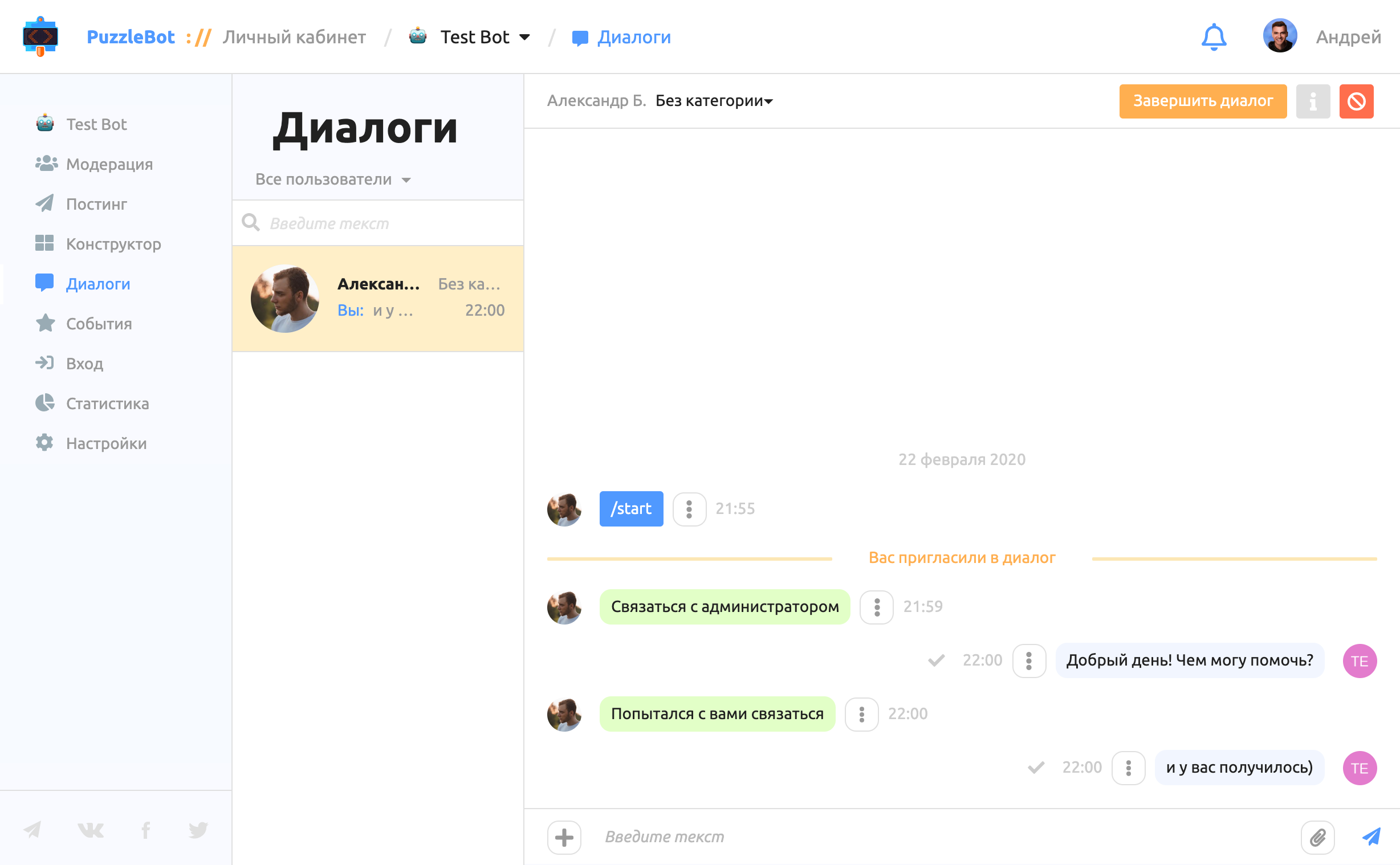
In this section you can:
View users' dialogs with the bot.
View events that have occurred (command calls, scenario launches, variable changes and so on).
Chat with users on behalf of the bot:
- send files;
- reply to messages (quoting them);
- delete messages.Chat in groups on behalf of the bot.
Call commands for a user.
Dialog with an administrator
Besides users' dialogs with the bot, you can start a special mode for a dialog between a user and the bot administrator. In this mode the bot receives all the user's messages and forwards them to the bot owner or to a group (if a management group is connected), and also highlights such dialogs in your puzzlebot account.
How to start a dialog
To let a user invite an administrator to a dialog, use one of two methods:
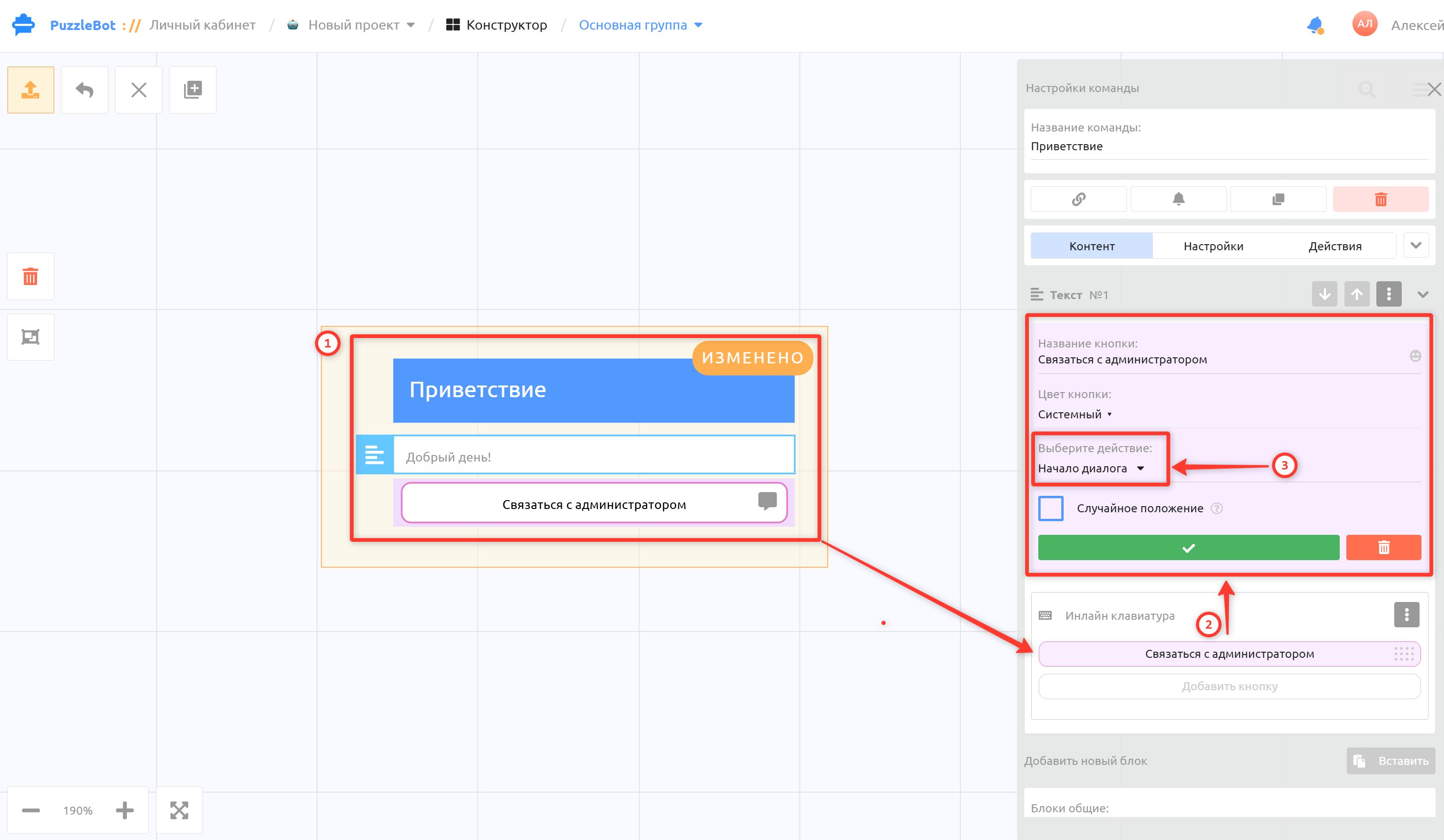
Method 1: in the Constructor, add a button to the command you need and select the "Start dialog" action.
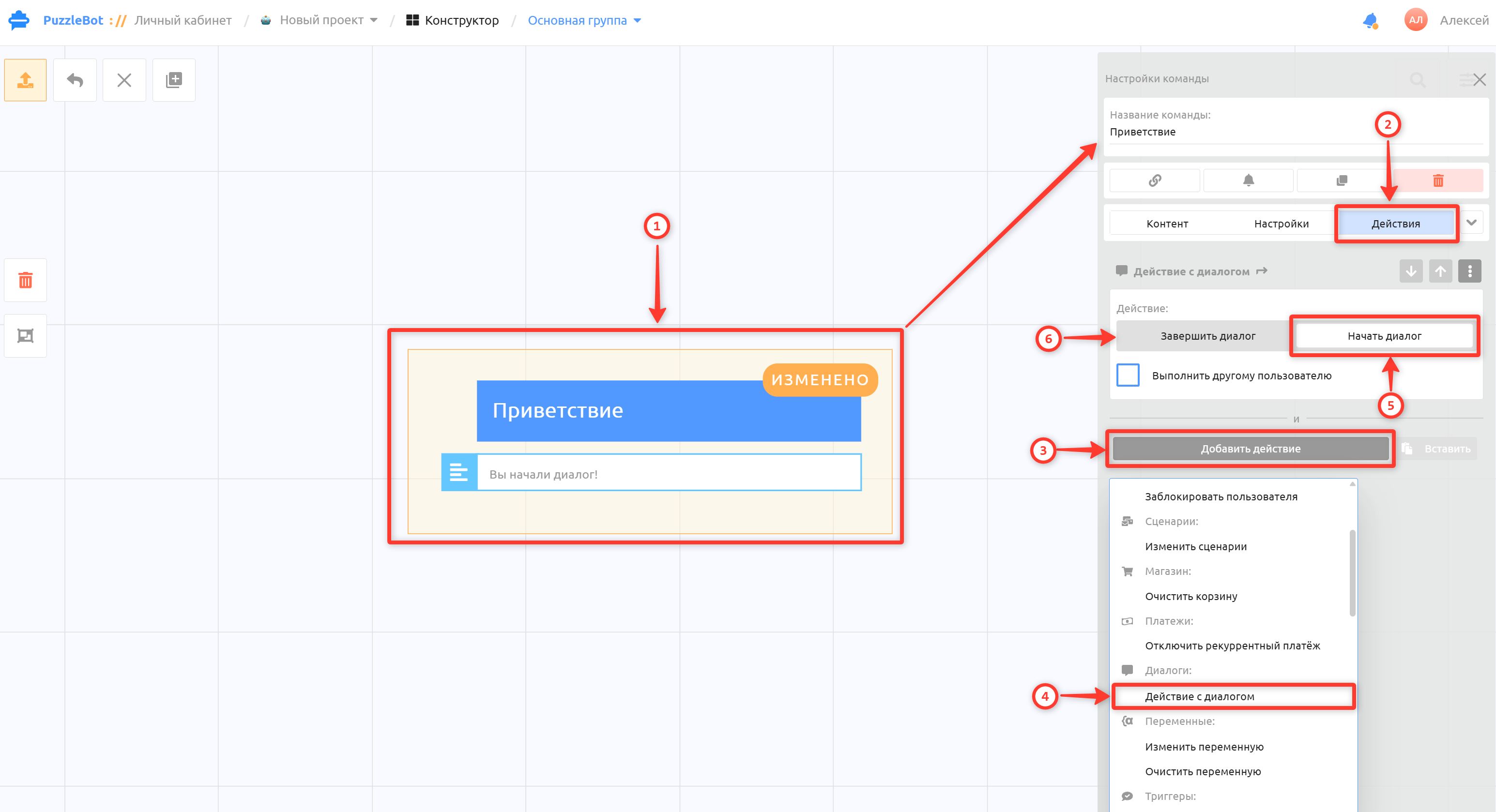
Method 2: in the Constructor, in the command you need, go to Action → Add action → Dialog action → Start dialog.
When the dialog starts, the user receives the message
"You have started a dialog with the bot administrator 🙌".When the dialog ends, the user receives the message
"You have ended the dialog with the bot administrator 👋".
You can change the text of the dialog start and end messages in the Events section. Learn more:
Chatting via your puzzlebot account
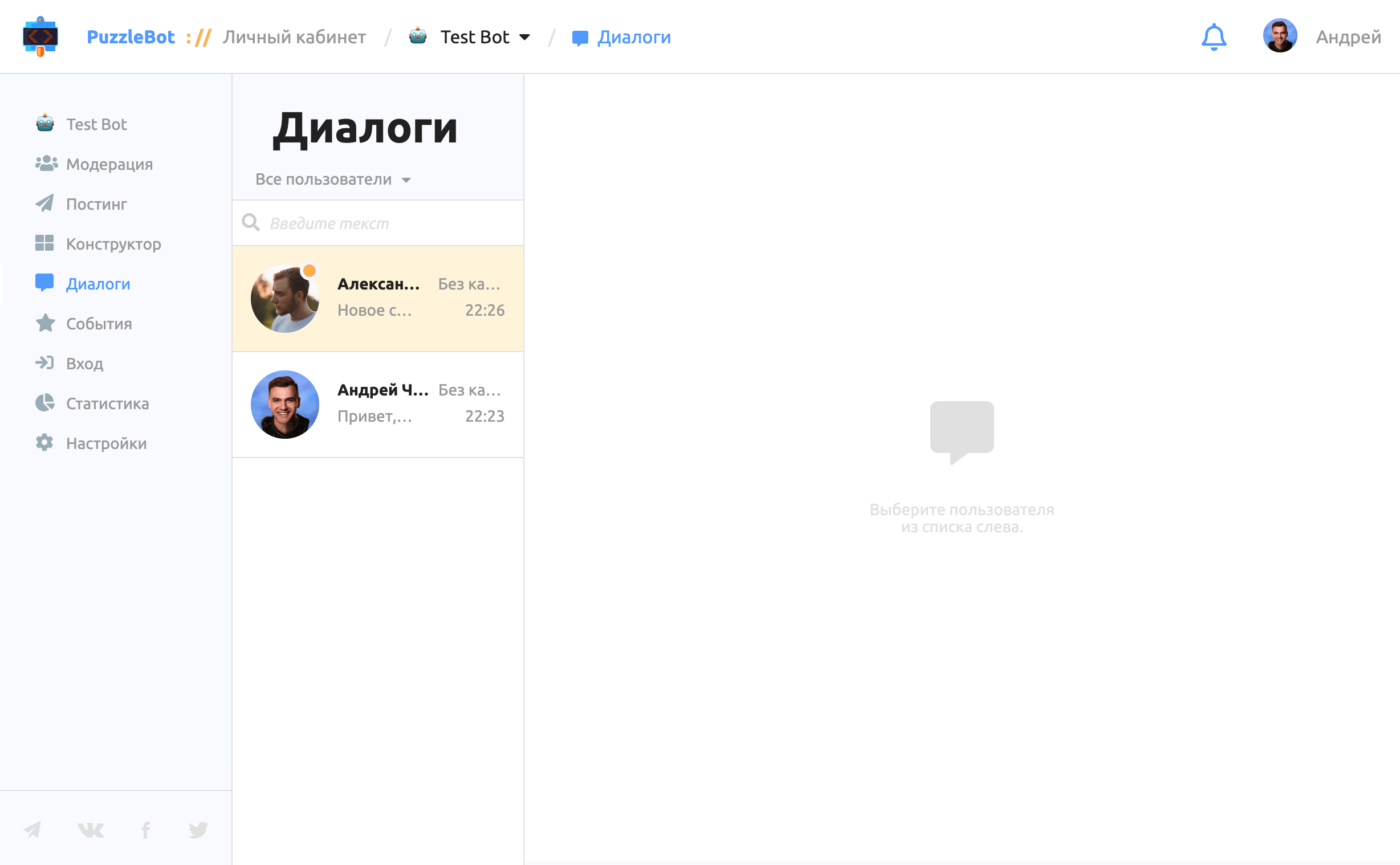
A user with an open (not yet closed) dialog is marked with an orange background, and each new unread message is marked with an orange indicator near the avatar.
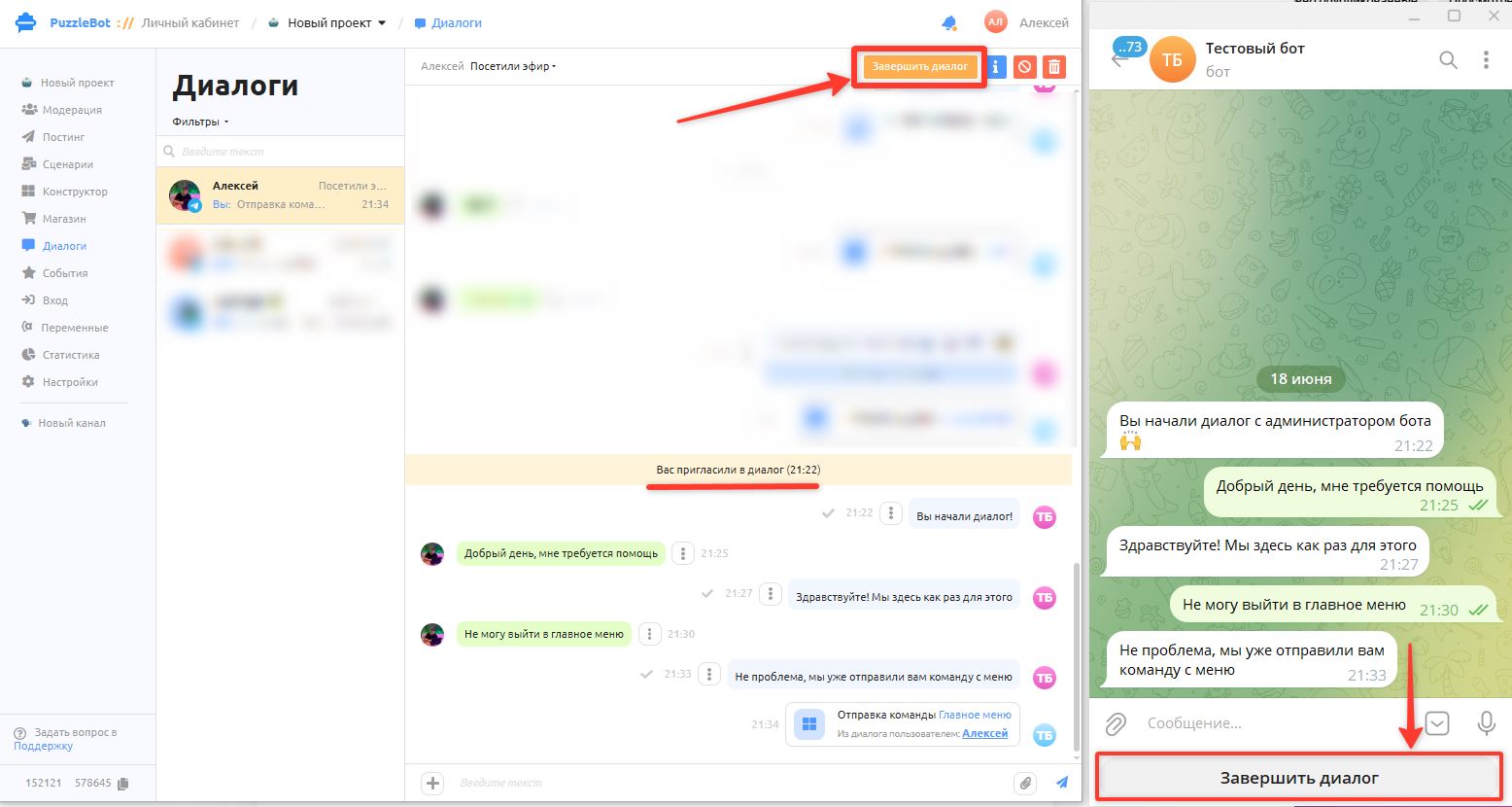
The user, like the administrator, can end the dialog at any time. To do that, they tap the End dialog button, which appears automatically when the dialog starts and is added to all regular keyboards (if a command has no regular keyboard, one is created automatically).
After the dialog ends, new messages are no longer highlighted as unread unless the user starts a dialog again.
You can view the history of a user's conversation with the bot and write to them at any time, even if they didn't invite you to a dialog. Any messages the user sends outside an active dialog are also visible, but such a dialog is not highlighted and you get no notifications.
The active dialog mode with an administrator is also needed if you want to chat directly through Telegram. Learn more: Chatting through the Telegram bot — Active dialogs
Other features of the Dialogs tab:
Viewing user information
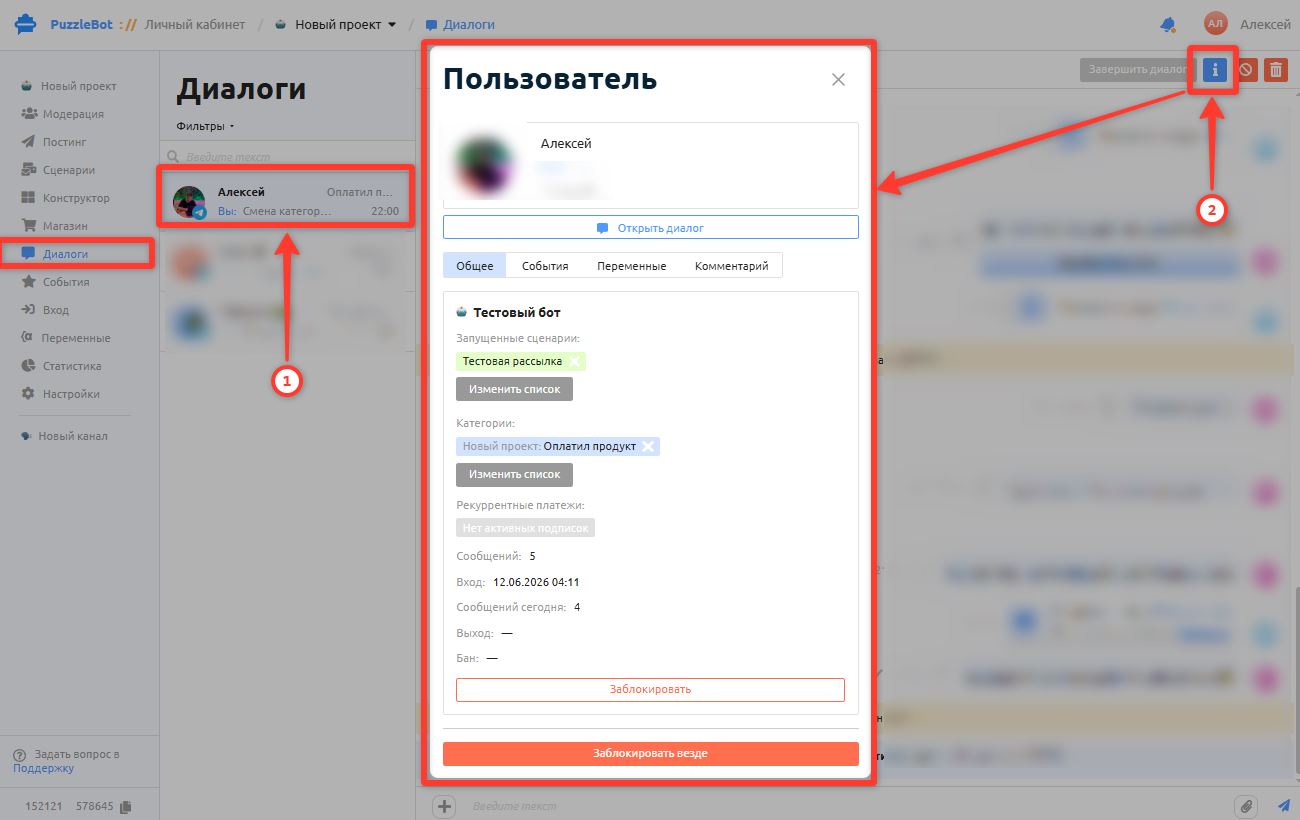
As in the Moderation section, here you can open detailed information about each user, change their category or scenario, or block them in the bot and in resources.
Select a dialog with a user and click the [ ⅰ ] button to open a window with detailed information about the user.
Viewing performed actions
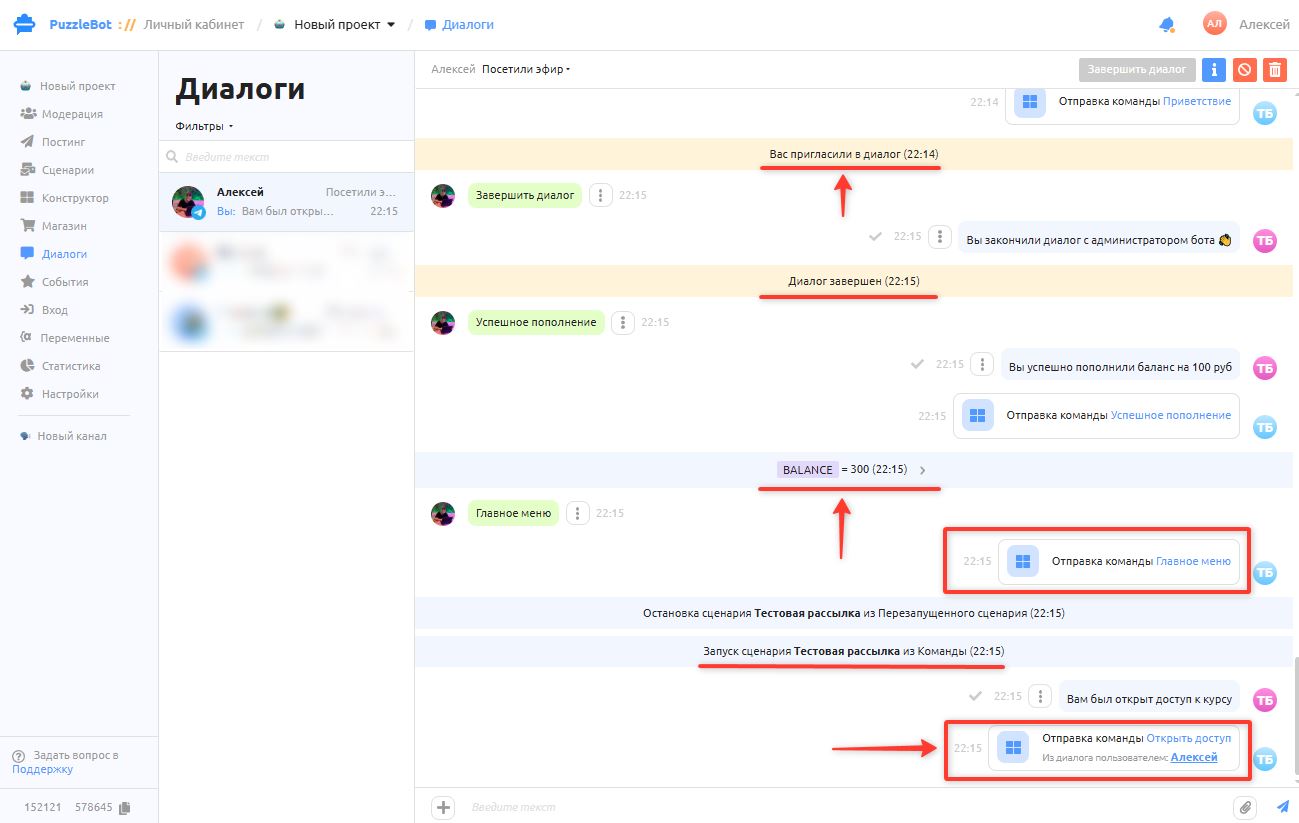
You can see all the command action events that were performed along with command calls: changes of categories and variables, scenario launches and dialogs with an administrator.
Important! The content of called and sent commands is not shown.
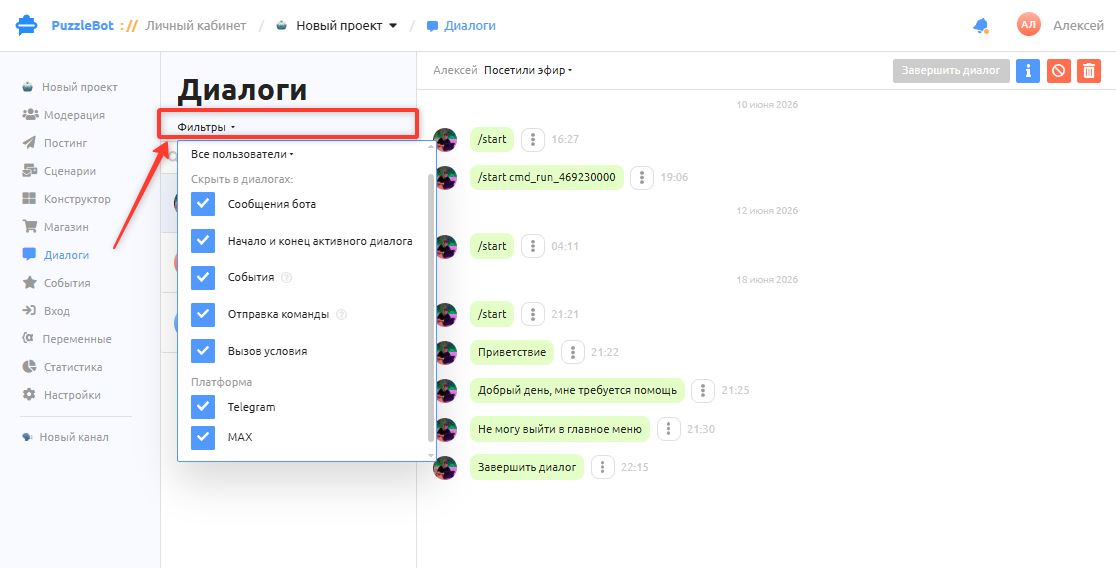
To hide certain events in a dialog, or to show only users with a certain category or platform, click "Filters" at the top of the dialogs and select the checkboxes next to the events you want to hide.
Calling commands for users manually
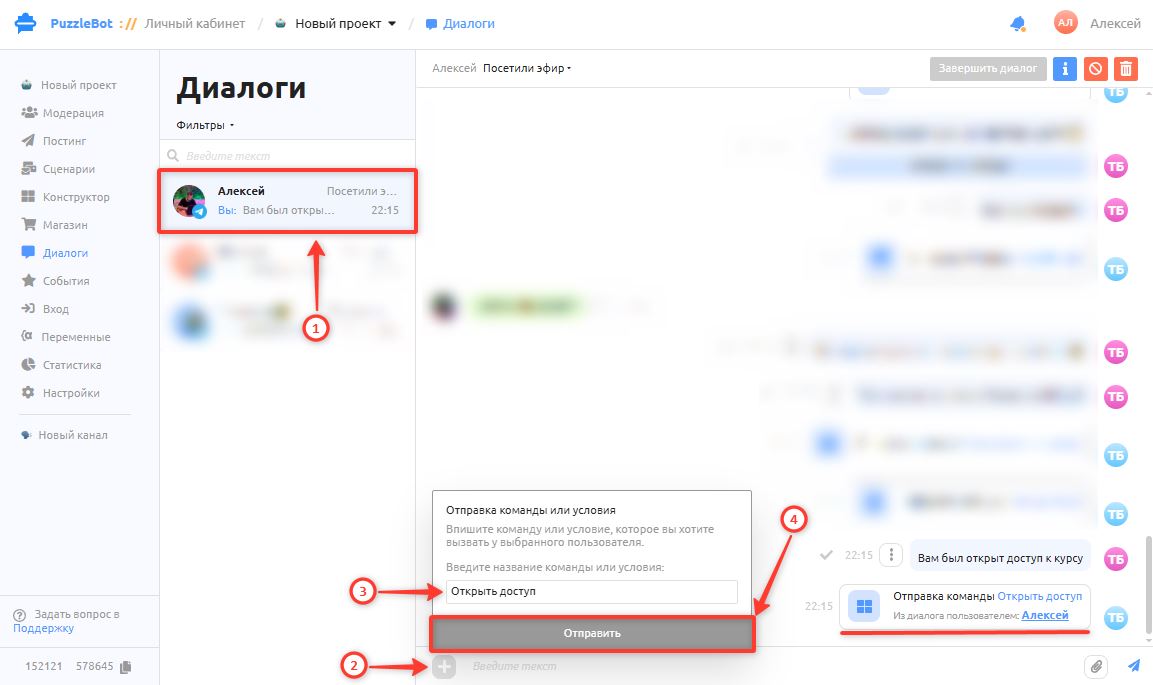
You can send (call) any command you created in the Constructor section to a user, for example to manually grant access to some section. All Actions created in the command are performed along with it.
To send a command:
Select a user in the list of dialogs.
Click the [+] button next to the message input field.
Enter the command name.
Click Send.