This article explains how to create a Digital product using a List.
Digital product — a type of product that, when purchased, sends an item from a list you set up in advance. For example, you can create a list of 10 promo codes, and after each purchase the bot automatically sends one item (a promo code) from the list.
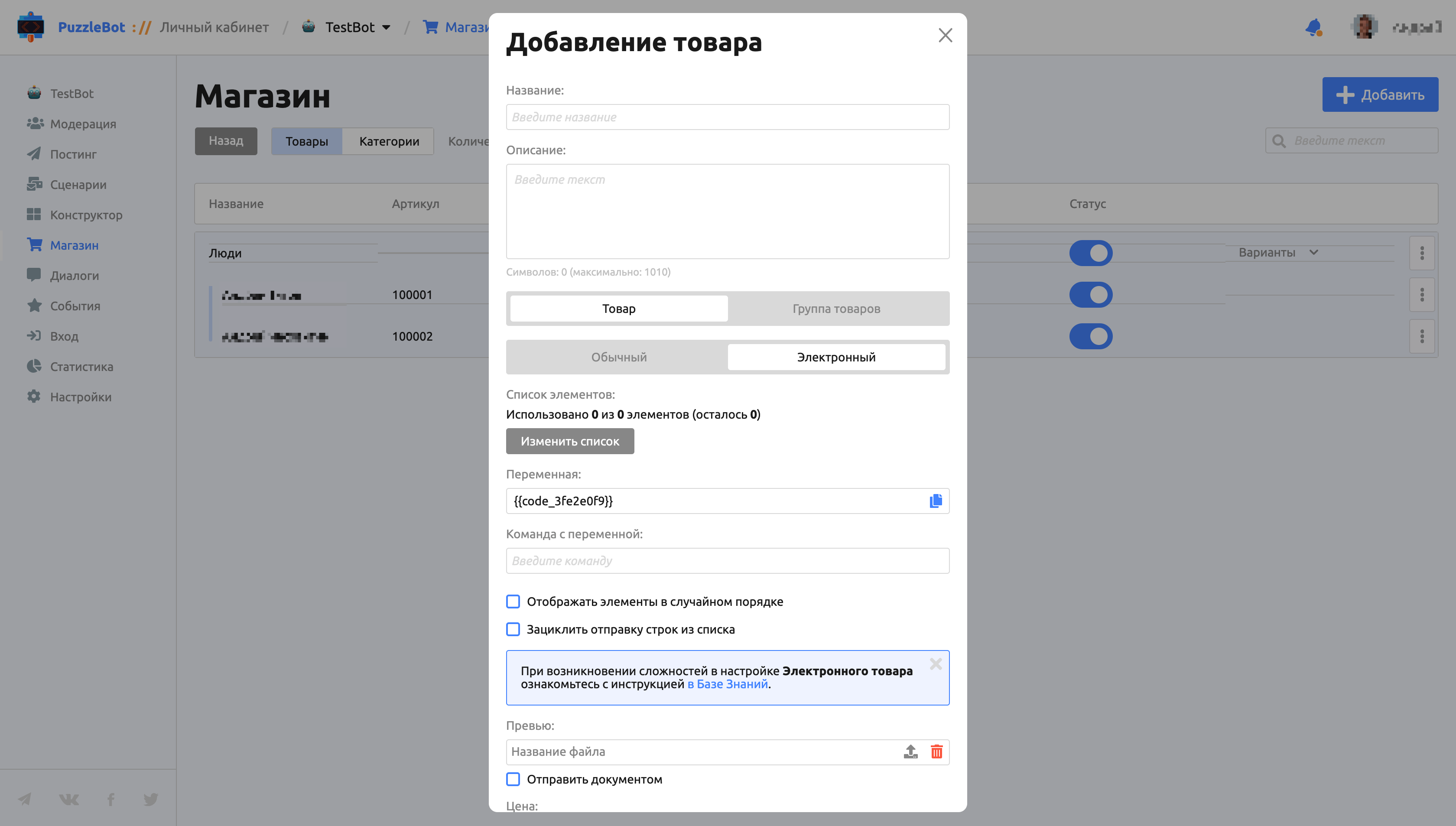
To create a Digital product, go to the Store tab, open the Product list and click the add button in the upper-right corner. In the window that opens, select Digital.
Let's go through the Digital product settings:
Item list — a text list of items that are automatically inserted into the variable. More on this below.
Variable — a phrase that is automatically replaced with an item from the list. Place it in the command.
Command with the variable — the command that is sent automatically once the order is completed.
Important! If the command does not contain the variable, the user will not receive an item from the list.
Important! If the user runs the command with the variable on their own, the item is marked as used.
4. Show items in random order
5. Loop sending of list rows — this option allows list items to be sent again.
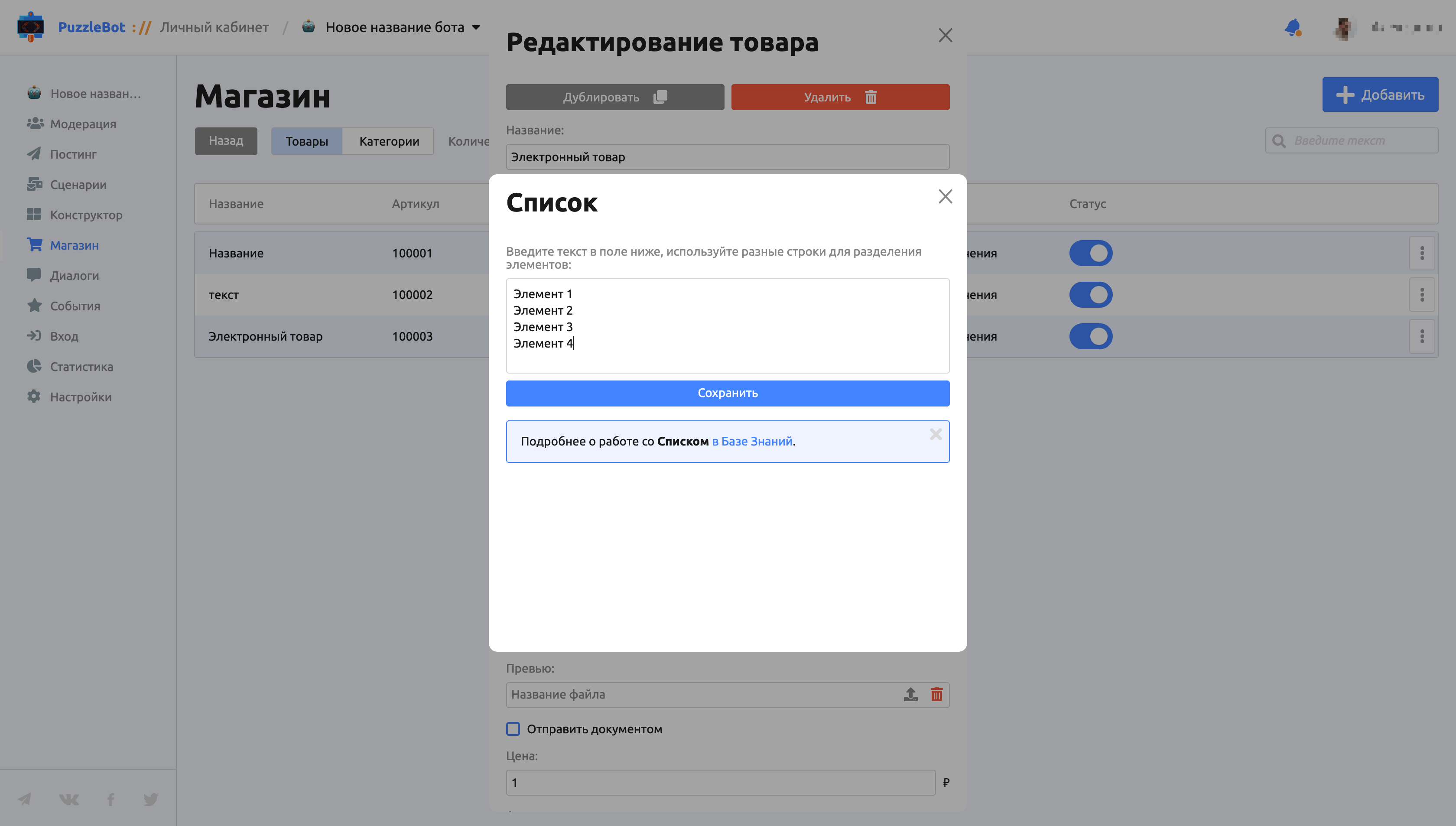
Paste your list of items into the first window. Items are split by line (a new paragraph is a new item).
Important! When pasting a list of items, keep in mind the limit of your plan. Learn more: Plans.
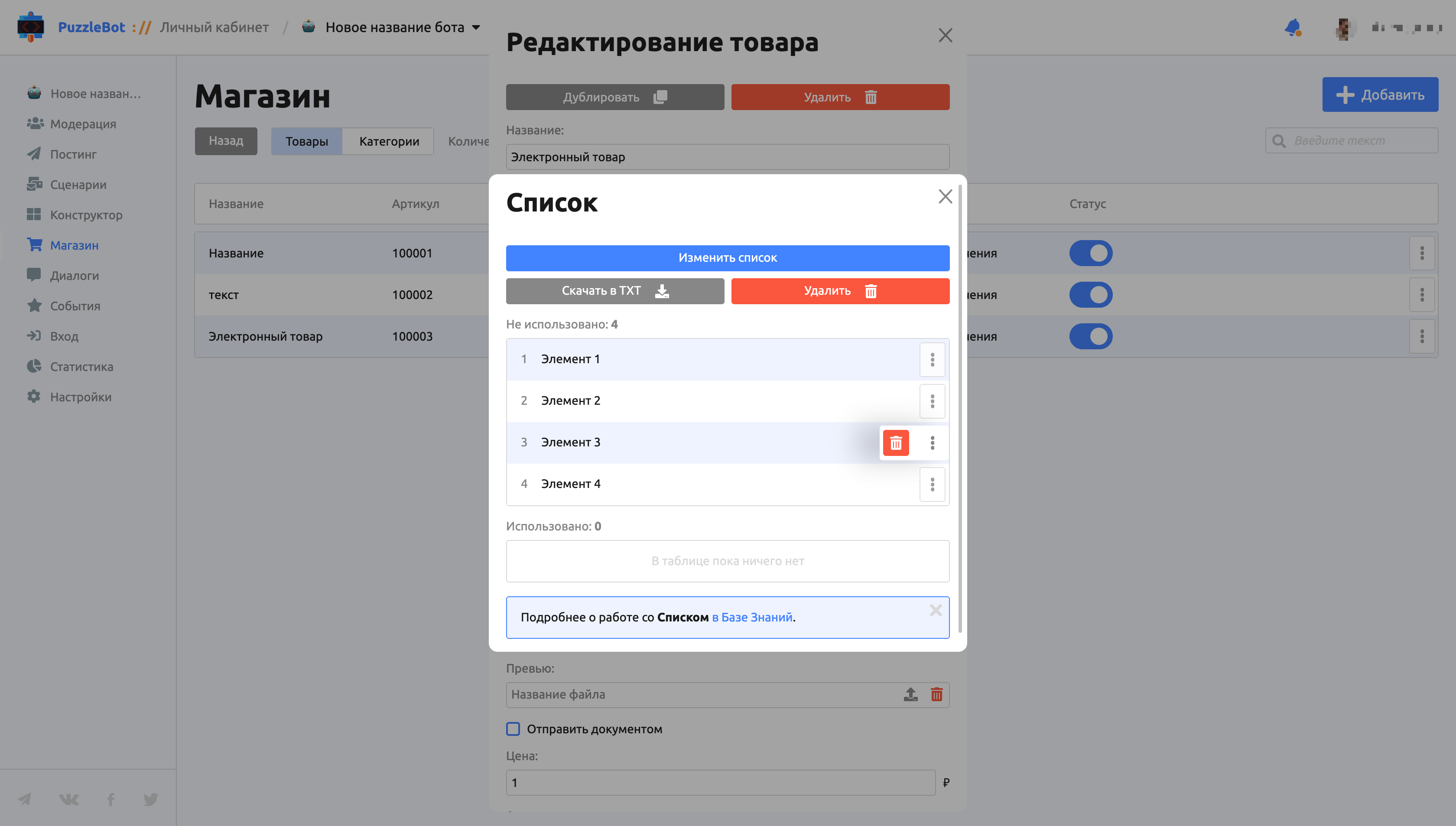
After you save, the list is automatically split into items. The items are shown in two tables:
Unused — items that have not been sent yet.
Used — items that have already been sent.
Let's go through the buttons:
Edit list — opens the editing window for unused items, where you can also add new ones.
Download as TXT — downloads the list as a text file.
Delete — deletes the entire list.
Delete next to an item — deletes that single item.