This article covers what the Condition entity can do and its subtypes: the regular condition and the condition button.
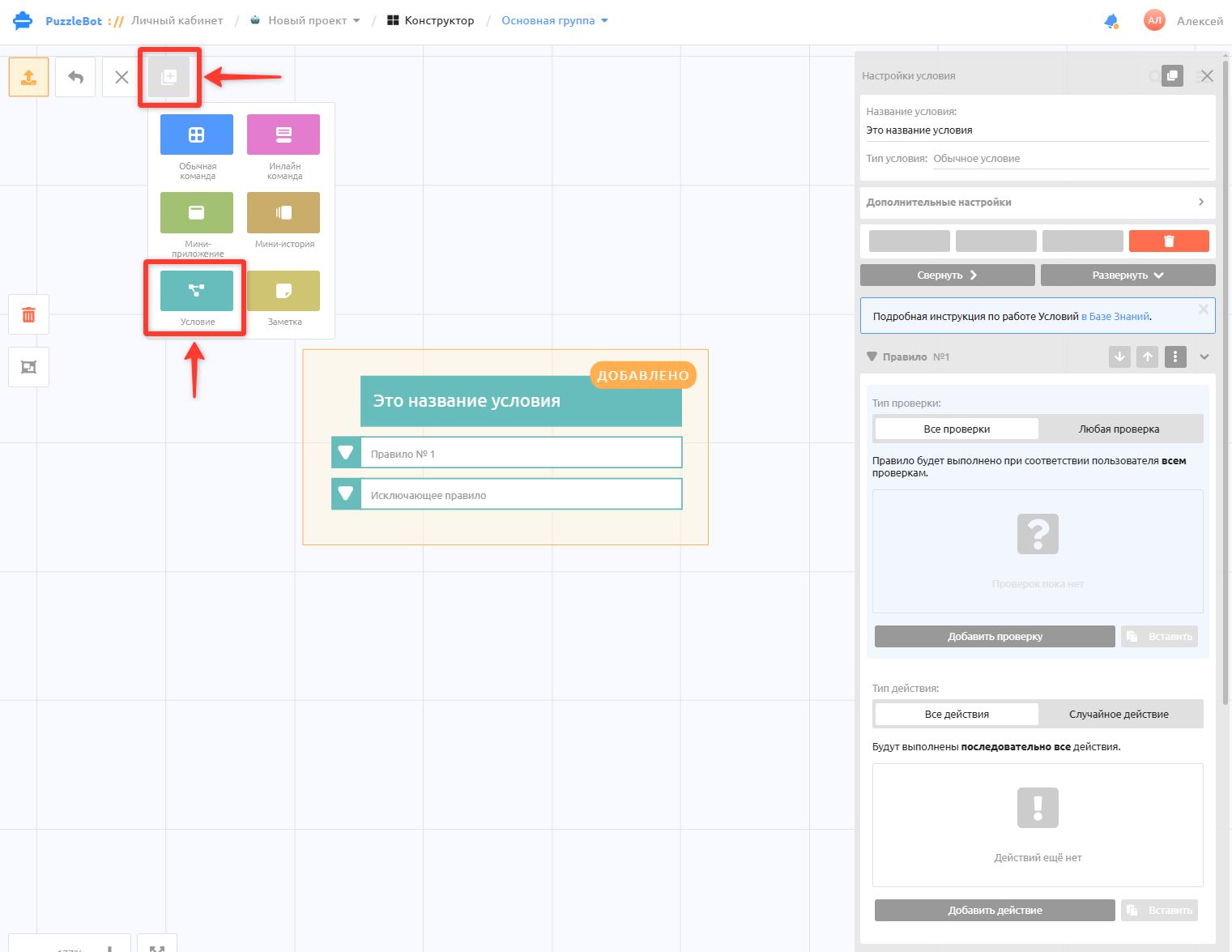
A condition is a separate entity on a par with commands. A condition consists of rules, which in turn consist of checks and actions.
When a condition is called, only one of its rules is ever performed. A condition can be one of two types: Regular condition or Condition button.
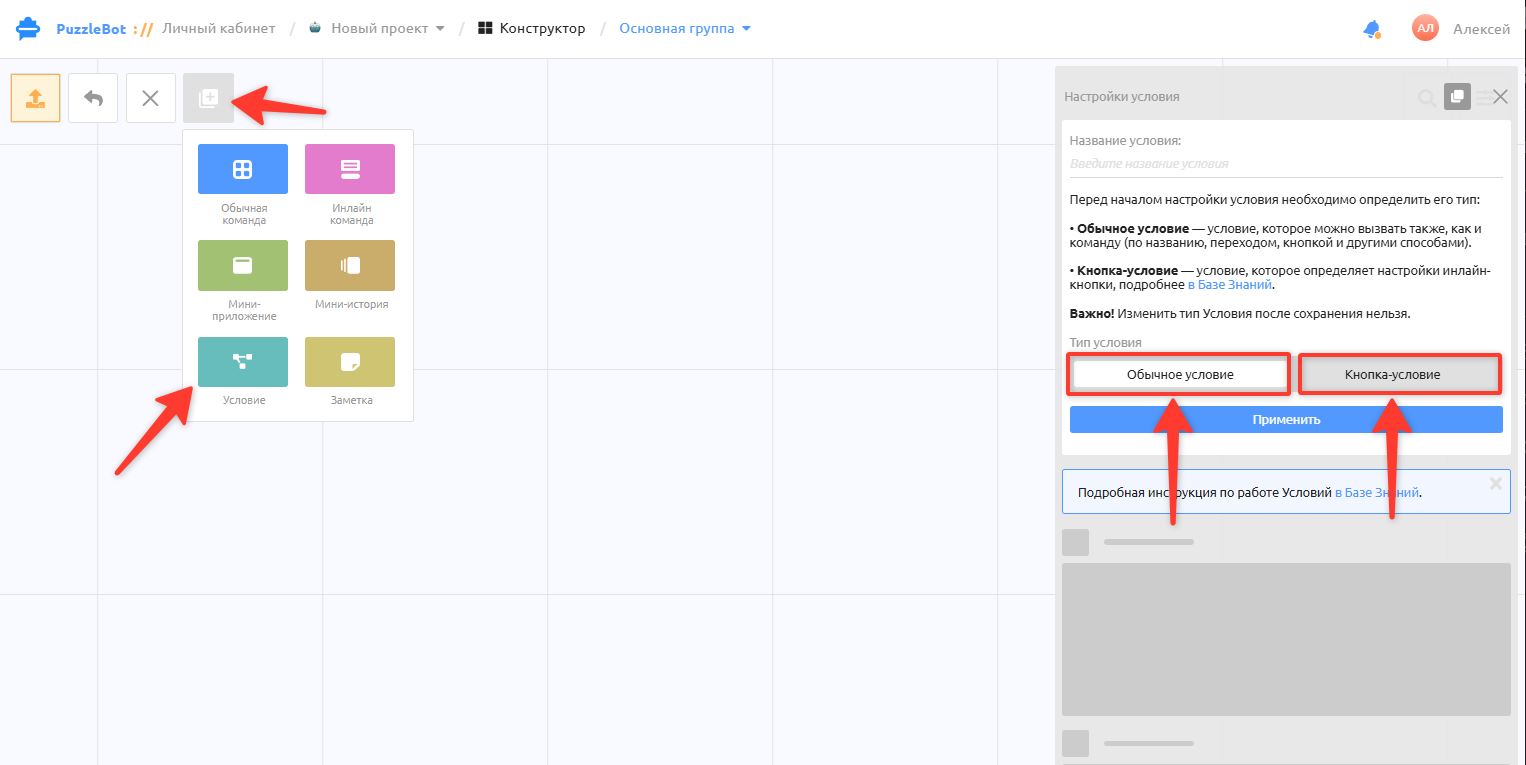
You choose the condition type right after creating the condition. Once it is saved, the type cannot be changed.
1. Regular condition — a condition that can be called the same way as a command (by name, by a transition, by a button and in other ways).
2. Condition button — a condition that defines the settings of an inline button. This condition type can only be linked through the "Condition button" action in an inline button.
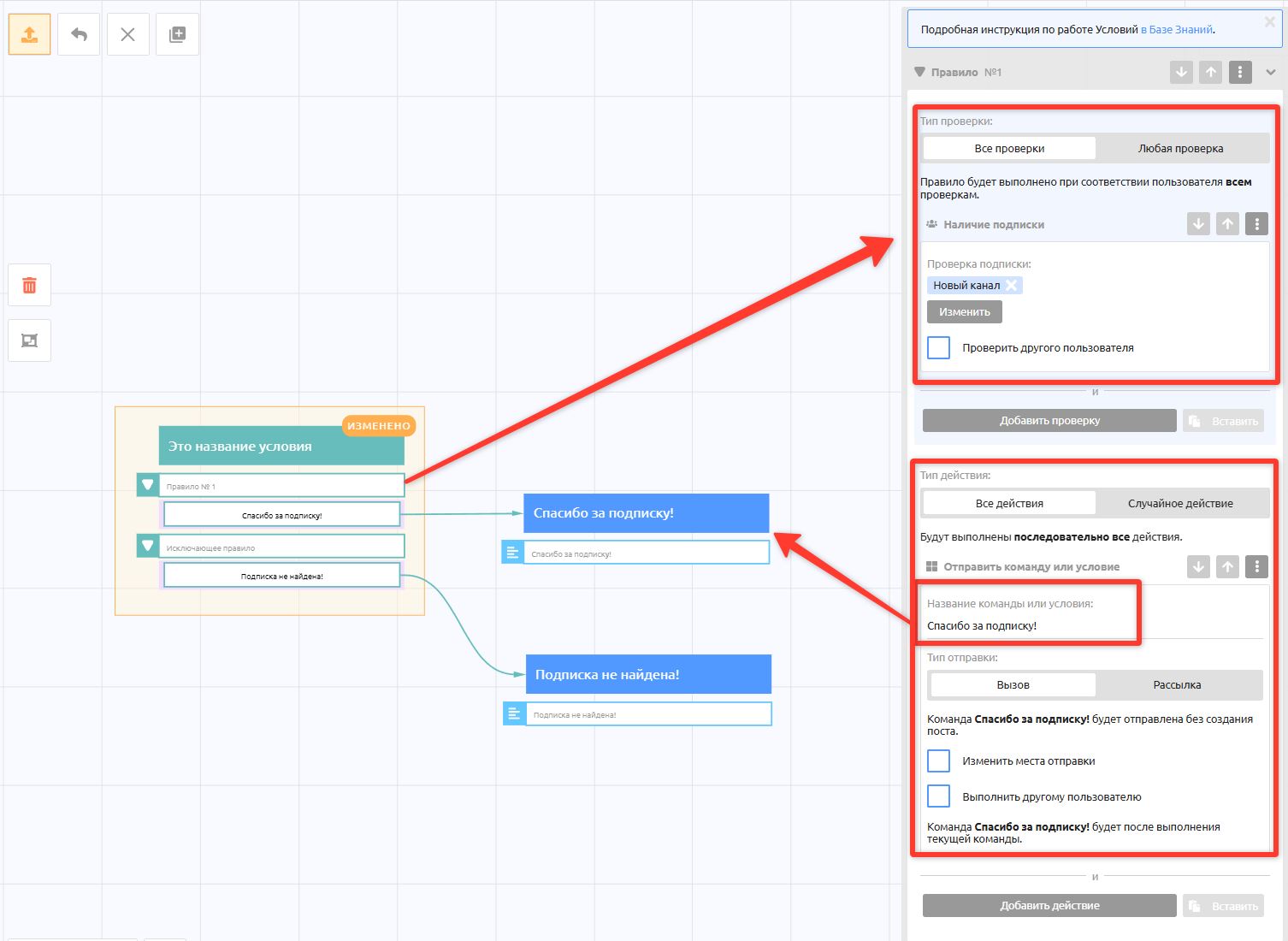
Rule — a block in a condition that contains a check and an action.
Check — add a check to specify what exactly the bot will verify. For example, a channel subscription check.
Action — add an action to specify what the bot should do if the check passes. For example, if the channel subscription is found.
In one rule you can create many checks and actions.
For example, to check not only the channel subscription but also whether a payment was made. The same goes for actions: for example, send a message, add the user to a category and start a broadcast scenario all at once.
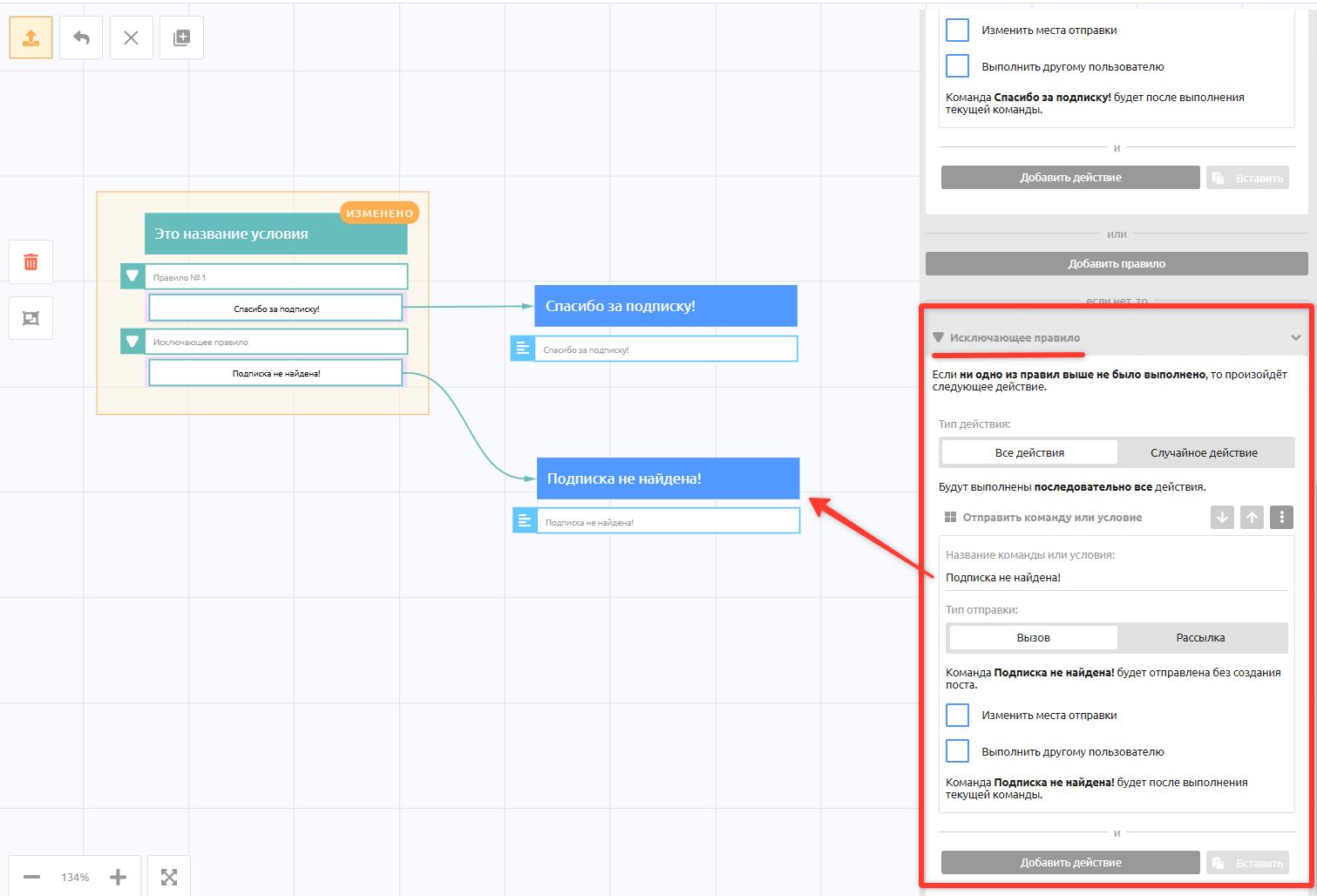
Exclusion rule — the last rule in a condition. It consists only of actions and applies when all the preceding rules failed their checks.
For example, no channel subscription was found. Or, more generally, what the bot should do if none of the checks passed: in that case the Exclusion rule is performed.
Check
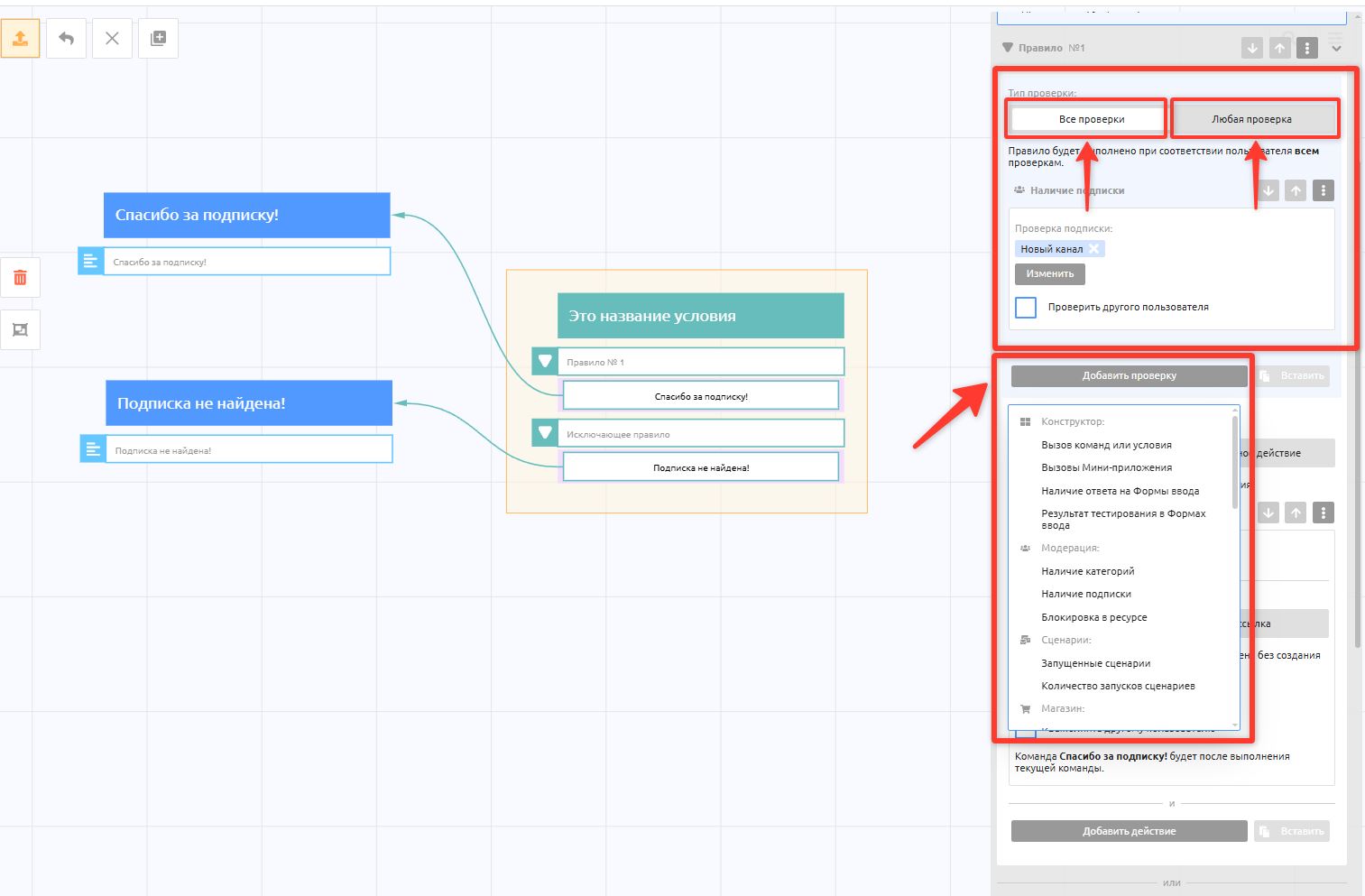
A check is a set of parameters that the user who called the condition is checked against. There are two types:
1. All checks — the rule's actions are performed only if all checks pass.
2. Any check — the rule's actions are performed if any one check passes.
List of available checks:
Constructor:
Command or condition called
Mini app called
Input forms answered
Quiz result in input forms
Moderation:
Has categories
Has subscription
Blocked in a resource
Scenarios:
Running scenarios
Number of scenario runs
Store:
Products purchased
Purchase total
Number of orders
Payments:
Recurring payment
Paid payments
Total of paid payments
Entry:
Link clicks
Triggers:
Triggers received
Dialogs:
Active dialog
Variables:
Variable value
Google Sheets:
Check row
NocoDB:
Check row
Bitrix24:
Lead check
Deal check
Contact check
amoCRM:
Lead check
Contact check
Other:
Telegram Premium
Date and time
Boost for resources (Boost)
No check
Some checks have additional options:
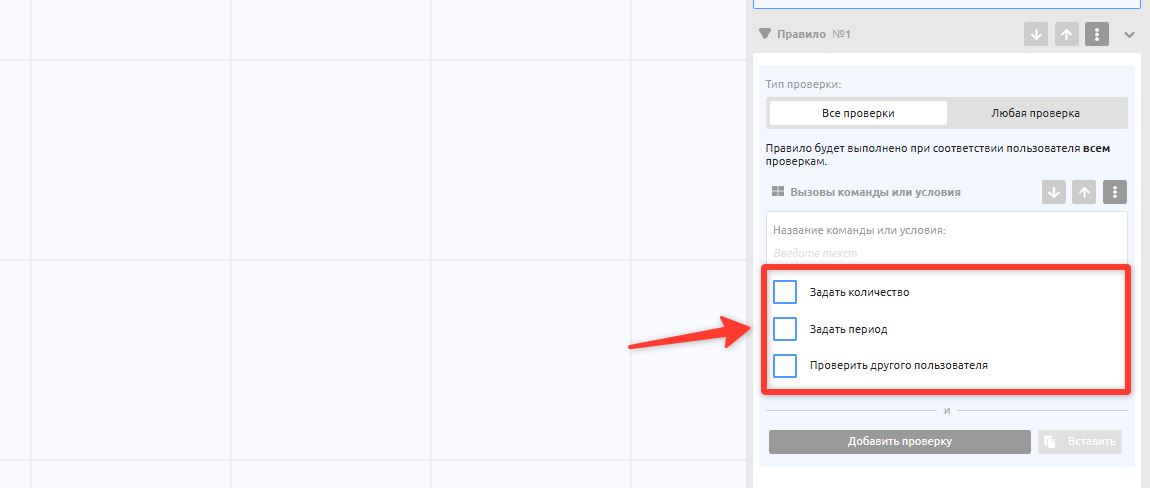
Set count — checks how many times the function was performed. For example: "Command or condition called" without the "Set count" option checks whether there was at least 1 call. If you turn on "Set count" and specify "greater than or equal to 3", the check passes only if the user called the selected commands 3 or more times.
Set period — checks whether the function was performed within the specified period. Period types:
Quantity period — defines a period relative to the current hour, day and month. For example: If today is January 10 and the "Number of days" type is selected with the value "5", the function is checked from January 5, 00:00 to January 10, 23:59. Each following day the period shifts relative to the current day.
Dated period — an exact period.
Calendar period — a period relative to calendar values: Today, Current week, Current month and so on. Each following day the period shifts relative to the current day, week, month and so on.
Check another user — lets you run the check against another user's data (by Telegram ID or @username).
Action
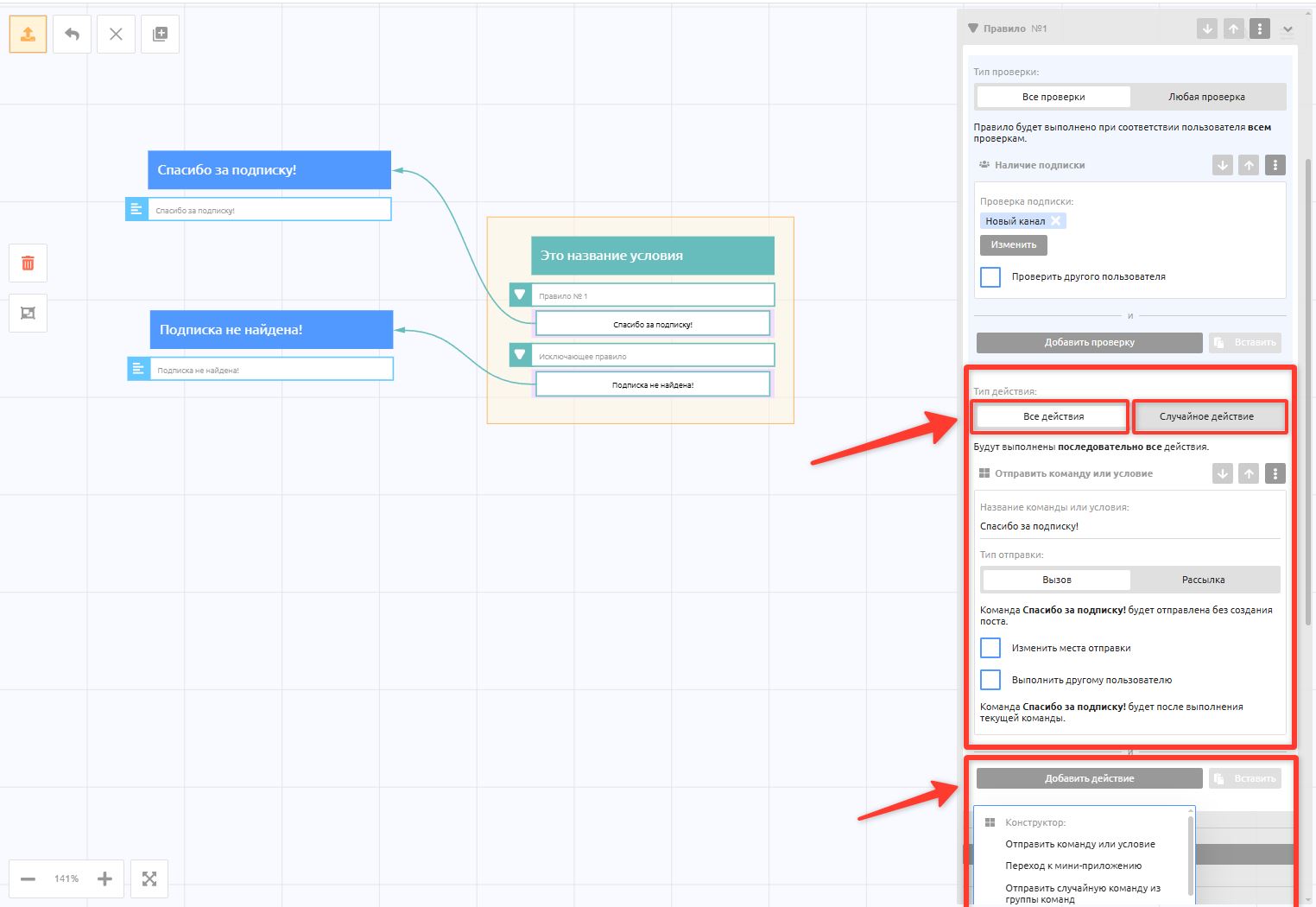
An action is a set of functions performed for the user who called the condition. There are two types:
1. All actions — every action is performed one after another.
2. Random action — one random action is performed. You can set the probability of each action.
List of available actions:
Constructor:
Send command or condition
Go to mini app
Send a random command from a command group
Moderation:
Change category
Action in resources (in groups and channels)
Remove user
Block user
Unblock user
Approve join request
Decline join request
Block user (in the bot)
Scenarios:
Change scenarios (start or stop)
Store:
Clear cart
Payments:
Turn off recurring payment
Dialogs:
Dialog actions (start or end a dialog)
Variables:
Change variable
Clear variable
Triggers:
Send triggers
Statistics:
Clear statistics
Google Sheets:
Create row
Update row
Clear row
Delete row
Create sheet
Delete sheet
NocoDB:
Create row
Update row
Clear row
Delete row
Bitrix24:
Lead action
Create lead
Change lead status
Change lead fields
Delete lead
Deal actions
Create deal
Change deal stage
Change deal fields
Delete deal
Contact action
Create contact
Delete contact
amoCRM:
Lead action
Create lead
Change lead status
Change lead fields
Contact action
Create contact
Other:
Add reaction
Send notification
Delete user's message
Unpin all messages
Send request
No action
Condition button
Let's look at how the Condition button type differs from the Regular condition type.
The main functional difference between a condition button and a regular condition is that its check is performed before the command with the button is sent. Before sending, the system determines the button's name and action according to the rules you set, and the user immediately sees a ready-made button with the matching behavior. In a regular condition, the check and the action happen only after the button is tapped.
A condition button is also mainly used to show or hide a button, or to change the button's name, depending on a condition. In everything else, the features are the same as when creating a regular condition.
A condition button can only be called by tapping an inline button.
Use cases:
Using the Hide button action.
- The "Open the next lesson" button is shown only after the test is completed. Otherwise the button is hidden.Changing the button name.
- Change the button name from "Subscribe to the channel" to "You are already subscribed ✅" by adding a channel subscription check.
- Change the button name from "Pay" to "Top up balance" if the balance is insufficient.
Creating a condition button
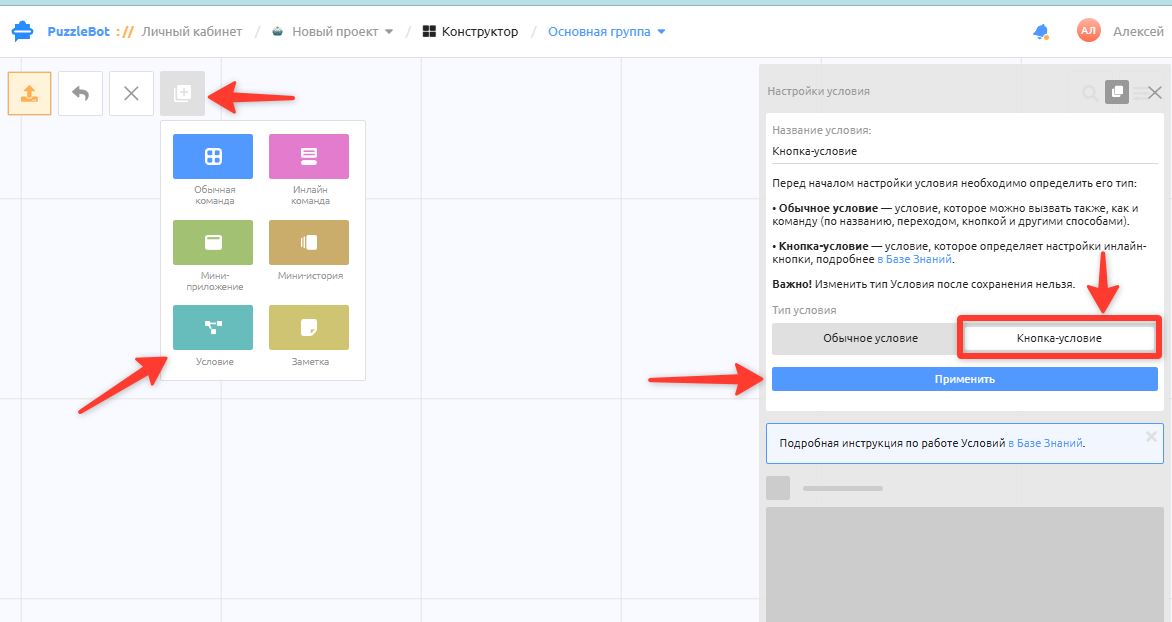
Create a condition, select Condition button and click Apply.
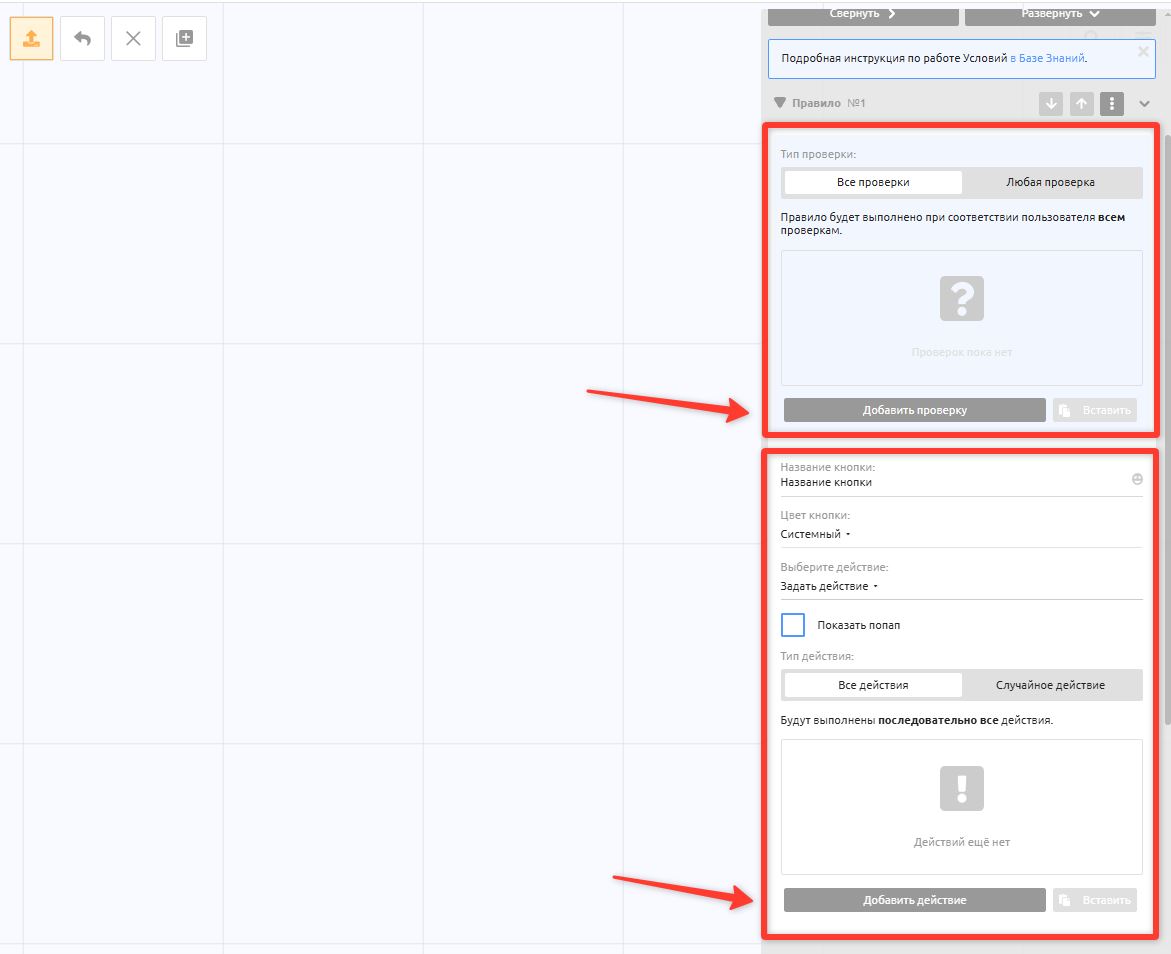
Set the checks and actions you need for the condition button.
Unlike a regular condition, it also has:
- A button name setting, for cases where the name should change depending on the check result.
- The Hide button action, to make the button disappear.
After creating all the checks, save the condition button by clicking an empty area in the Constructor.
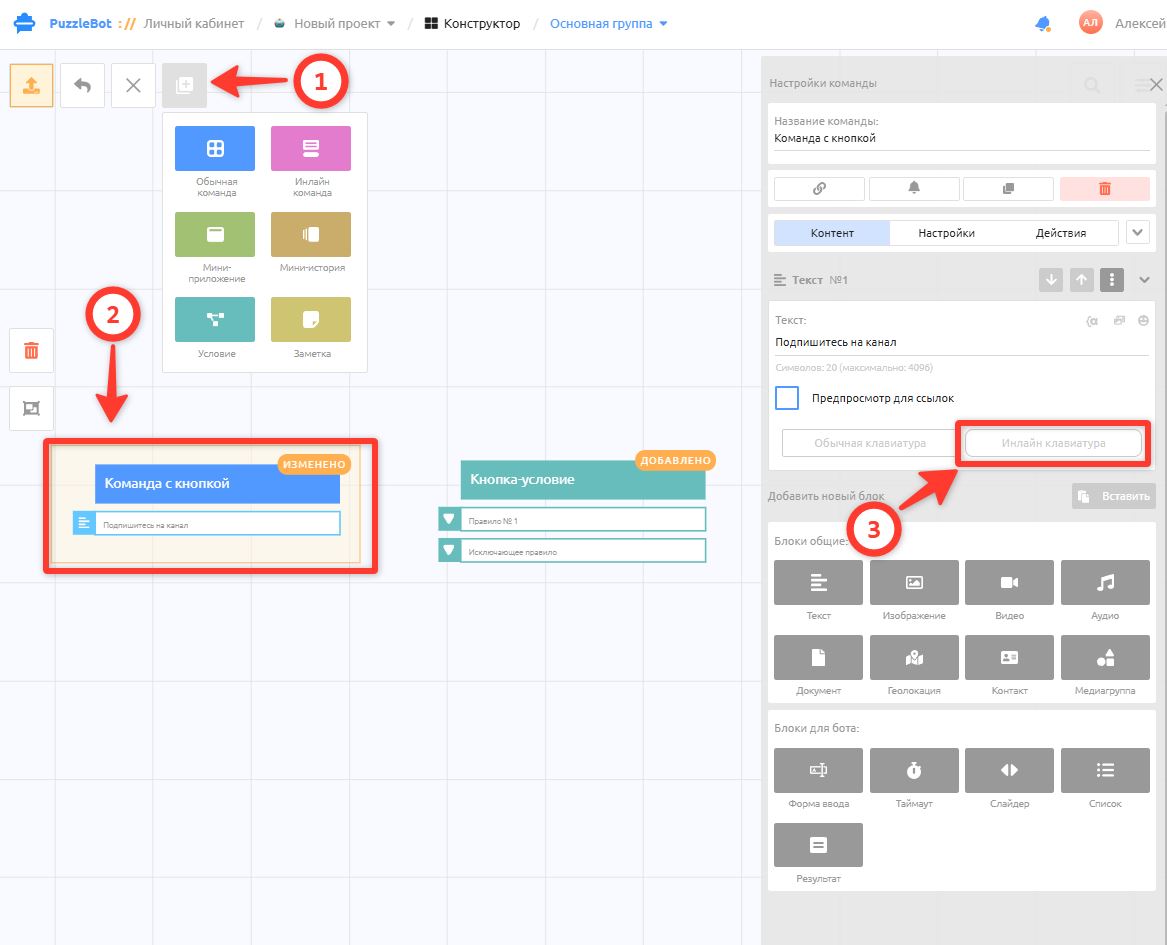
Next, select any command, or create a new one, where you want to add the condition button.
Create a block, for example a text block as in the example, or any other block where you can add an "Inline keyboard"
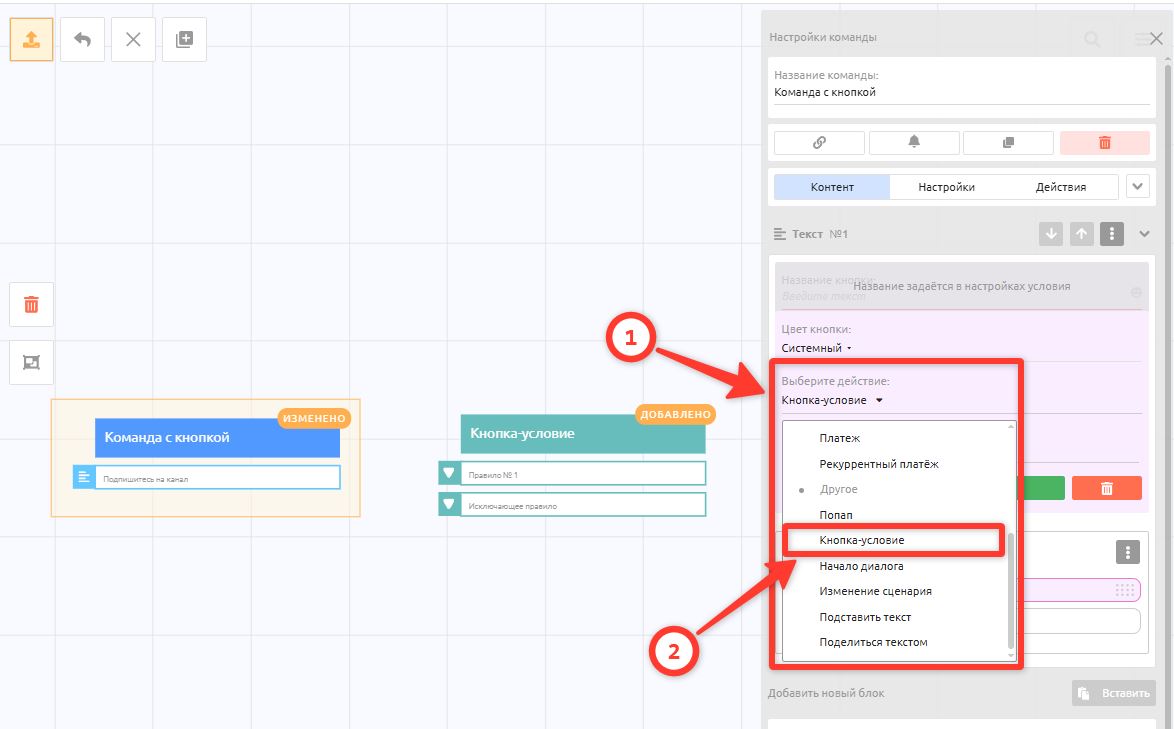
After you have selected the inline keyboard, choose the "Condition button" action in the button settings → specify the name of the condition button you created → save.
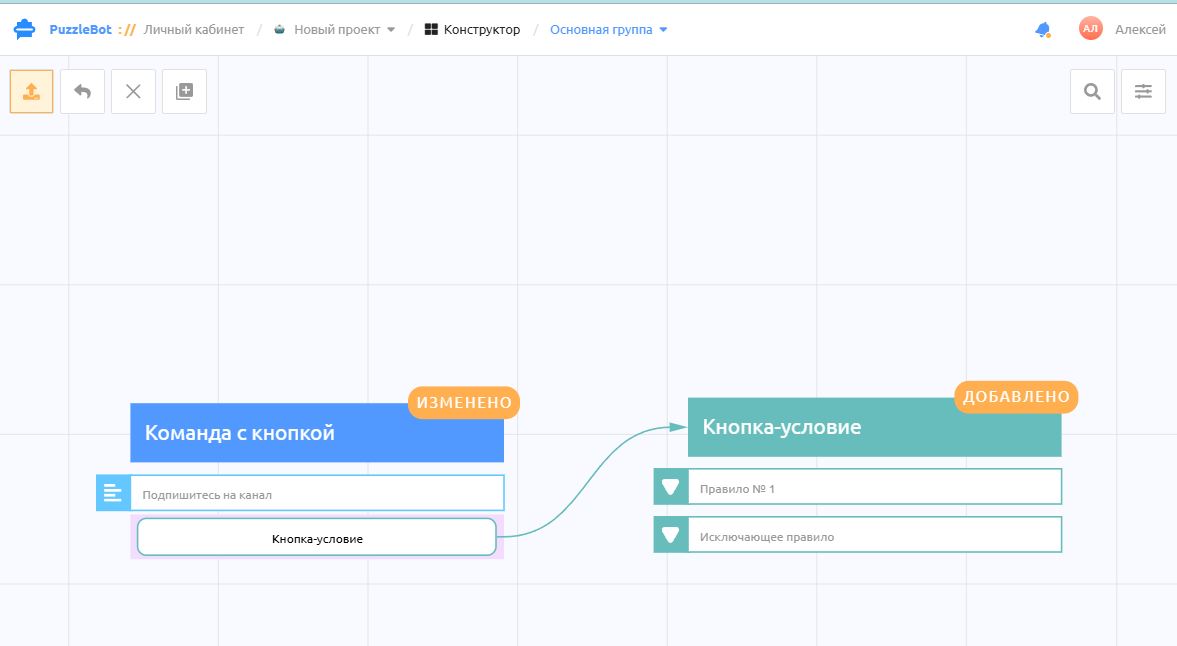
After saving, the inline keyboard is linked to the condition button.
Important! In the settings of an inline button with the "Condition button" action, you cannot set a name, because the name is set in the "Condition button" settings separately for each rule.
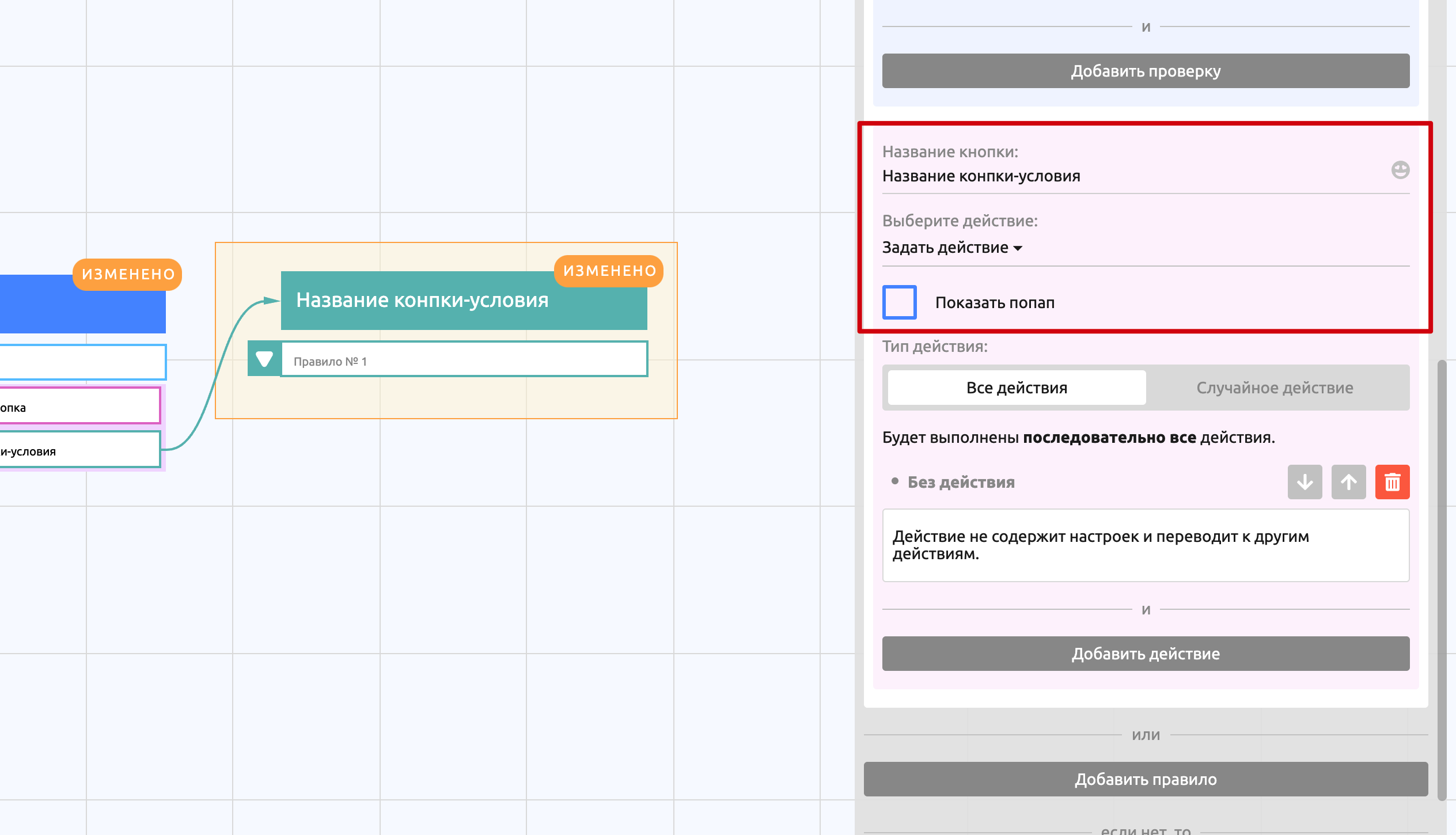
Unlike a regular condition, the action settings of a condition button have additional options, the same as an inline button has, which lets you set a different name and action for different situations.