This article covers the alerts that can be sent in response to specific Events, both in the bot and in resources.
An event is a specific situation that occurs during interaction with the bot. A reaction to an event is the automatic sending of a prepared text or command, depending on the conditions you set.
Important! Note that bot Events and resource Events are different.
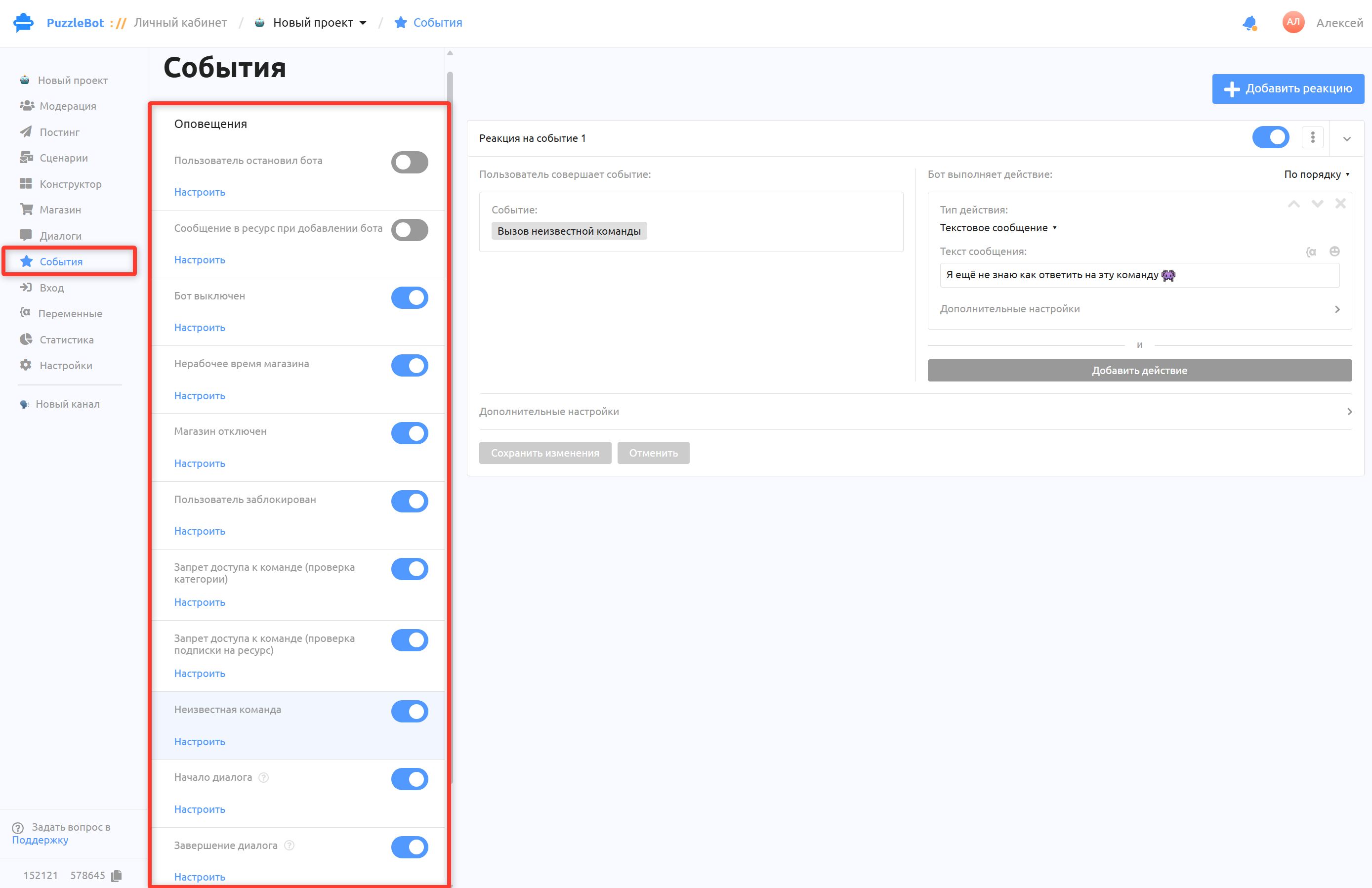
Bot events:
User stopped the bot — the reaction when a user stops the bot.
Example: when a user stops the bot, you can call a command that sends the information to a spreadsheet and marks that the user stopped the bot. Or you can change the user's category, which will change the user's permissions in a Telegram group.
Message to a resource when the bot is added — in this event you can choose a command with a message to send, or write your own message, which is sent to the channel or chat when an administrator adds the bot. The event is disabled by default.
Bot is off — the bot's reaction when you change the bot status to "Off" in the Settings section.
Store is outside working hours — here you can set the text the bot sends when the Store is opened outside working hours. Working hours are set in the Store settings.
Store is disabled — the bot's reaction when you change the Store status to "Off" in the main Store settings.
User is blocked — this event triggers for a user when you block them in the Moderation or Dialogs section.
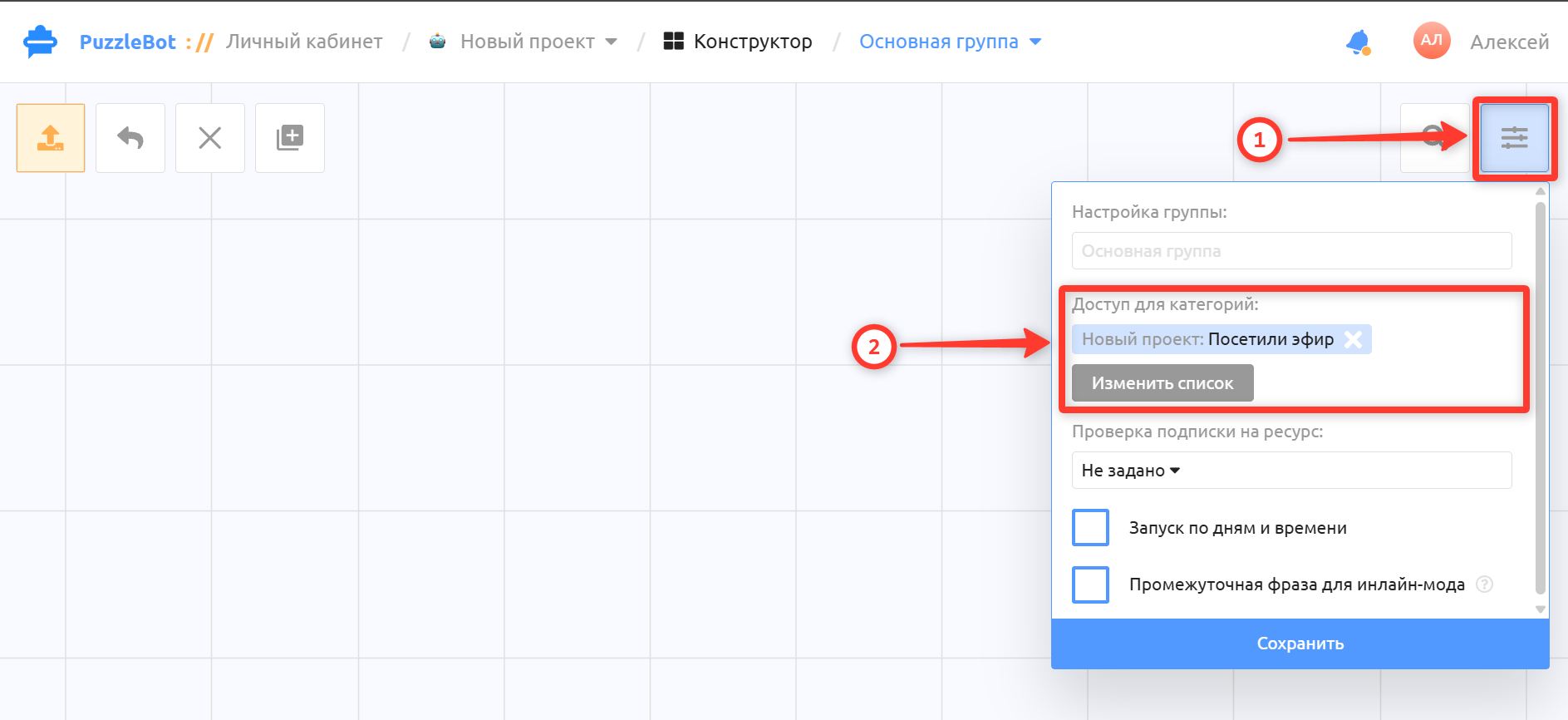
Command access denied (category check) — the reaction when the user doesn't have the category specified in the command group settings in the Constructor section (see screenshot).
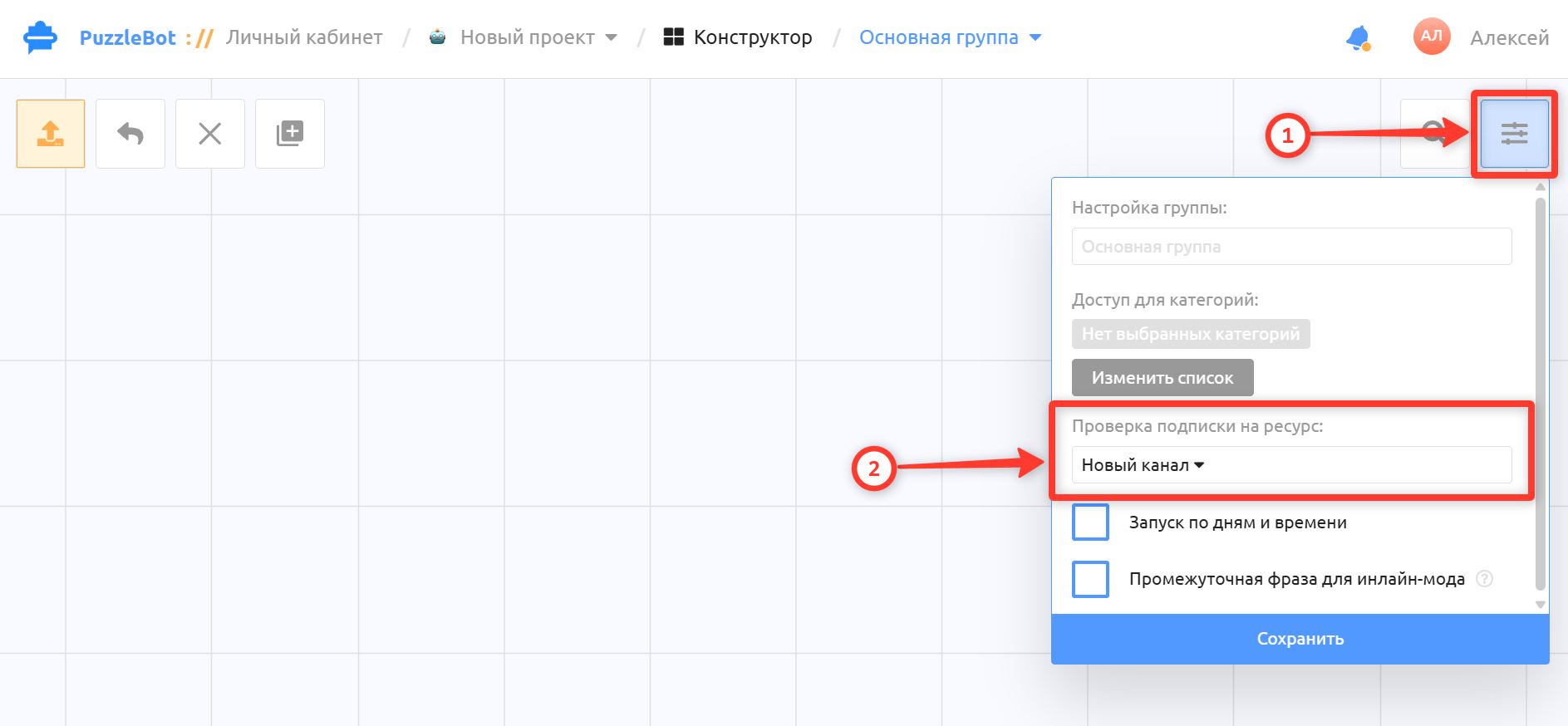
Command access denied (resource subscription check) — the reaction when the user isn't subscribed to the channel or chat specified in the command group settings in the Constructor section (see screenshot).
Unknown command — the bot's reaction to an unknown message sent to the bot. The event does not trigger if:
- A dialog with the user is active.
- The bot has command names or command synonyms whose phrases match what the user wrote.
- An input form is open and waiting for the user's answer.Dialog start — the event triggers on the "Start dialog" action in the actions of a command or button.
Dialog end — the event triggers on the "End dialog" action in the actions of a command or button.
You can set up the bot's reaction to all of these events. Here is how reactions work in more detail:
Each event has reactions. You can add several reactions to one event, for example to react differently for different user categories. Inside each reaction there are Actions.
An action is the type of reaction: how do you want the bot to react to the event?
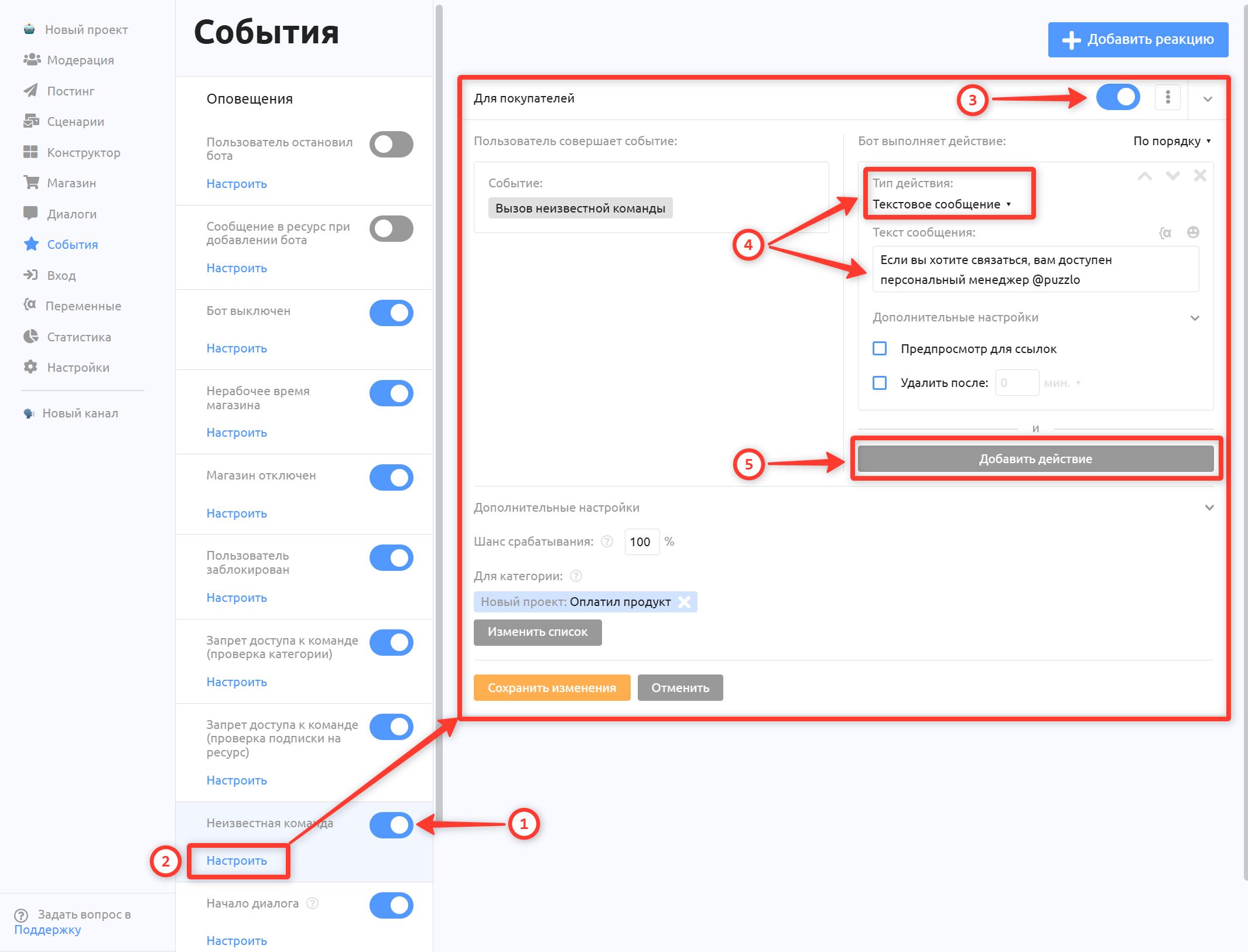
To enable and set up a reaction to an event:
Turn on the toggle next to the event you need.
Click Configure.
Turn on the toggle in the reaction itself as well. There can be several reactions, and each can be enabled or disabled separately.
Select an action and fill in the reaction.
Add more actions if needed.
Save the changes.
Action types:
Text message.
Command or condition.
Add to category.
Change scenario.
Save message to a variable.
Remove regular keyboard.
Delete message.
The set of actions may differ between events.
If you add several actions, either all of them are performed in order or only one random action is performed, depending on the selected action execution setting.
Important! When an action sends a command, the regular keyboard, input forms, timeouts and the transition function are not sent, even if the command has them.
Additional Action settings (work only for a Text message):
Send as reply — the bot's message is sent as a reply to the user's message.
Link preview — the content of links is shown.
Delete after — the message is deleted after the set time.
Additional Reaction settings:
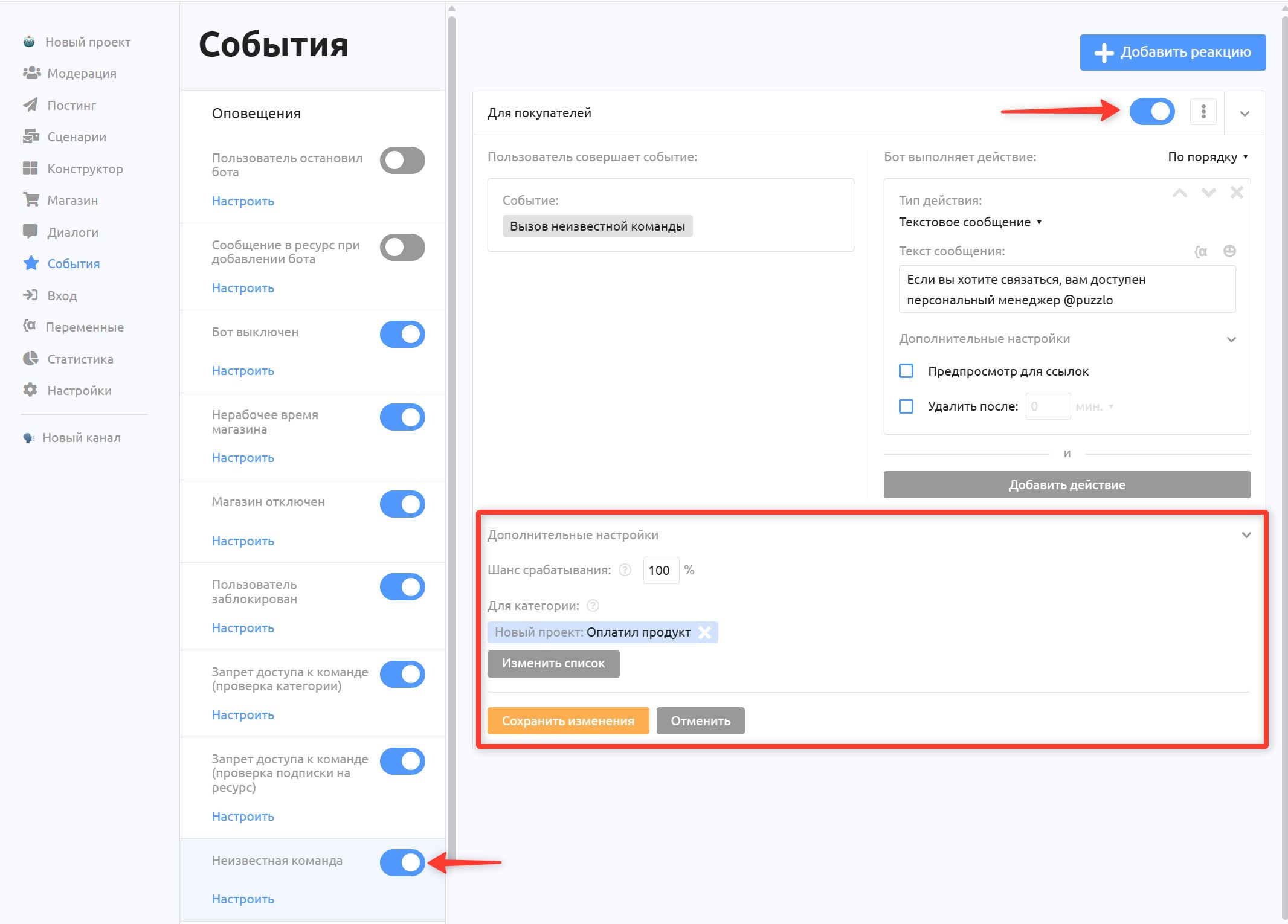
Trigger chance — the probability that the reaction triggers, set as a percentage.
For category — the reaction triggers only for users in the selected categories.
Events for resources (a channel or group):
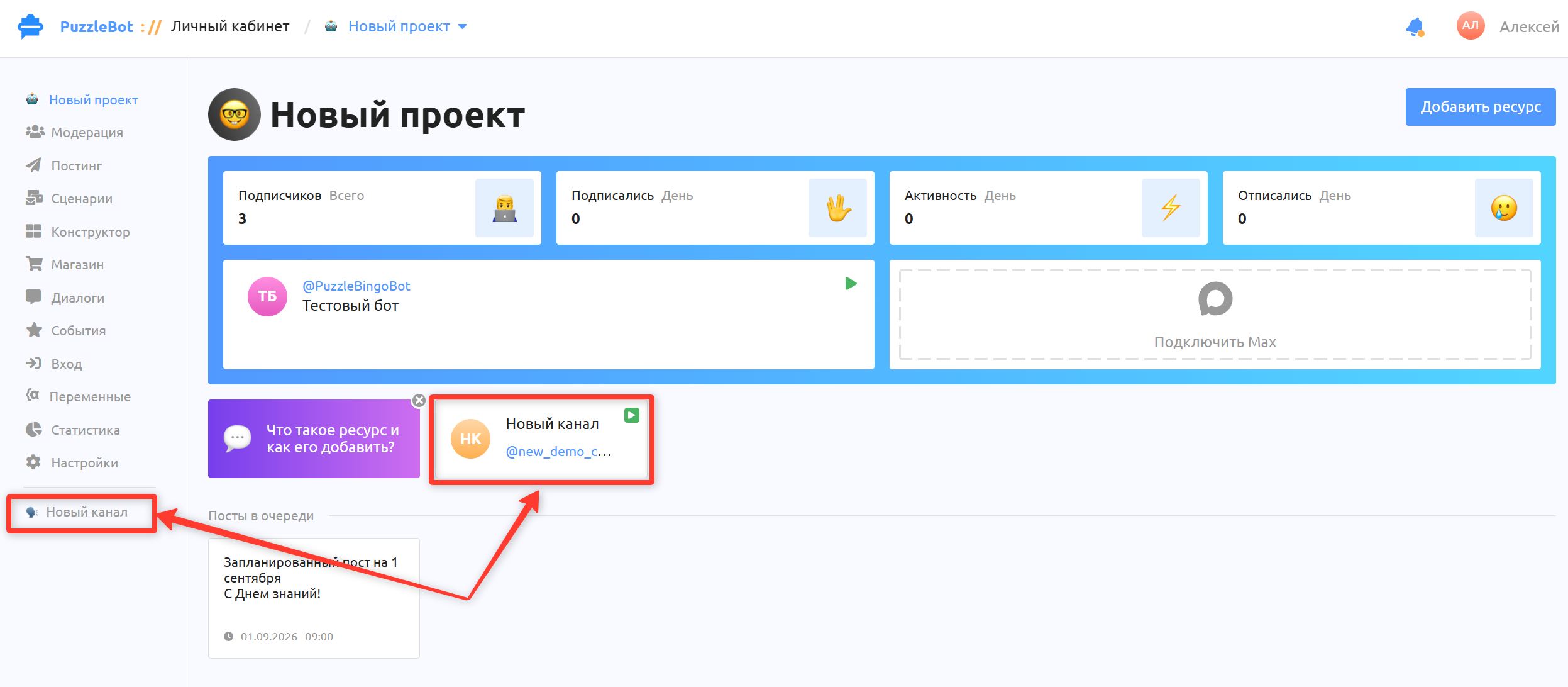
Events for resources are located separately. To get to this section, first open the resource.
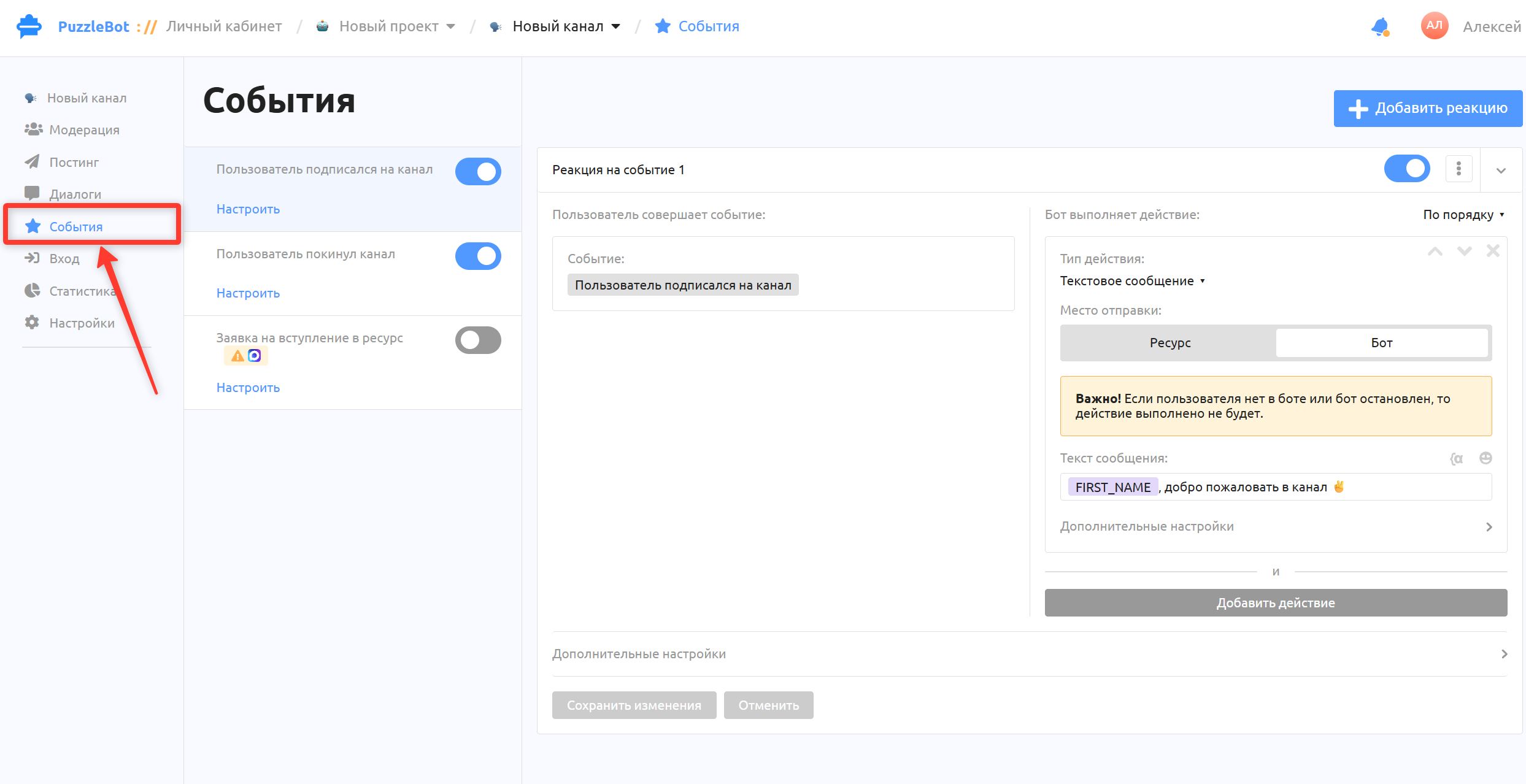
Then go to Events.