This article explains how to add administrators to manage a project, bot, channel or chat from your puzzlebot account.
Administrator access is a feature that lets you add administrators to work together on a bot and its connected resources in the puzzlebot account.
Important! The administrator must open the invitation link in a separate browser, not in Telegram's built-in one. Before following the link, the administrator must be signed in in that browser (logged in to their puzzlebot account).
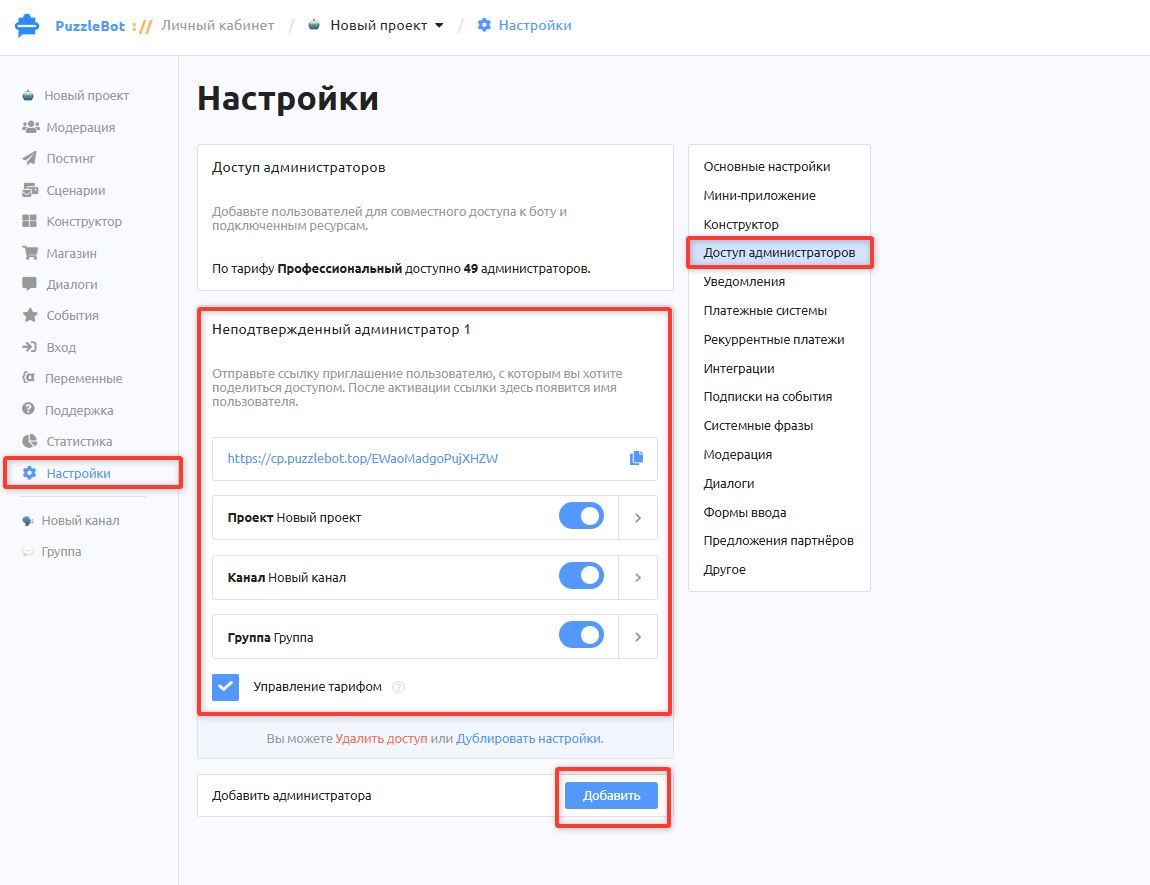
To create and configure access, open the bot, select the Settings section and the Administrator access tab.
Important! This feature is available on paid plans only. The number of administrators differs from plan to plan. Learn more: https://puzzlebot.top/price
How to add an administrator
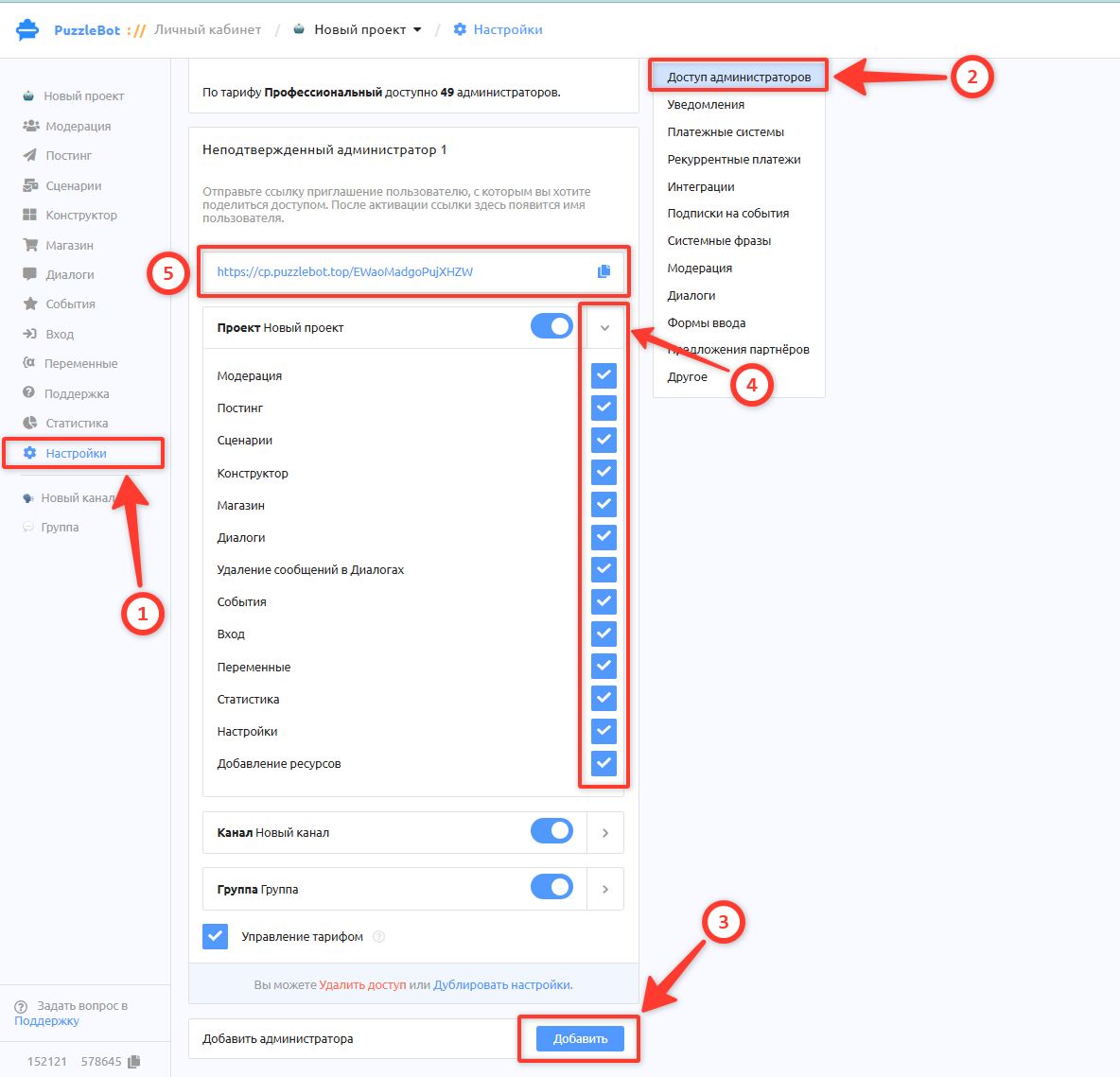
1. Click the corresponding Add button. A one-time administrator invitation link is generated automatically.
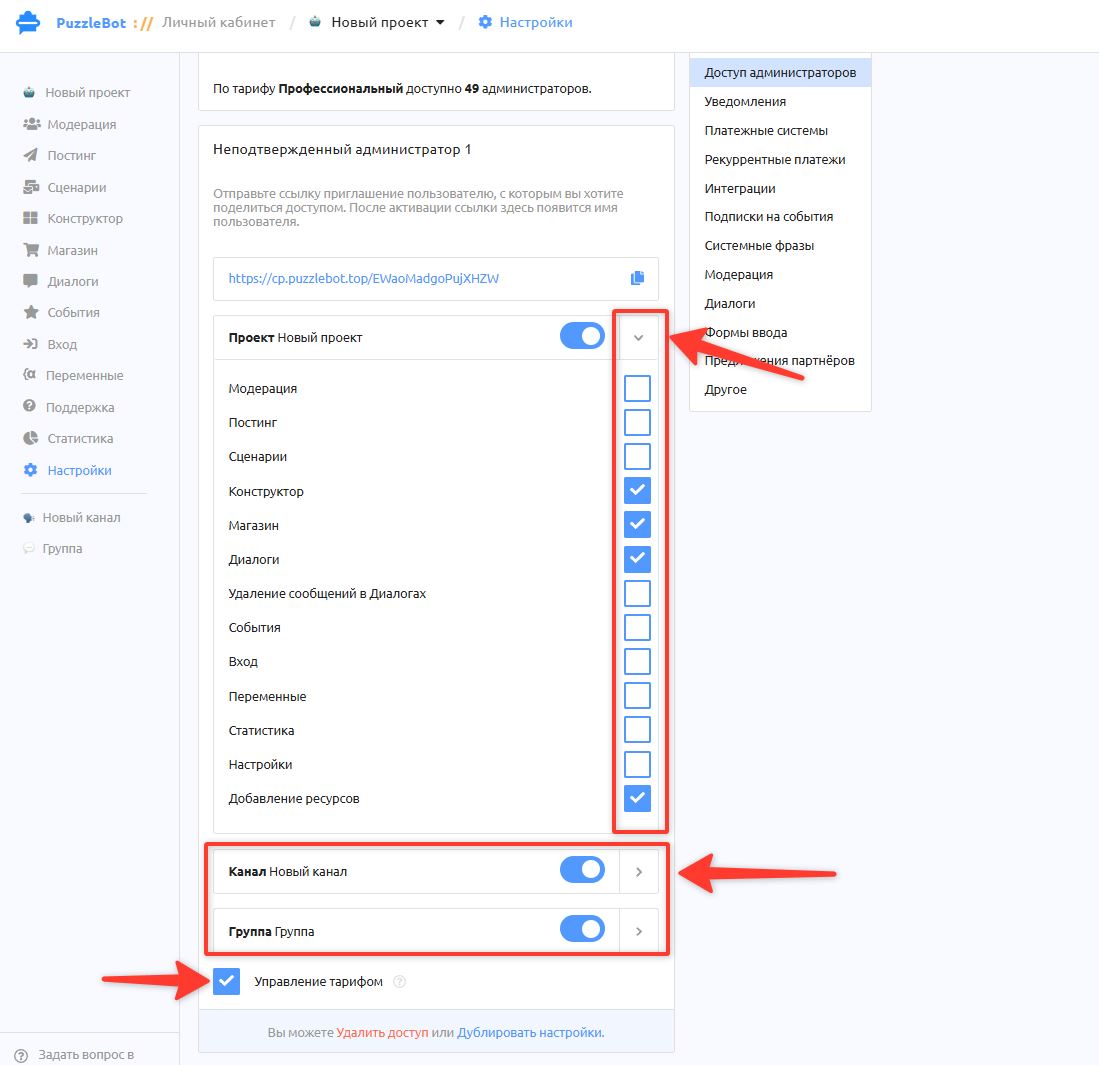
2. Click ">" to expand the list of permissions for the bot. Select the tabs the administrator will be allowed to access.
Check "Plan management" if you want the administrator to be able to pay for your account's plan while signed in to their own account.
Turn on access to resources. Here, too, click ">" to expand the list of permissions for chats or channels.
Important! If an administrator has a limited set of permissions, some blocks (posts, commands, triggers) will show the label "No access".
For example: if the Posting section contains a post that belongs to both the bot and a resource, and access is granted only to the bot's Posting section, that post will not be accessible.
Also, without access to a resource, the administrator will not be able to set up a subscription check in the bot for that chat or channel.
3. Send the link and ask the future administrator to follow it. The administrator must already have a registered puzzlebot account; a free plan is fine.
Important! The administrator must follow the link in a browser where they are already logged in to their puzzlebot account.
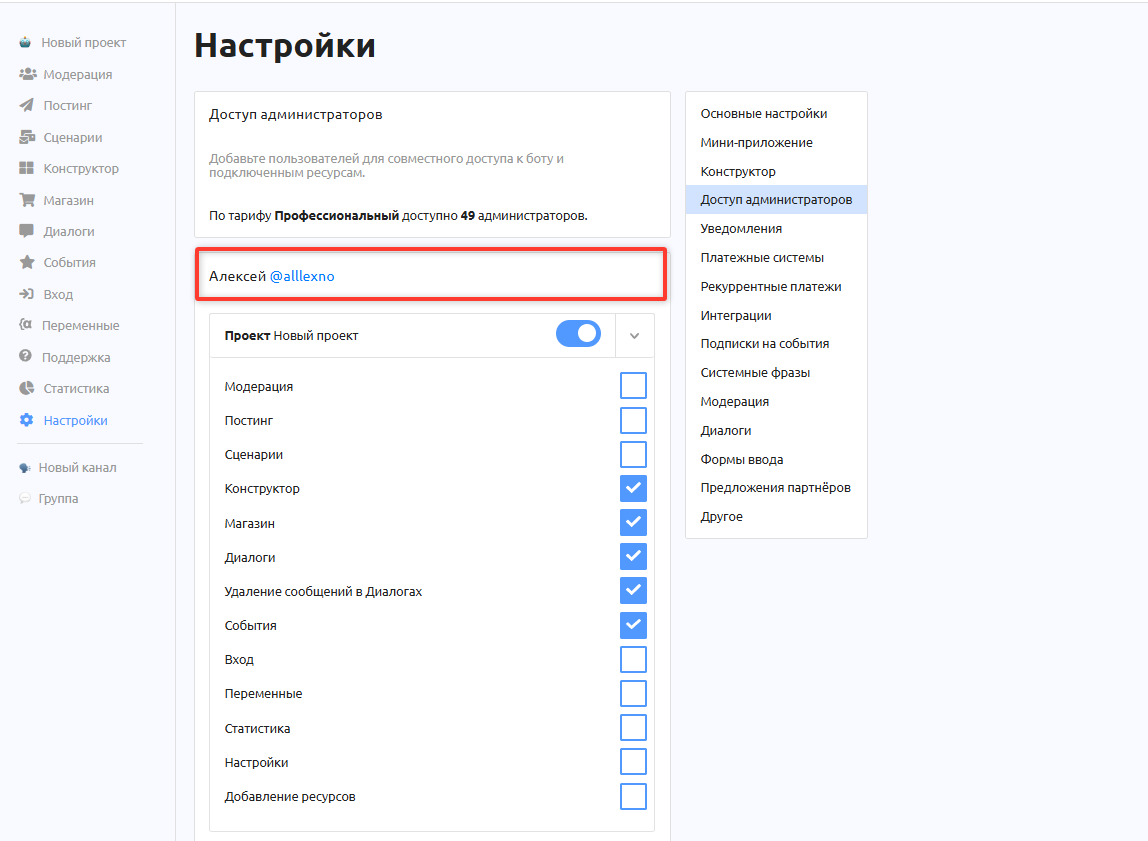
4. After the link is followed, the administrator's name and username are filled in automatically in the block, replacing the phrase "Unconfirmed administrator".
Notifications for an administrator
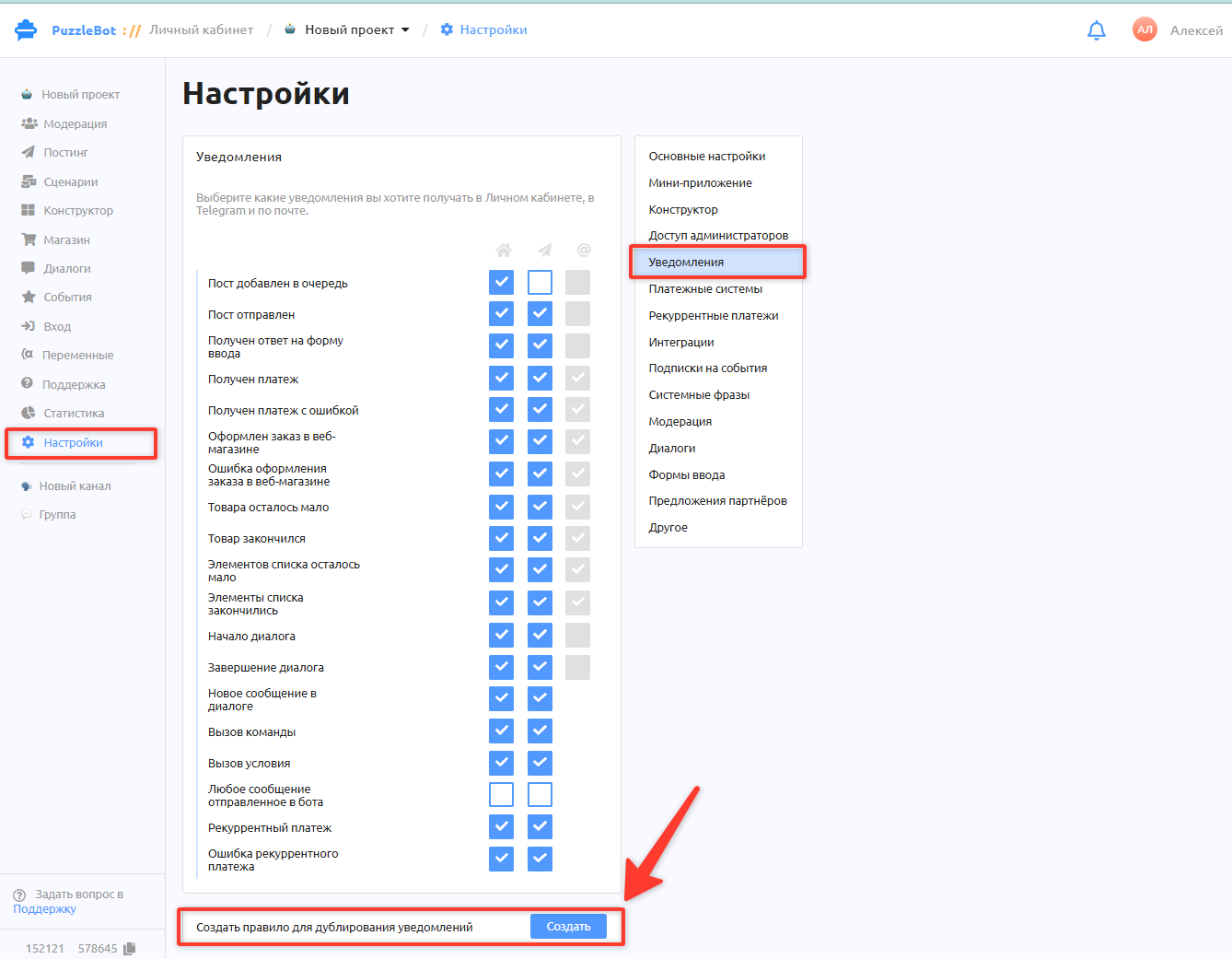
Once the administrator has access, you can set up sending them the system notifications that you receive as the owner.
Go to Settings → Notifications → Create
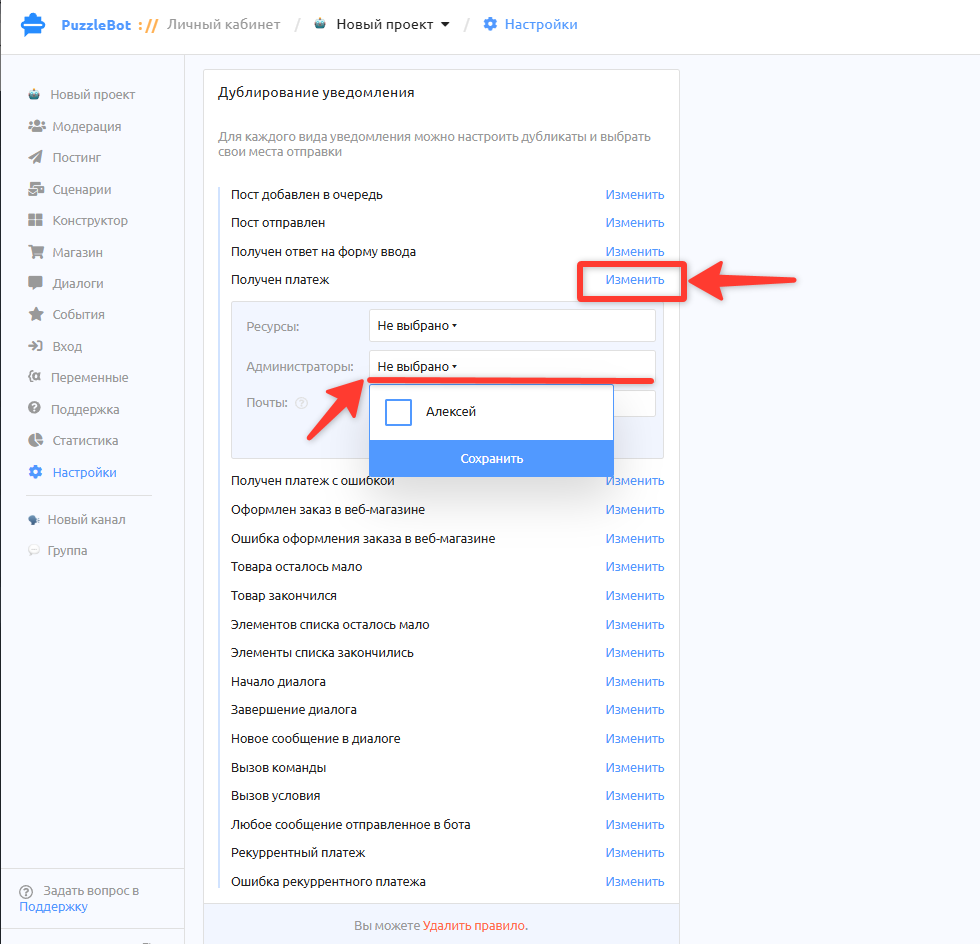
Select the notification to send, click Edit and select the administrator from the pop-up list. Learn more: Notifications.
How a bot looks for an administrator
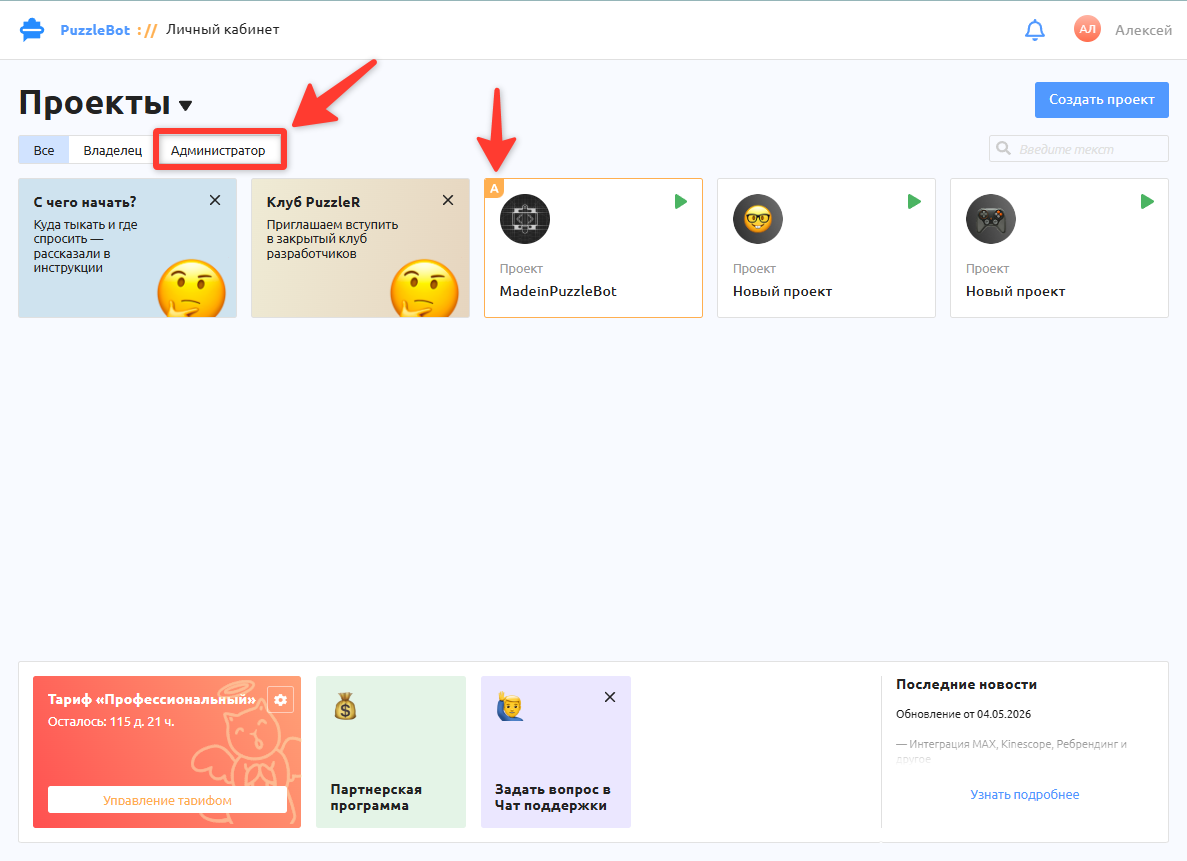
All bots where the user is an administrator are shown on the "Administrator" tab. In the general list, such bots are also marked with an "A" badge.