Integrated variables are one of the types of Variables.
Integrated variables let you:
Make an HTTP request, get the response and save the result.
Get the value of a cell or row from a connected Google spreadsheet: How to connect Google Sheets to a bot.
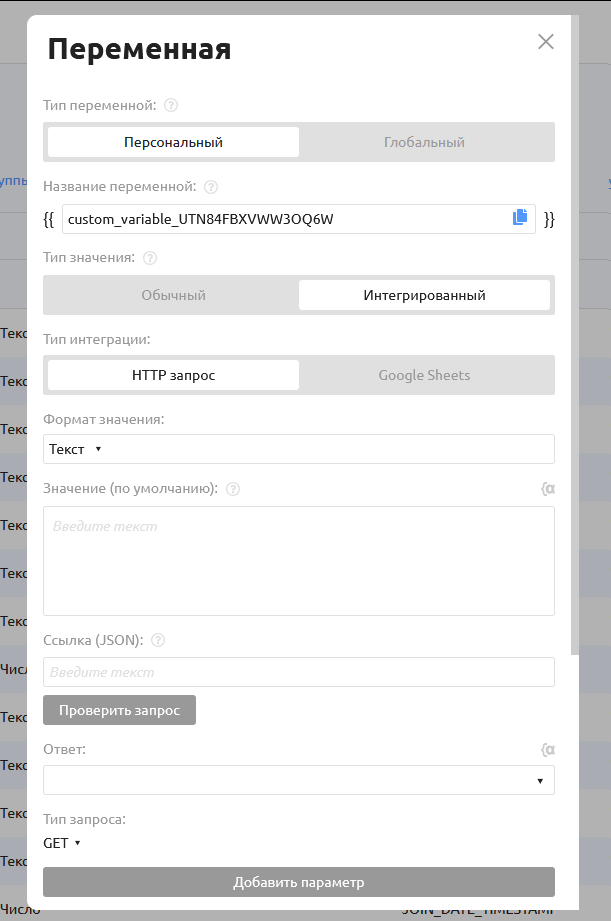
Integrated variables work like this: at the moment the variable's value is output, the data is requested, and the received value is shown in place of the variable.
Example: an integrated variable is used in a command's text block. When the command is called, the request is made and the received value is shown in the text.
Let's look at each mode of an integrated variable in more detail.
HTTP request
This mode lets you make a POST, GET, DELETE, PATCH or PUT request to the specified address.
Important! The remote resource must return a response in JSON format. If the format is different, the error "Failed to get data." appears in the bottom right corner.
You can add parameters and headers to all request types.
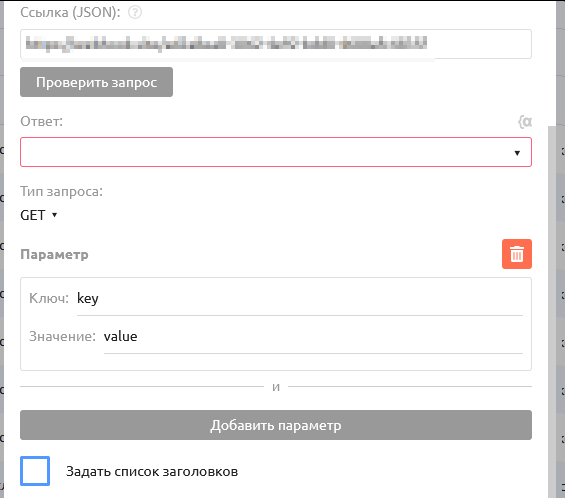
By default, parameters of GET and DELETE requests are sent as QUERY parameters, and parameters of the other requests as multipart/form-data.
For POST, PATCH and PUT requests you can set a custom request body.
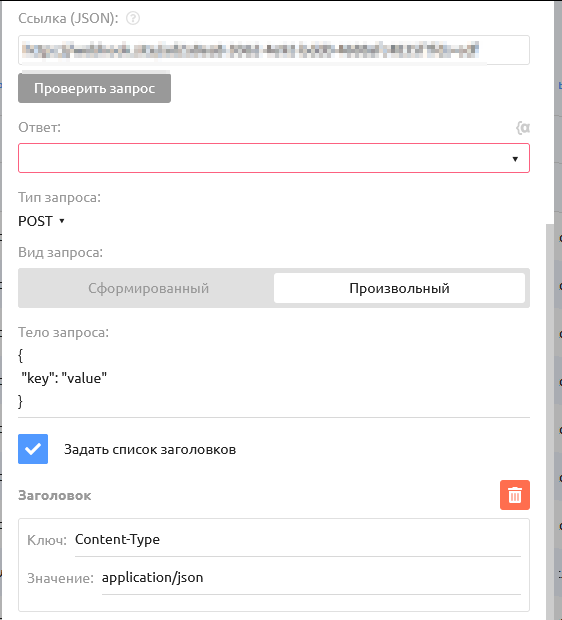
Important! When the body is in JSON format, you must add the
Content-Type: application/jsonheader.
Google Sheets
In this mode, integrated variables let you get data from a connected spreadsheet.
There are two ways to get the values you need:
by row number;
by searching with filters.
Search by row number
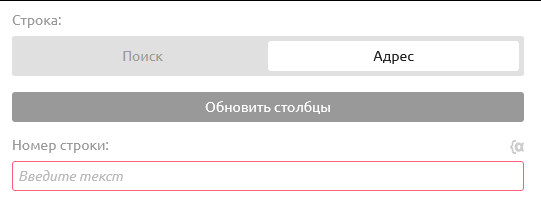
To work in this mode, switch the Row option to Address mode and enter a number or a numeric variable in the Row number field.
Search with filters
In this mode you can set filters of the "AND" and "OR" types.
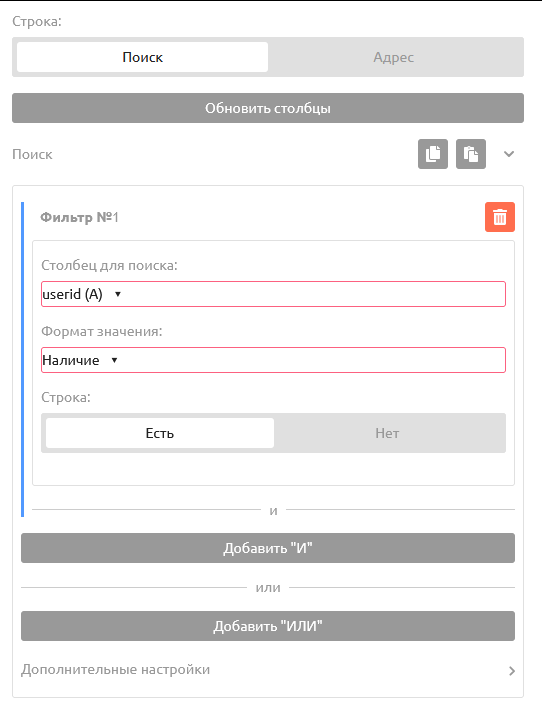
A filter consists of two fields:
Search column — the column name and its letter.
Value format — text, number, date, or a check whether a value is present.
Let's look at the value formats in more detail.
TEXT
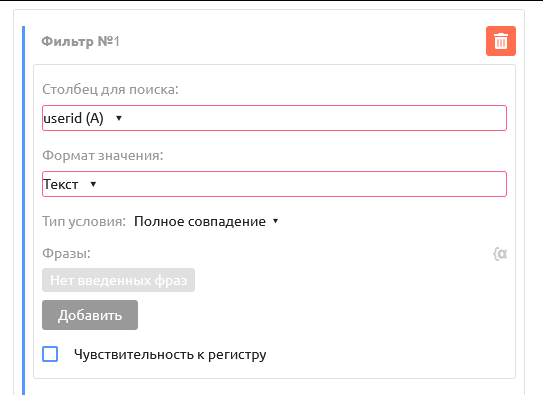
Lets you search the selected column for cells with the specified text. You can choose Full match, Message contains, Message starts with, Message ends with, Regular expression, Message length is greater than, Message length is less than.
You can use variables as search phrases.
NUMBER
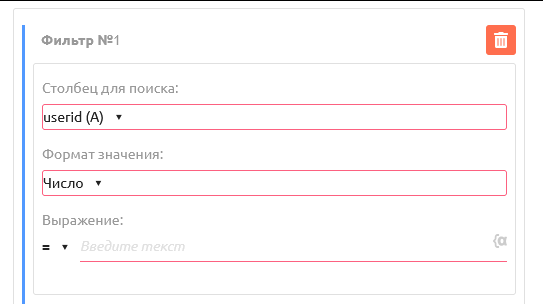
Lets you search the specified column for a numeric value that matches an expression. The expression can be a number, a variable or a mathematical expression: Rules for writing expressions.
DATE
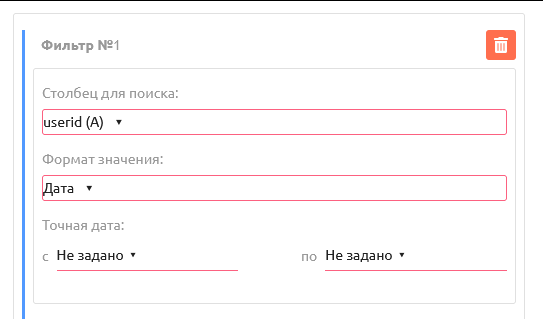
If the specified column contains dates, this format lets you find rows within the specified date range.
PRESENCE
Lets you search for empty or non-empty cells in the specified column.
How several filters work together.
Filters can be of the "AND" and "OR" types.
Filters joined with "AND" let you find cells more precisely: the variable gets the value that matches all the "AND" filters.
Filters joined with "OR" let the variable get a value that matches any one of the specified "OR" filters.
Important! Filters are checked from top to bottom. So if the first "OR" filter finds a matching cell/row, the following filters are ignored and the variable gets the first value found.
"AND" and "OR" filters can be combined: for example, create a group of "AND" filters and separate it from another group with "OR". The first group is then checked against all its "AND" filters, and if no value is found, the check moves on to the second group of filters.
Output settings for the values found
There are two value output modes: cell and row.
Value: Cell
In this mode the variable shows values from one column.
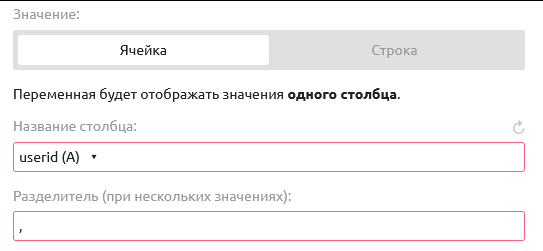
If several matching cells are found for the filters you set, the variable outputs all the values found, separated by the character specified in the Separator field.
Value: Row
In this mode the variable shows a template with values from several columns.
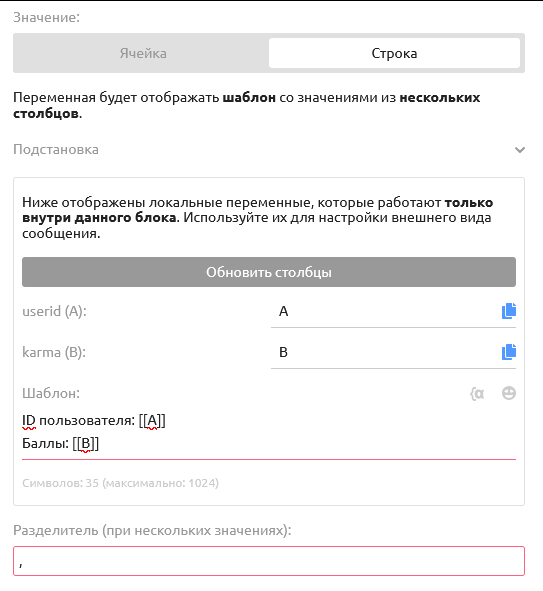
In the Template field you can set up the text that is substituted for the variable. Column values of the found row are inserted with variables like [[A]], where the letter in square brackets points to the column you need.
This way you can find the row you need with filters and output data from the whole row rather than from a single cell.