This article explains how to set up an integration between an input form and a Google Sheets spreadsheet via Integromat.
Important! Before following these instructions, we recommend reading the article Event subscriptions.
In this example, we will integrate with Google Sheets, namely set up saving Input form responses to a spreadsheet.
0. Before you start setting up the integration: a) in your puzzlebot account, create a bot and add an Input form; b) sign up for Integromat; c) sign up for Google Drive and create an empty Google Sheets spreadsheet named Empty spreadsheet.
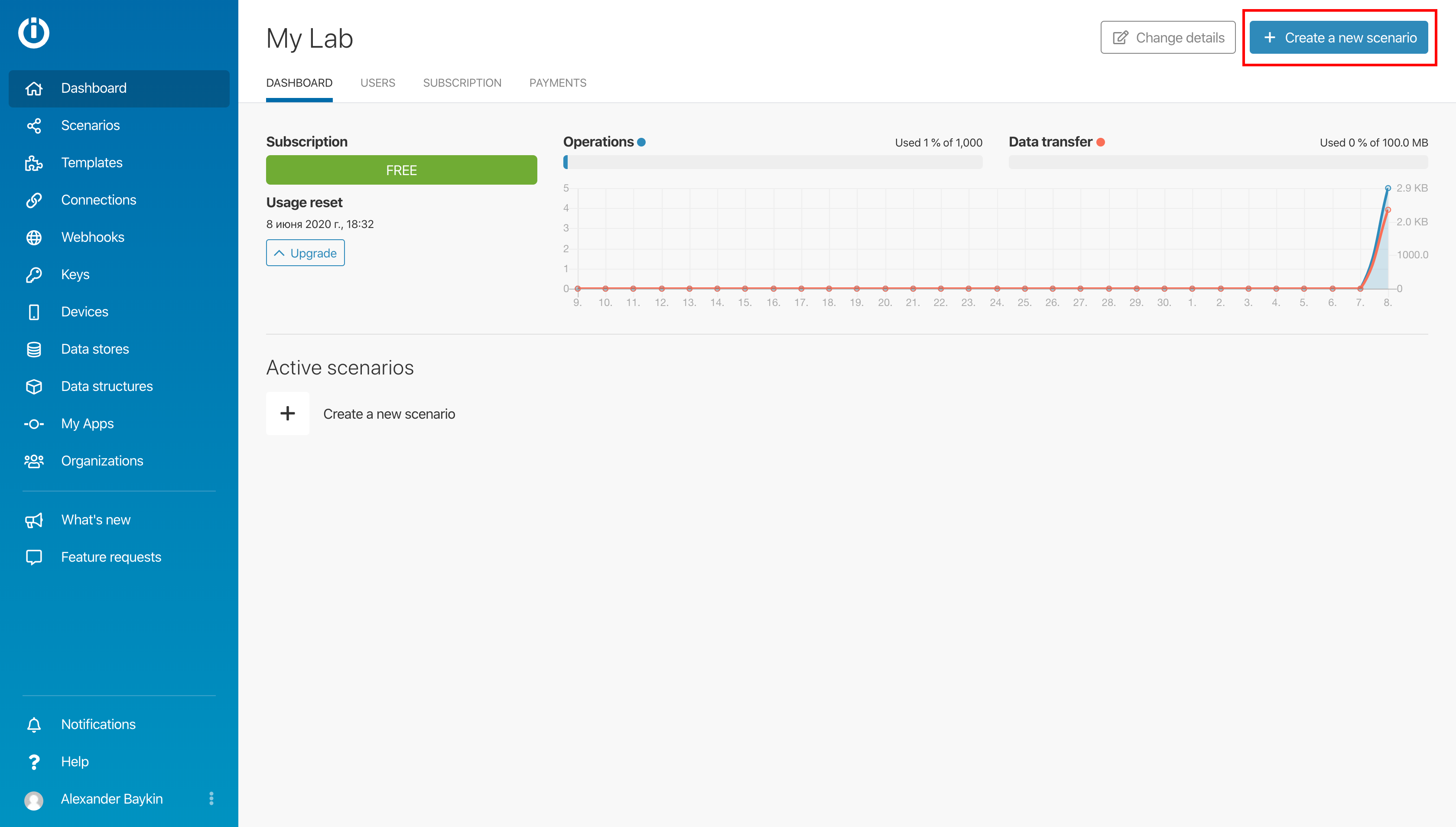
1. Go to Integromat and create a new scenario by clicking the Create a new scenario button in the top right corner.
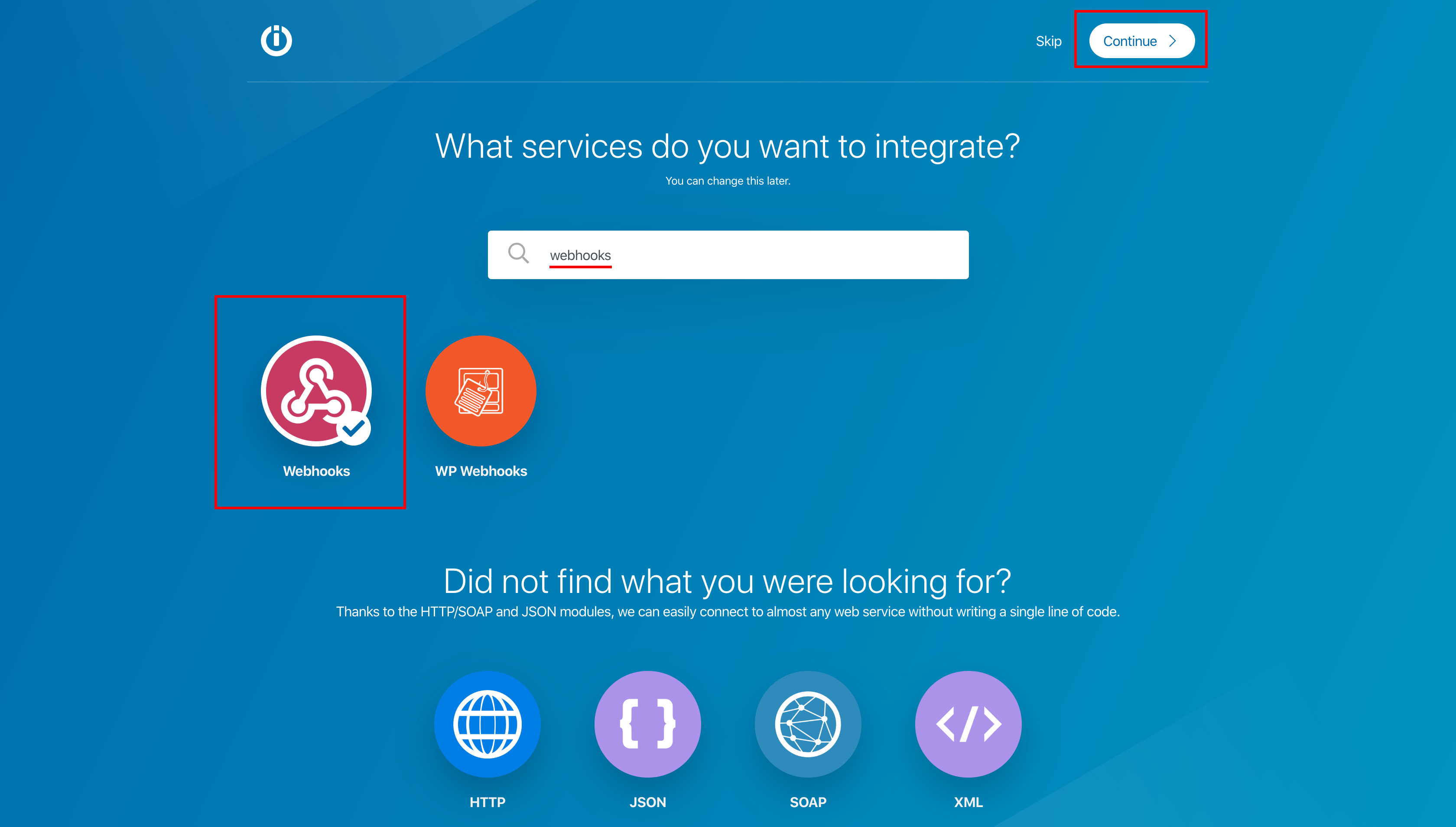
2. Type Webhooks in the search box, click the icon and click Continue.
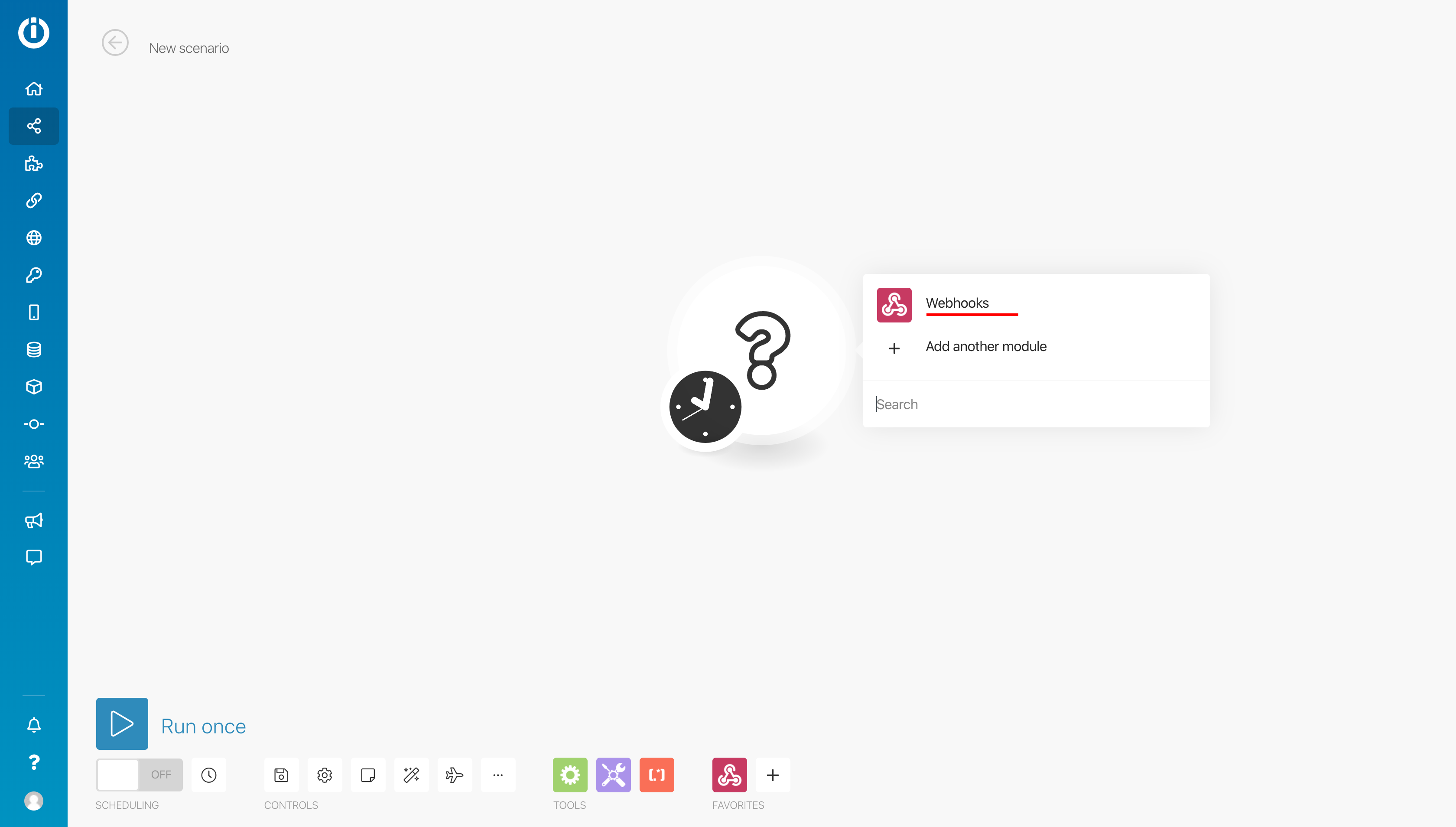
3. Click the big white question mark and select Webhooks.
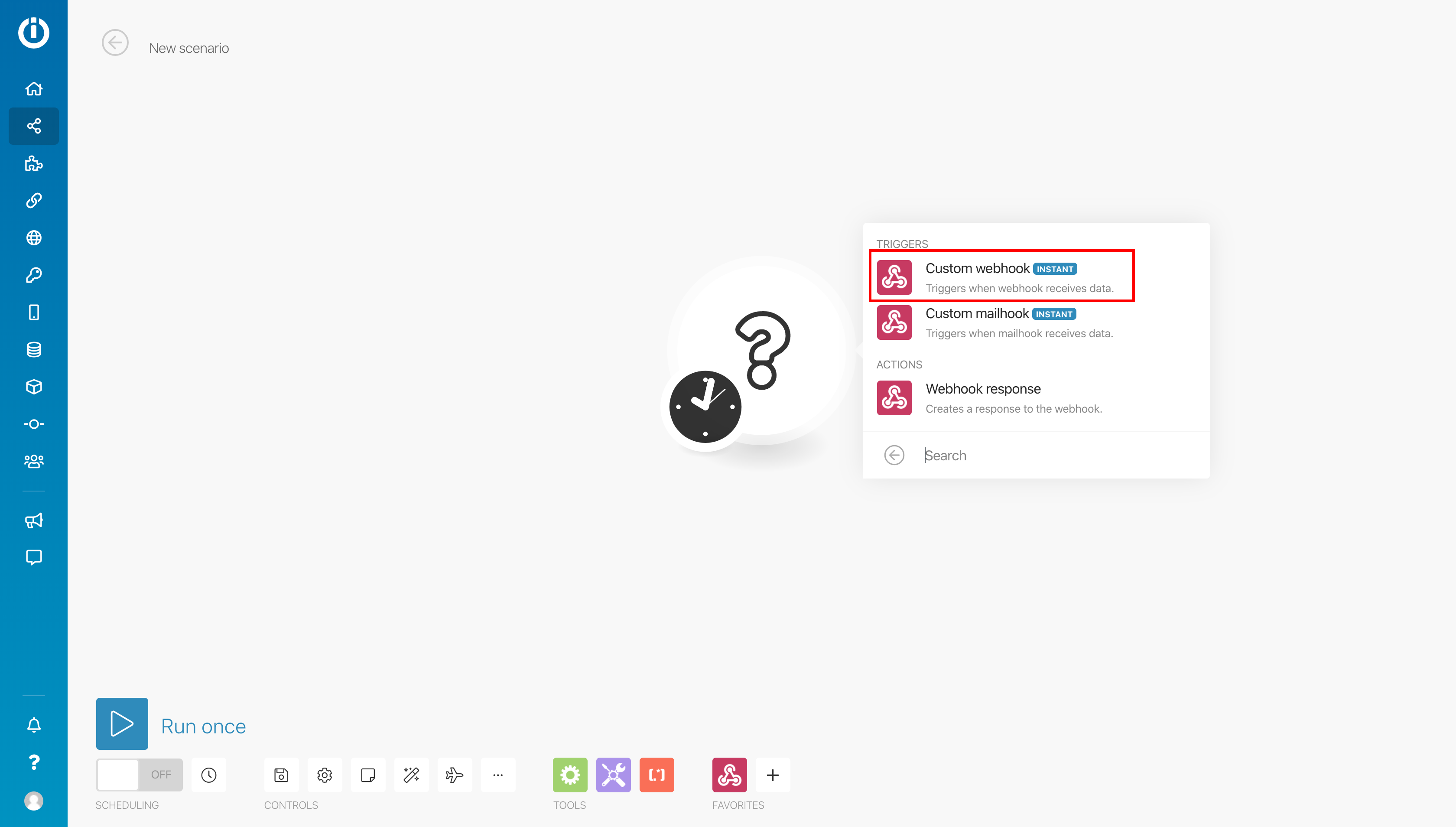
Then select Custom webhook.
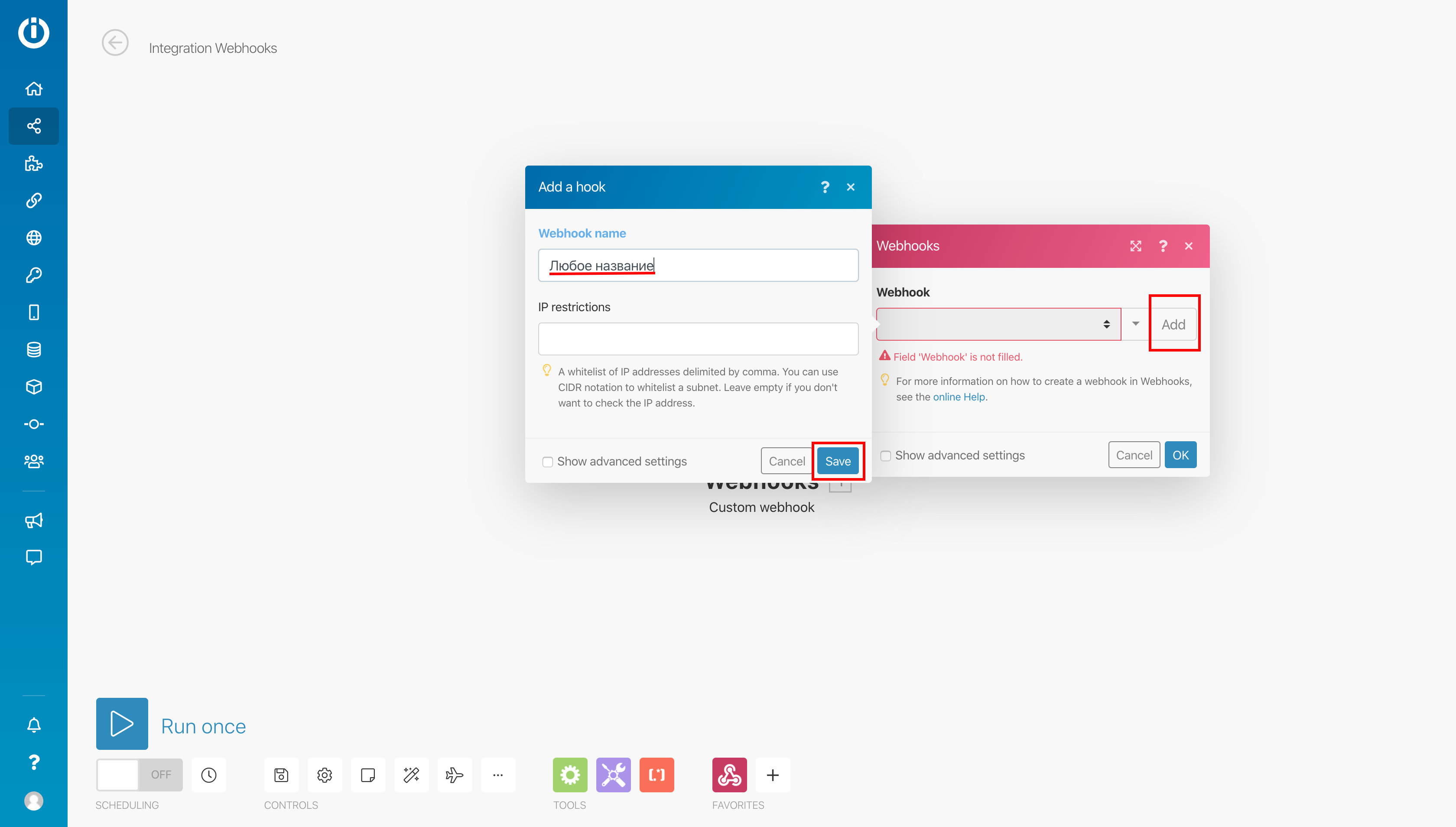
4. To create a new webhook, click the Add button in the Webhooks window that appears, enter any name in the new Add webhook window, and save the changes.
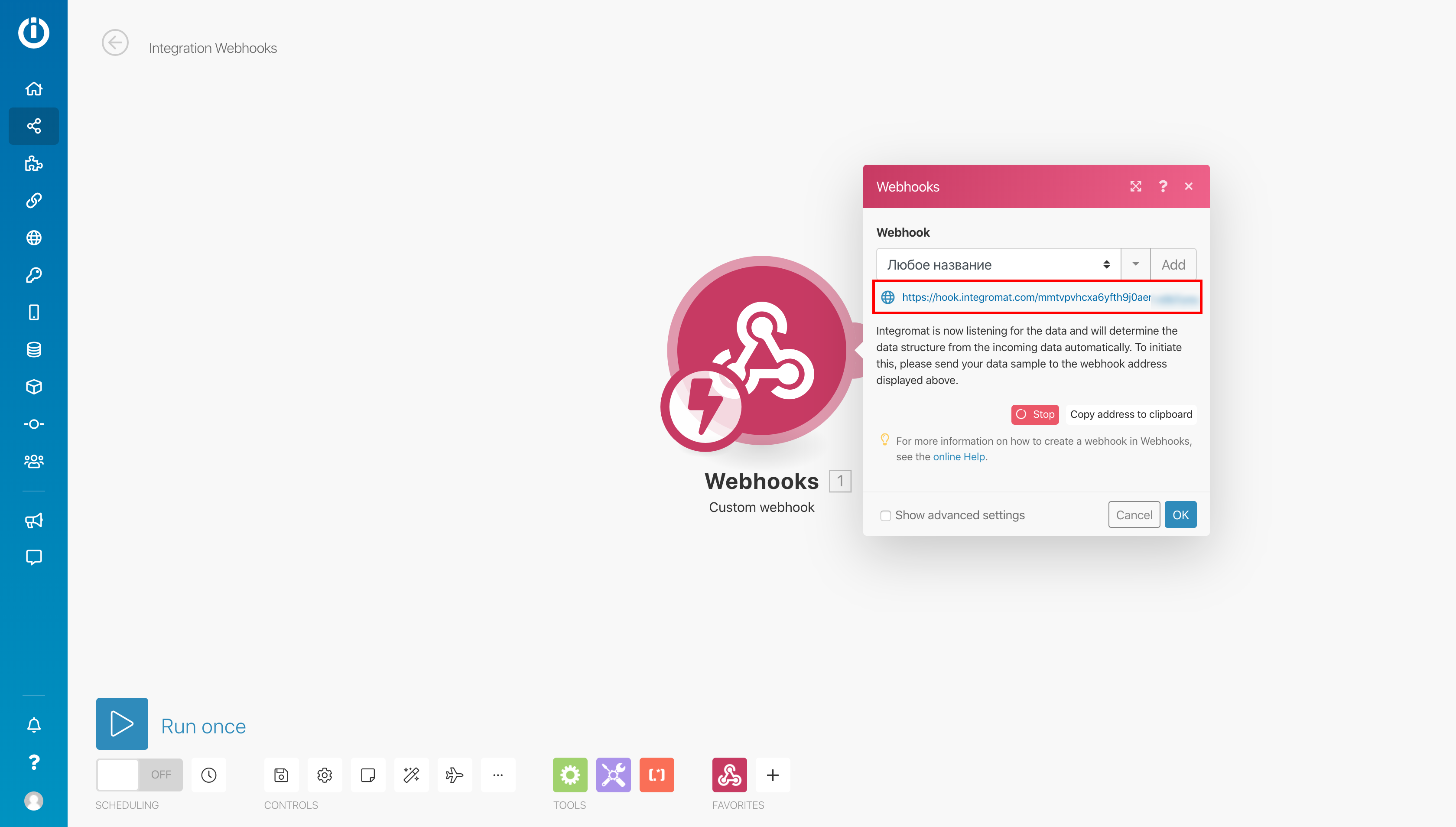
5. Copy the generated link under the webhook name, click OK and go to your puzzlebot account: select the bot, open the Settings section and go to the Event subscriptions tab.
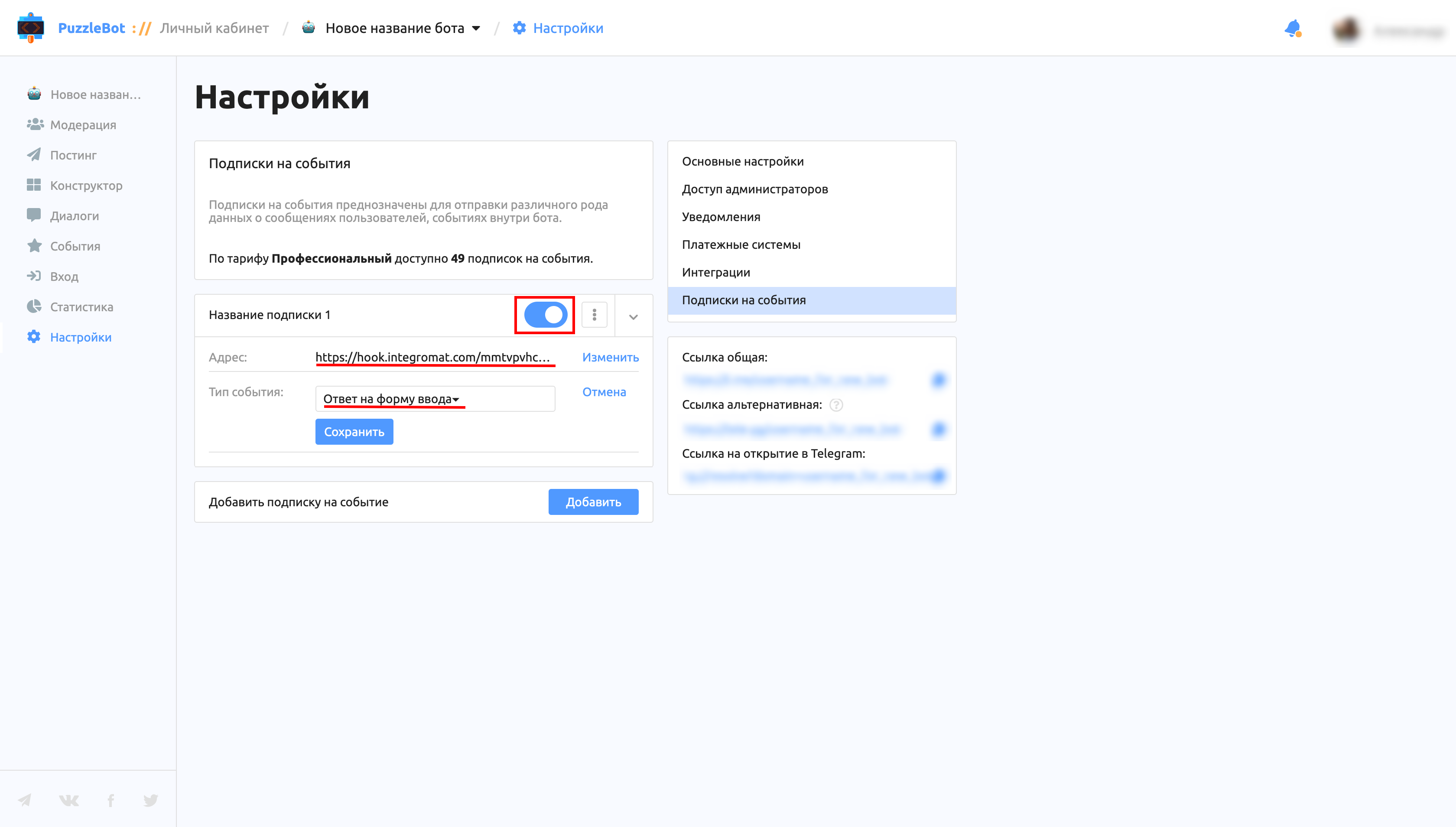
6. Click Add, paste the copied link into the Address field, select the Input form answer event type, save the changes and turn on the subscription. Then go back to Integromat.
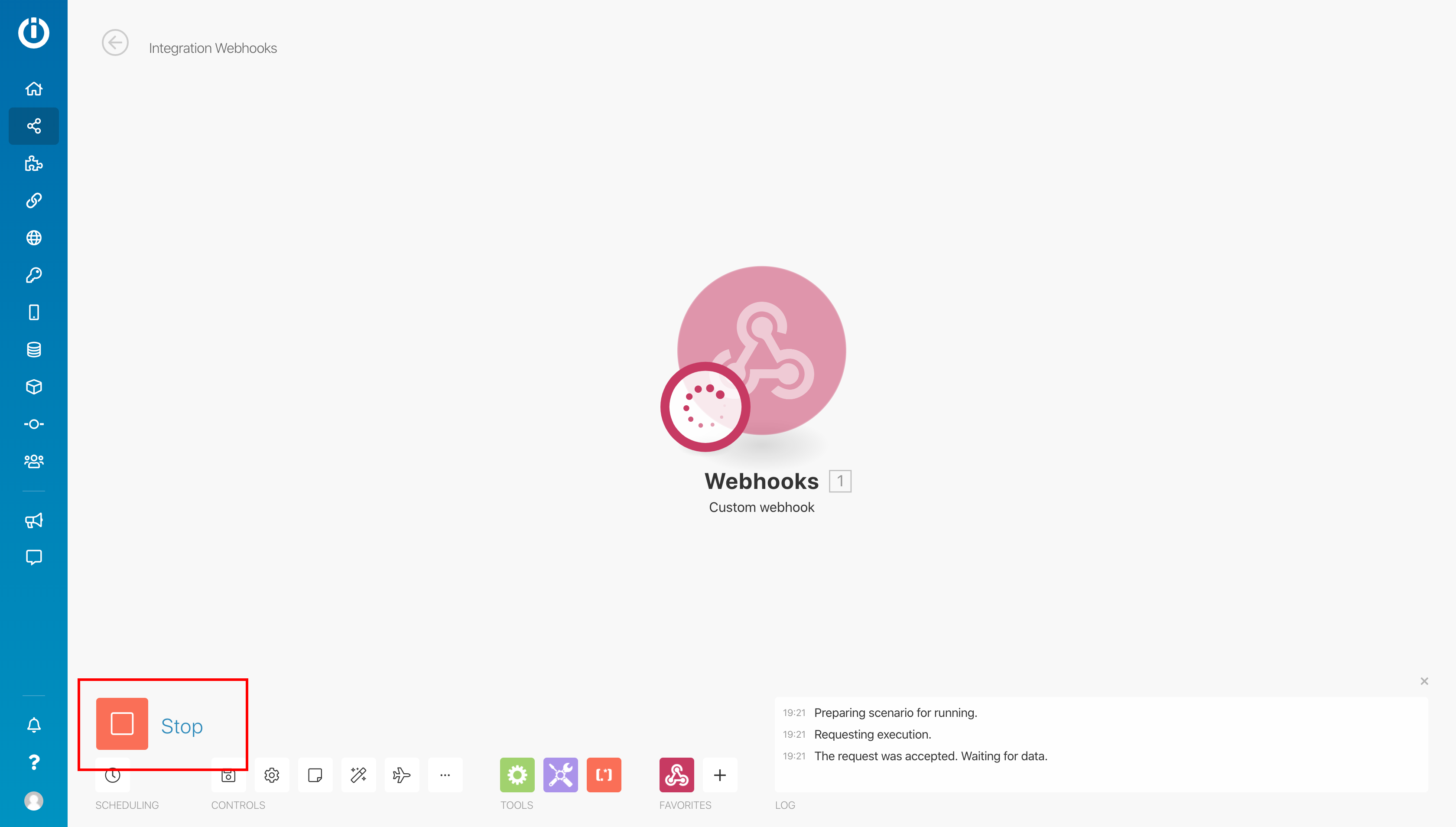
7. Click the big play button labeled Run once and switch to the Telegram app.
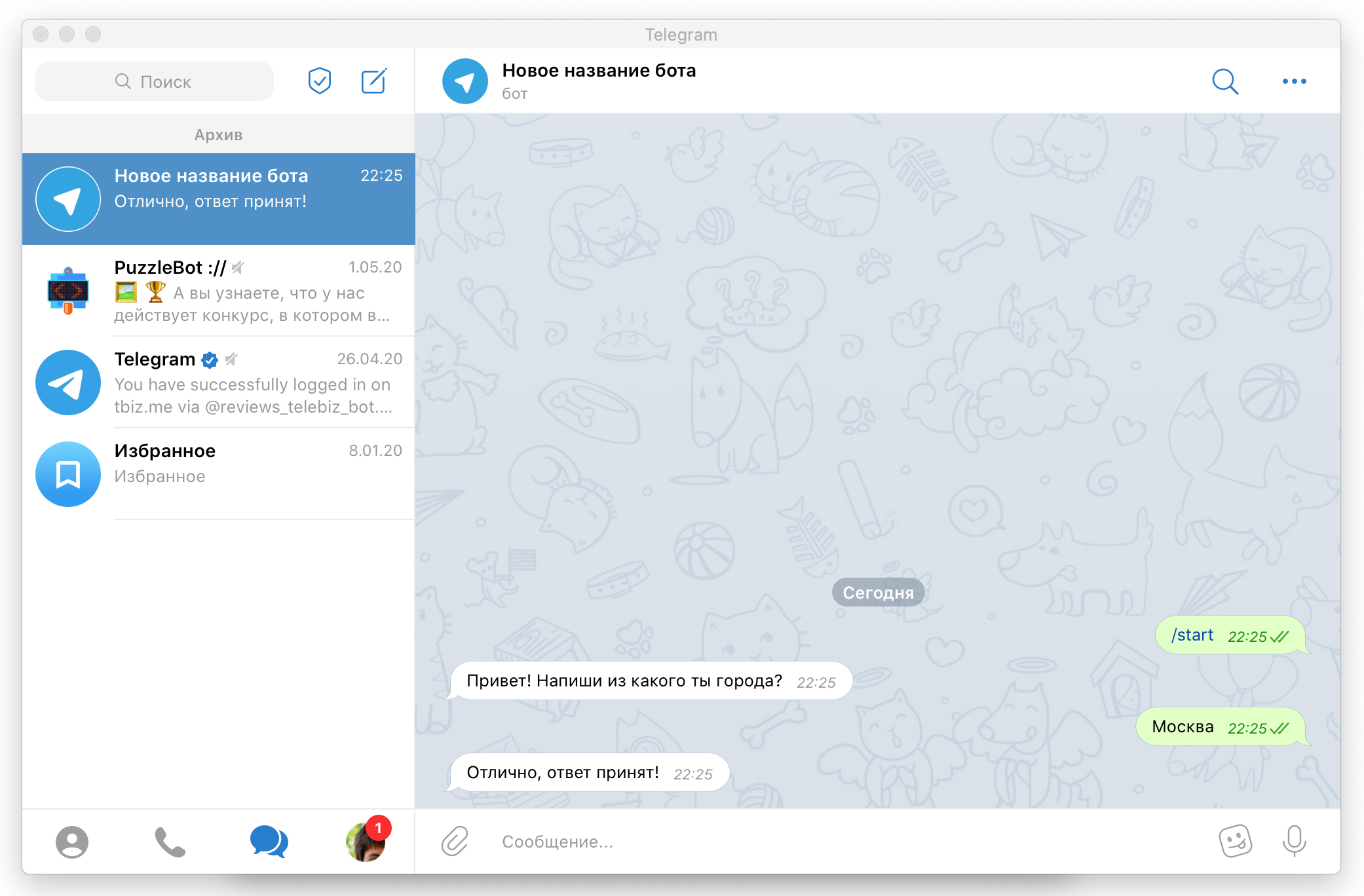
8. Open the chat with the bot, go to the command with the Input form and reply to the command. Then go back to Integromat.
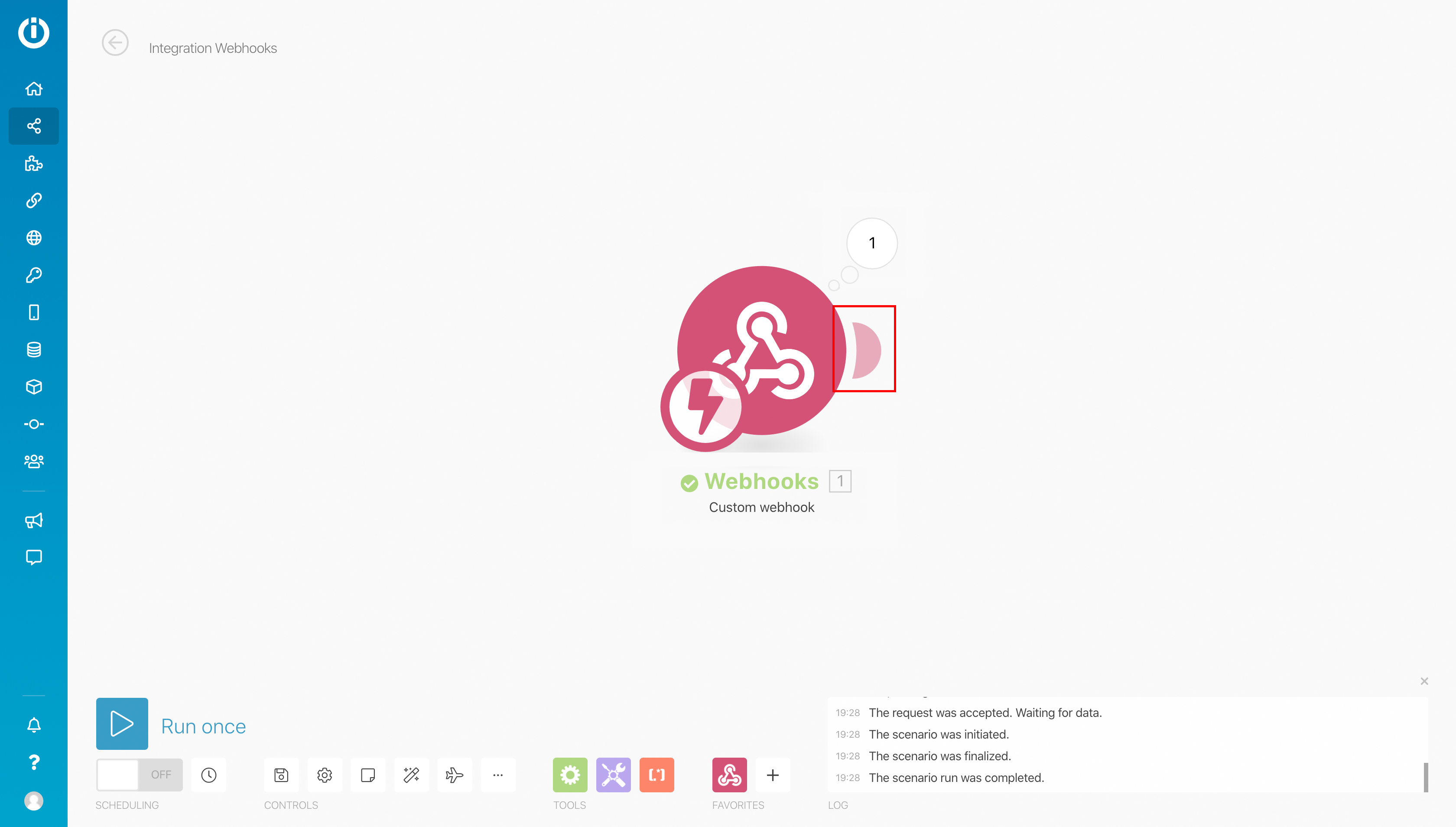
9. Great! You can see that the request was received. Add a connection by clicking the semicircle to the right of Webhooks.
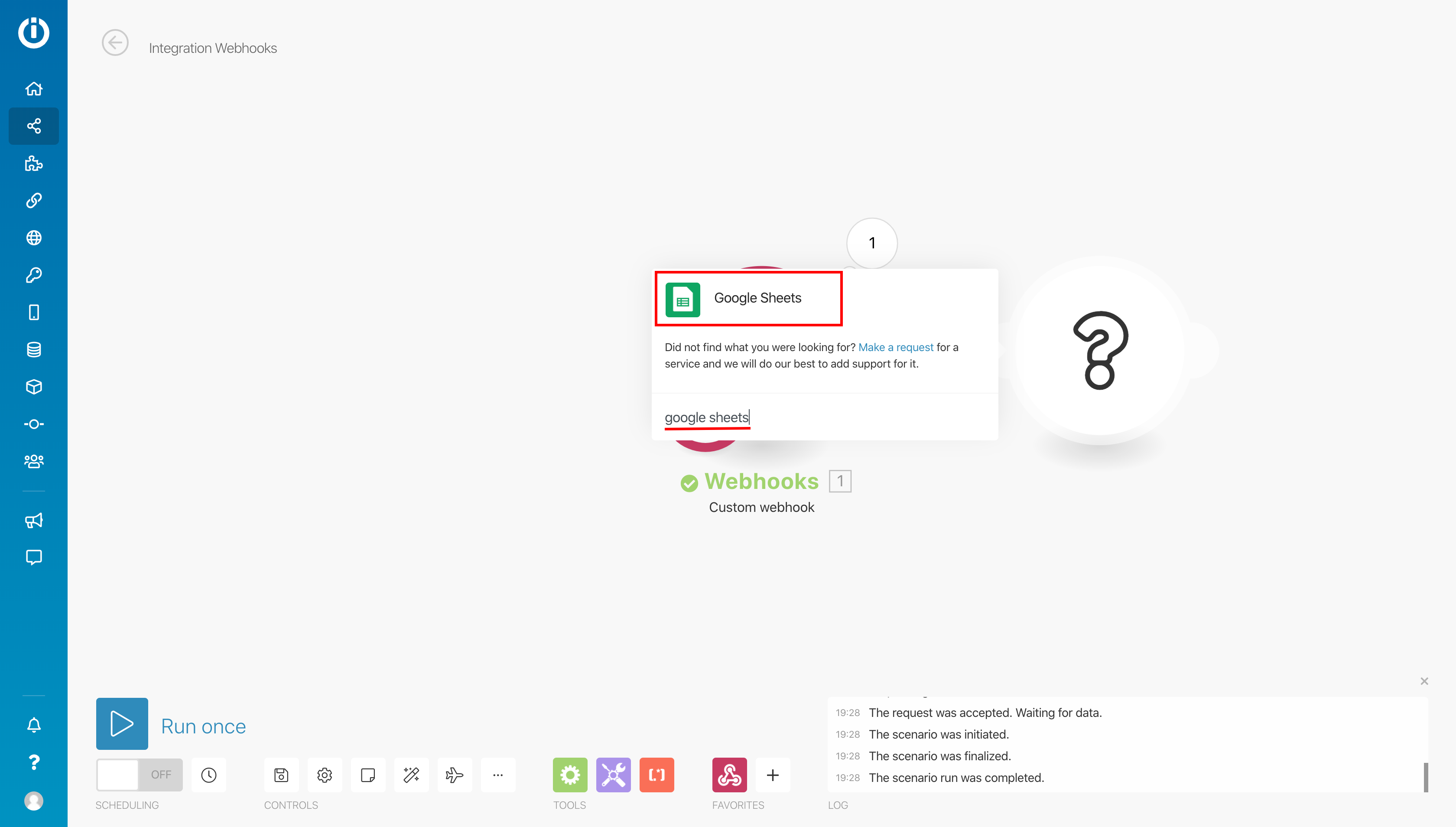
10. In the window that appears, type Google Sheets and click it.
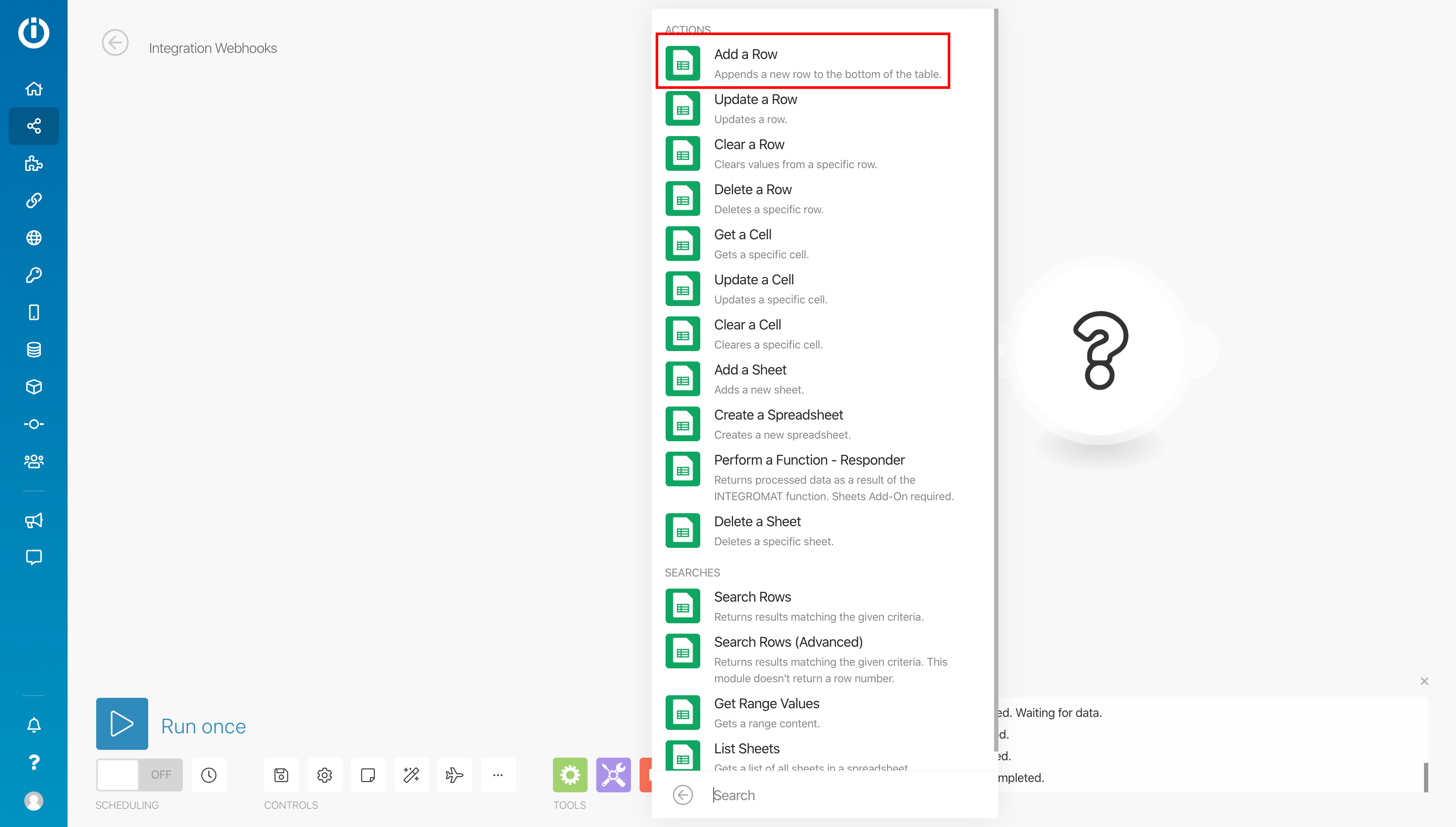
11. In the window that appears, select Add a Row.
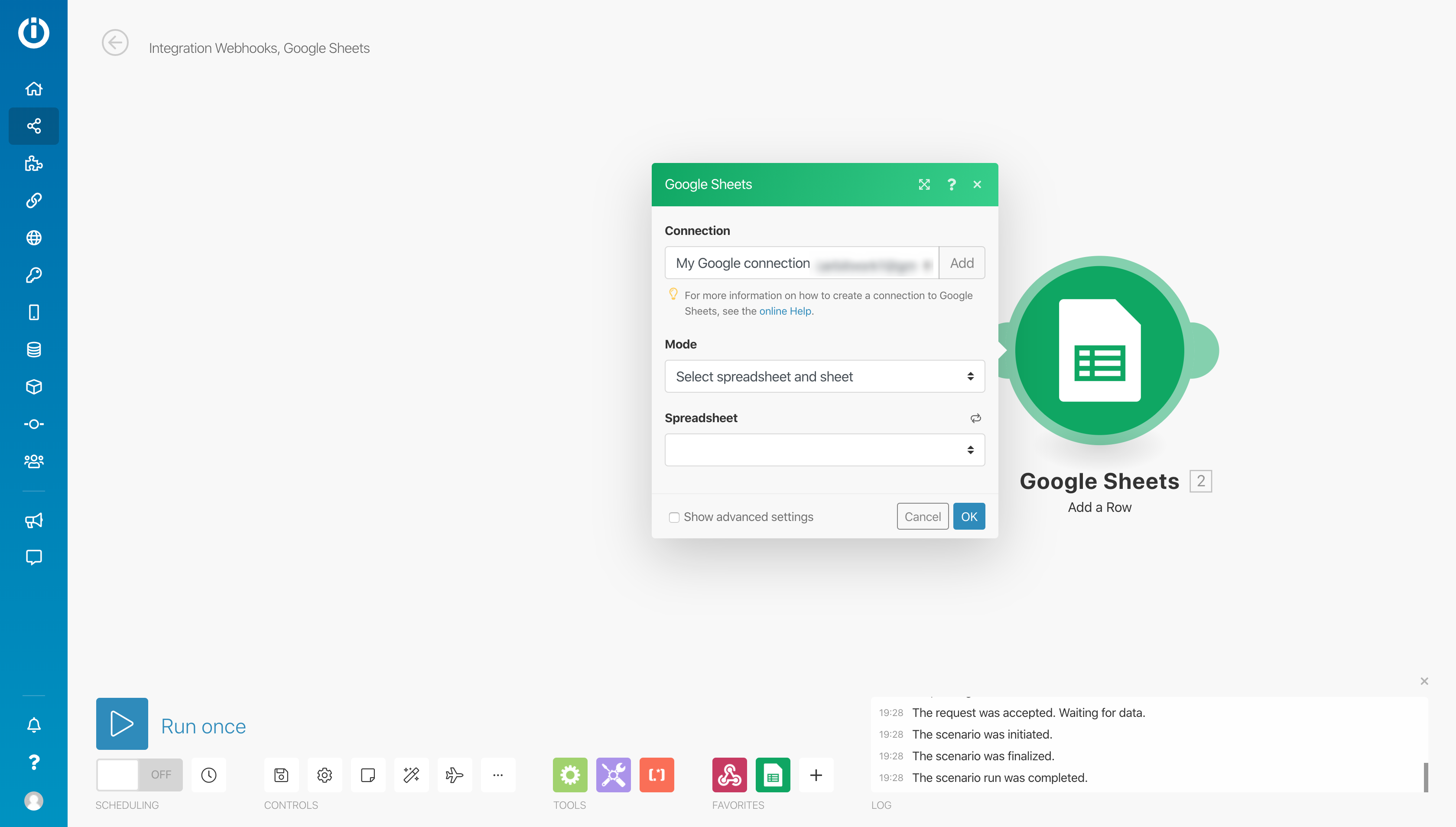
12. In the Google Sheets window, click the Add button and set up a connection with your Google account.
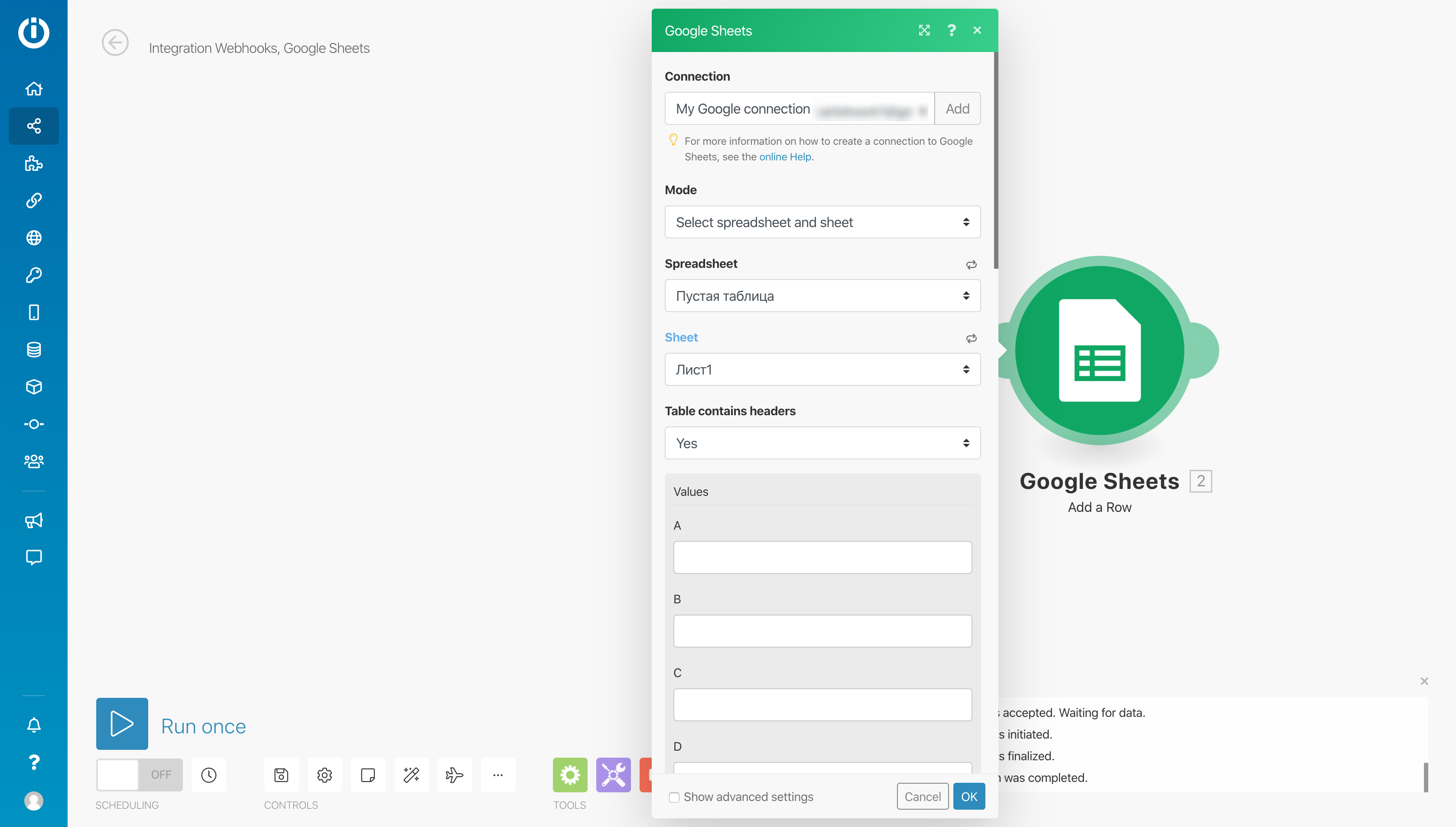
13. Fill in the fields: Spreadsheet — the spreadsheet on Google Drive, Sheet — the sheet in the spreadsheet. Leave everything else unchanged.
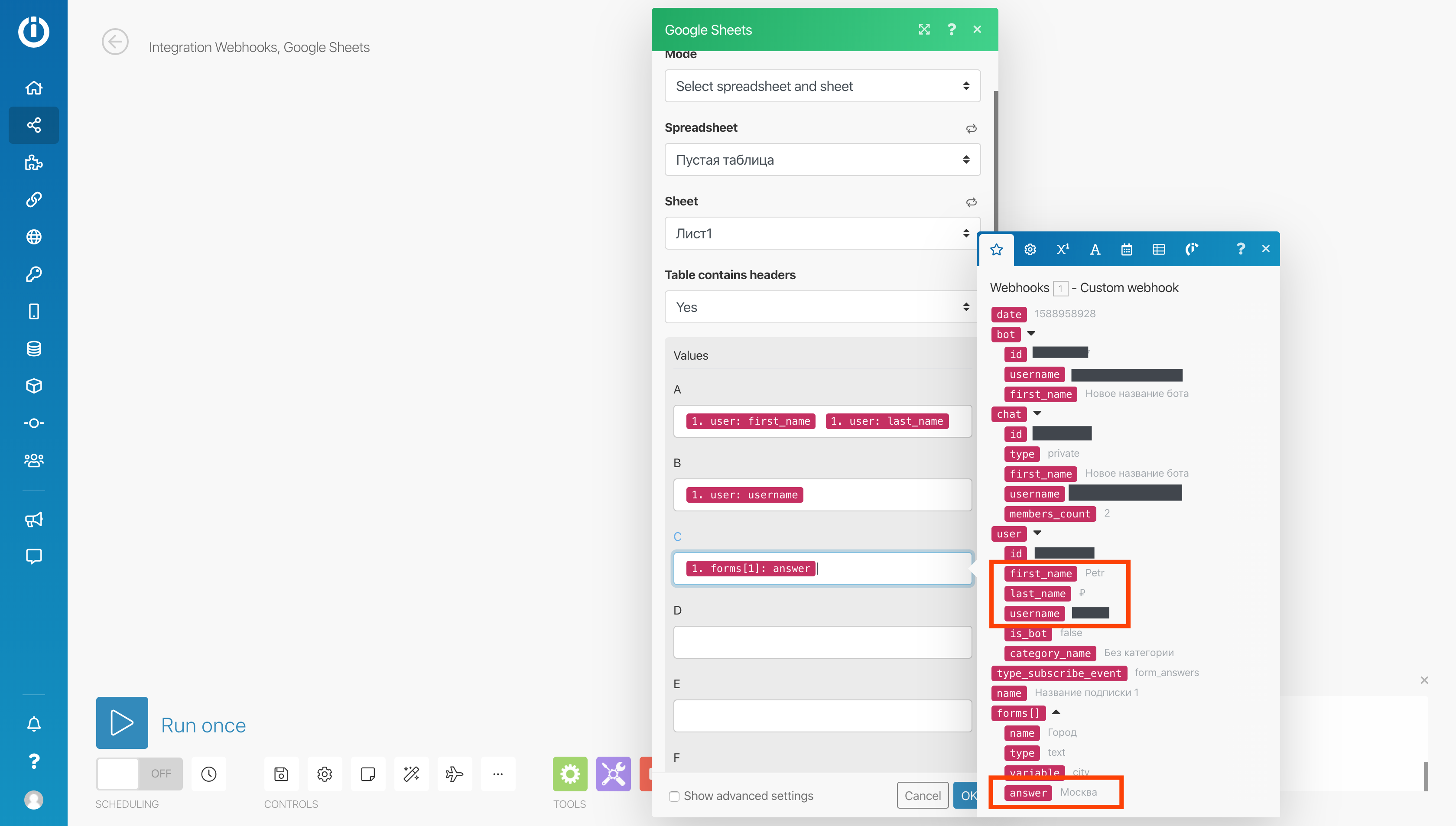
14. Now choose which columns the incoming information will be saved to. The request carries information about the user, the bot, the time, the response and more. For details, see the article API documentation.
In this example, we will save the user's first and last name to column A, the user's username to column B, and the response to the Input form itself to column C.
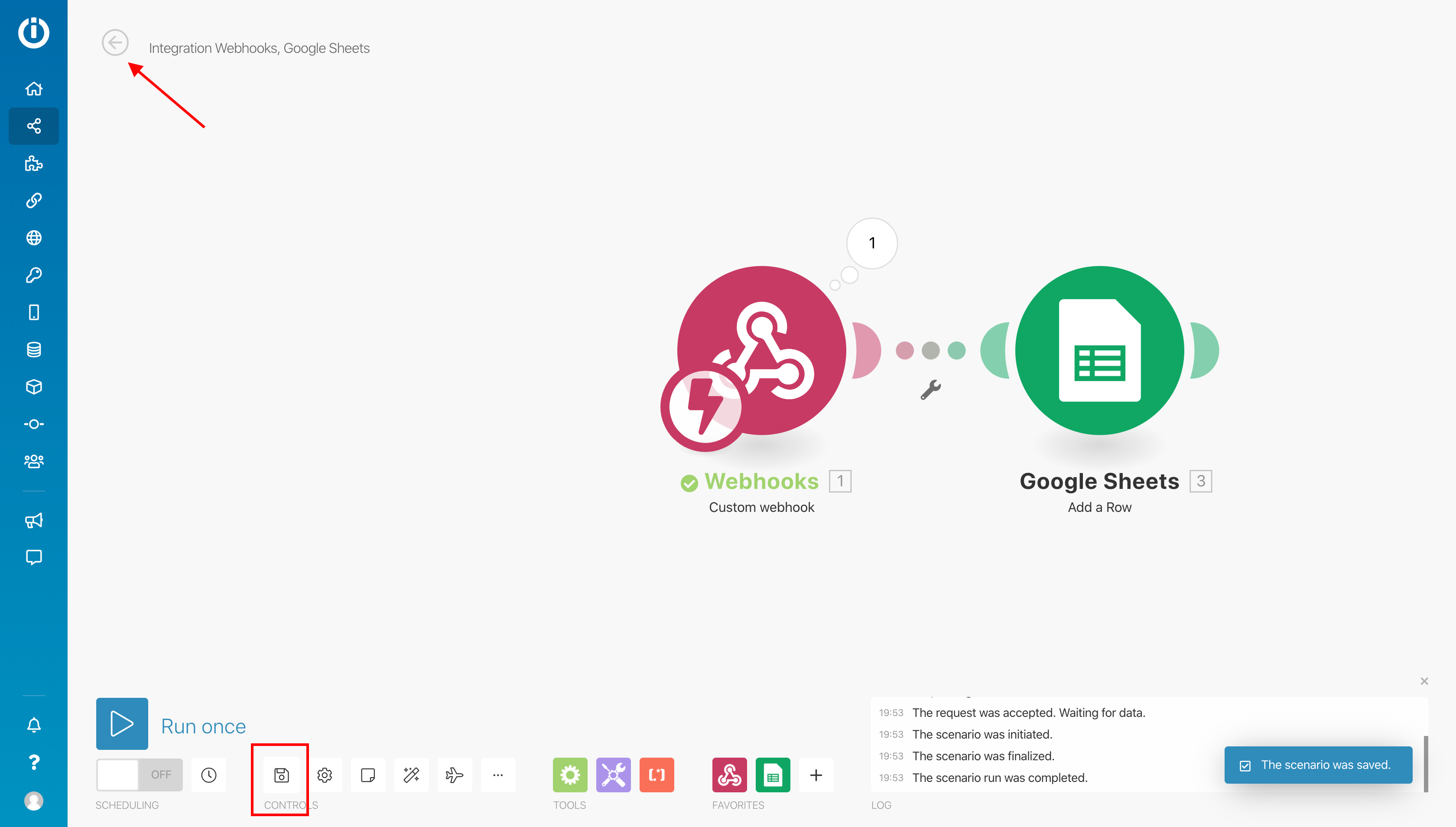
15. Save the changes by clicking OK, save the whole scenario by clicking the button with the floppy disk icon at the bottom of the screen, and exit the scenario editing mode.
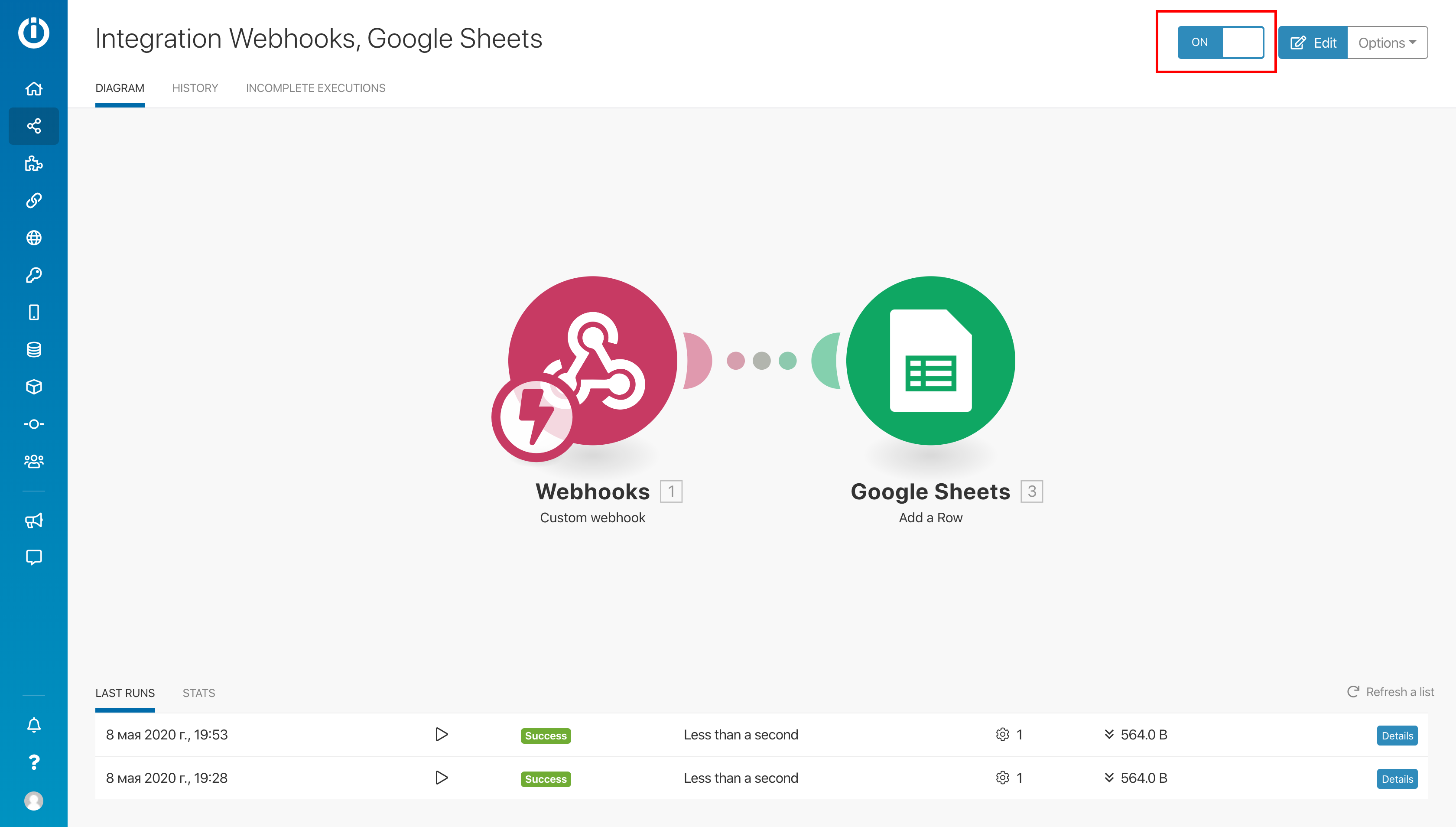
16. Turn on the scenario by flipping the toggle in the top right corner.
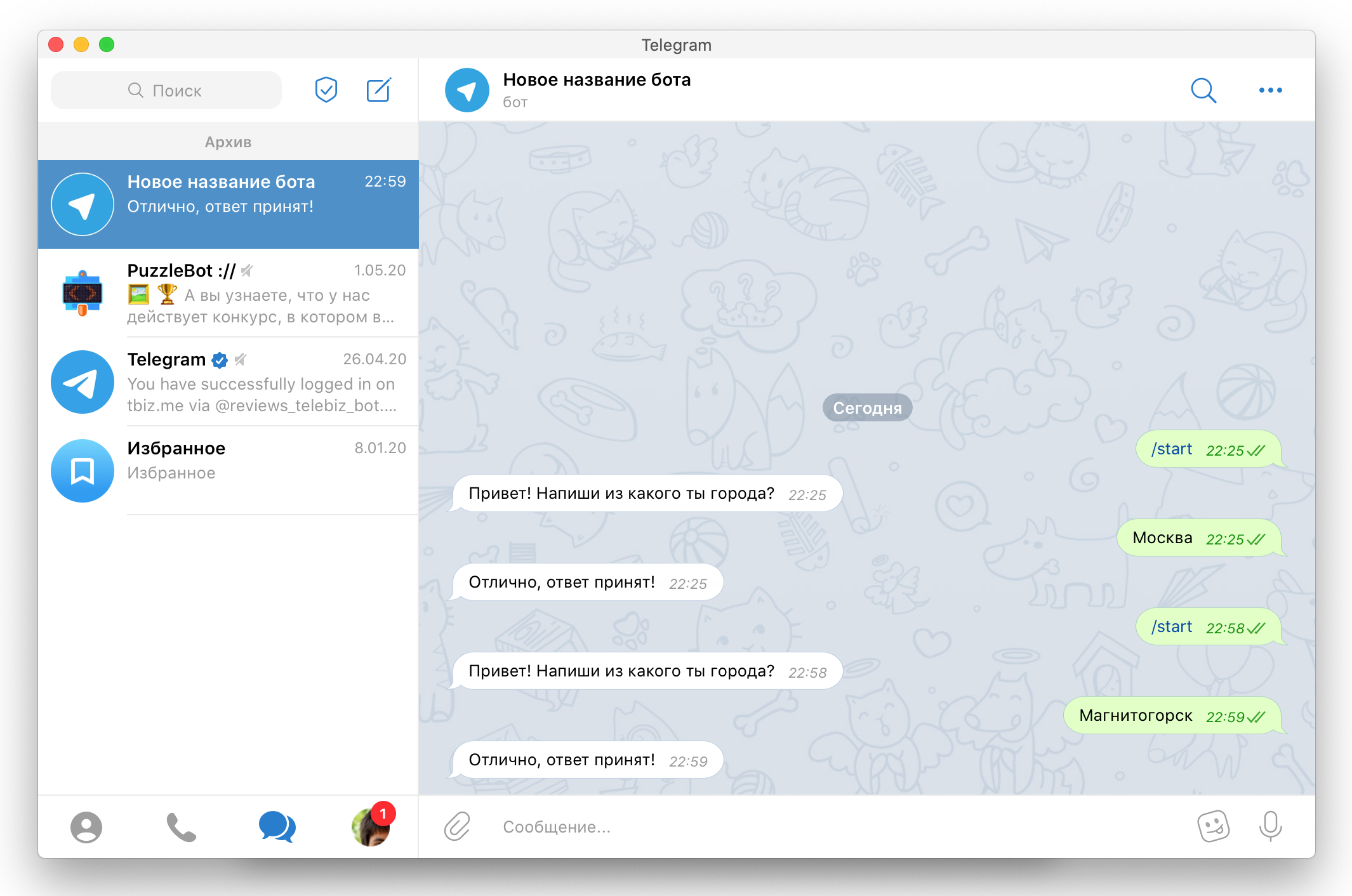
17. Go to the Telegram app, send the bot a new response, and then check it in your spreadsheet.
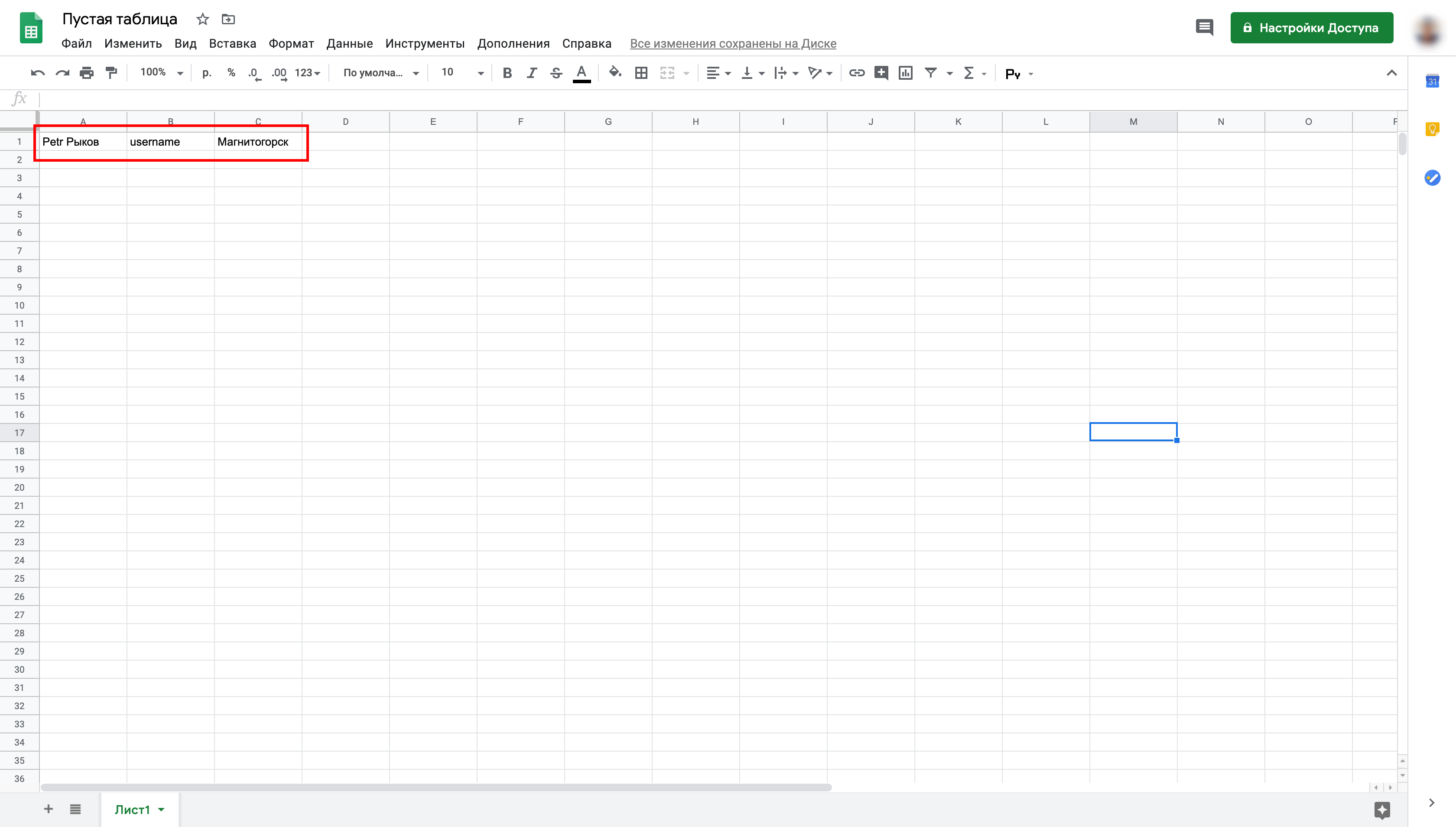
Great! You have successfully integrated Input forms with Google Sheets.
You can also set up the integration using the Apix-Drive service:
0:00 — Introduction
0:40 — Setting up puzzlebot as the Data source
2:40 — Setting up Google Sheets as the Data destination
4:25 — Setting up auto-update