This article explains how the Promotions section of the Store works.
Promotions is a Store tab where you can create a Discount or a Promo code.
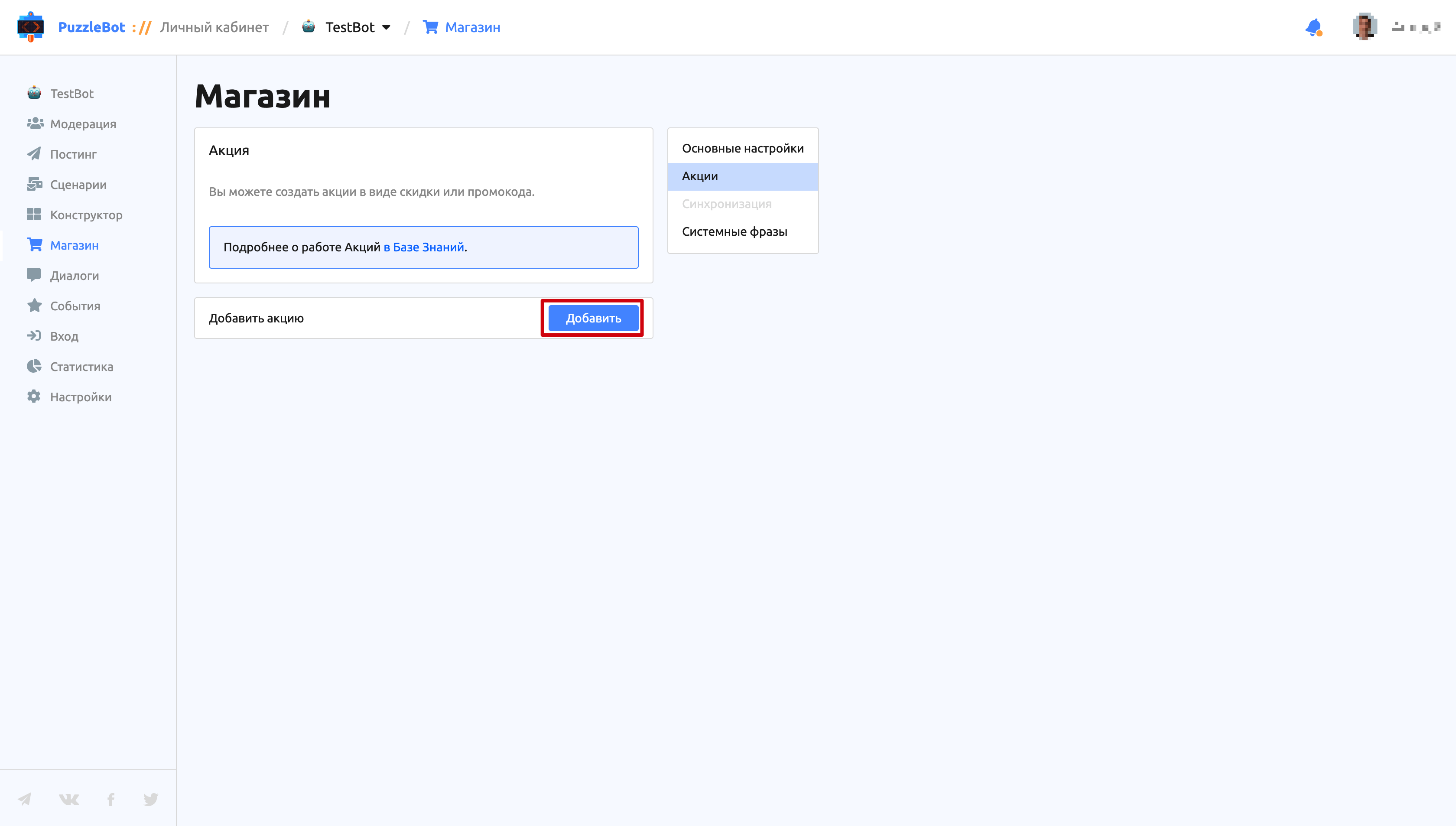
To create a Promotion, click the "Add" button.
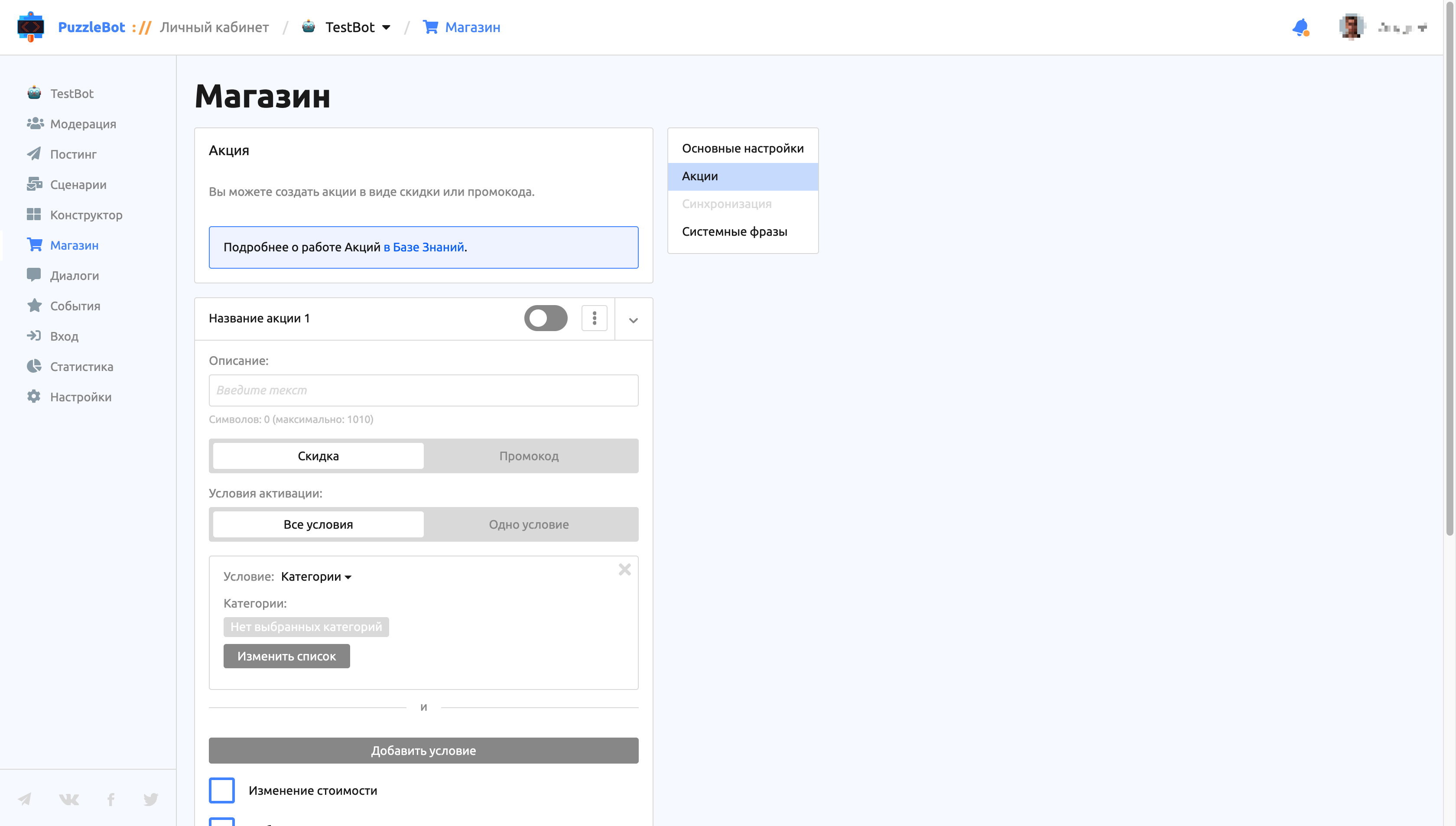
Important! A new Promotion is created disabled.
The first part of the Promotion settings:
Description — the text shown on the receipt under the promotion name.
Discount / Promo code switch — the promotion types. Here is what each one means:
Discount — a promotion that is applied automatically when the set conditions are met.
Promo code — a promotion that is applied when a shared or unique phrase is entered. You can also set conditions for a Promo code Promotion to apply.
When you choose the Promo code type, you can set a shared promo code phrase or generate the required number of unique single-use phrases.
Activation conditions — define when the promotion is applied.
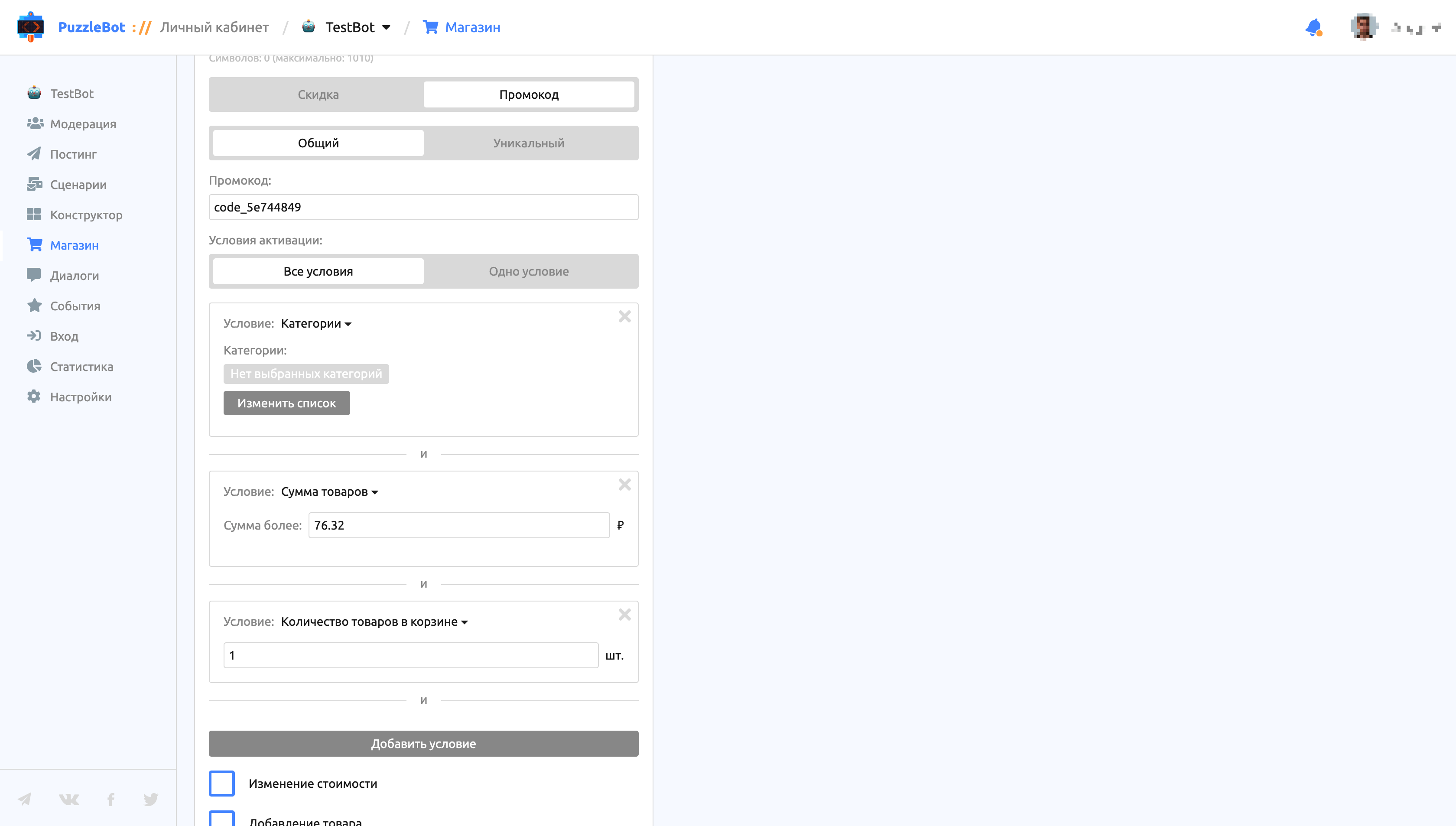
Condition types:
Categories — the promotion is activated if the user is in the specified category.
Product total — the promotion is activated if the products in the cart reach the specified amount, not counting price changes from Delivery and Payment options.
Number of products in the cart — the promotion is activated if the cart contains the specified number of product line items (not units).
Specific product added — the promotion is activated if the cart contains the specified product (useful for promotions like: Buy a table — get a second one free!). Important! All the specified products must be in the cart.
Product from a specific category added — the promotion is activated if any product from a specific category is added (useful for promotions like: Buy any pizza — get a free drink!).
Important! If a Promo code has additional conditions, the Promotion is activated only when the promo code phrase is entered AND the conditions are met.
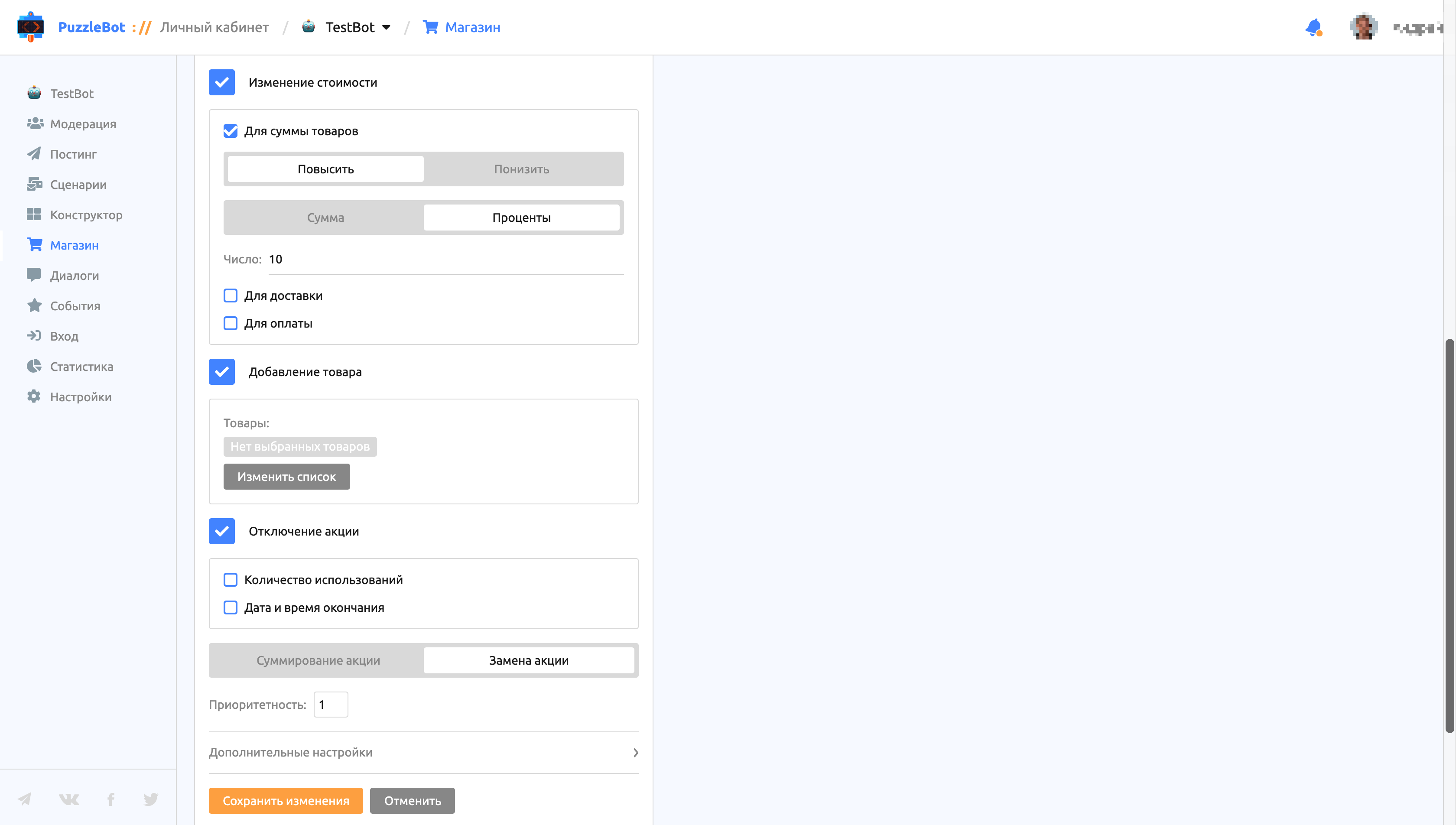
The second part of the Promotion settings:
Price change — lets you set a price change for each order stage separately (example: 10% off products and free delivery).
How the system works:
1. Stage price is positive + AND discount value is positive + : the values are added (200 + 100 = 300).
2. Stage price is positive + AND discount value is negative - : the values are added, but the result can't be less than zero (200 - 250 = 0).
3. Stage price is zero 0 AND discount value is positive + : the values are added (0 + 200 = 200).
4. Stage price is zero 0 AND discount value is negative - : the values are added, but the result can't be less than zero (0 - 250 = 0).
5. Stage price is negative - AND discount value is negative - : the values are added (-200 - 1 = -201).
6. Stage price is negative - AND discount value is positive + : the values are added (-200 + 1 = -199).
7. Stage price is negative - AND discount value is zero 0 : the values are added (-200 + 0 = -200).
8. Stage price is positive + AND discount value is zero 0 : the values are added (200 + 0 = 200).
9. Stage price is zero 0 AND discount value is zero 0 : the values are added (0 + 0 = 0).
Add product — lets you add free products to the cart.
Promotion end — lets you set the maximum number of uses and the end time of the promotion.
Switch for interaction with other promotions — lets you choose one of two options:
Combine promotions — all promotions are applied.
Replace promotions — the promotion with the highest priority replaces ALL other promotions. If promotions have the same priority, a random one is chosen.
Additional settings:
Send a command after purchase.
Change scenario after purchase.