This article covers the Product list tab and explains how to create products, product groups, and categories.
We recommend reading this article first: Store section overview
Products, product groups, and product categories are created on the dedicated Product list tab in the Store section. Use the switch above the table to move between the Products and Categories pages. To add products or categories, open the page you need and click the Add button in the upper-right corner.
Let's go through each tab.
Products
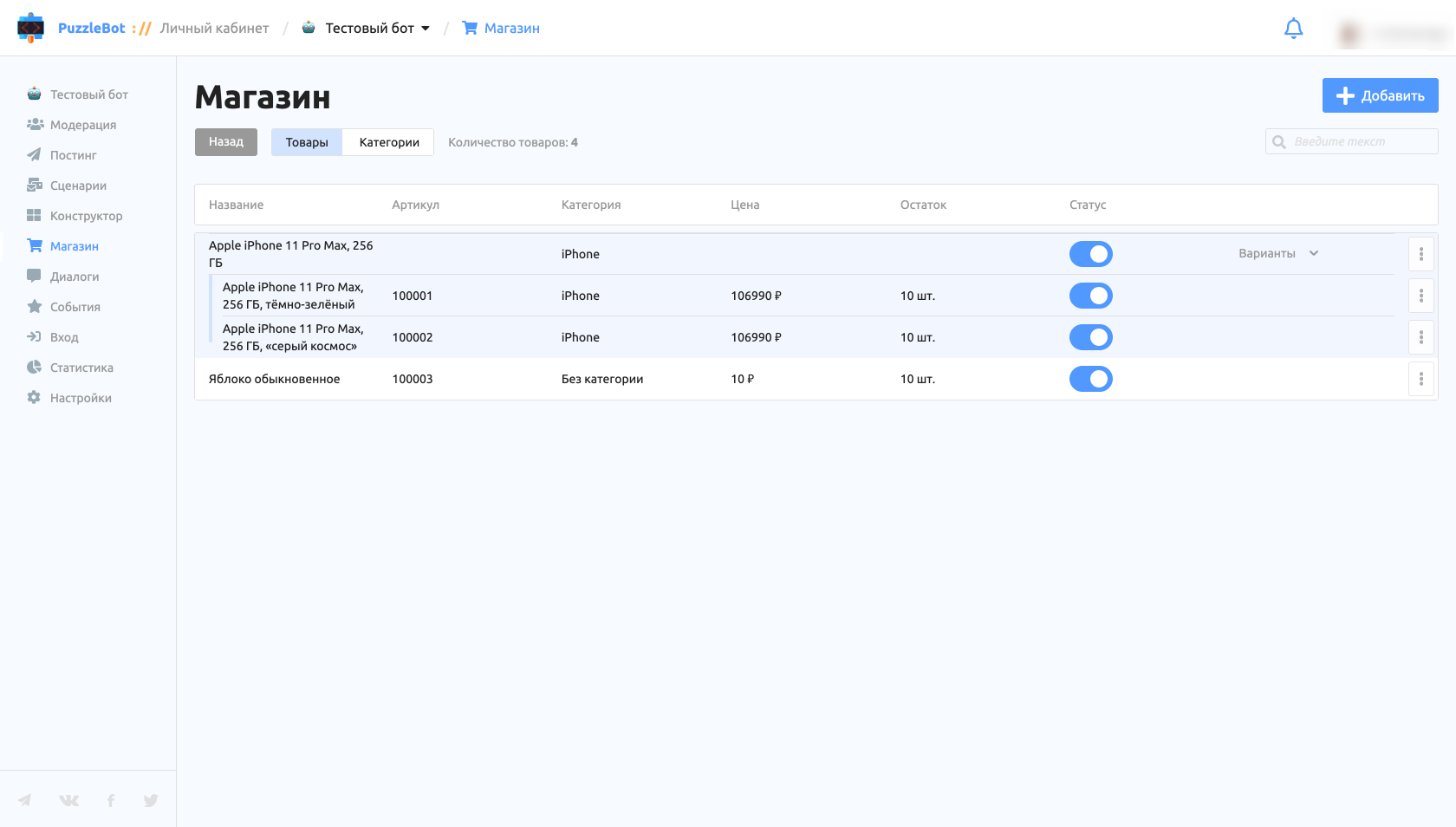
Clicking the Add button opens a window where you can choose to create a standalone product or a product group. A product group lets you combine several products and display them together.
Product settings
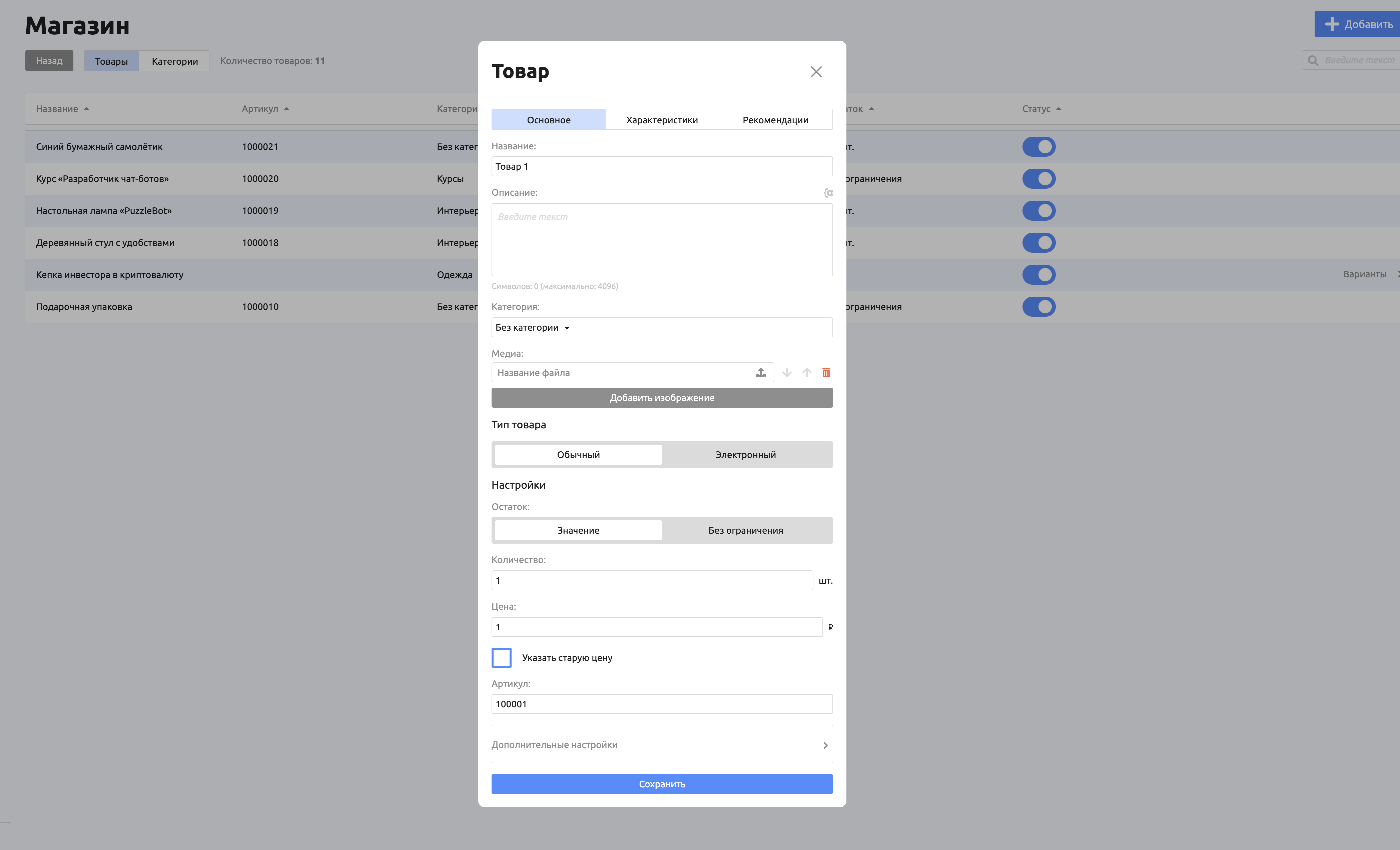
General
Name.
Description.
Category. If the category has template attributes, they are filled in automatically.
Preview. Appears when the option is turned on in the store settings. Lets you upload an image or video as the cover of the product card; the preview is not shown on the product page itself.
Media. Images or videos that showcase the product. You can upload several at once.
Product type:
Regular. Includes a delivery step.
Digital. Sent without a delivery step. Lets you set up sending a link, promo code, or other text value right after the order is placed. Learn more about setting up a digital product: Digital product.
Stock:
Value. The exact quantity of the product in stock.
Unlimited.
Price. If several currencies are connected, set a price for each currency.
Set old price. Lets you show the old price as an exact value or as a percentage of the current price.
SKU. A unique value for each product.
Additional settings:
Skip the delivery step. If the cart contains only products that do not need delivery, the delivery step is skipped.
Limit the product quantity per cart.
Insert. Lets you insert the content of another mini app above the description on the product page.
Important! The following blocks inside the inserted mini app are not displayed: Input form, Menu, Insert, Keyboard: Fixed button, Product.
Send a command after purchase. After this product is purchased, the specified command is sent (if the same command is specified in other purchased products or categories, duplicates are removed).
Change scenario after purchase. After this product is purchased, the specified scenario is started.
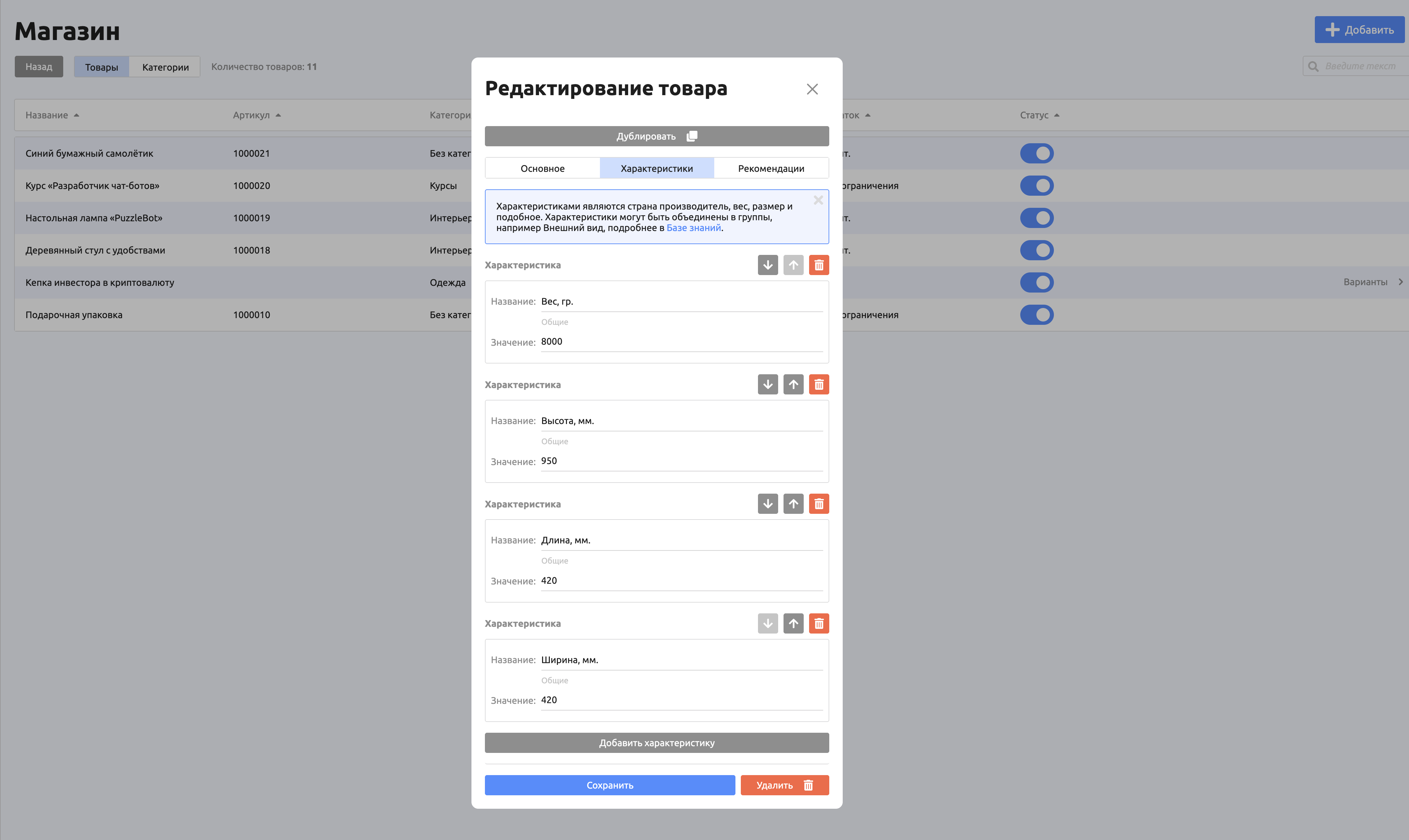
Attributes
On this page, you can add or create product attributes. In a product group, you can set up variants based on attributes.
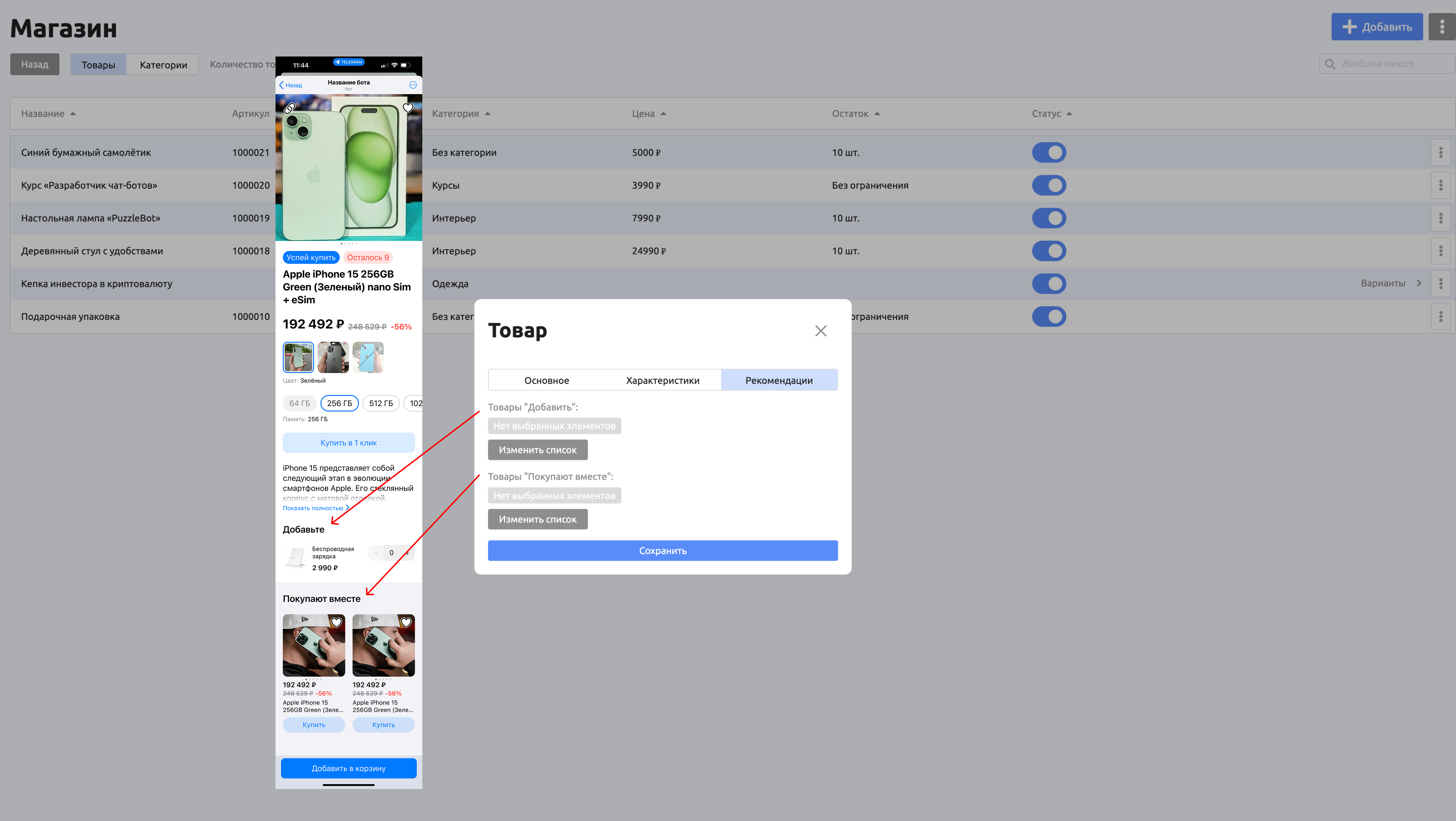
Recommendations
In recommendations, you can add other products to be displayed on the product page.
Add. Adds products right below the product description.
Bought together. Adds products below the main product information.
Product group
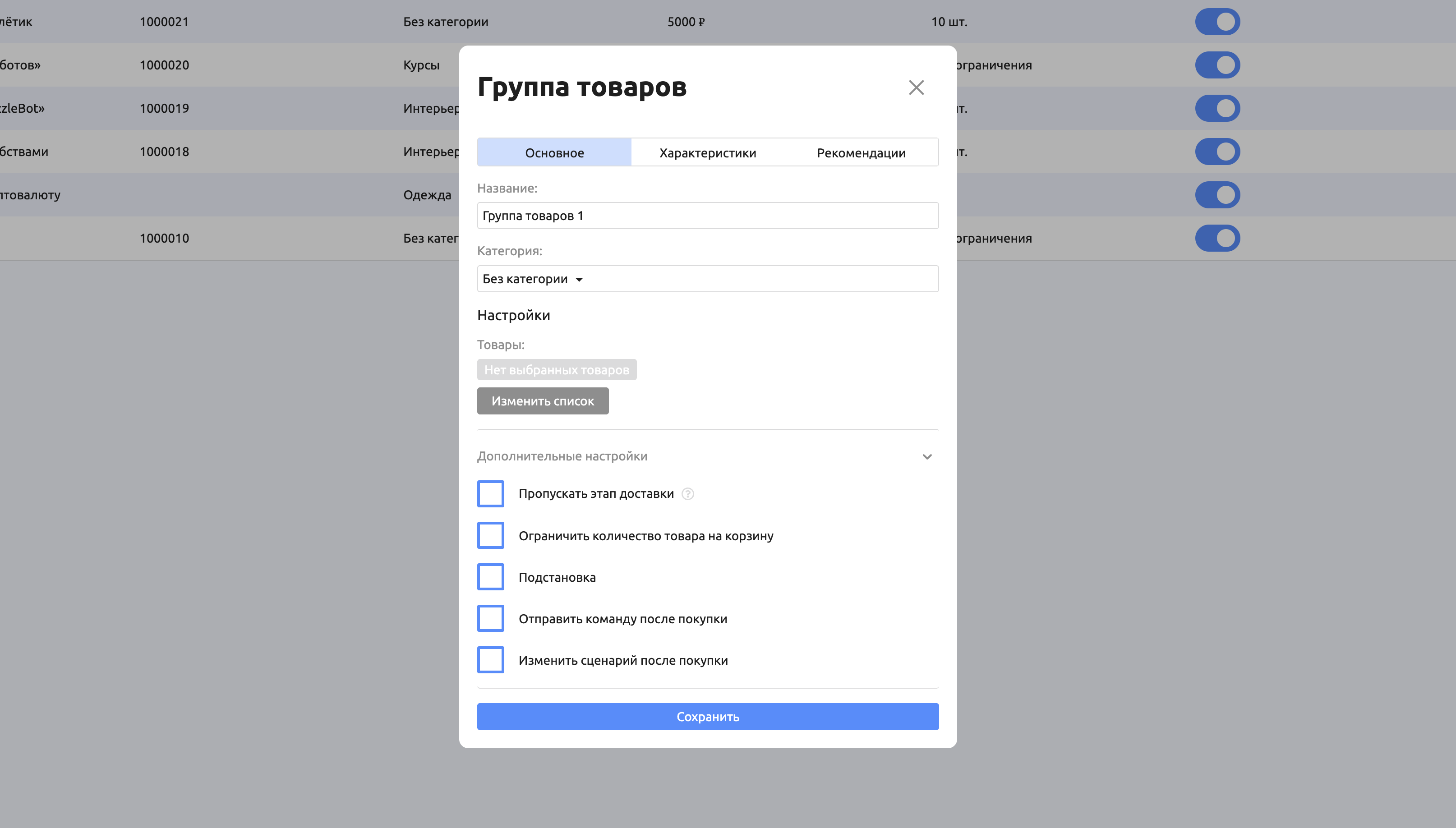
Important! Only products of the same category can be added to a product group.
General
Name.
Category.
Products.
The additional settings are the same as the product settings. If settings are specified for both a product and its product group, all of them are applied.
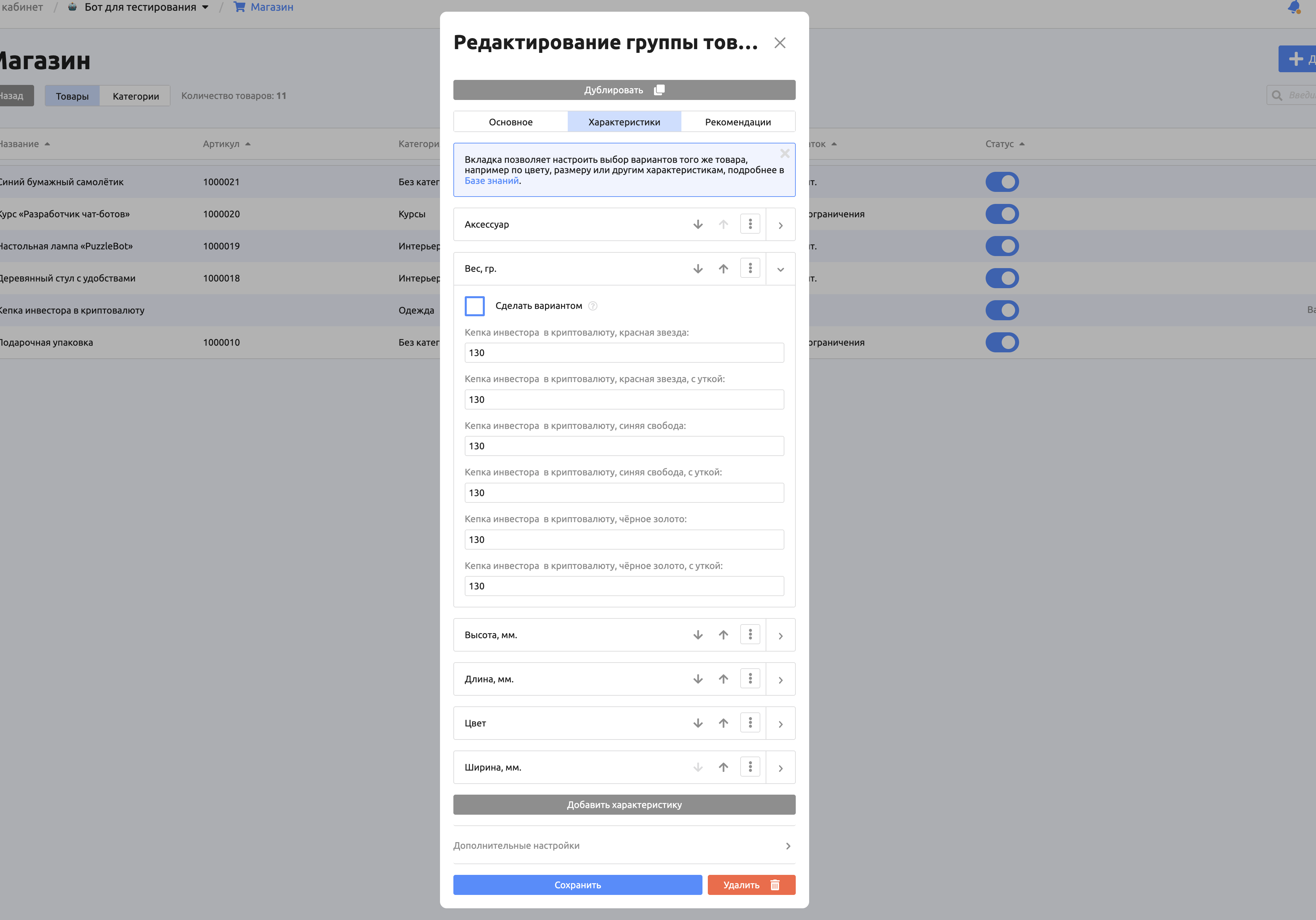
Attributes
This tab lists the attributes of all products in the group. You can reorder attributes, remove them from the listed products, or rename them. Every product in the group must have a value set for each attribute.
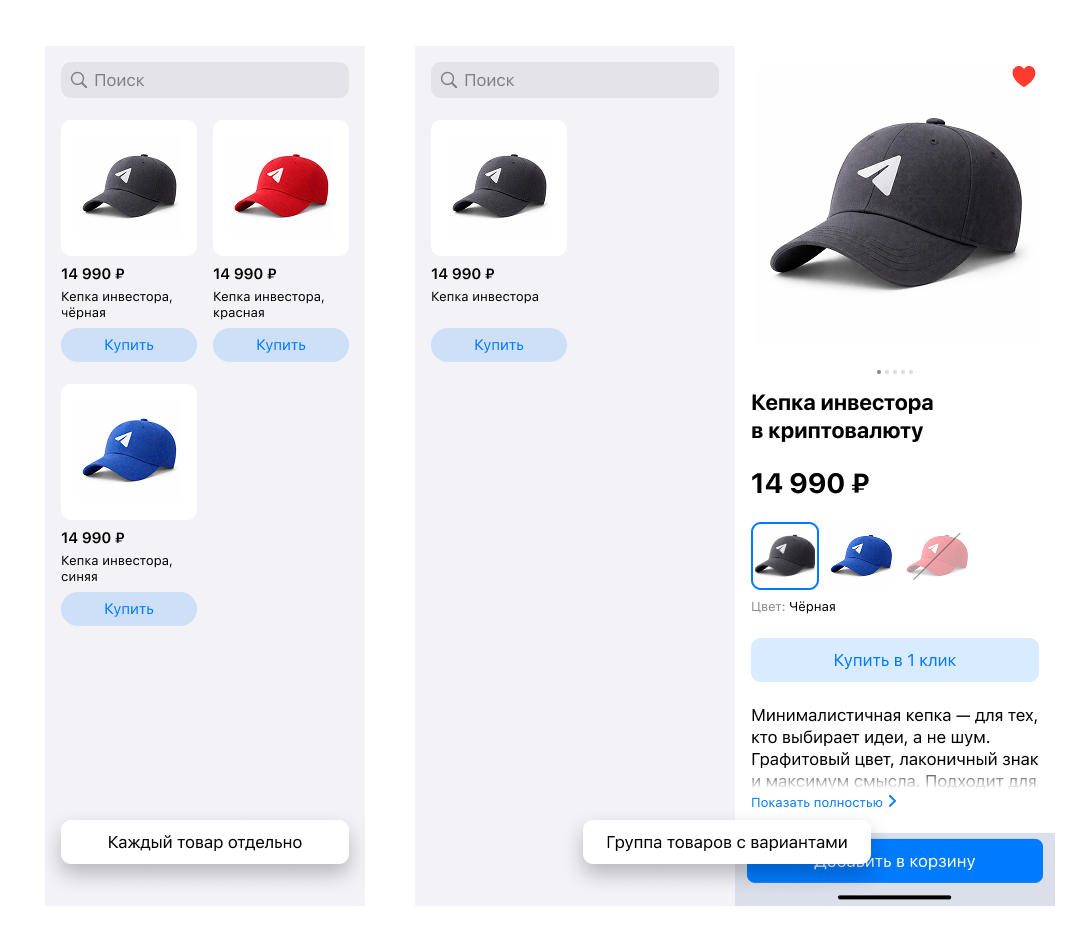
Attributes that differ can be turned into variants: when enabled, buttons for choosing the desired product variant appear on the product page. Products combined into a group are hidden from the Product block. The group's card shows the group name along with the image and price of the first or the cheapest product.
Additional settings:
Customize how product cards are displayed. When this option is on, you can choose which attributes products should be displayed by and which can be hidden, for example to hide cards that differ only in clothing size.
For example: you added 10 pairs of identical shoes in different sizes. To avoid showing near-identical products, the user sees only the products that have different values for the listed variants.Show product previews. Lets you use product photos for choosing the desired variant.
For example: for the "Color" property, instead of the text values "Red" and "Green", you can use product previews or media where the user can see the difference.
Recommendations
In recommendations, you can add other products to be displayed on the product page.
Add. Adds products right below the product description.
Bought together. Adds products below the main product information.
Categories
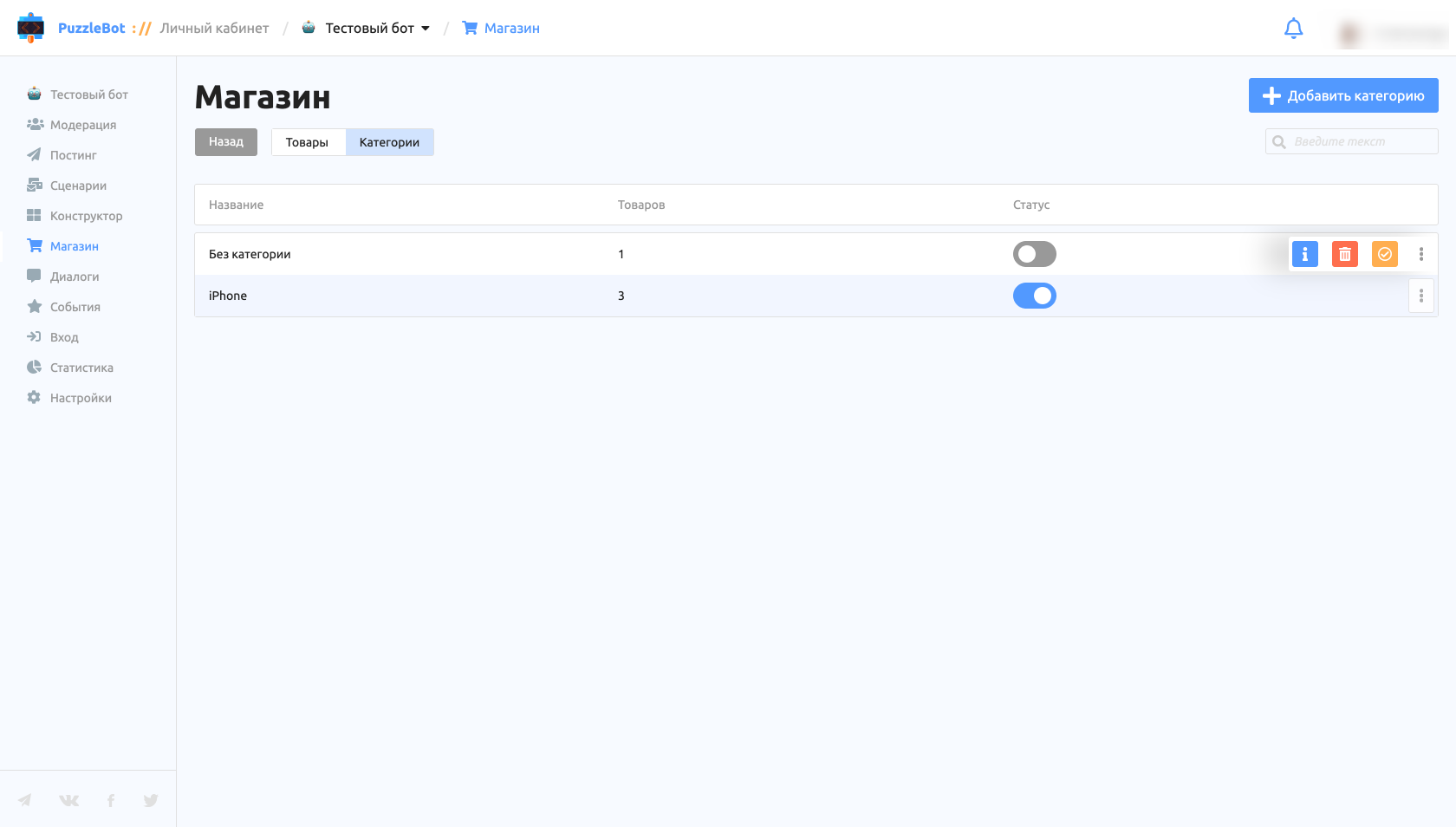
Categories let you display similar products in the Product block. Categories also make it easier to create new products, because you can set up template attributes.
General
Name.
Additional settings:
Send a command after purchase — after a product from the category is purchased, the specified command is sent (if the same command is specified in other purchased products or categories, duplicates are removed).
Change scenario after purchase — after a product from the category is purchased, the specified scenario is started.
Attributes
The selected attributes are used as the initial template for new products and product groups in this category.