This article covers what you can do on the Variables tab.
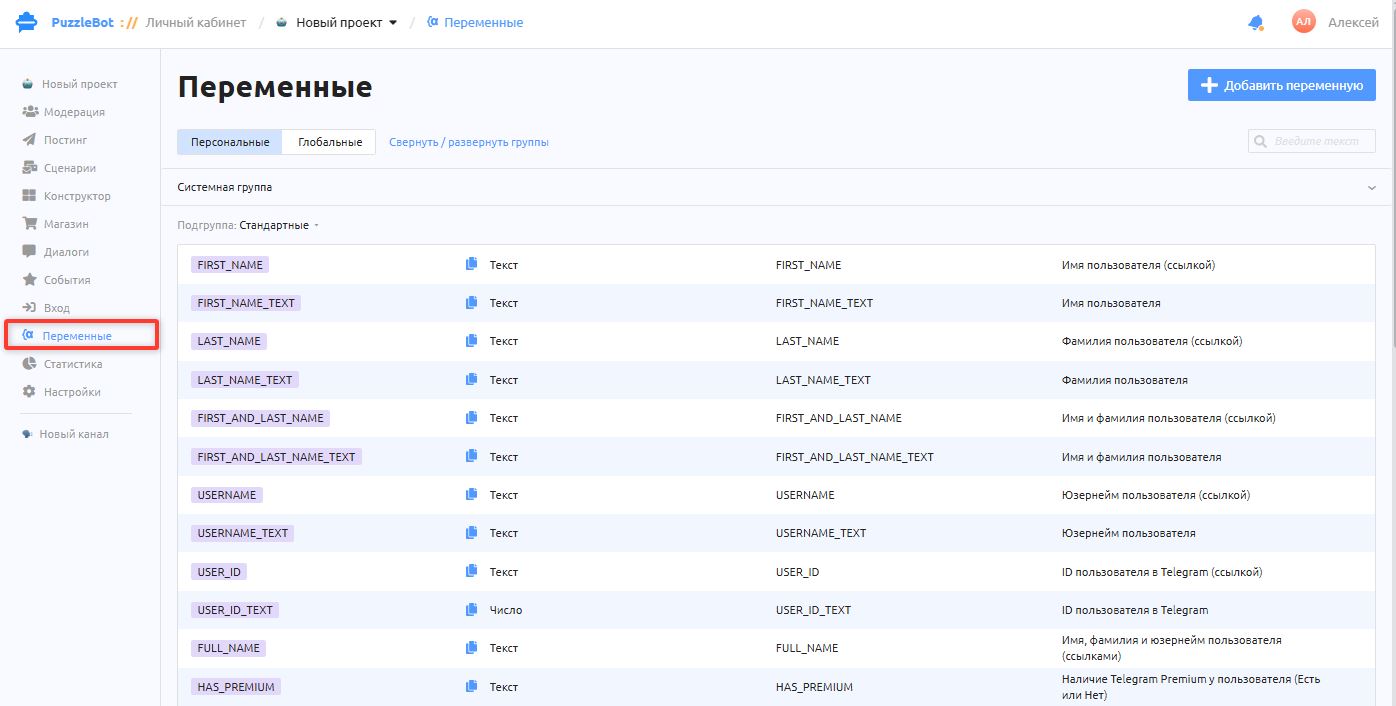
Variables is a feature that lets you insert specific values, either individually for each user or the same for everyone. All variables look like {{NAME}}: double curly braces on both sides, and the characters "a-z" "A-Z" "0-9" "_" "-" for the variable name.
Example: greeting a user by name when they enter the bot or a group.
There are two kinds of variables:
User-defined (custom) — created by you on the Variables tab.
System — created by the developers (FIRST_NAME, USER_ID and so on) or created on other tabs (input forms, the Result block and so on).
Important! The system variable group cannot be edited or deleted.
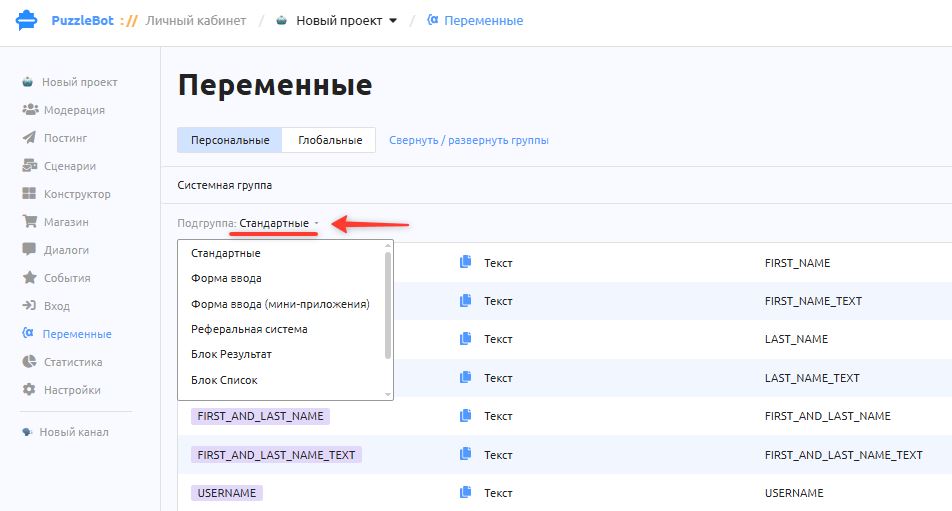
The Variables tab brings together all the variables that exist in the service and in the bot, including those from the Entry tab and from input forms.
Creating a custom variable
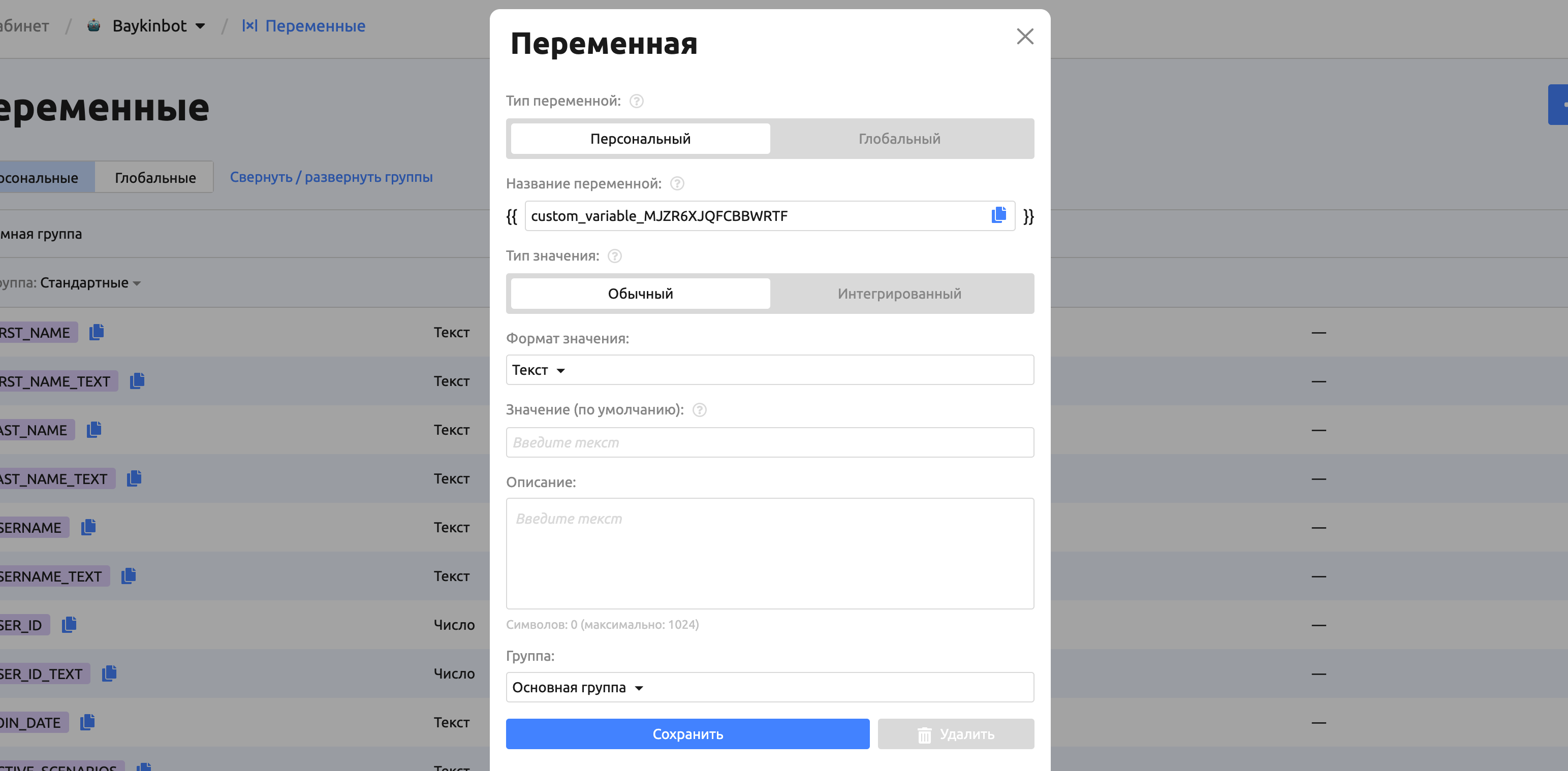
To create a variable, click Add variable.
Choose the variable type. Custom variables come in two types:
Personal (pink) — store a user's individual values.
Example: the user's name, balance, game points.
Global (blue) — store values shared by all users.
Example: the bot name, a date, a website link, a button label.
Important! A global variable with the Formula format cannot contain personal variables.
Choose the value type. Each value can be one of two types:
Regular value — a value stored inside the bot.
Integrated value — a value fetched from a third-party service with a GET request. The response must be in JSON format.
The request URL can contain variables.
Important! Variables with an integrated value are cached, and the response wait time is 5 seconds.
Here are the remaining variable settings:
Variable name — the characters "a-z" "A-Z" "0-9" "_".
Value format — defines the type of value that will be stored in the variable.
Text
Number
Formula — a complex value built from several variables and/or containing math operations.
Link — can be used in buttons with the link action and in text formatting.
Document — any media file.
Important! A variable with the Text format can hold up to 4096 characters.
Important! The Formula value format and any expressions with variables have their own syntax rules. Learn more: How to write an expression or formula to change a variable.
Default value — the value shown to the user until another value is written to the variable or the current one is changed.
Important! You cannot insert a variable into the default value.
Description — text shown only on the Variables tab.
Group — the display order on the Variables tab.
Changing a variable
All variables in the System group are edited where they were created: input forms — in the Constructor, the referral system — in Entry, and so on.
Custom variables (the ones you created yourself) can be edited in two ways:
With the "Change variable" or "Clear variable" action.
By editing the value manually.
Editing with actions
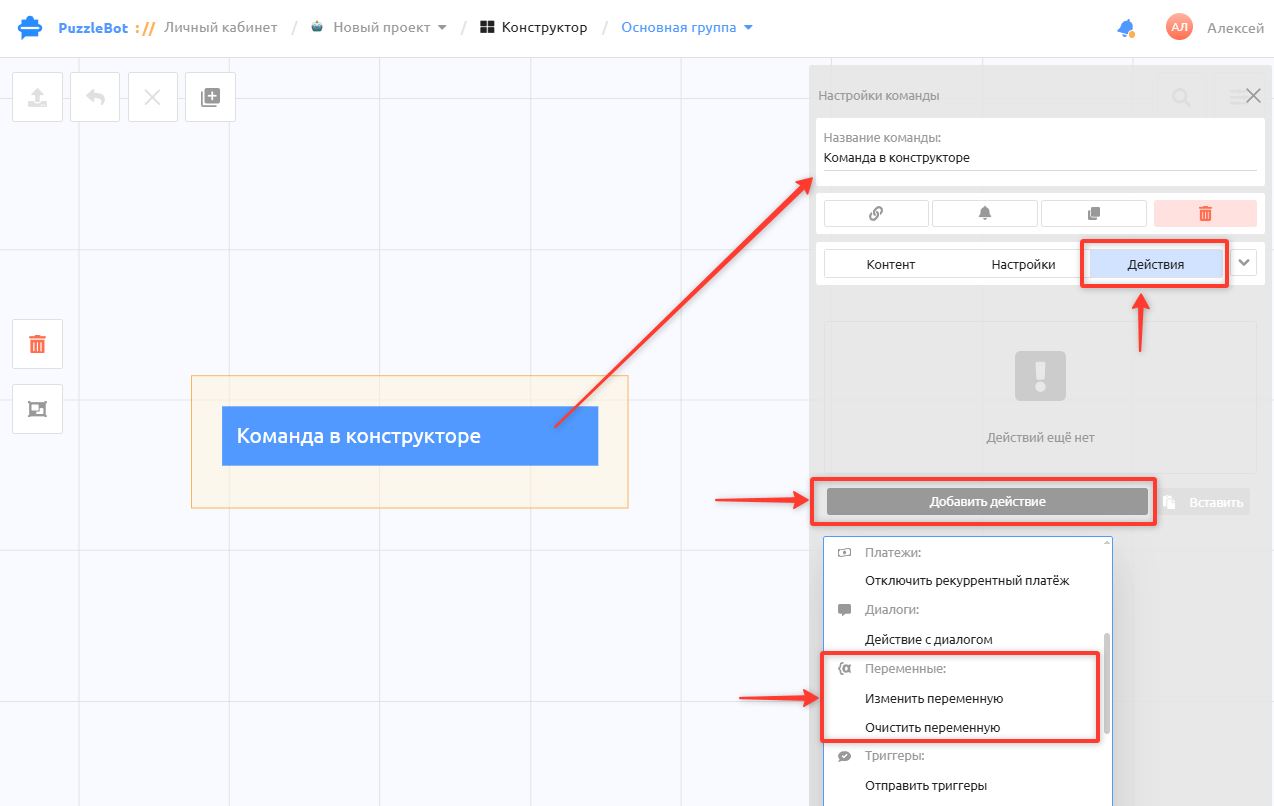
Open a command, or a post in a scenario or in posting → switch to the Actions tab.
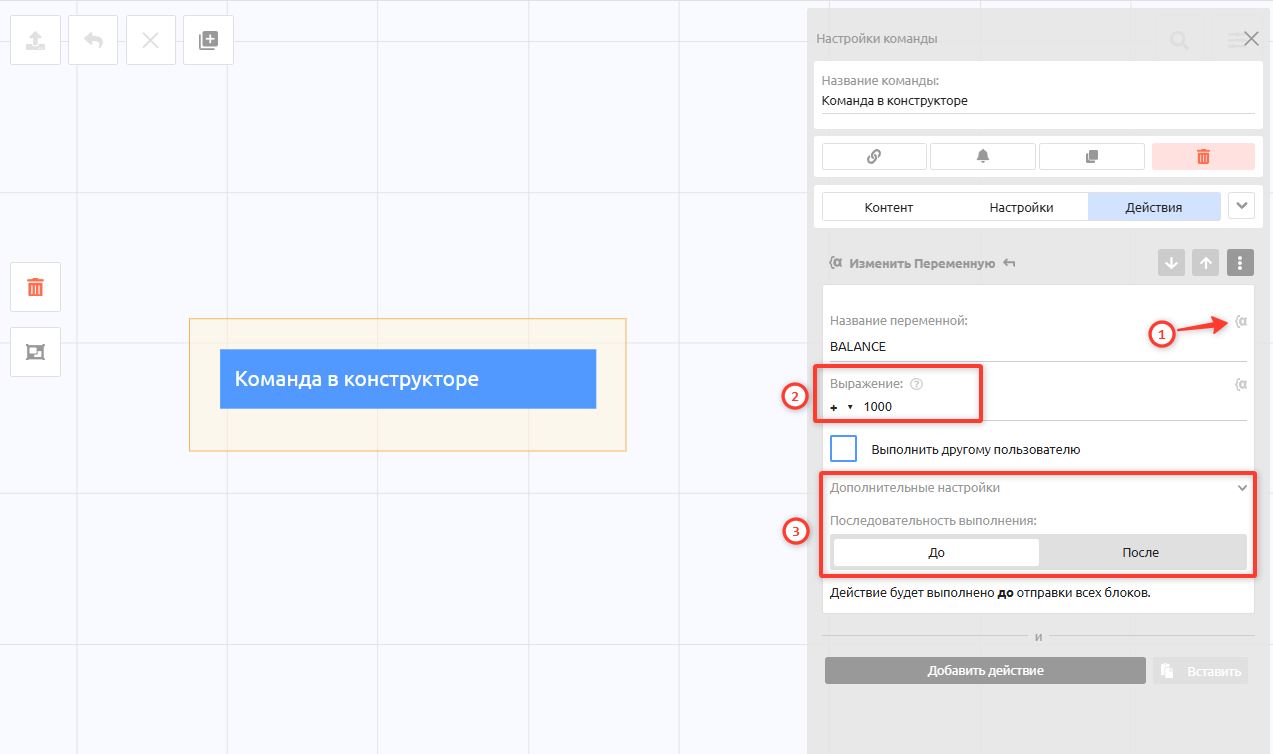
Select the variable to change, enter the expression, and set the action order: Before or After all blocks in the command are sent.
Important! If the variable is changed After all blocks are sent, and a text block in the same command sends the
{{VARIABLE}}variable, the user will receive the previous value, because the change happens after the message is sent. In such cases, set the execution order to "Before".
When changing a custom variable with the "Number" format, you can use the universal "=" operator or one of the most common operators.
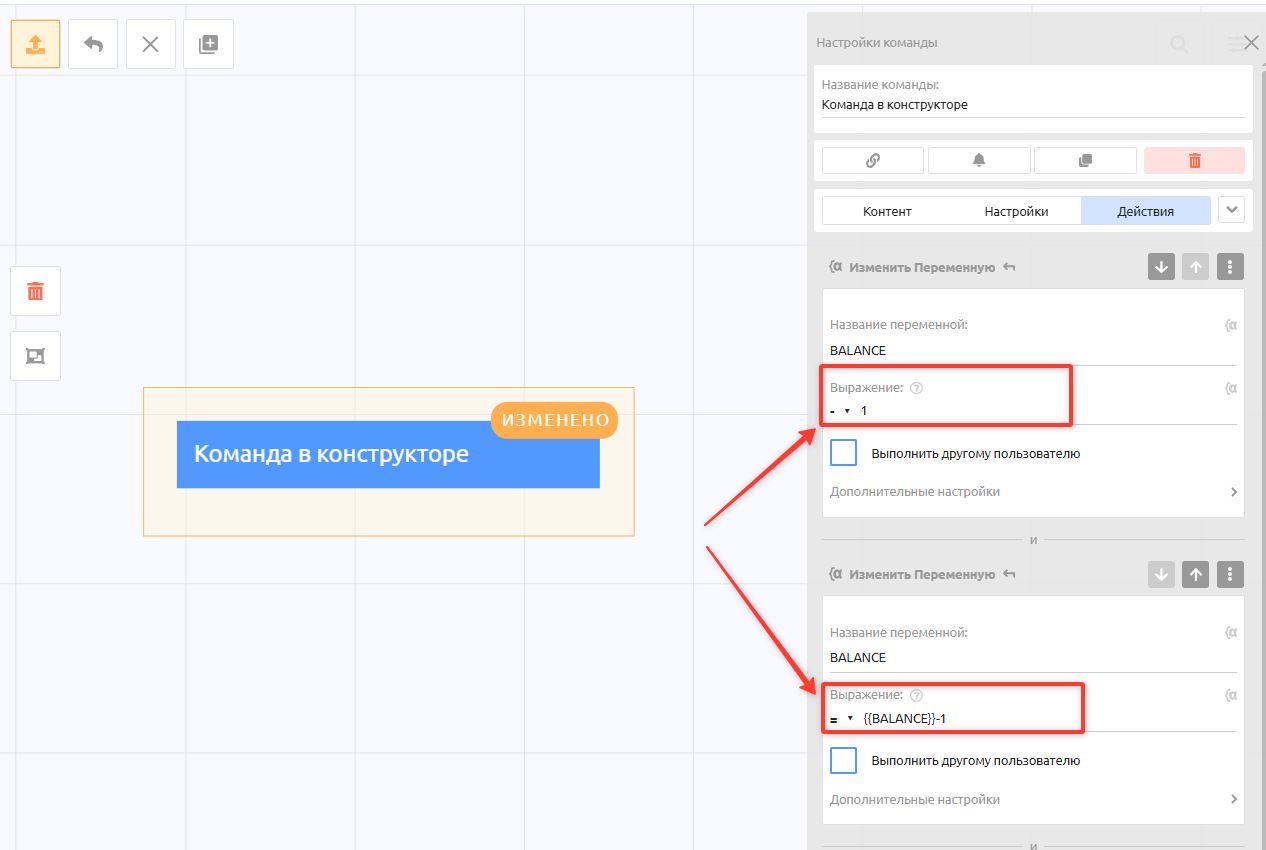
Example: to decrease the {{BALANCE}} variable by 1, you can use the subtract operator "-" and enter 1 in the expression field, or use the universal "=" operator and enter {{BALANCE}} - 1. Both options are equivalent.
Variables with the "Text" format use only the "=" operator.
Example: the custom variable {{MY_DAY}} stores the user's favorite day of the week, in our case "Monday". To replace it with another day, for example "Tuesday", enter the word in the expression field after the "=" operator, using quotes: "Tuesday".
Important! The Formula value format and any expressions with variables have their own syntax rules. Learn more: How to write an expression or formula to change a variable.
Since the 31.12.2024 update, formulas in text are available. With them, you don't have to add separate variables or create an action — just write the formula in the text, for example:
{{=100-45=}}. Formulas in text also work with variables.
Manual editing
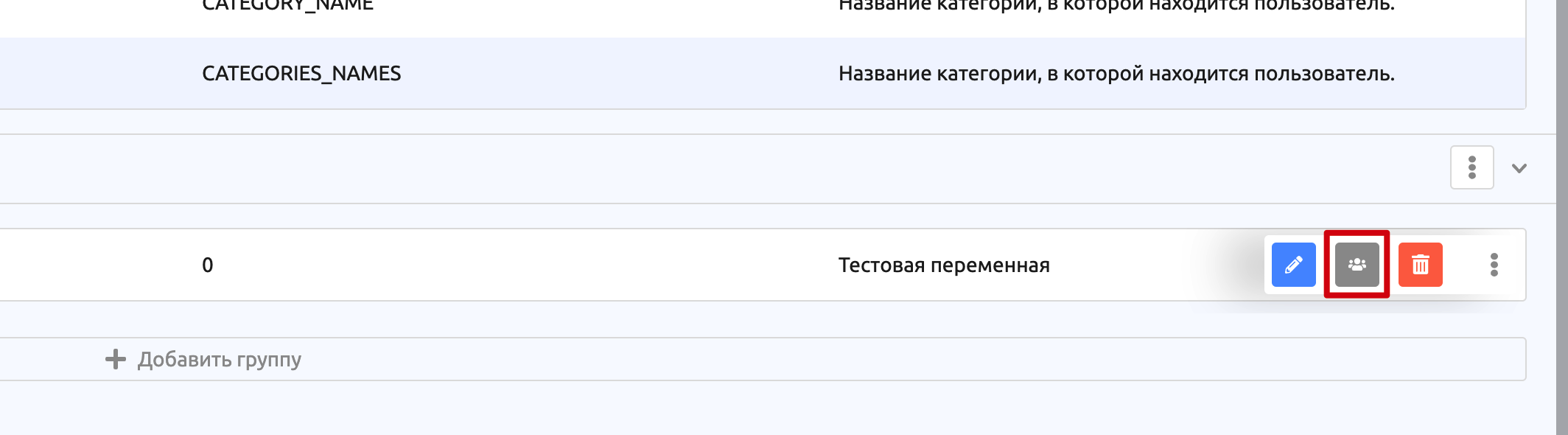
In the Variables section, find the variable whose value you want to change for a user, click the three dots, then click the button with the users icon to expand the list of users who have a value in this variable.
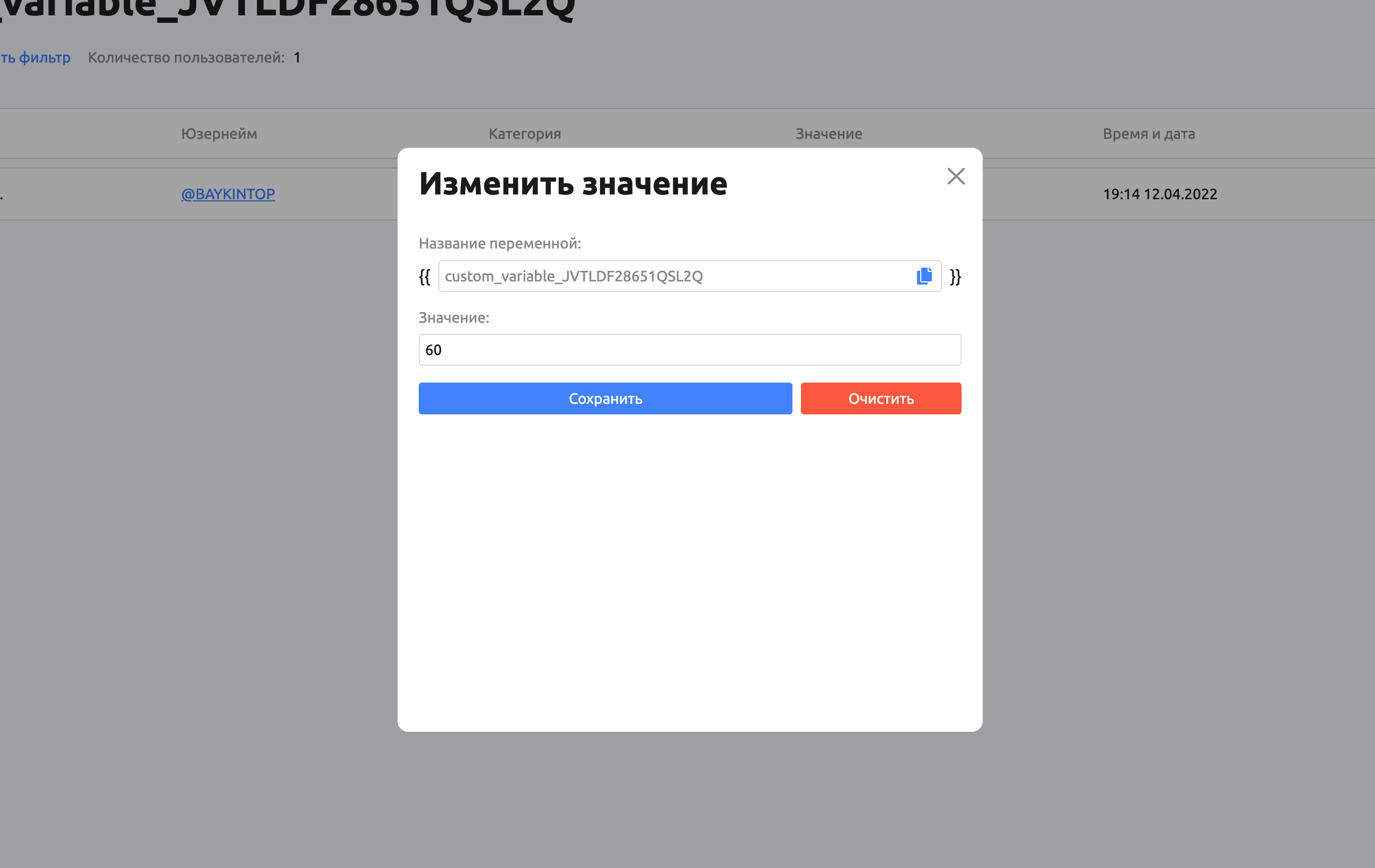
You can change the value individually for each user.
Clearing a variable
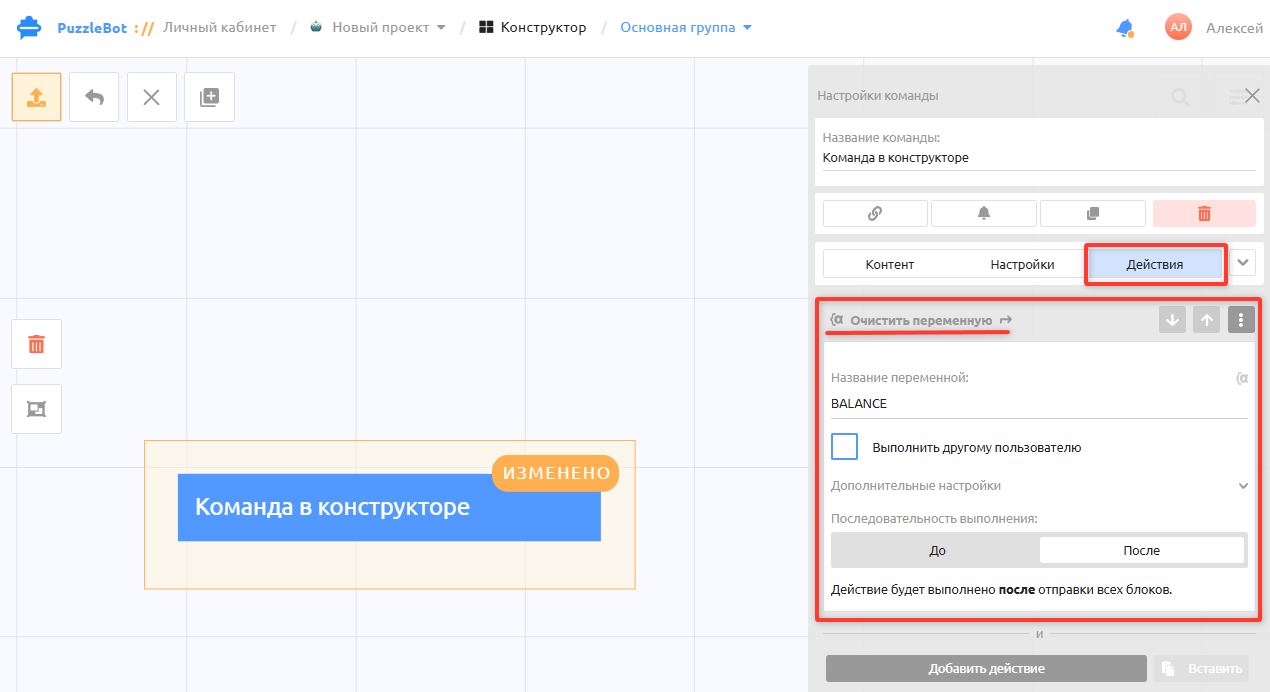
The Clear variable action resets the variable to its default value.
Standard variables
Standard variables fall into three groups:
Common variables (work everywhere).
Variables that work only in the bot.
Variables that work only in resources (chats and channels).
Common variables
This group of variables is created by the service administrators, and it:
Cannot be edited.
Works both in the bot and in resources (channels and groups).
Important! All date and time variables take their values based on the time zone set in the account settings.
Variables that work only in the bot
A custom group of variables made up of those created on the Variables tab, in input forms and on the Entry tab.
Learn more about input forms in the article Input form.