This article covers the interface and features of the Constructor tab.
For an easier introduction to the tab, we recommend watching the two-part video overview.
Important! These videos show the old version of the Constructor. In the new version, categories, scenarios and some other features have moved from Additional settings to the Actions subsection inside a command.
Part one:
00:00 — Introduction
00:40 — Interface of the whole tab
01:40 — Command settings window interface, creating a command
02:30 — Block types
03:02 — Block interface
03:46 — Keyboard types and how they differ
04:32 — Keyboard interface, creating and moving buttons
Part two:
00:00 — Introduction
00:12 — Command synonyms
00:48 — Adding to categories
01:10 — Creating a category
01:43 — Private commands (with restricted access)
02:18 — Creating a command group
02:30 — Moving a command from one group to another
03:54 — Run from keyboard only
04:46 — Removing a regular keyboard
05:09 — Go to command
Learn more about inline commands in the article Inline command.
Constructor tab overview
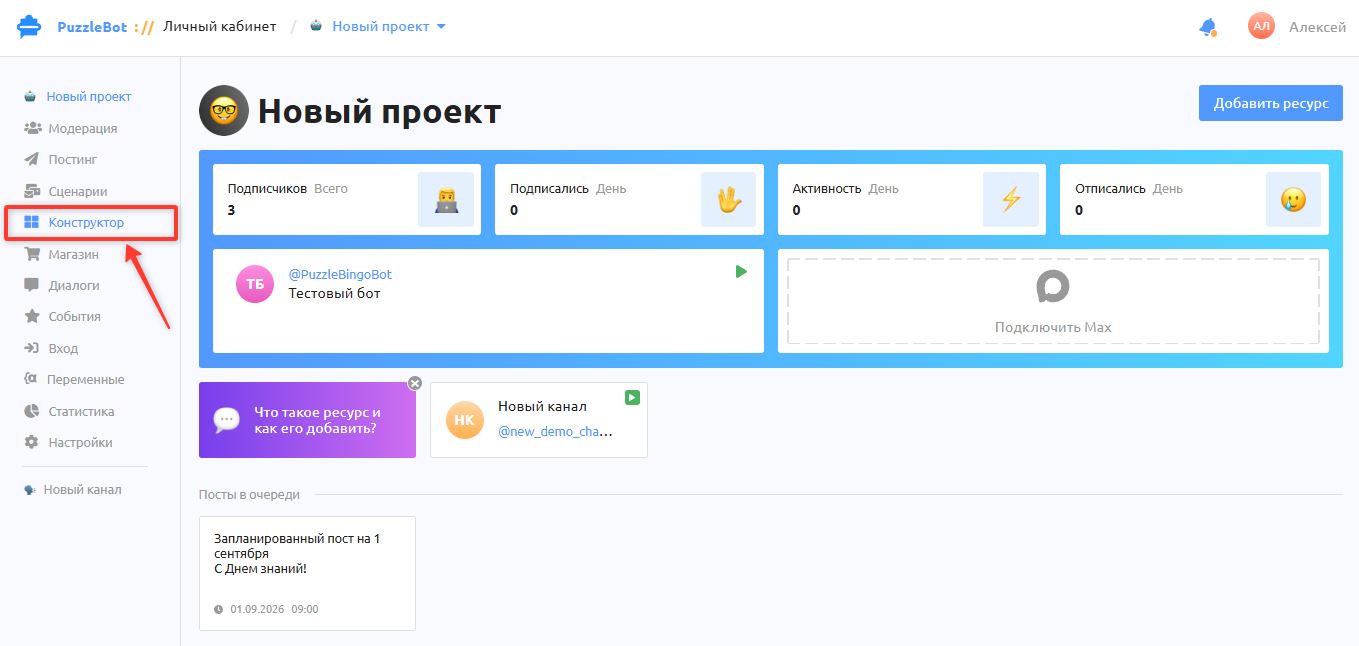
To open this section, select the Constructor tab on the project's main page.
Here are the main buttons for working with the Constructor:
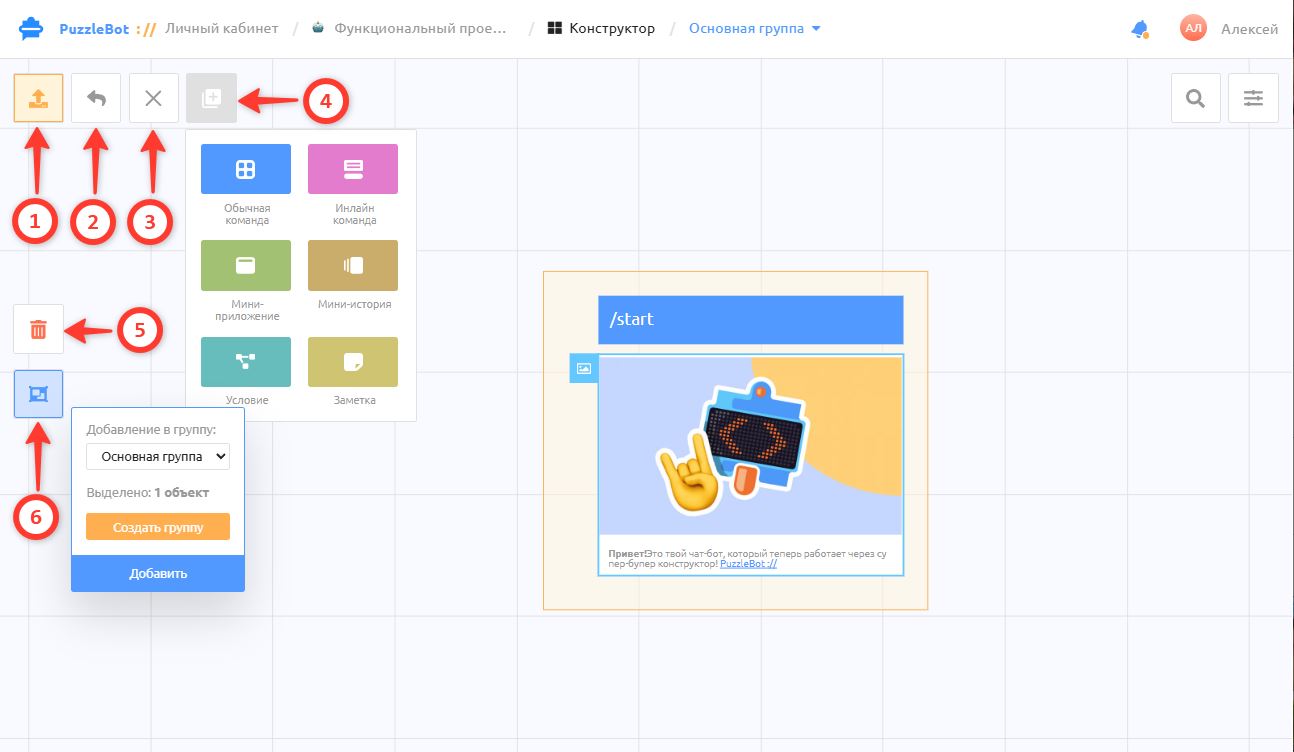
1. [📤] → Publish changes to the bot — after you create or edit commands or an app, click the publish button for the changes to appear in your bot. Until then, all changes are saved only in the Constructor, and the bot keeps working with the last published settings.
2. [↰] → Undo last change — if you have made changes in the Constructor but have not published them yet, you can undo the last action.
3. [×] → Undo all changes — this button undoes all unpublished changes made in the Constructor.
4. [+] → Create command — this button is where you start creating every entity, such as:
Regular command
Inline command
Mini app
Mini story
Condition
Note
Buttons on the left edge of the Constructor:
5. Trash button — deletes a command or an app.
6. Move button — moves commands or apps to another command group.
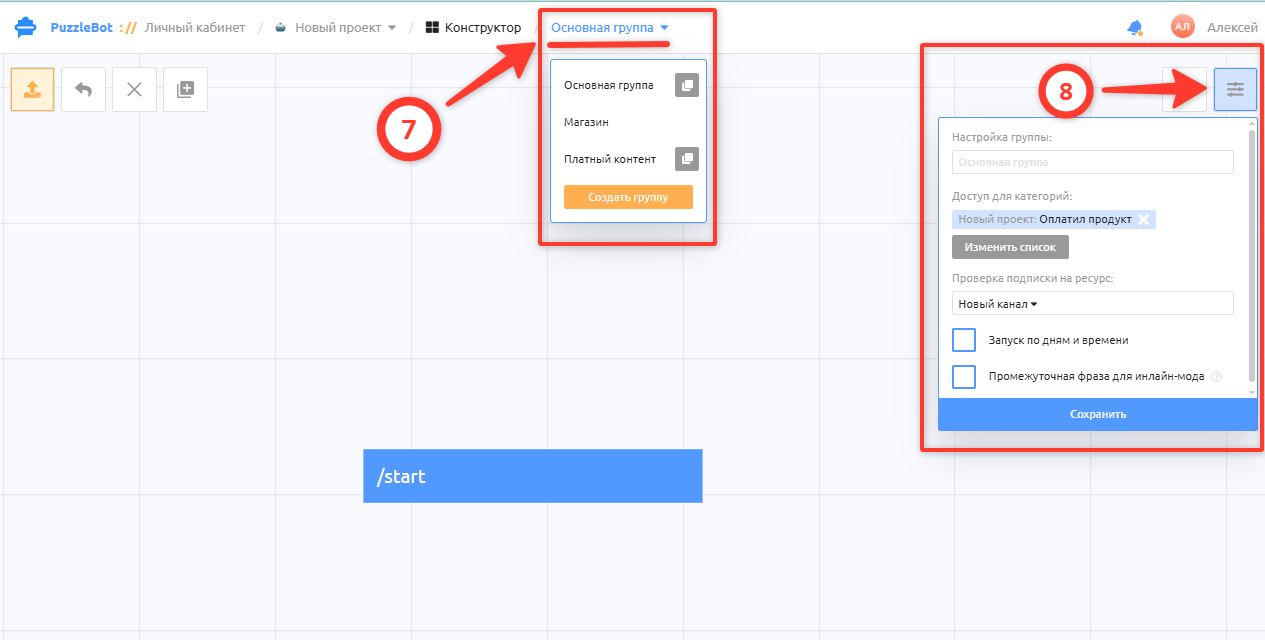
7. Main group — the name of the command group you are currently in. Click the name to create another command group or switch to one.
8. Command group settings — here you can restrict all commands in this group to a specific user category or to subscribers of a channel or group. You can also set the working hours of the command group.
Learn more about command groups in a separate guide: Command group
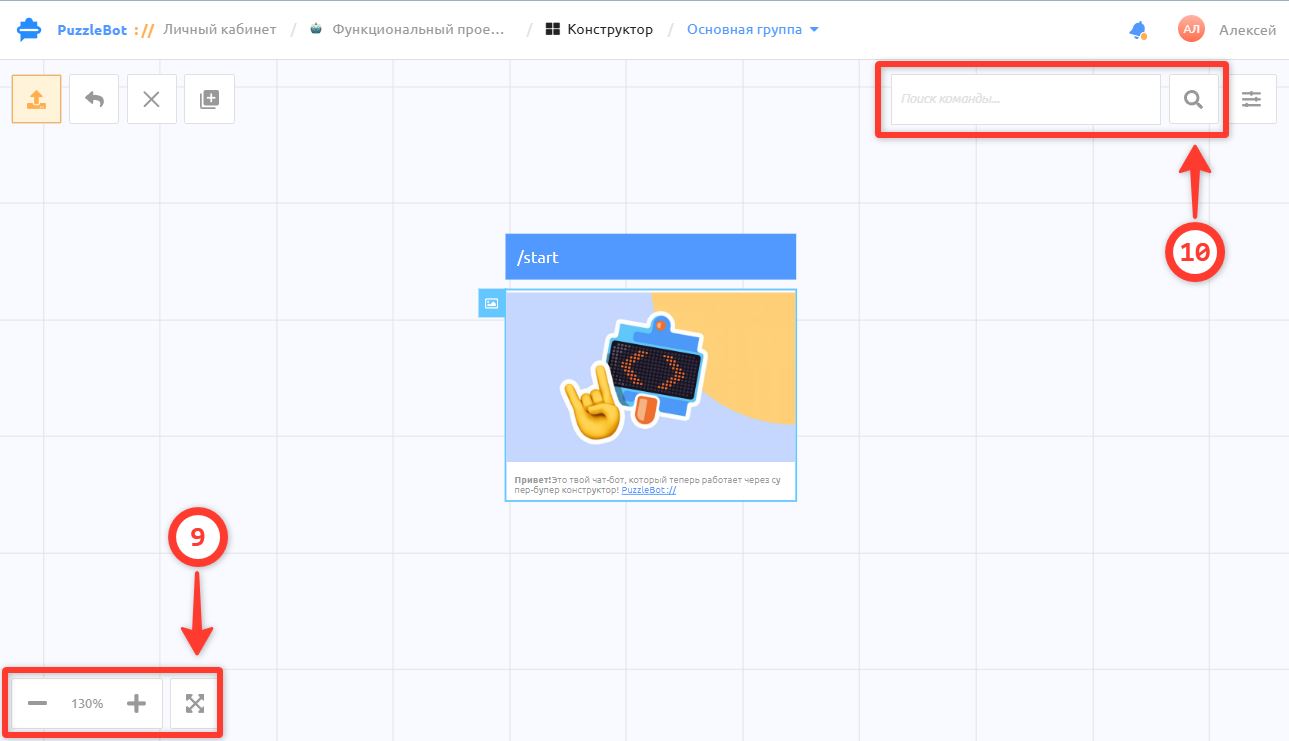
9. Zoom — the buttons at the bottom of the Constructor change the zoom level of the workspace. You can also zoom by scrolling the mouse wheel. The button next to them zooms to fit all created commands into view.
10. Search button — finds a command, app or condition by name.
Creating commands, mini apps and conditions:
By default, the bot has a /start command. It is where the launch and all further actions in Telegram or Max bots begin. You cannot delete this command, but you can delete or change what it contains: the content and the actions.
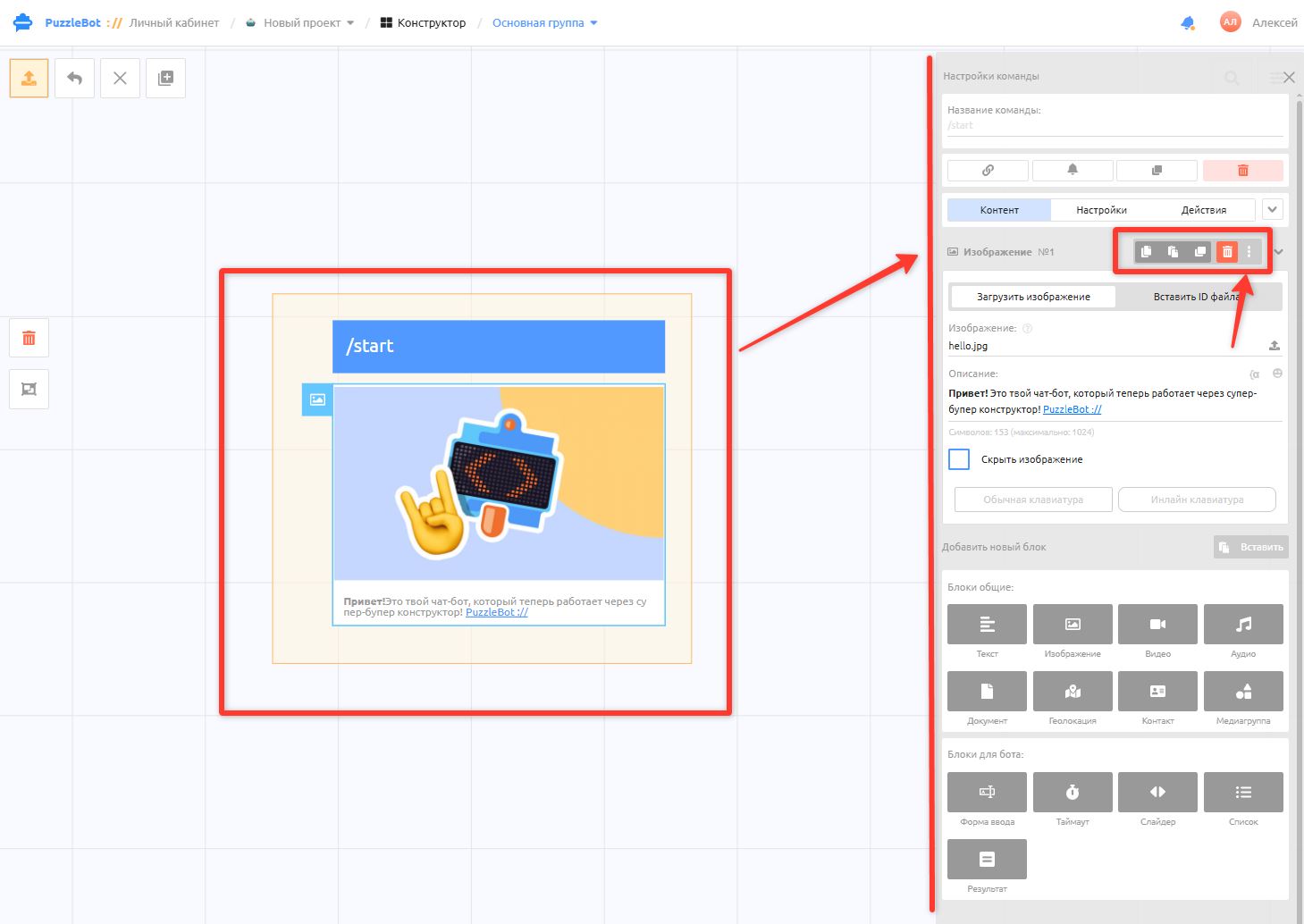
If you have just added the bot, the /start command contains an image and a welcome text. To delete the image, select the command → click the three dots next to the "Image" block → click the red delete button.
The text is deleted automatically, because it is a single block in which the text is the image caption.
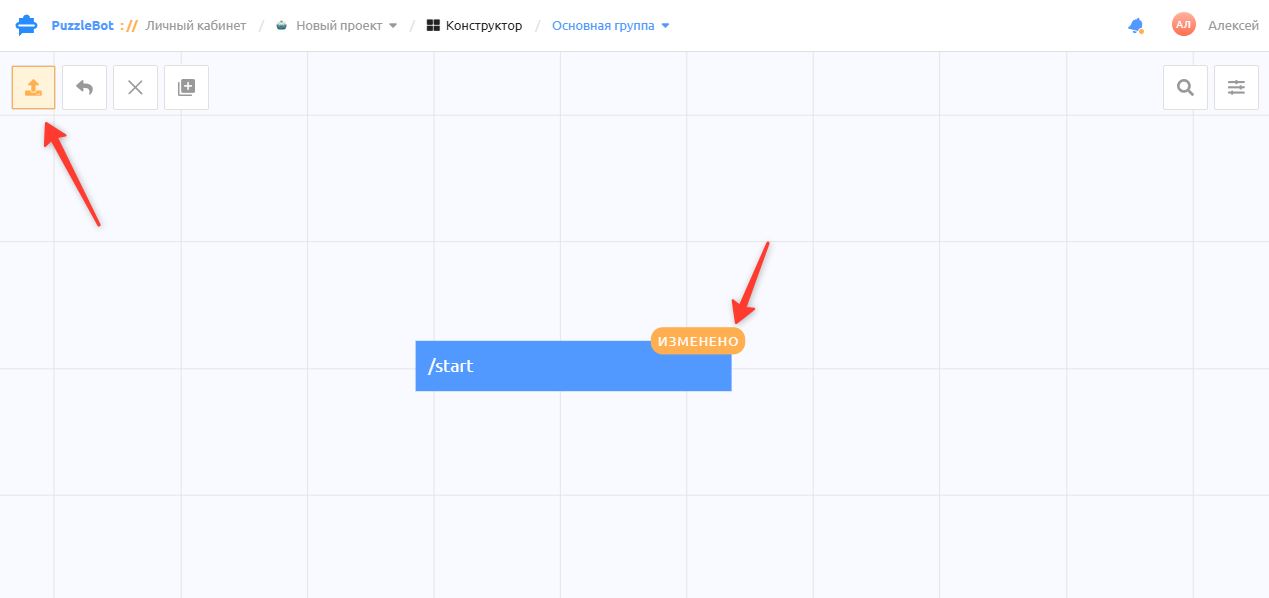
After deleting, you will see the "Changed" badge. It means the deletion or change was made only in the Constructor. To upload the changes to the bot, click the publish button [📤] in the left corner of the Constructor.
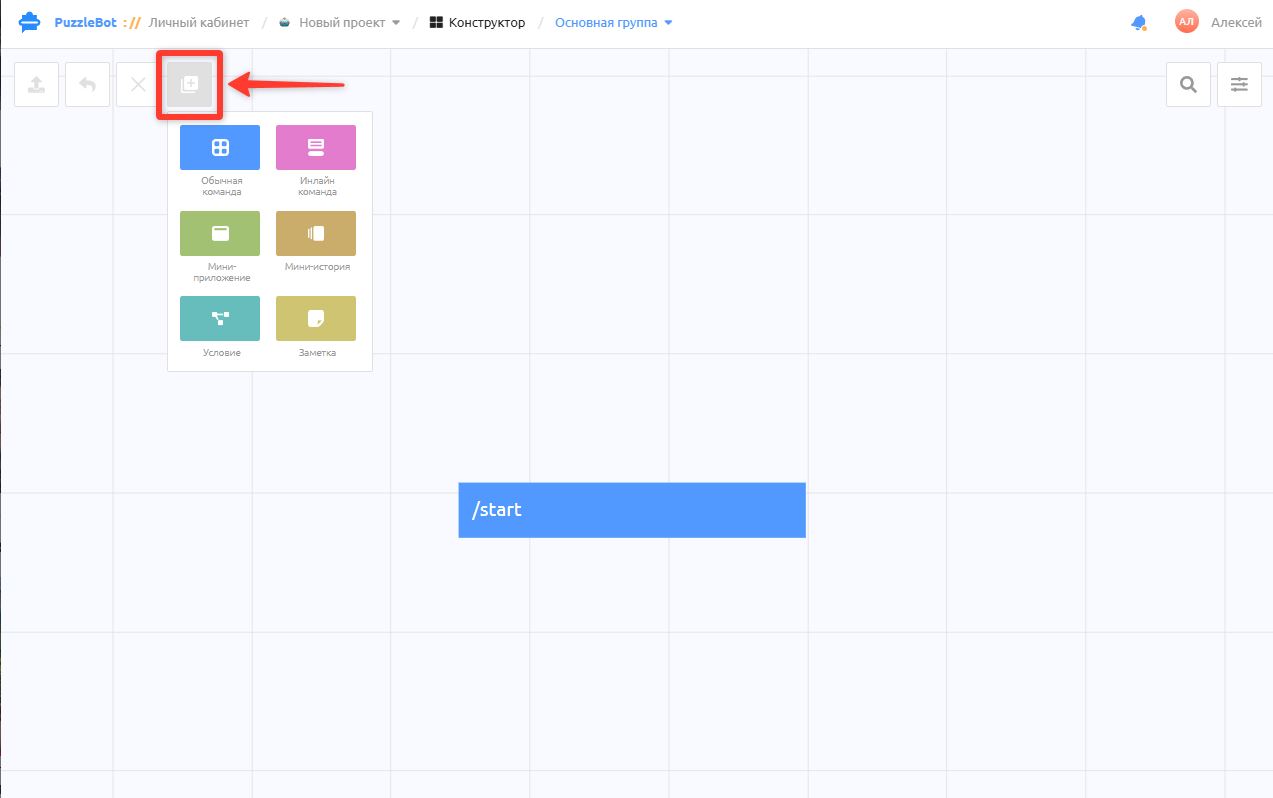
To create a command or an app, click [+] → select the block to create
Regular command — for building most user interaction features. It includes every option for sending messages to the user and receiving messages from them.
Inline command — for creating messages and buttons that replace themselves without sending new messages, for example a slider or text that changes within a single message. Learn more: Inline command
Mini app — creates a multifunctional app in Telegram or Max. Learn more: Mini apps
Mini story — creates a story-style video player for your mini app.
Condition — a system of checks and actions for branching the logic of transitions, actions or access. Used both in bots and in mini apps. Learn more: Conditions
Note — a text block for writing notes in the Constructor. It is not used to build bot functionality.
Let's look at them in more detail:
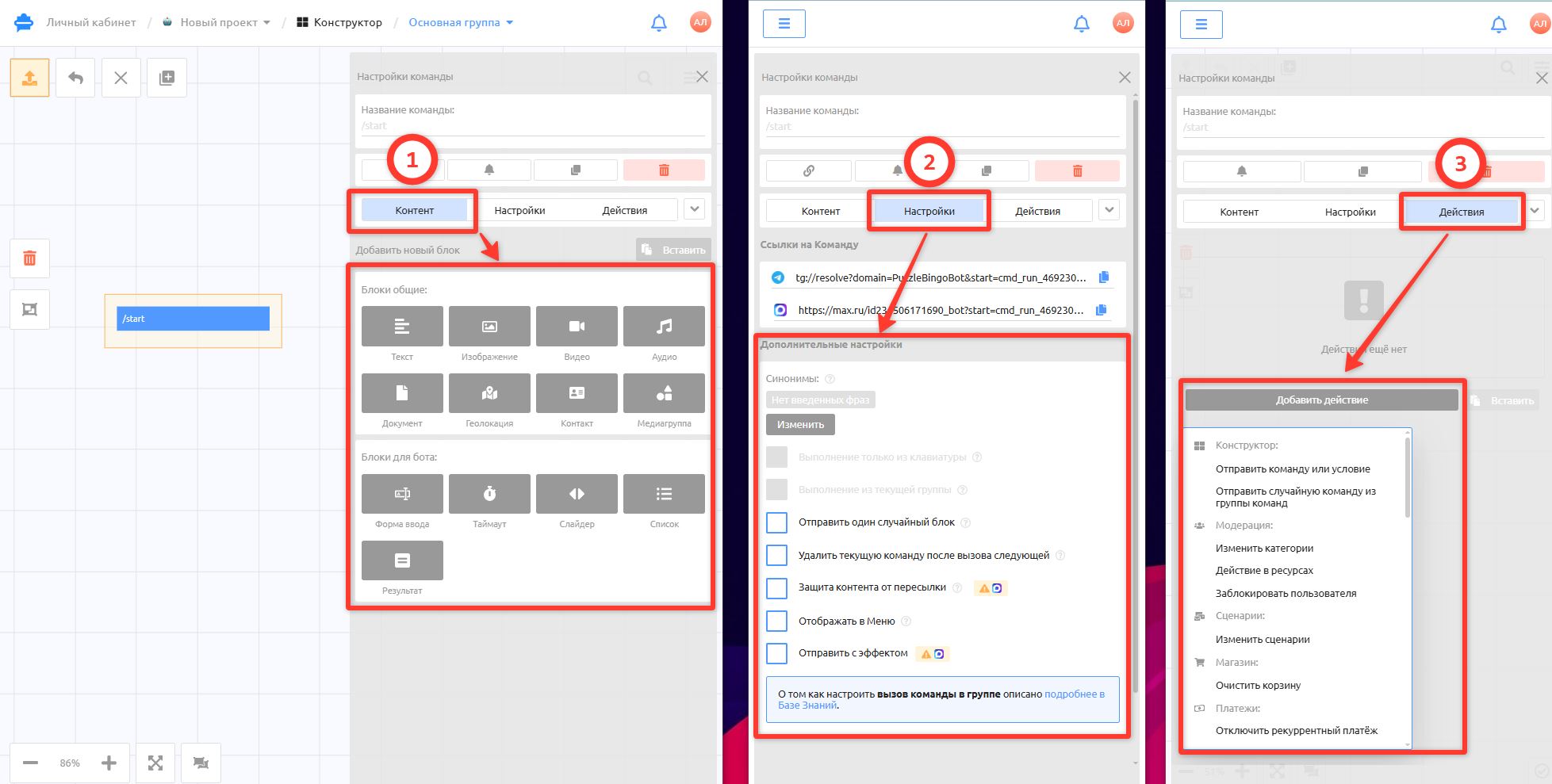
A Regular command, an Inline command and a Mini app have identical tabs:
1. Content — a tab for creating content, where you can set up sending text and media blocks. The set of content blocks differs for different kinds of commands and for the app.
An Inline command has only a small set of content:
- Text — adds formatted text.
- Image, Video, Audio, Document — adds media.A Regular command has the same set as an inline command plus additional blocks:
- Location — adds a location. In the bot it is sent as a map with the location.
- Contact — adds a phone number. In the bot it is sent with the option to call right away or add it to contacts.
- Media group — a block that lets you upload several images in one message.
- Input form — requests information from the user. When this block is sent, the bot waits for the user's information and then saves it to a variable and to the answer statistics.
Learn more: Input form
- Timeout — a block that sets a delay between sending blocks or performing an action within one command.
- Slider — creates a slider of text or media that can be browsed without sending a new message. You can specify a table as the data source.
- List — a block that creates a variable which returns one item from a given list each time it is called (for example, a promo code from a set).
Learn more: List block
- Result — a block that shows the result of a quiz created with an input form.A Mini app has a wider range of content display options and custom settings. Learn more in a separate article: Mini apps
2. Settings — here you can set the options applied to the content sent from the selected command.
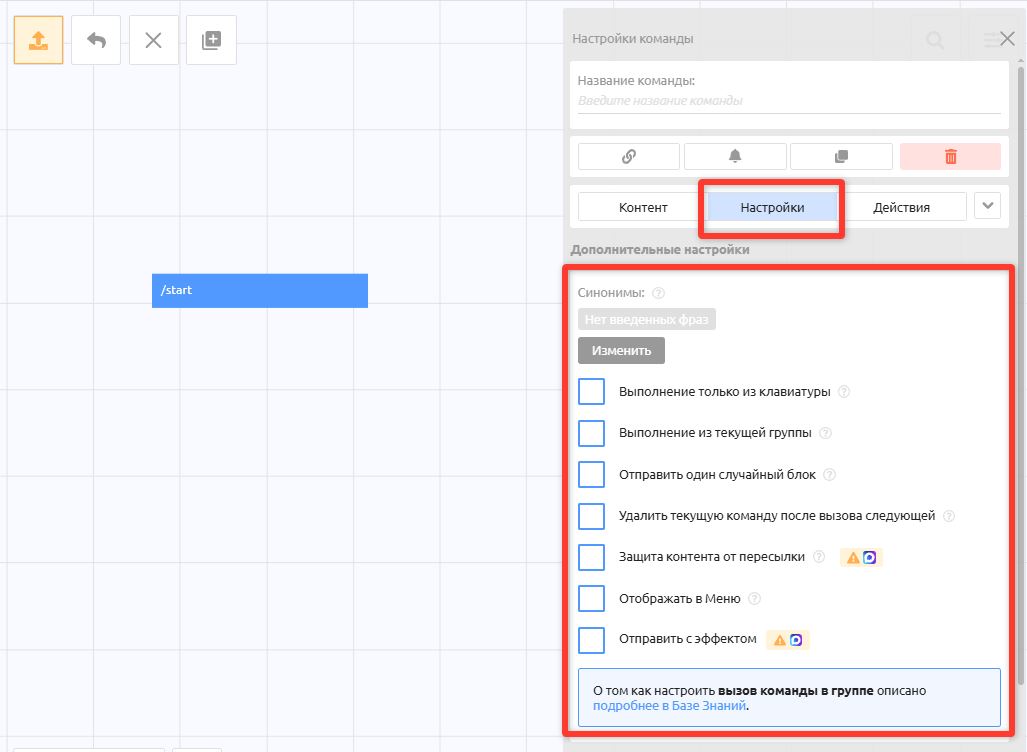
Command synonyms — lets you set words and phrases that call this command when a user enters them in the bot.
Learn more: Command synonymsRun from keyboard only — with this option, the command cannot be run simply by sending its name to the bot.
Run from the current group — the command runs only if the user is in the current command group.
Send one random block — if you add several blocks to the command on the Content tab, only one random block is sent.
Delete the current command after the next one is called — messages from the current command are deleted from the bot after any other command is sent to the bot.
Protect content from forwarding — protects the content of the sent message from being forwarded and saved. Available only for Telegram bots.
Show in Menu — this command is shown when the user types the "/" character and in the Menu button. Learn more: Creating a Menu button
Send with an effect — the message sent from this command gets the specified message reaction, for example "👍" or "🔥".
3. Actions — creates additional actions that run in the background when the command is called.
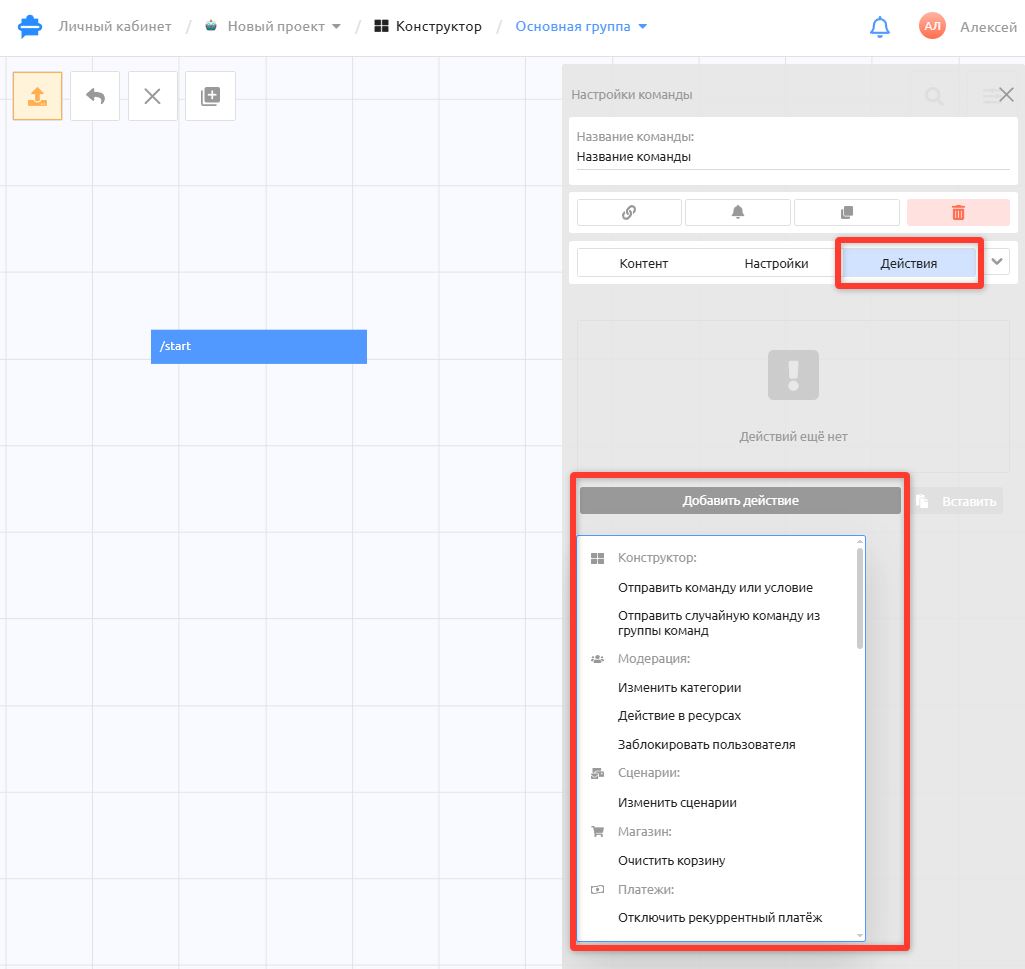
The list is quite extensive and includes all the actions you need, such as writing to a table, changing variables and categories, API requests to external services and much more.
Conditions
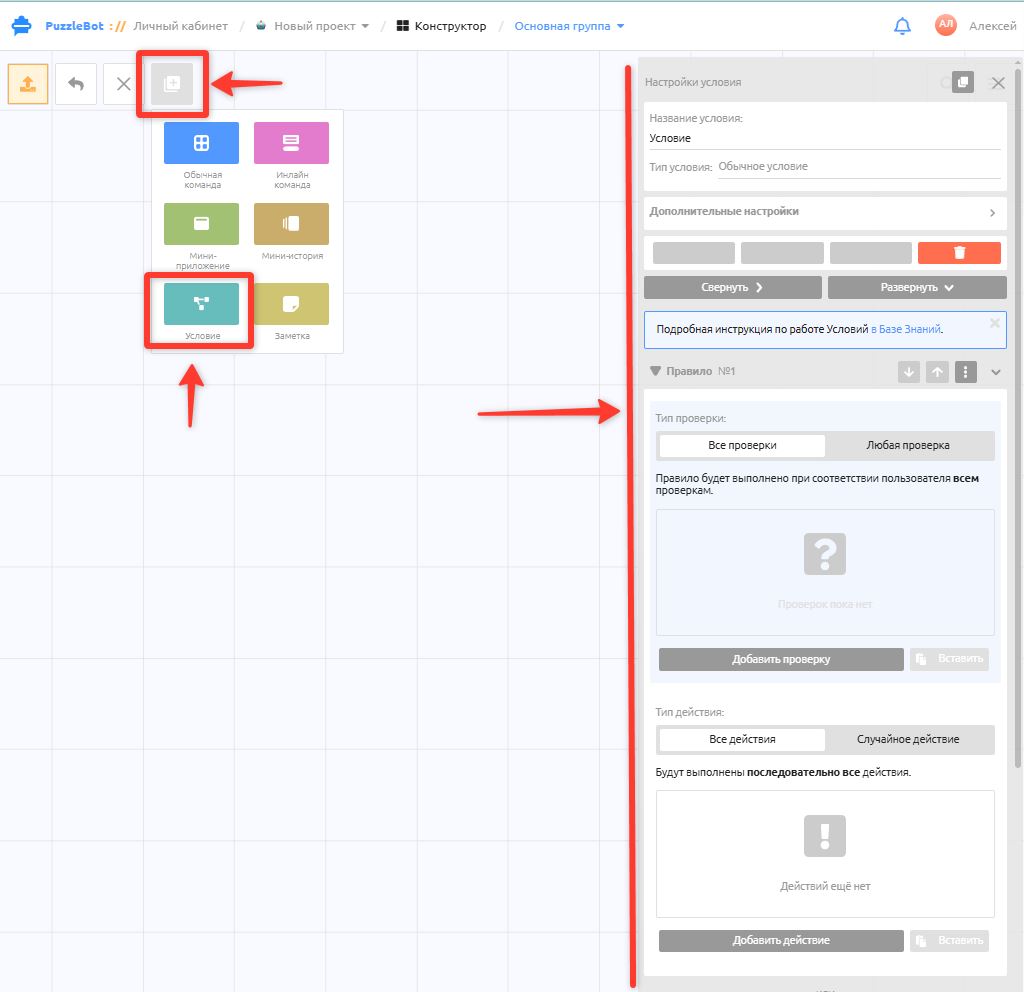
The Condition entity differs from other blocks. It contains only linked rules, each made up of a check and an action.
For example, if you want the bot to check a channel subscription and send a file, you need to:
Add the "Has subscription" check so that the check is performed.
Add the "Send command" action (the command contains the file) so that the action is performed if the subscription is found.
Add an action to the "Exclusion rule" (optional) so that an action is performed if no subscription is found.
Within one condition you can add many such rules with checks, for example variables (balance, points), categories (checking access to something), a payment check and so on.
Learn more in a separate article about conditions: Conditions (regular condition and condition button)
Mini apps
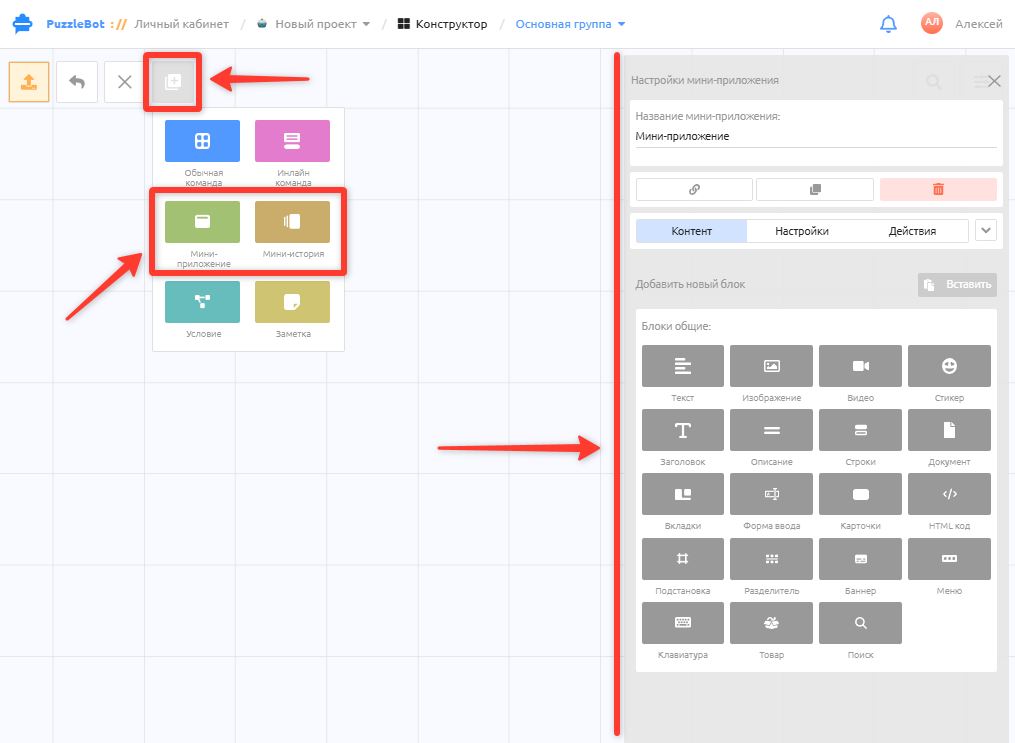
The Mini app and Mini story entities are Telegram or Max elements that are in fact web pages opening inside Telegram or Max and using the extended capabilities of the Mini App Api. All mini apps are integrated into bots. The design of mini apps is adapted to the iOS and Android look and feel.
Learn more: