This article covers how self-replacing inline commands work.
An inline command is a type of command that consists of 1 block and lets you build a chain of self-replacing commands. Such commands create the effect of a message being edited and its buttons changing (without sending a new message).
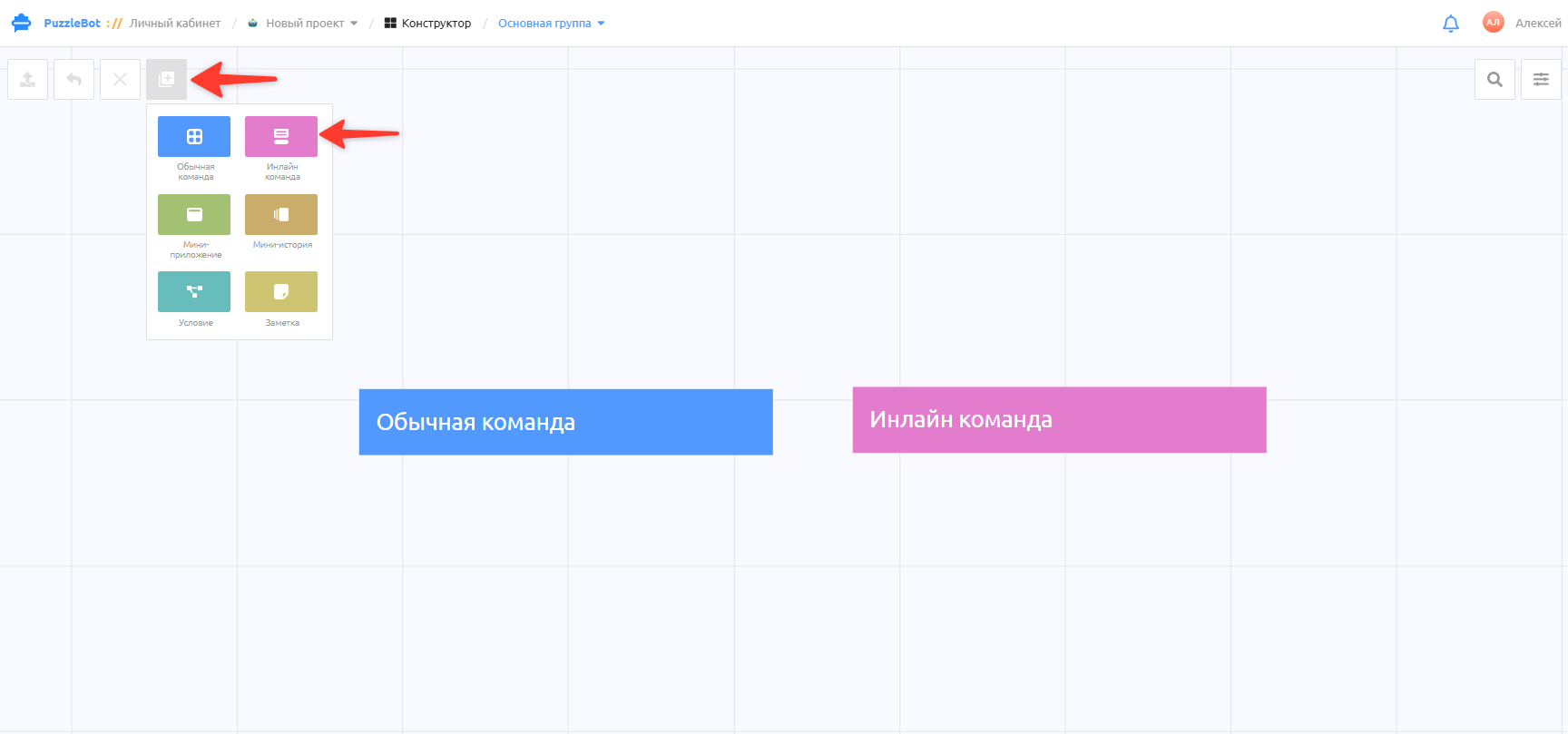
To create an inline command, click the add command button in the upper left corner of the Constructor tab.
Features of inline commands:
You can add only 1 block.
You can add only an inline keyboard.
The Timeout feature is combined with the Go to command or condition action (on the Actions tab - Add action).
Replacement is possible only when moving between inline commands with the same kind of block.
For example: a text block can only be replaced with a text block, and a media block only with a media block.
Important! Blocks fall into several kinds: the text block and media blocks (image, video, audio, document). Accordingly, a text block can only be replaced with another text block. A media block can be replaced with any of the media blocks, that is, an image block can be replaced with an audio block.
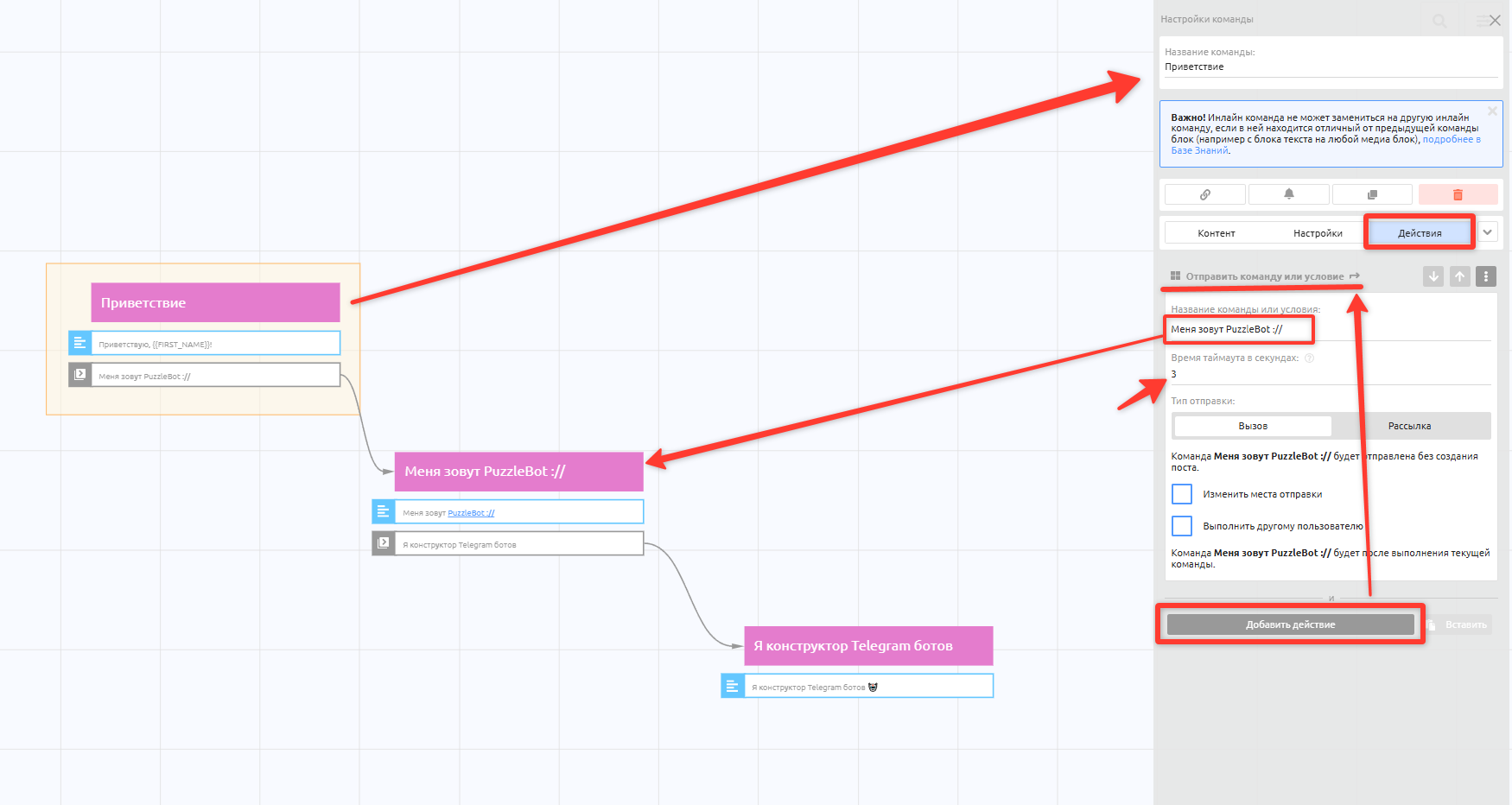
To make text replace itself automatically, create separate inline commands and add a Text block to each.
On the Actions tab, add the Send command or condition action and specify the next inline command with text.
To set a delay between transitions, specify the timeout in seconds.
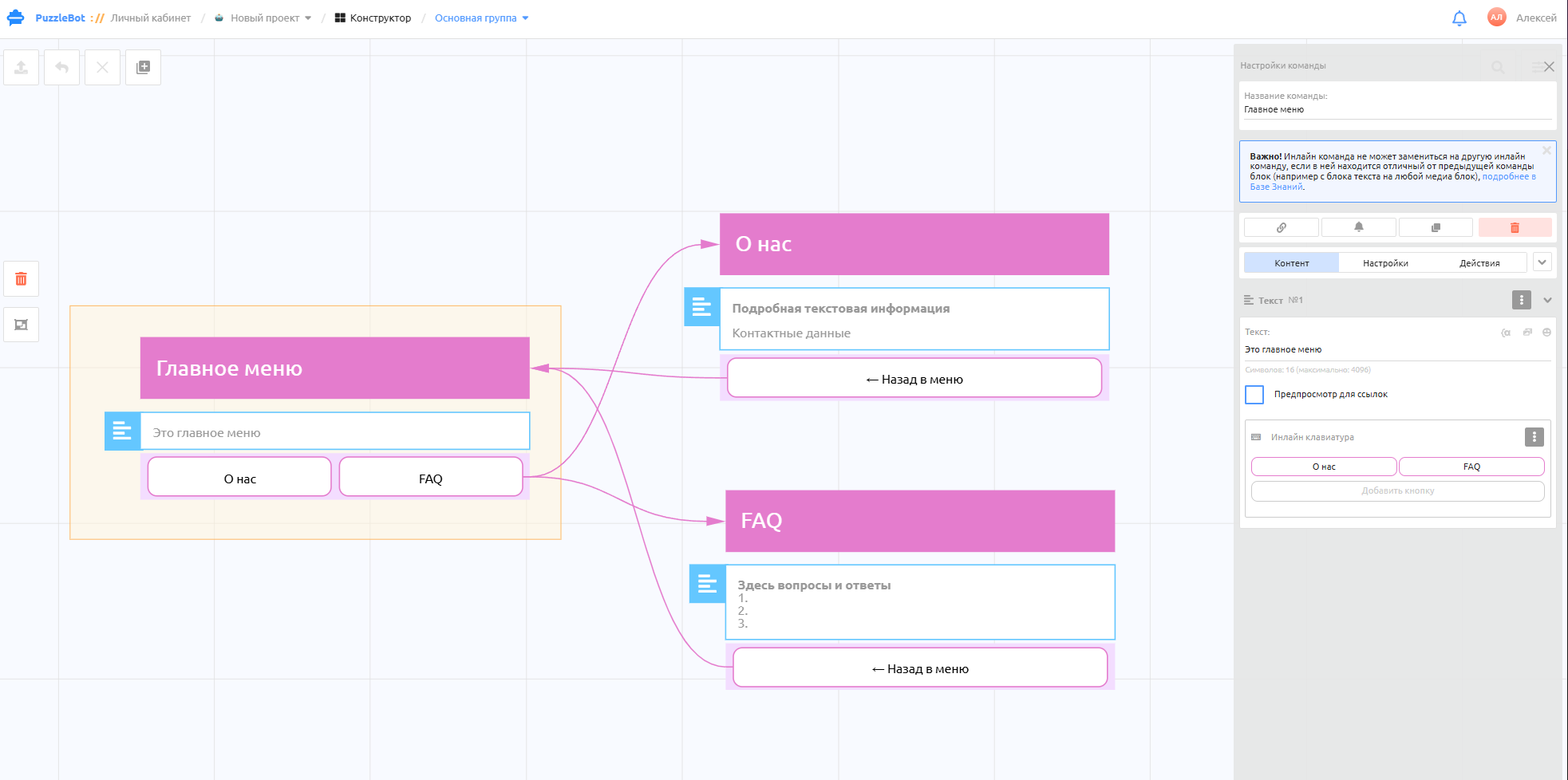
An inline keyboard added to the command is also replaced with the keyboard of the other inline command. The number of buttons may differ; this does not affect the replacement.
Important! When moving between different kinds of commands (regular and inline) or different kinds of blocks in an inline command (a text block and any media block), the command you move to is sent as a new message.
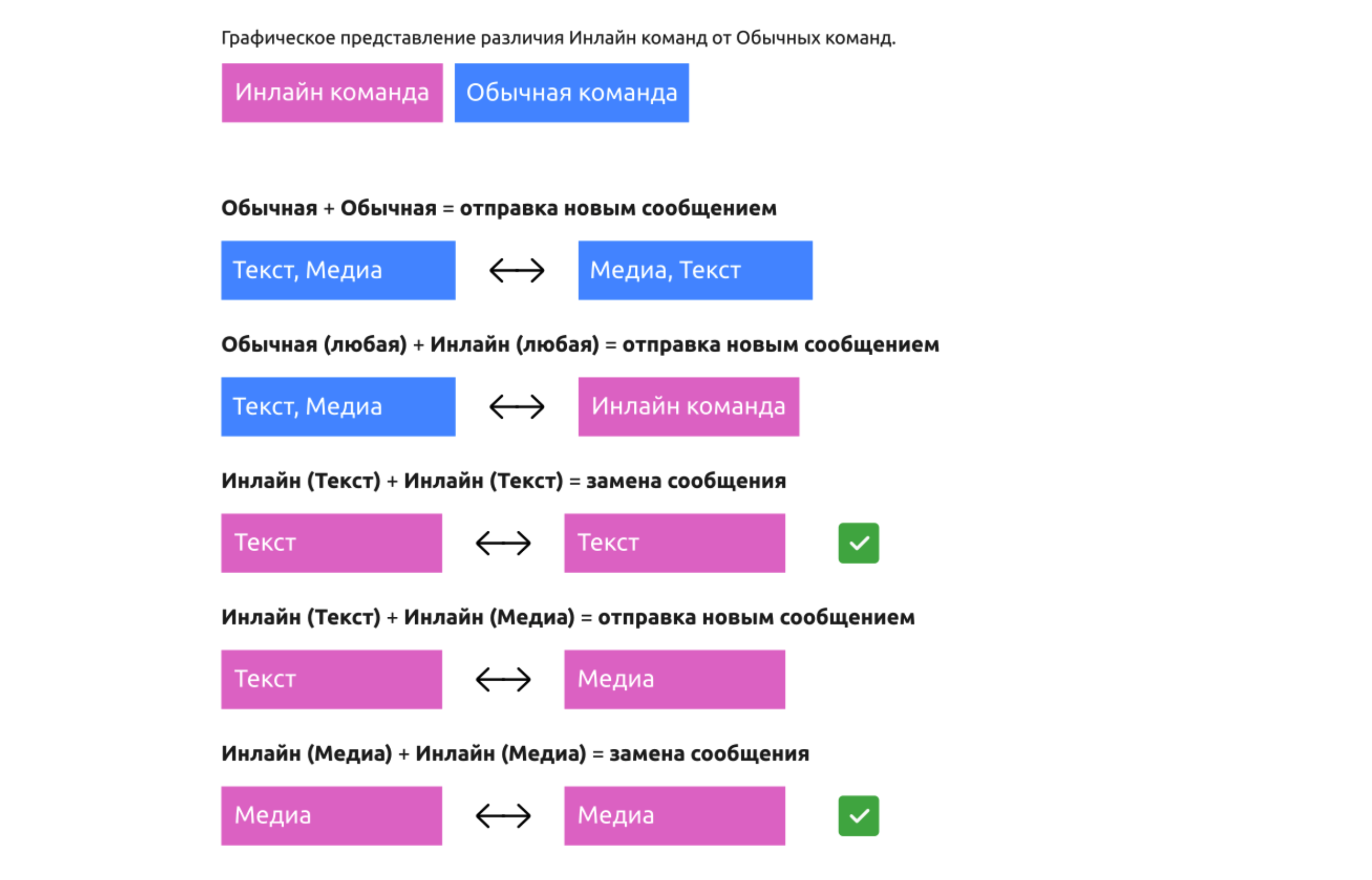
In this diagram of commands, replacements happen only for
Inline (text) → Inline (text), or for Inline (media) → Inline (media); in all other cases the new command's message arrives as a new message.