This article shows how to set up automatic sending of messages from an input form in the bot to any resource.
Learn more about working with Integromat in the article: What a webhook is and how to connect one.
0. Before setting up the integration: a) in your puzzlebot account, create a bot and add an input form; b) create the resource you will forward the message to and generate a public link; c) add the bot to this resource and connect the resource, learn more: How to connect a resource to puzzlebot; d) sign up for Integromat.
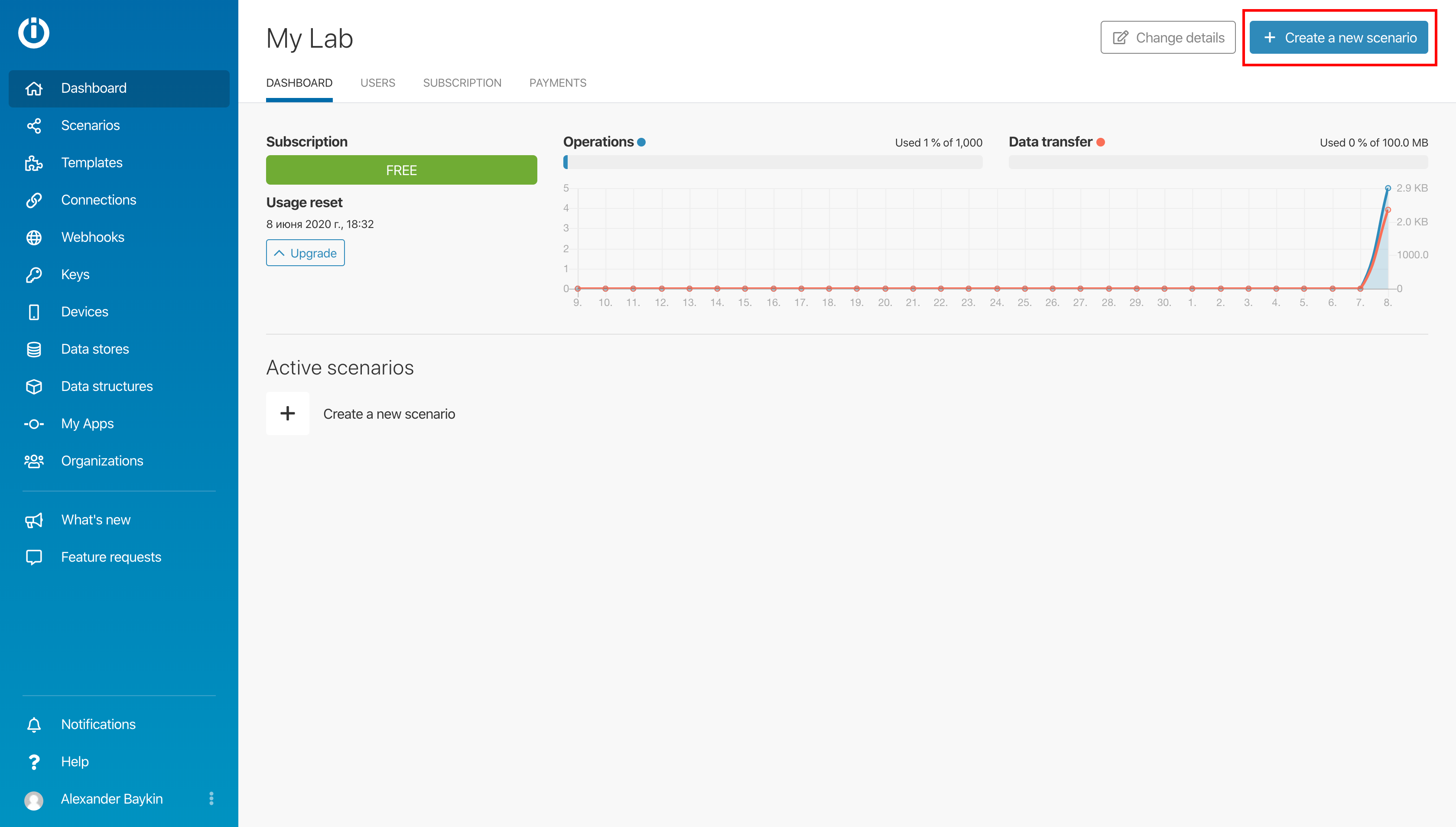
1. Go to Integromat and create a new scenario by clicking the Create a new scenario button in the upper right corner.
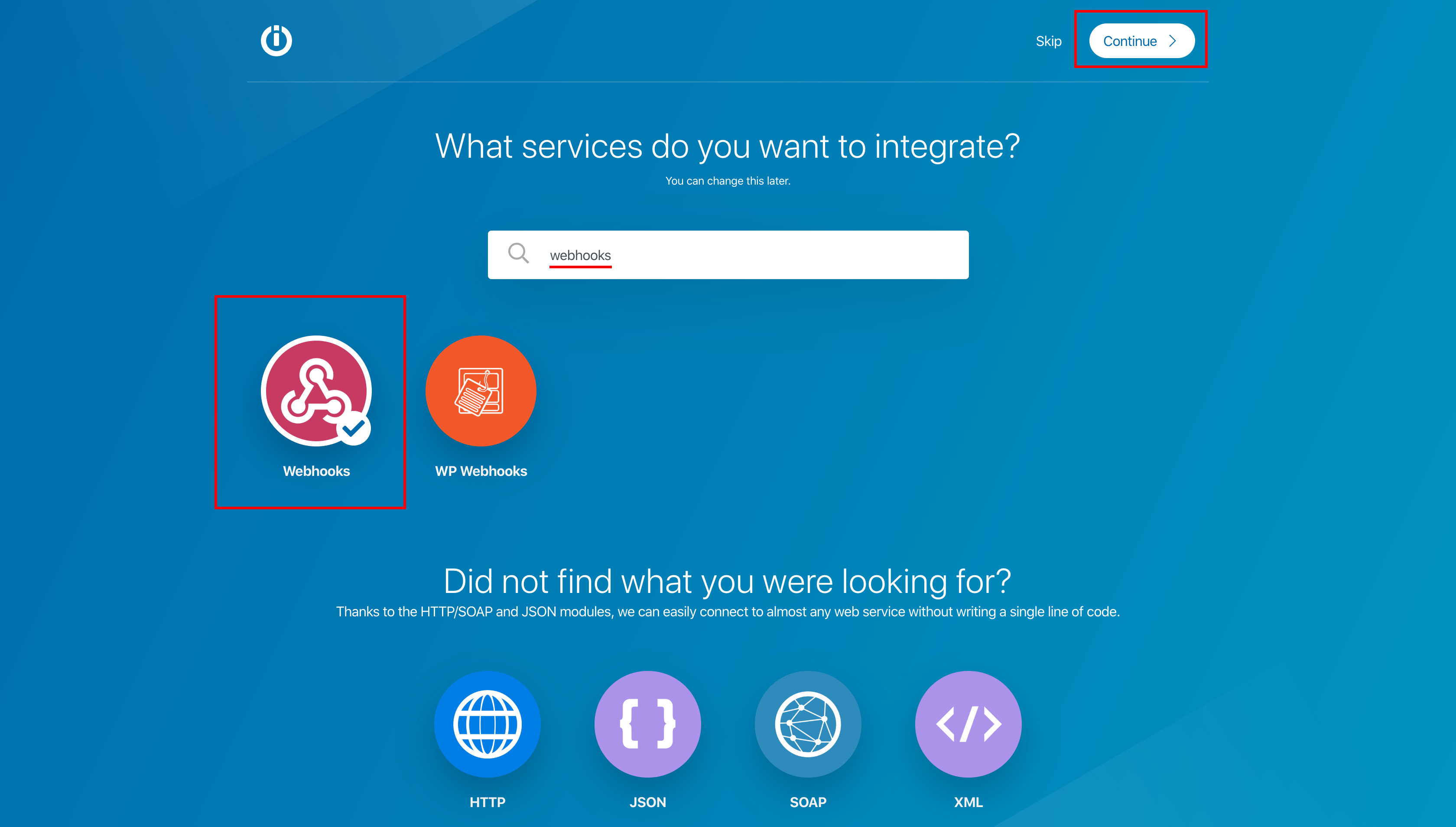
2. Type Webhooks in the search, click the icon and click Continue.
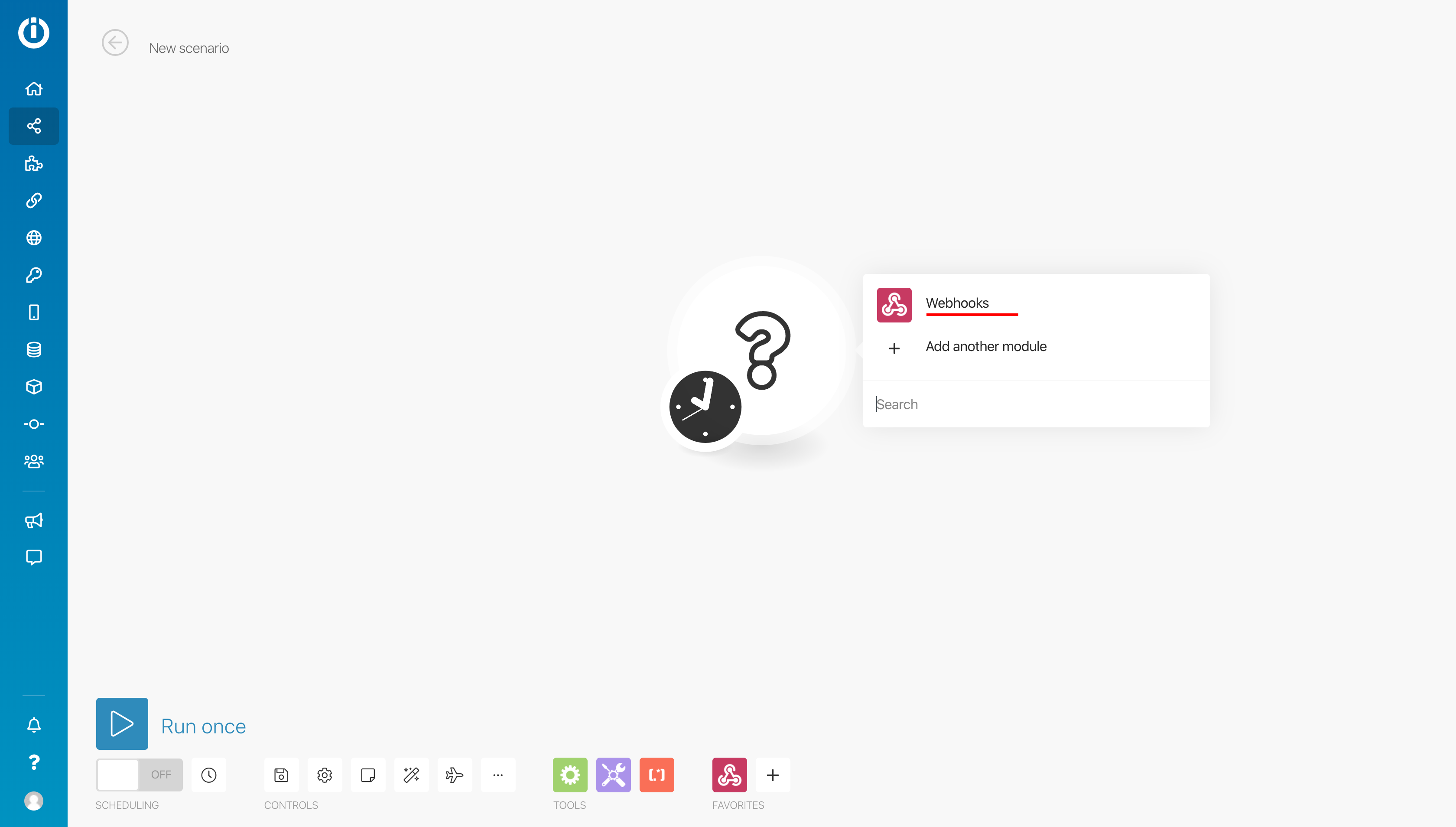
3. Click the big white question mark and select Webhooks
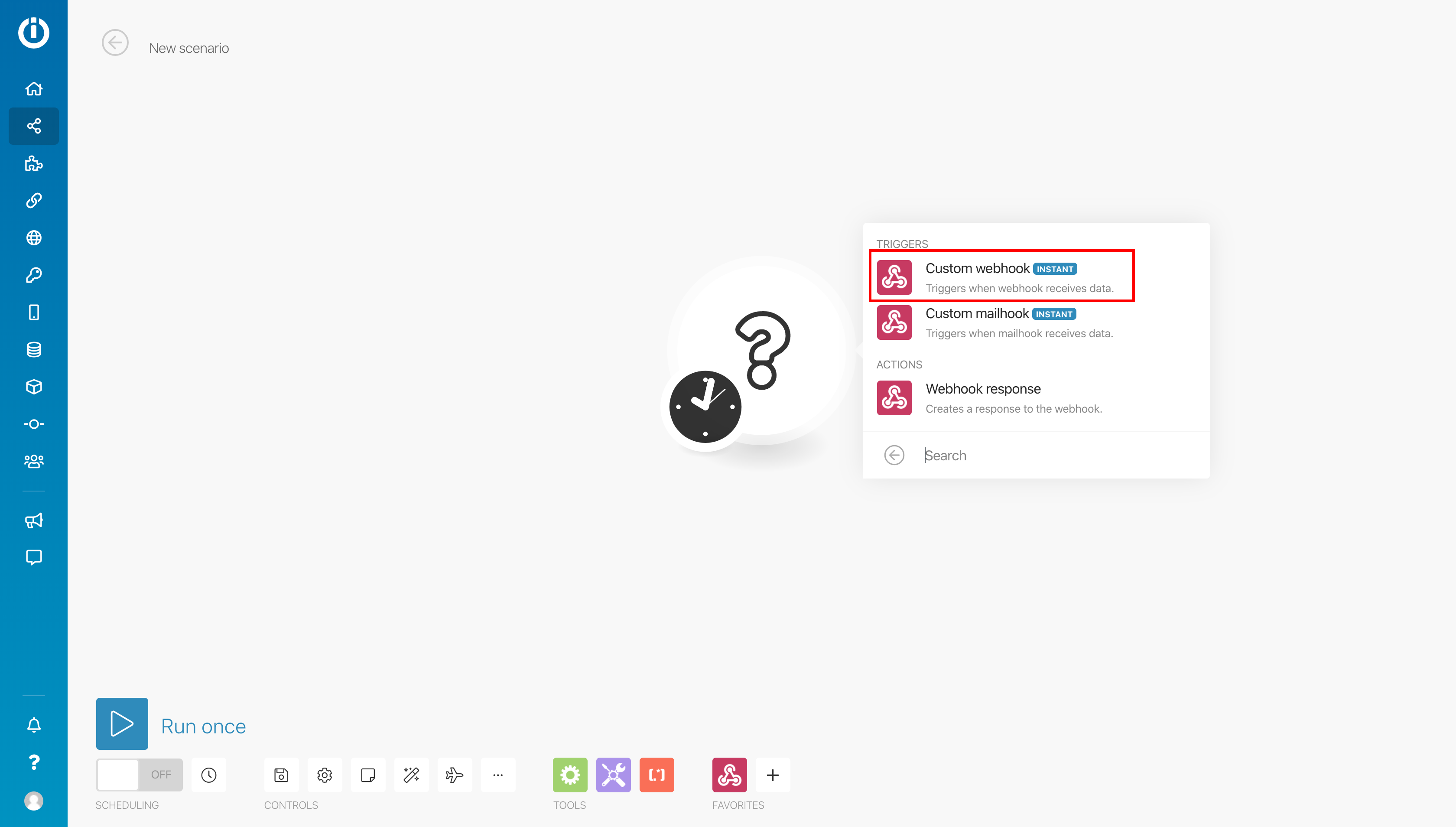
Then select Custom webhook.
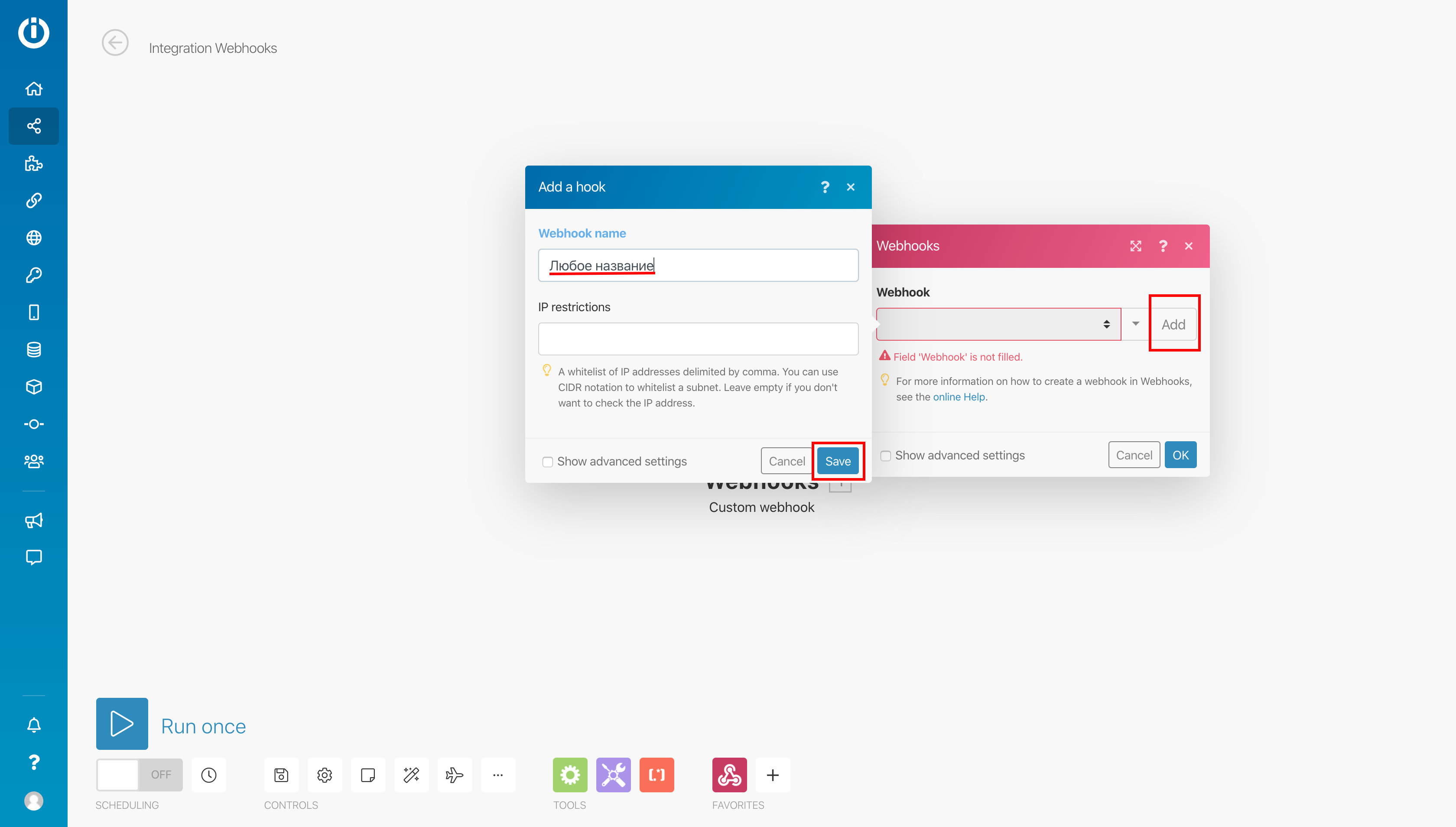
4. To create a new webhook, click Add in the Webhooks window that appears, enter any name in the new Add webhook window and save the changes.
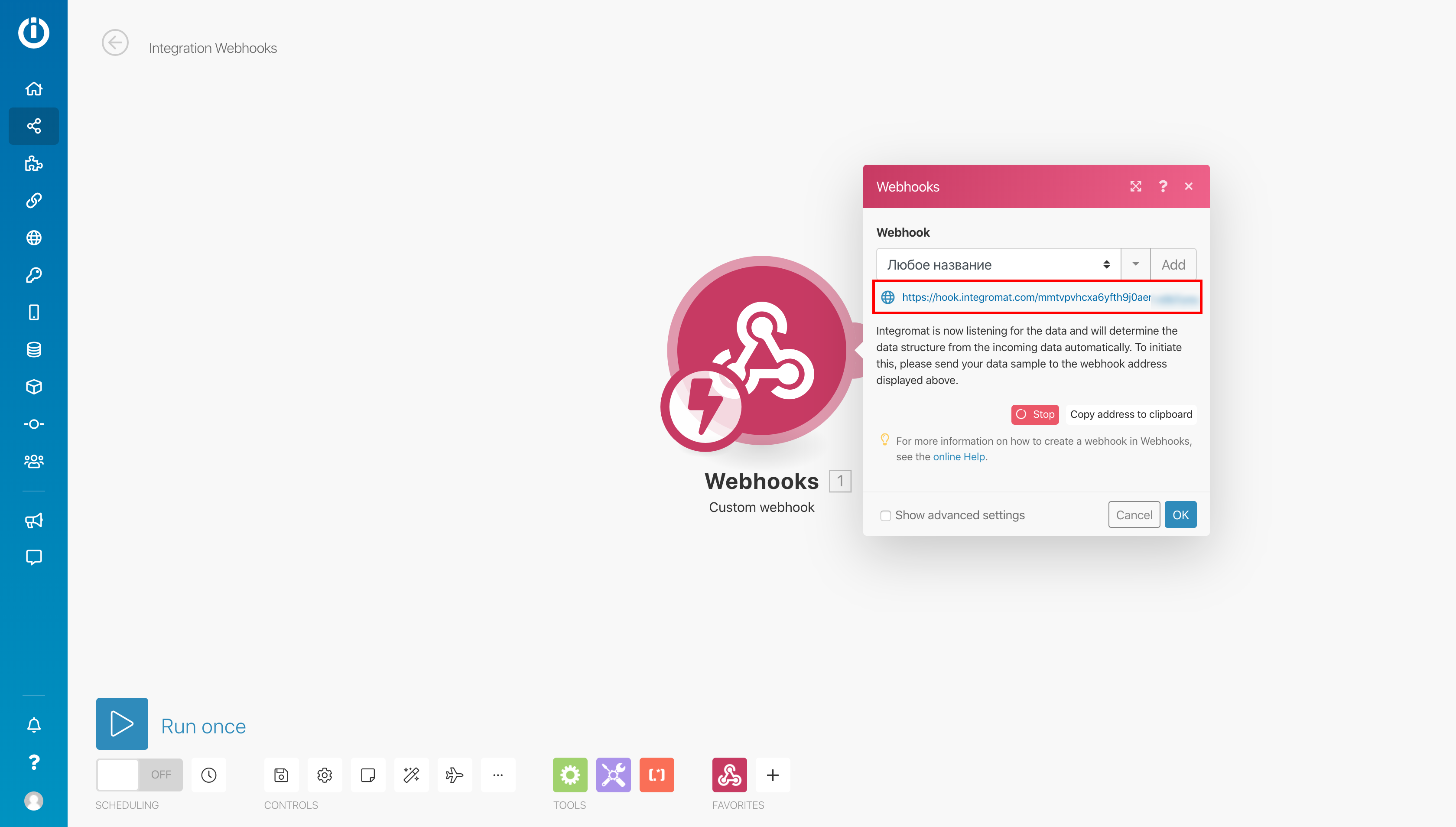
5. Copy the generated link under the webhook name, click OK and go to your ⚠ puzzlebot account: select the bot, go to the Settings section and open the Event subscriptions tab.
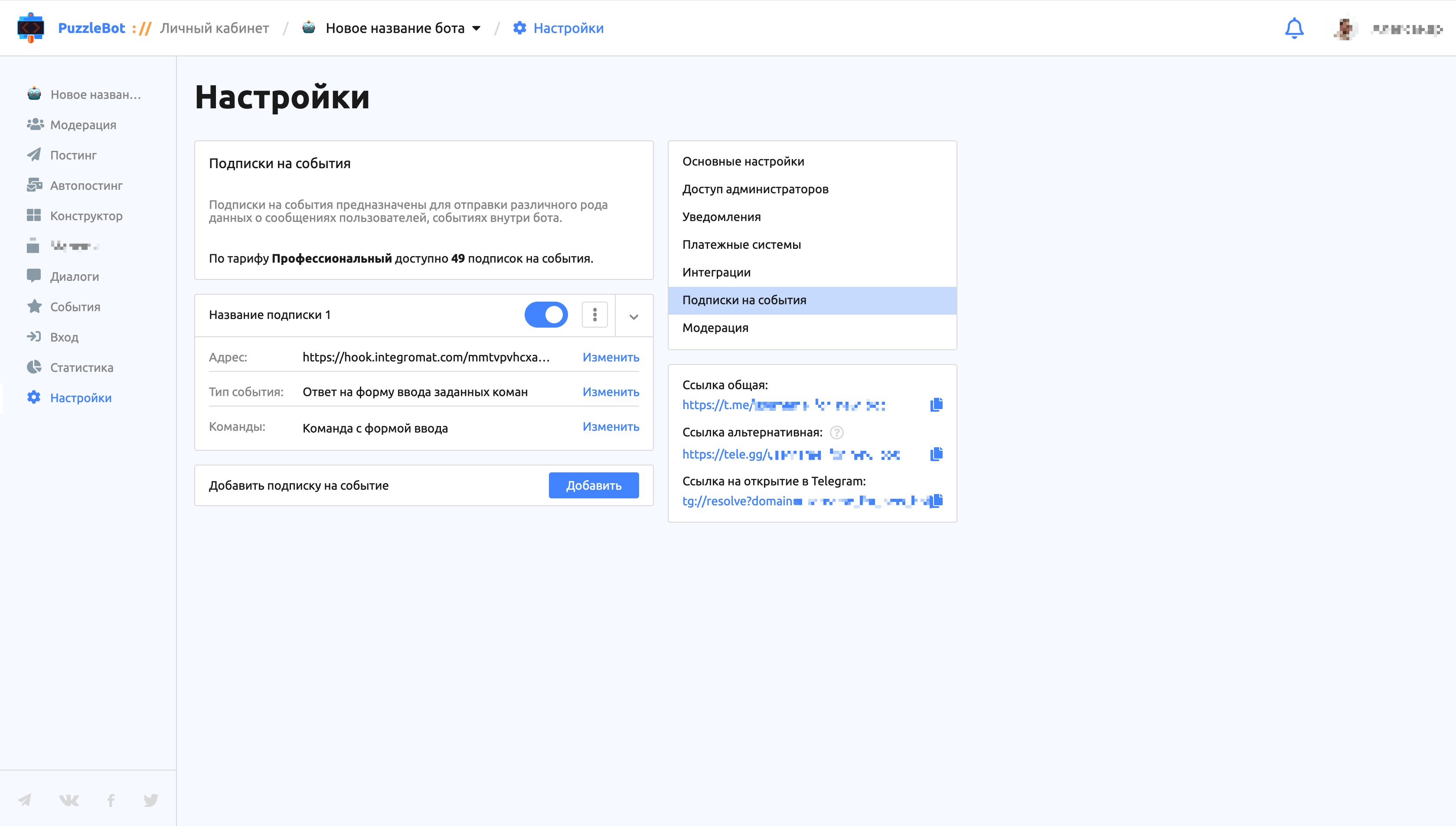
6. Click Add, paste the copied link into the Address field, select the Command input forms event type, select the command, save the changes and turn on the subscription. Then go back to Integromat.
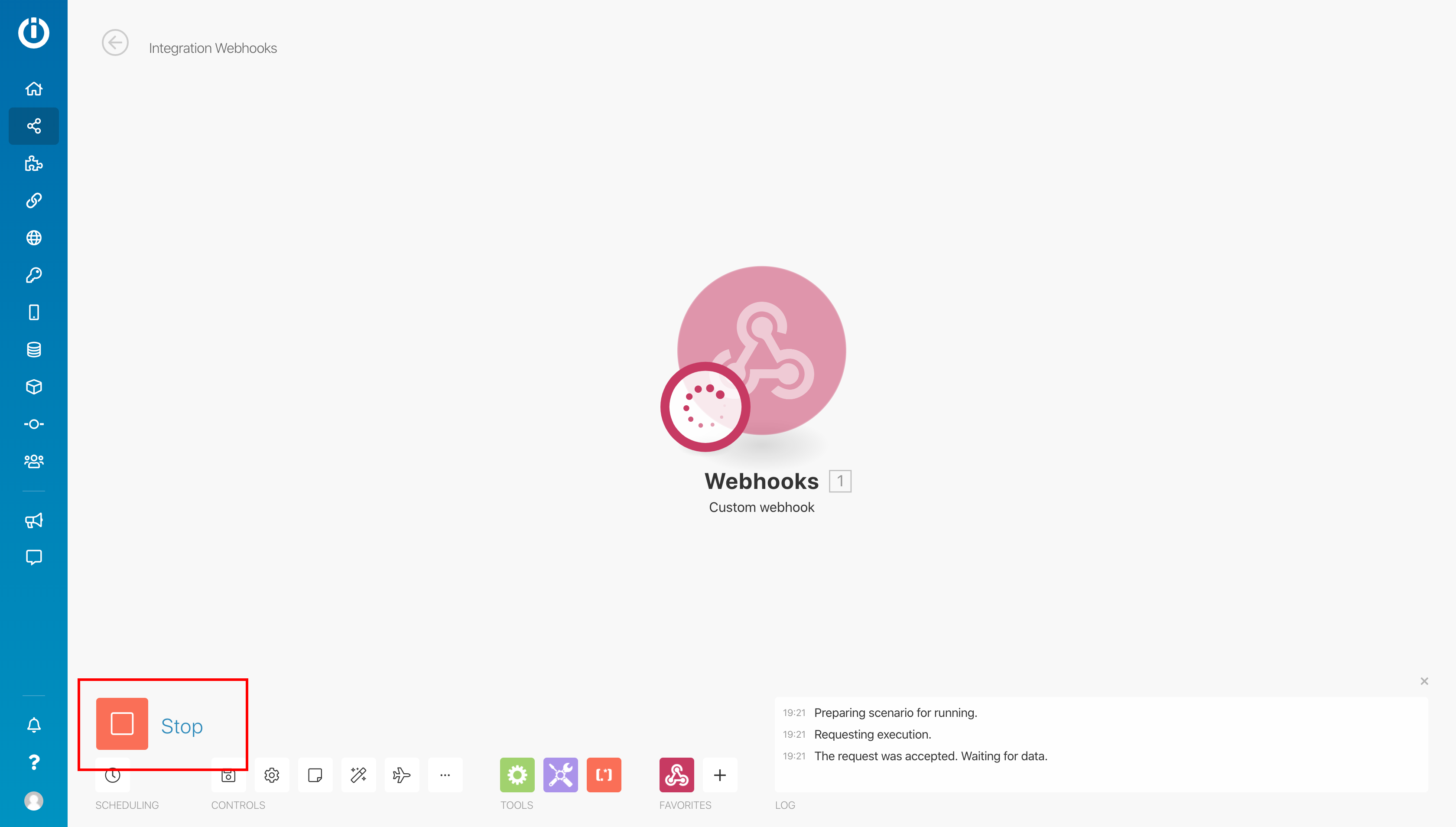
7. Click the big play button labeled Run once and switch to the Telegram app.
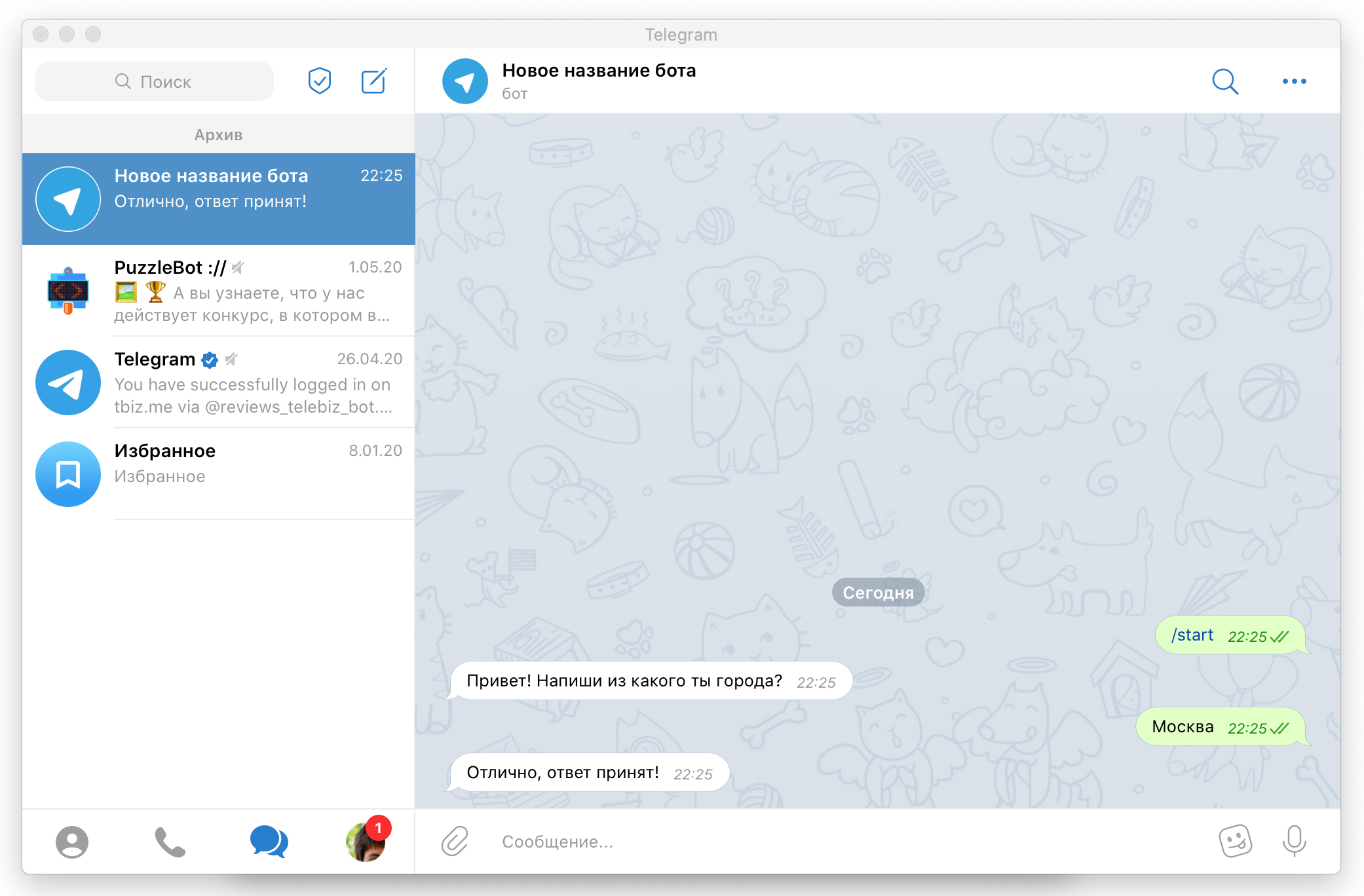
8. Open the chat with the bot, go to the command with the input form and answer it. Then go back to Integromat.
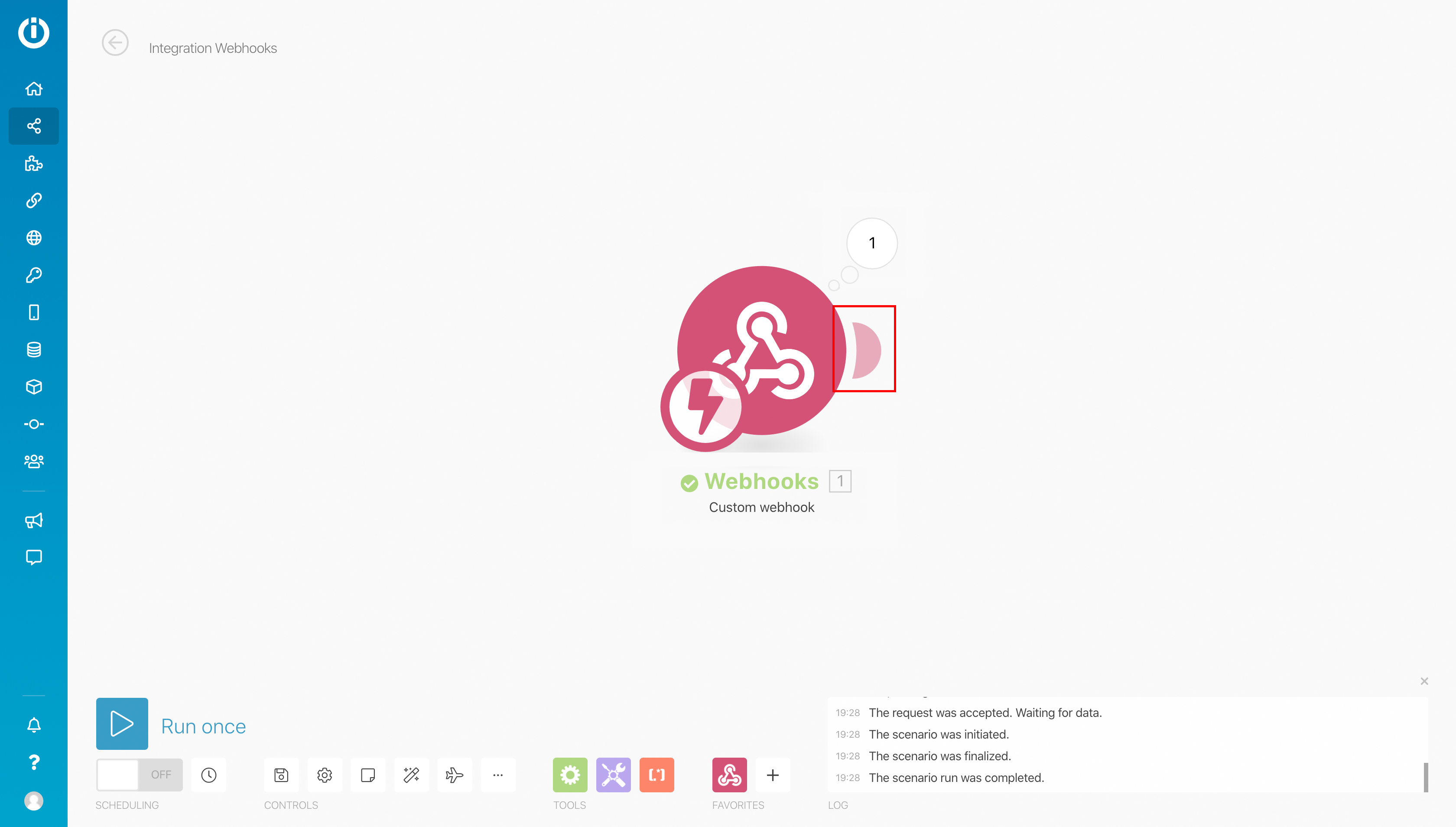
9. Great! The request has been received. Add a connection by clicking the semicircle to the right of Webhooks, type Telegram Bot in the window that appears, add it and in the next window select Send a Text Message or a Reply.
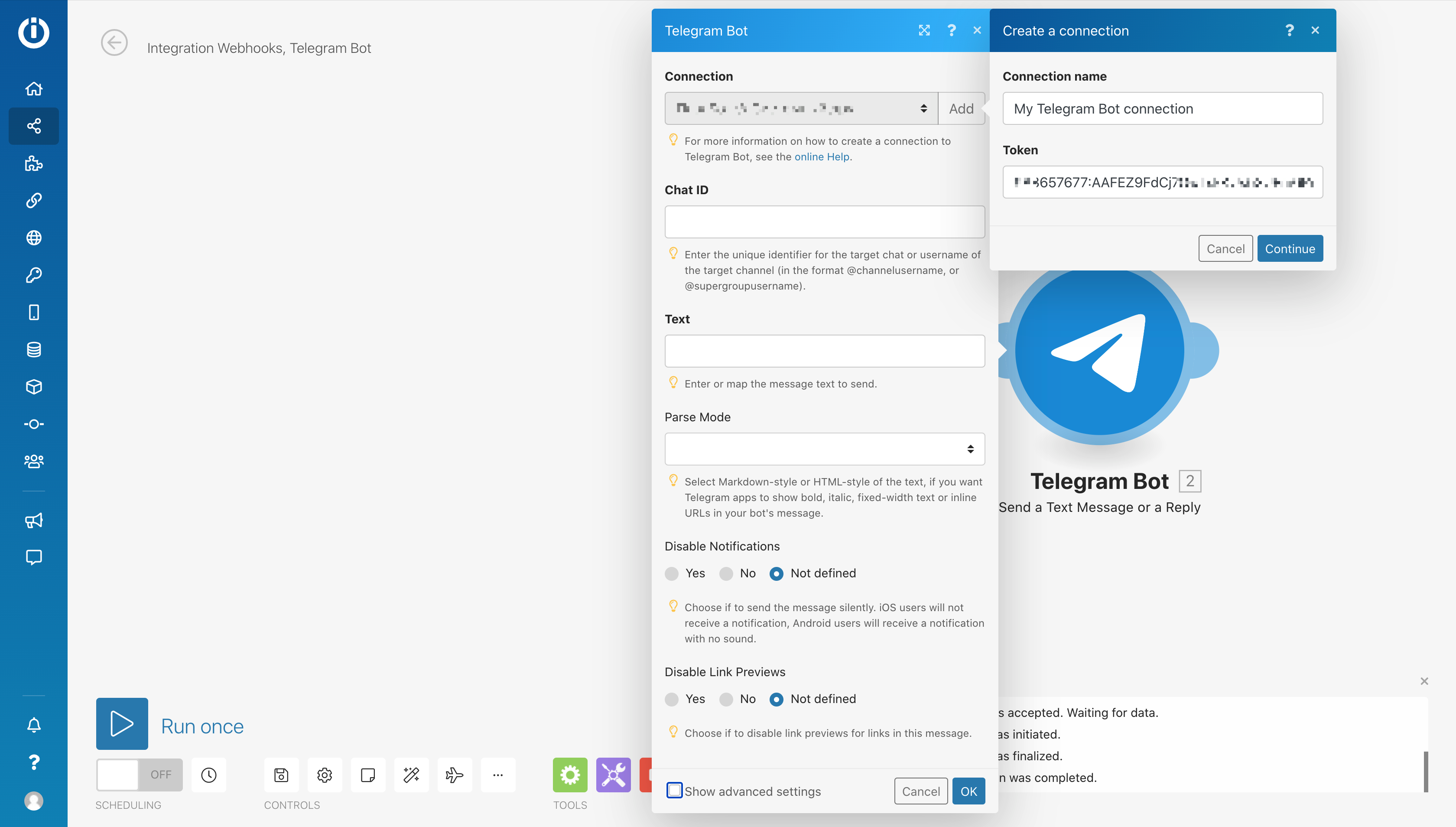
10. In the window that appears, paste the API key into the Connection field (any name will do).
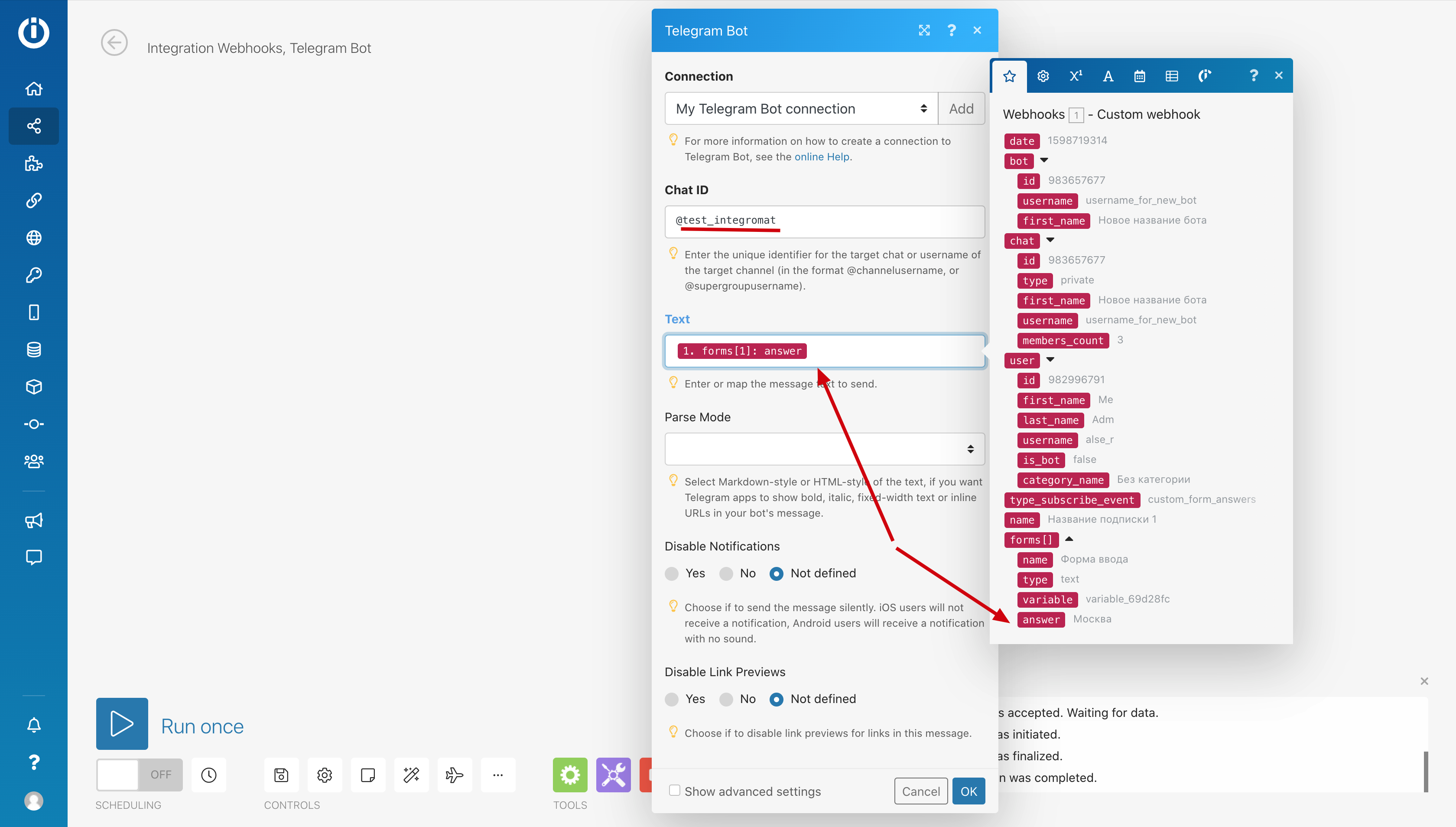
10.1. In Chat ID, enter the resource's username. In the Text field, select the answer field from the request received earlier.
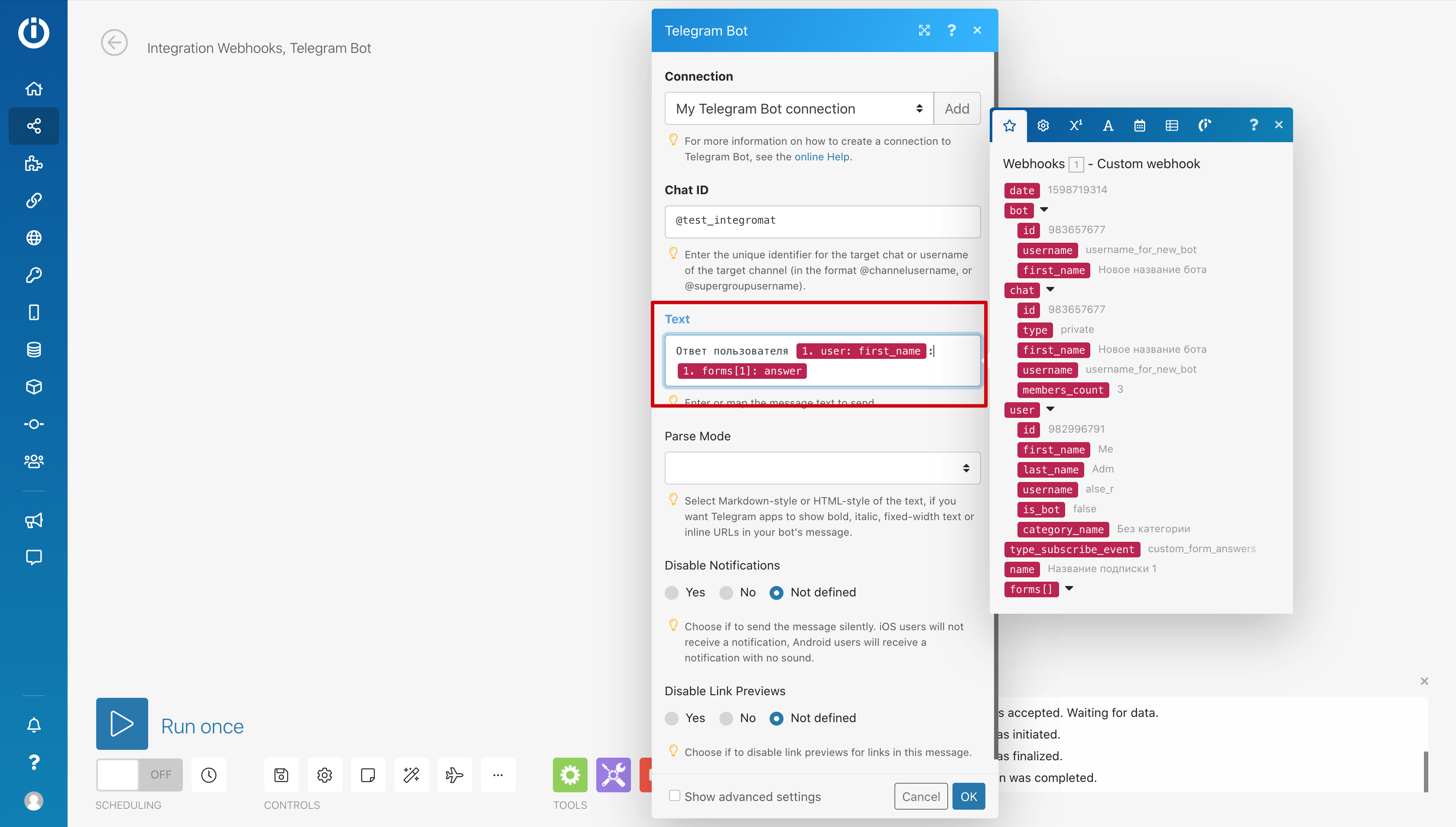
10.2. You can style the answer. Save the changes.

11. Click Run once to test the scenario.
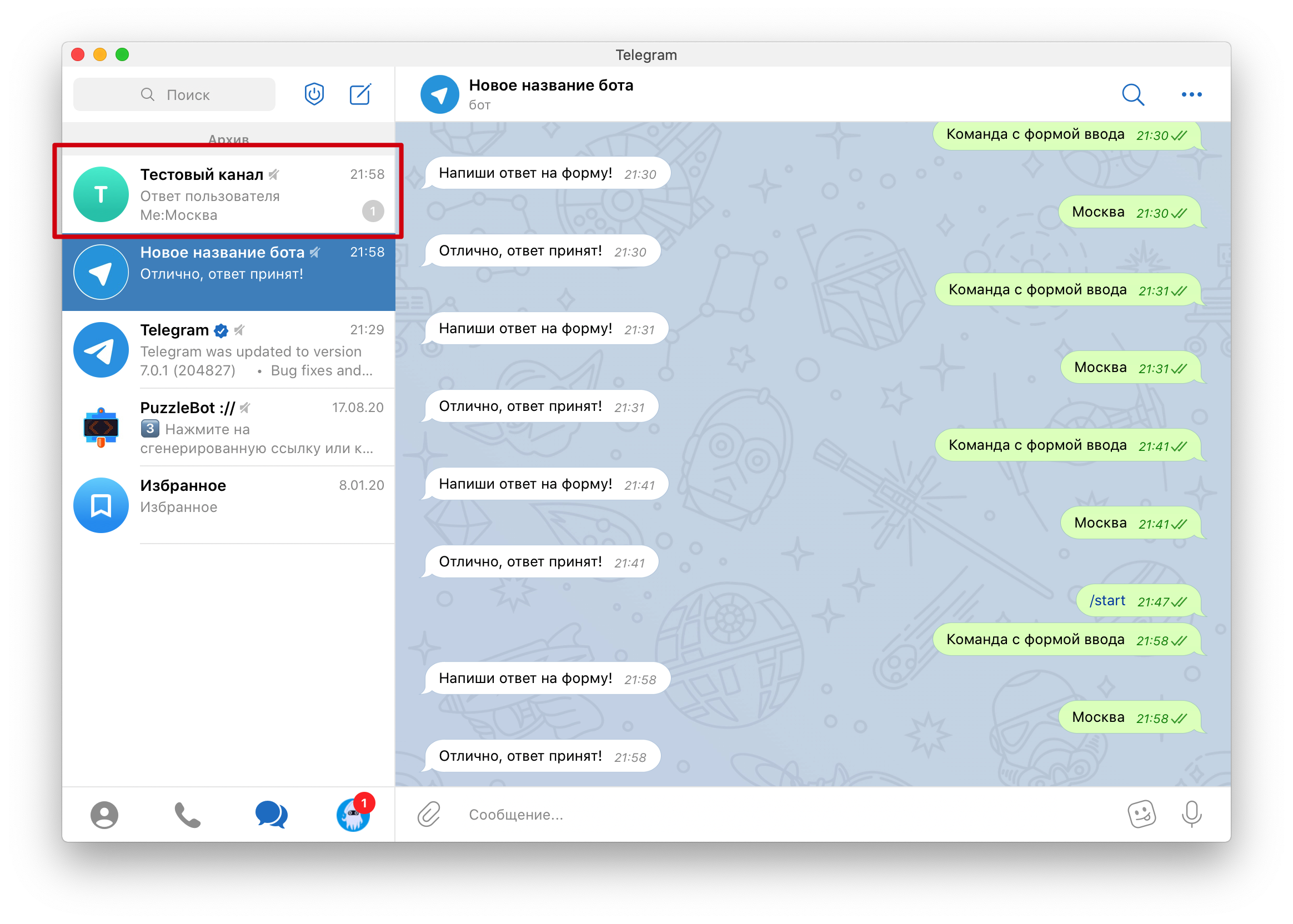
12. Go to Telegram and send an answer to the form.
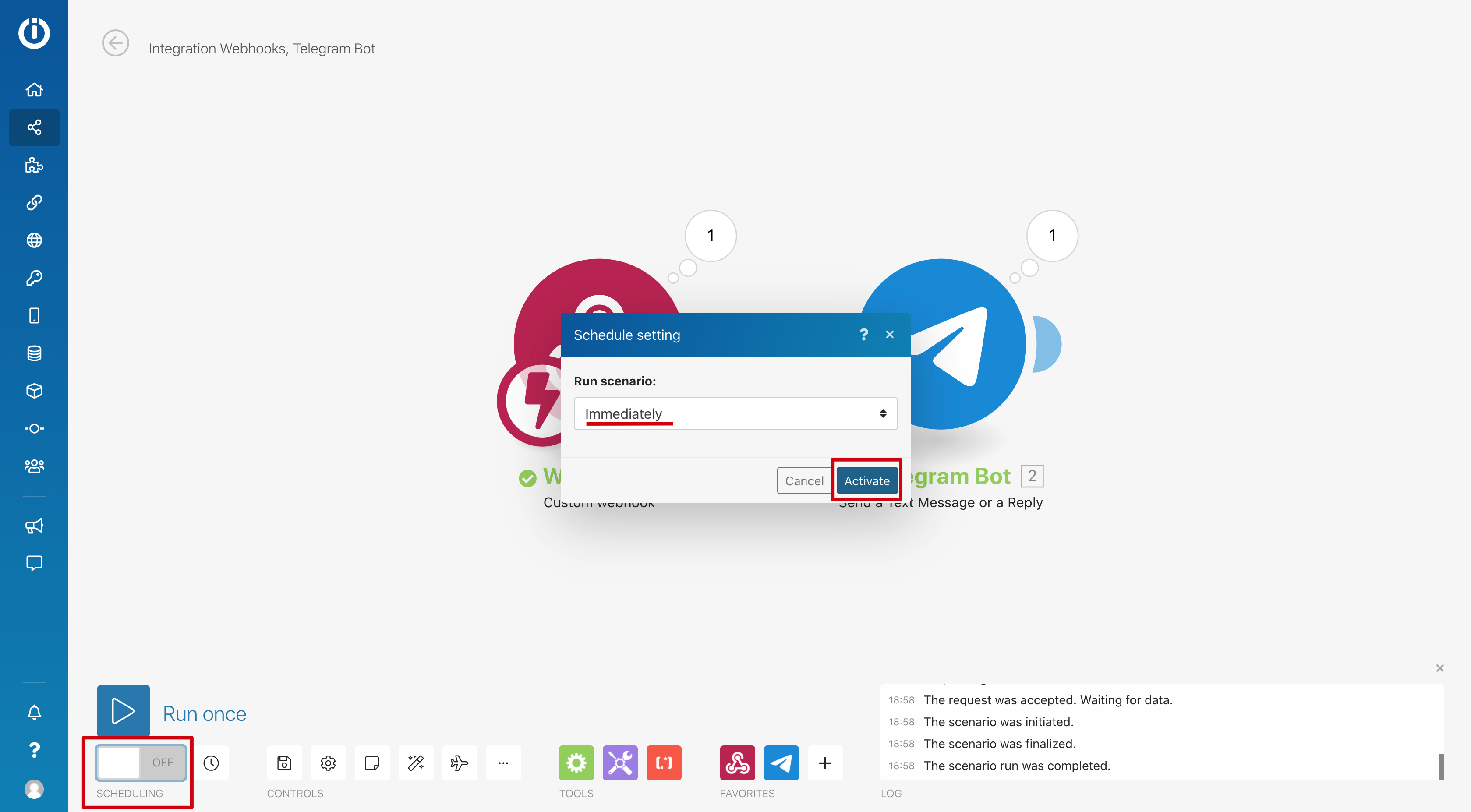
13. Great! The integration works. Go to Integromat, set the scenario's schedule and turn it on.
Done! You have set up automatic forwarding of input form answers to a channel.