This article covers the interface and features of the Entry tab.
To get to know the tab more easily, we recommend watching the video overview:
00:12 — Tab interface
00:27 — Link types
00:53 — Multi-use links
01:00 — Link thumbnail
01:38 — Link settings
03:05 — Example of multi-use links in action
04:12 — Promo links
04:24 — Promo link list
04:59 — Link settings
05:13 — Referral system
05:21 — System settings
05:51 — Example of the referral system in action
06:49 — Click table
The Entry tab
Entry is the section where you create different types of links that launch the bot and track clicks on them.
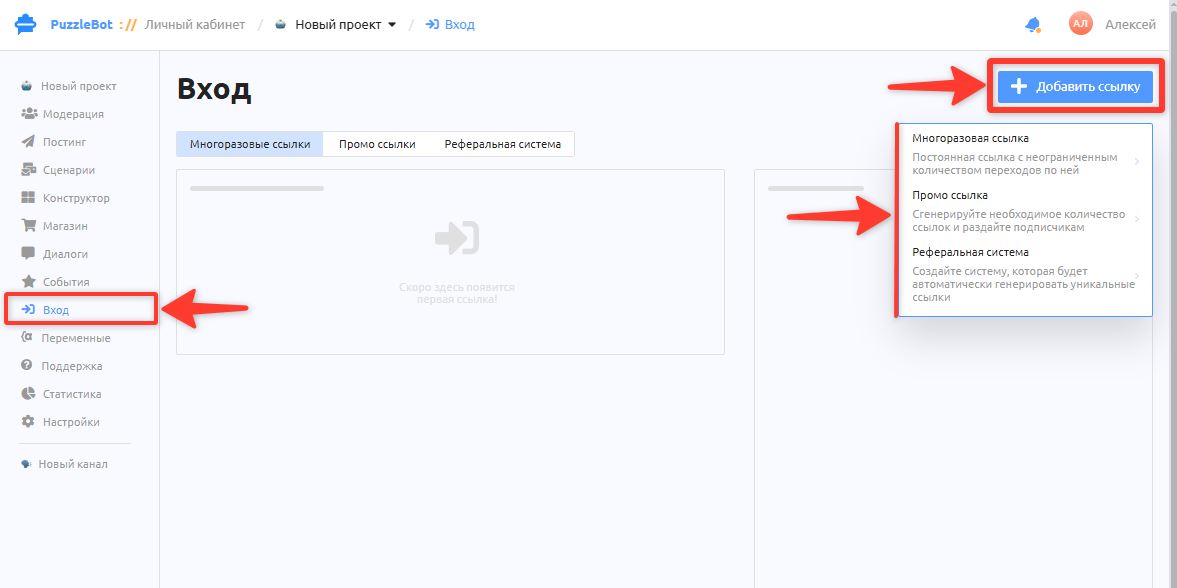
To create a link, go to the Entry section and click Add link
You can create three types of links. Let's go through each of them.
Multi-use link
A multi-use link is a permanent link to the bot with an adjustable number of clicks.
Use it when you want to place different links on other social networks or traffic sources and track the number of clicks and their conversion.
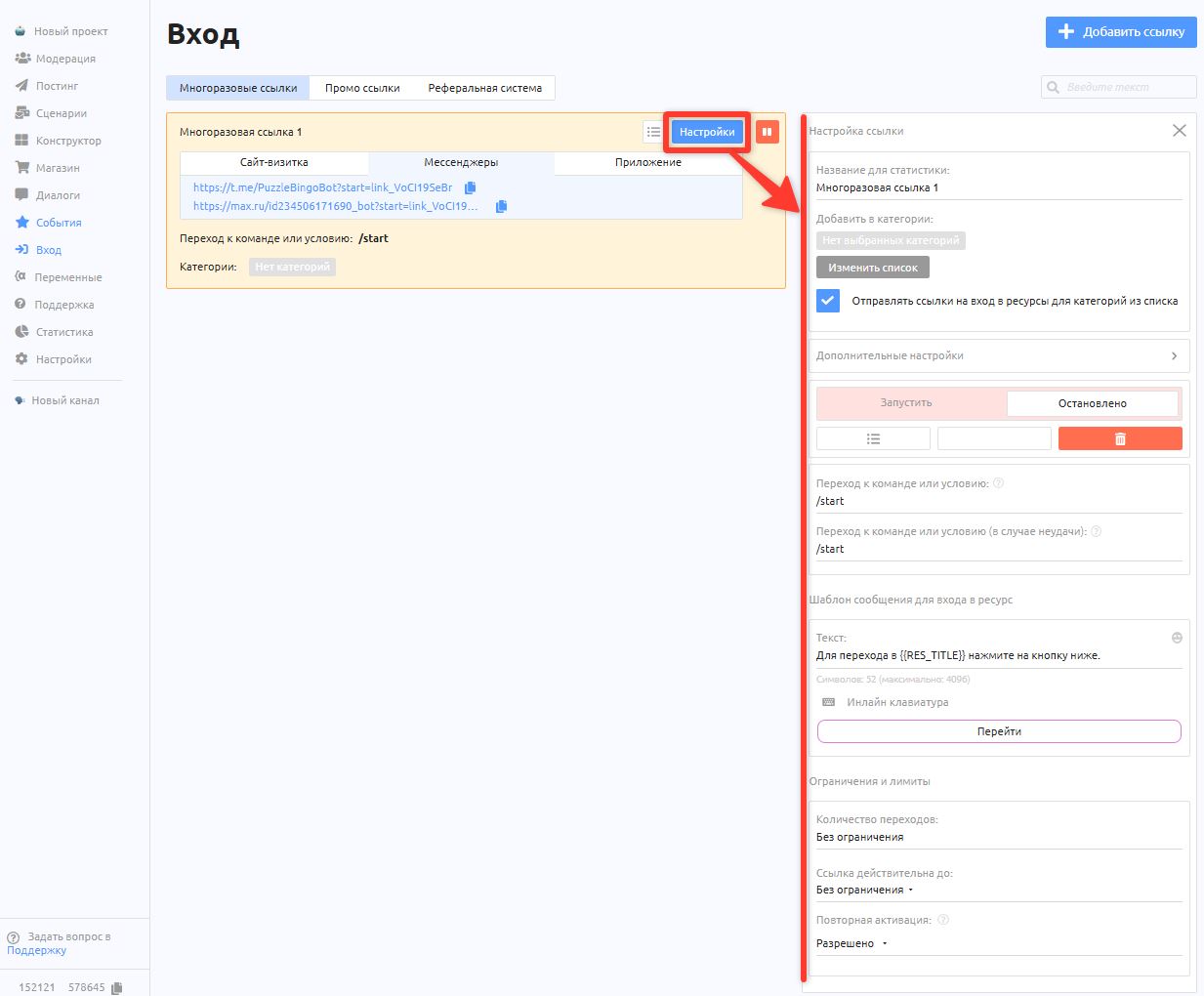
Link settings:
• Link name — enter any name for convenience, so you can always find the right link when you have many of them.
• Add to category — select the category that is added to the user when they follow the link. This lets you tag, filter and separate users by the source they came from.
• Send resource entry links for categories from the list — when this checkbox is selected, the user also receives an entry link to the resource whose category you specify.
• Go to command or condition — enter the name of the command that is sent right after the user follows the link; the default is the /start command.
• Go to command or condition (on failure): — enter the name of the command.
• Resource entry message template — required and sent only if the "Send resource entry links for categories from the list" checkbox is selected.
Restrictions and limits:
• Number of clicks: — set the total number of clicks allowed on the link, or leave it unlimited. When the click limit is reached, the user gets the message "This link has already been used!"
• Link valid until: — set an expiry date for the link, or leave it unlimited.
• Reactivation: — allows or forbids the same user to follow the link again.
After creating the link, you can copy it by choosing the link format:
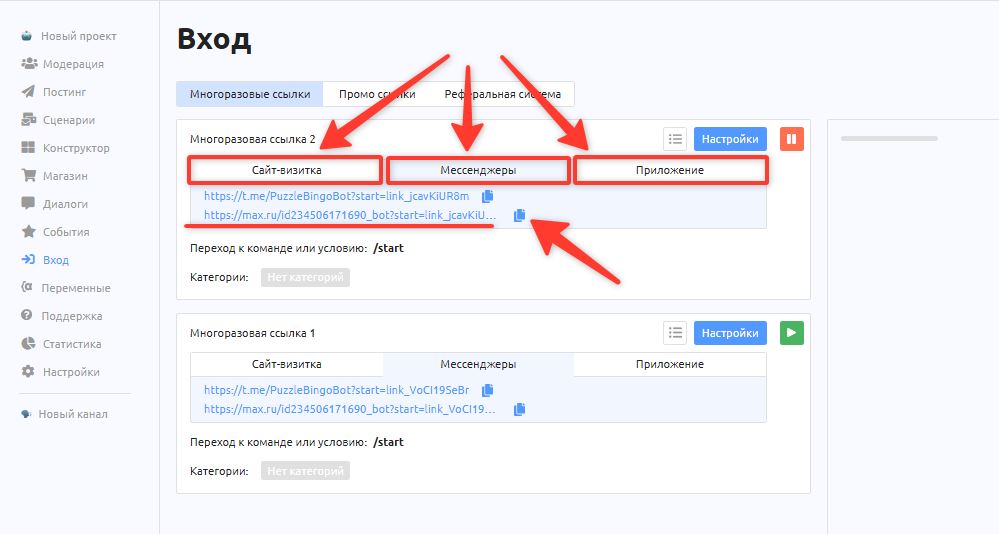
Landing page: a link in the format https://cp.puzzlebot.top/... This link first takes the user to the puzzlebot.top domain and opens a page with your bot's name and description and a button that opens the bot. Use this format if the direct link t.me/namebot does not work because of Telegram restrictions, or if the service where you place links restricts Telegram links.
Messengers: direct links to the bot in Telegram or Max in the format https://t.me/NameBot or https://max.ru/id123_bot. You can place them on any site that has no restrictions, as well as in bots and channels themselves. When a user follows such a link on a website and the app is not installed, they are offered to open the messenger in the web page, so you don't lose customers.
App: a native link type that opens the bot directly in the installed messenger app. It is not suitable for websites outside the messenger, because in that case the user is not offered to open the messenger in the web page if the app is not installed.
The only advantage of this link is that it opens without extra clicks or redirects. It is used only inside Telegram or a mini app, where it lets you launch the bot or a command seamlessly from the mini app.
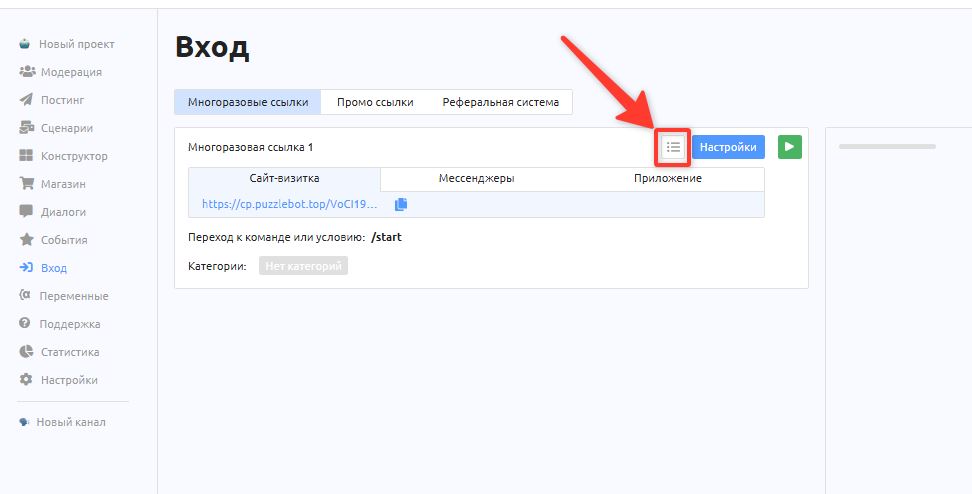
To see the number of clicks and the list of users who followed the link, click the button next to Settings
Promo link
A promo link is similar to a multi-use link and has the same settings (name, category assignment, command on entry, date and reactivation limits), but without click limit control. Promo links are most often used as one-time links.
It is ideal when you need to quickly create many one-time links (for example, to give out bonuses, invitations or promo codes) and track clicks on each of them without setting limits manually.
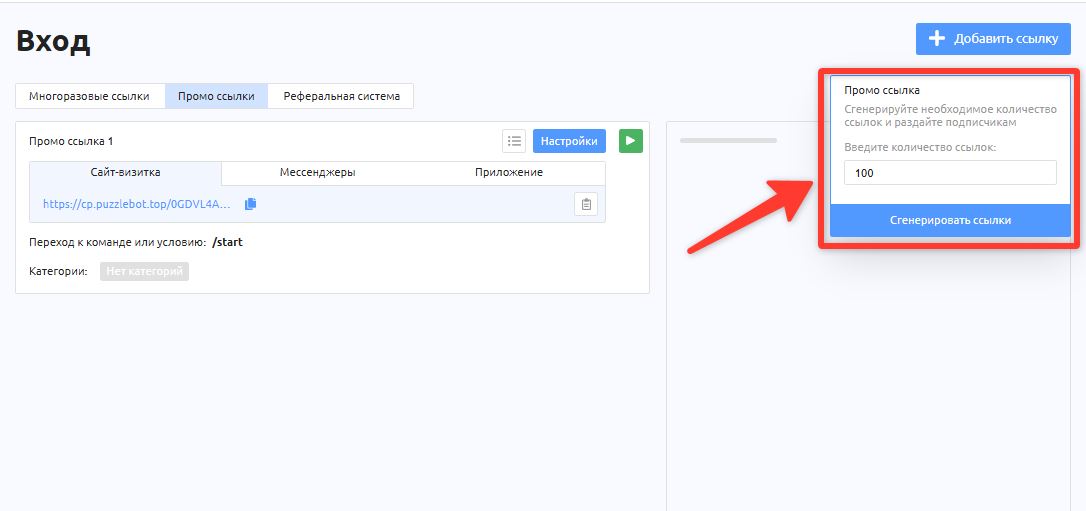
When creating a Promo link, you can specify how many links to create.
After creation, the same link formats (Landing page / Messengers / App) and click statistics are available.
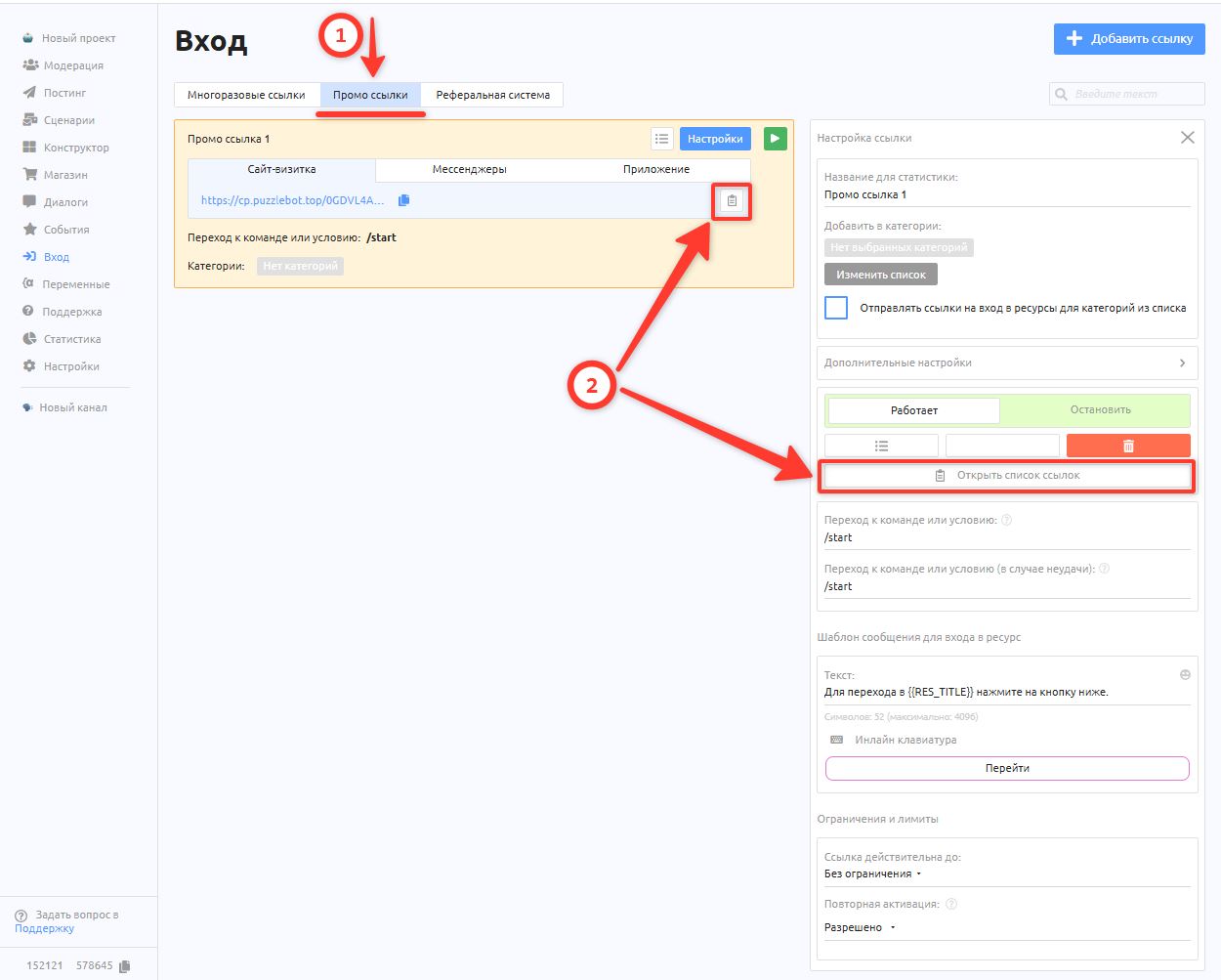
Click Open link list to download the list of links and see which links have been used and which remain.
Referral system
This link type lets you create a variable that generates a unique referral link for each user every time it is called.
It is ideal not only for a referral invitation system, but also for letting every bot user generate their own links to the bot for giving out bonuses or one-time access.
Learn more: Referral system