puzzlebot MCP is the official Model Context Protocol (MCP) connector that lets you connect your puzzlebot bot to modern AI agents (Claude, Cursor, Codex, Antigravity, VS Code and others).
With MCP, the AI model gets direct access to the bot's structure: it can analyze the logic, check variables, create commands and build message chains right from your text request in the chat.
Connecting to MCP
Creating an API token in puzzlebot
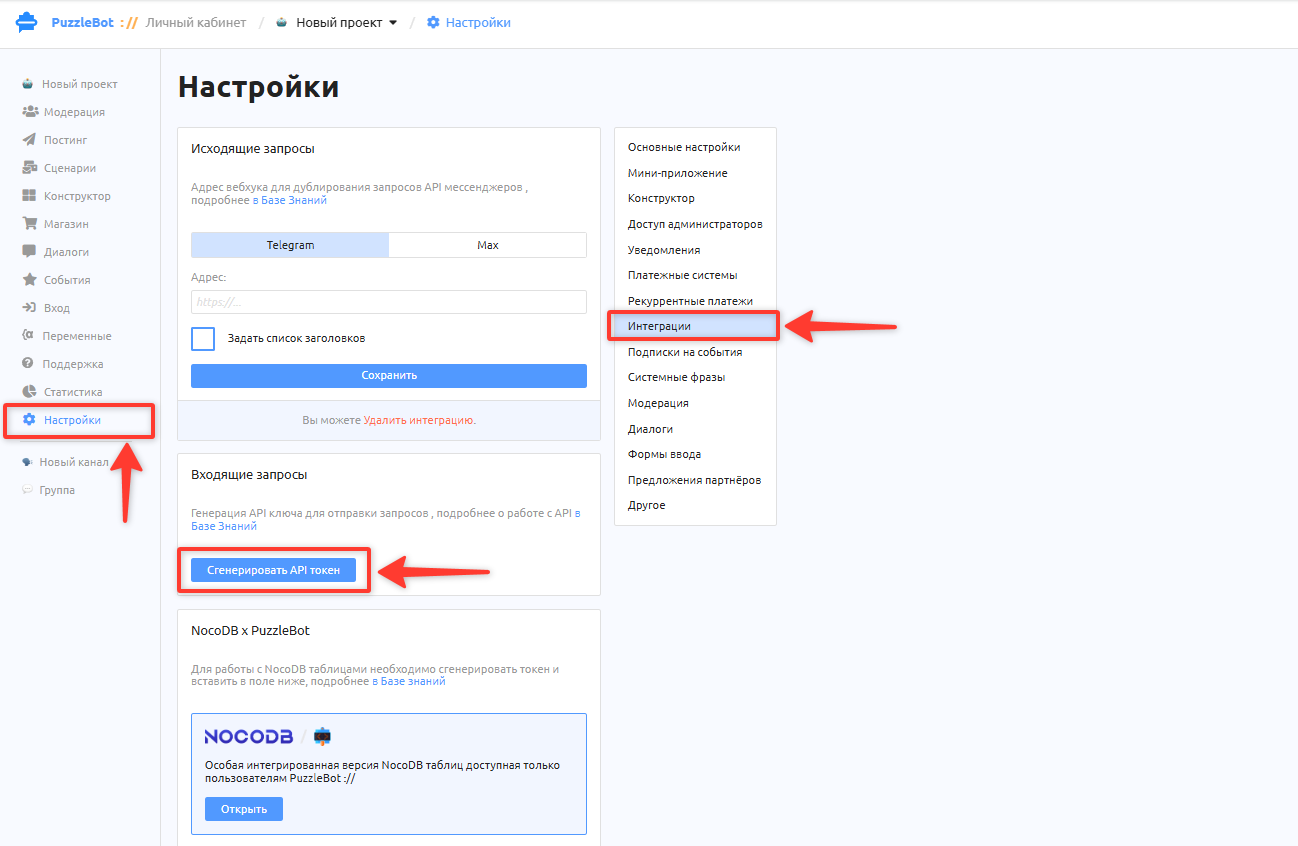
Open the bot you need in your puzzlebot account.
In the left sidebar, go to Settings, then select Integrations on the right.
Scroll down the page to the "Incoming requests" block → Generate API token.
Copy the value from the "API token" field (the copy icon to the right of the field).
Important: if other integrations (for example, a CRM or external webhooks) already use this token, do not click "Regenerate", otherwise the old integrations will stop working. Just copy the current token.
The quick way to connect puzzlebot MCP
If you work in an environment that supports MCP (Cursor, Claude Code, Codex, Antigravity and so on), you don't have to deal with configuration files. Just send your AI assistant the following message:
Connect the remote puzzlebot MCP server with the following parameters:
- URL: https://cp.puzzlebot.top/mcp
- Transport: HTTP
- Header: "Authorization: Bearer <PASTE_YOUR_API_TOKEN>"

After connecting, check the connection status and tell me how many puzzlebot tools are available to you and what structure my bot has.
For now, use the domain https://cp.puzzlebot.top/mcp. The domain will soon be updated to https://cp.puzzle.bot/mcp
The AI model will add the required configuration itself and confirm the connection.
Manual connection in popular clients
Connection details
Server address (URL):
https://cp.puzzlebot.top/mcp
(the address will later be updated to https://cp.puzzle.bot/mcp)Protocol:
HTTPAuthorization header:
Authorization: Bearer <YOUR_API_TOKEN>
Claude Code (terminal)
Run this command in the terminal:
claude mcp add --transport http puzzlebot https://cp.puzzlebot.top/mcp --header "Authorization: Bearer <YOUR_API_TOKEN>"Check: enter the /mcp command in the chat. Next to puzzlebot you should see the connected status and the available tools (32 tools). If you see a 401 error, the key is wrong or has been revoked — generate a new one.
Cursor
Add the server to the mcp.json configuration file (in the project settings or globally in ~/.cursor/mcp.json):
{
  "mcpServers": {
    "puzzlebot": {
      "url": "https://cp.puzzlebot.top/mcp",
      "headers": {
        "Authorization": "Bearer <YOUR_API_TOKEN>"
      }
    }
  }
}
Claude Desktop
If you use the Claude desktop app, add the configuration to the claude_desktop_config.json file (via the Settings → Developer → Edit Config menu):
{
  "mcpServers": {
    "puzzlebot": {
      "command": "npx",
      "args": [
        "-y",
        "mcp-remote",
        "https://cp.puzzlebot.top/mcp",
        "--header",
        "Authorization:Bearer <YOUR_API_TOKEN>"
      ]
    }
  }
}
(After saving, restart the Claude Desktop app).
Codex CLI
In Codex CLI (starting with version 0.146+), remote HTTP servers are added from the console, and authorization headers are set in the configuration file.
1. Add the server with a terminal command:
bash
codex mcp add puzzlebot --url https://cp.puzzlebot.top/mcp
2. Set the authorization header:
The codex mcp add command has no direct flag for passing custom HTTP headers. Open the ~/.codex/config.toml configuration file (on Windows: %USERPROFILE%\.codex\config.toml) and add a block with the token to the server section:
toml
[mcp_servers.puzzlebot]
url = "https://cp.puzzlebot.top/mcp"
[mcp_servers.puzzlebot.http_headers]
"Authorization" = "Bearer <YOUR_API_TOKEN>"
Tip: if you don't want to store the token in plain text in the configuration file, use the env_http_headers parameter — it takes only the name of an environment variable:toml[mcp_servers.puzzlebot.env_http_headers]"Authorization" = "puzzlebot_AUTH_HEADER"
(where the puzzlebot_AUTH_HEADER environment variable holds the value Bearer <YOUR_API_TOKEN>).
3. Check
Restart the Codex session and enter the /mcp command (or codex mcp list in the terminal) — the puzzlebot server should show an active connection status and 32 tools. If you see a 401 error, the key is wrong or has been revoked — generate a new one.
Rules and how to use it
Just describe your tasks in plain words — the assistant decides what to call. You don't need to know the tool names; the list below is only there to show the limits of what is possible.
Questions about the bot
"What can my bot do right now?", "What variables do I have?", "Show me where the 'Catalog' button leads", "Are there any commands that nothing links to?" — these are read operations, and the answer comes within a second.
Changes are made by the agent, and this takes time
"Add a 'Catalog' button to the greeting", "Build a survey of three questions", "Make a page with the price list" — the assistant passes a task like this to the puzzlebot AI agent. The agent does not respond right away: a turn takes from a few seconds to a few minutes, and the assistant checks from time to time whether it is ready. While the turn is running, you can see what the agent is doing right now: "Reading data…", "Changing a block…".
Do not repeat the task while the first one is still running. A second run will do the work twice.
Safe changes (drafts):
All changes the AI model makes through the agent are saved to a draft. The bot is not updated for users instantly — you can always check the result in your puzzlebot account and click "Publish".
(Exception: store products and autoposting scenarios are applied immediately).Feedback if a task was done incorrectly
If the agent did something other than what you asked, just write: "Tell the developers that the agent added an extra block instead of replacing it". The assistant will call thereport_problemtool and pass the execution log to the puzzlebot team.1 key = 1 project
If you need to work with another bot from the same account, connect it separately with its own API token.Task size
Up to 1 MB of text at a time. If you send ready-made page markup, this is more than enough.Turn duration
From seconds to a few minutes. The connection is not held open during this time: the assistant asks about readiness separately.
Available tools
The assistant automatically picks the right tool based on your request. Only one of them can change the bot — the rest only read and change nothing.
Changing the bot and tasks
Tool | Purpose |
|---|---|
| Starts a task to create or edit the bot, described in plain words. Returns the turn number. |
| Checks the status of a running task and the agent's current action. |
Inspecting the bot
Tool | Purpose |
|---|---|
| A general summary of the bot: groups and the number of commands, conditions and mini app pages. |
| Search by names and content: message texts, survey questions, button labels. |
| The full internal structure of the selected command, condition or page. |
| A map of all transitions in the bot: clearly shows what leads where. |
| Finds errors and broken spots: links to nowhere, conditions without an "Else" branch, exceeded limits. |
| Shows the changes made during the agent's last turn. |
Bot reference lists
Tool | Purpose |
|---|---|
| A list of all custom and system variables of the bot with their types. |
| A list of the configured popups. |
| Audience segments (subscriber categories, for example "Paid"). |
| Connected channels and groups. |
| Entry points into the bot and whether they are working right now. |
| What the bot replies when it does not understand a message, and what it does when someone subscribes to a resource. |
| Connected payment systems, including recurring payments. |
Store
Tool | Purpose |
|---|---|
| A list of products: prices, stock, and whether the product is enabled. |
| Product categories. |
| Store settings: currencies, delivery, payment. |
| Promo code lists. |
Scenarios
Tool | Purpose |
|---|---|
list_scenarios | Message chain scenarios: warm-up sequences, reminders, schedules. |
get_scenario_posts | The steps of one scenario and whether they will reach people. |
External data
Tool | Purpose |
|---|---|
| Connected NocoDB accounts and their databases. |
| Tables inside a database. |
| Table columns. |
| Connected Google accounts. |
| Sheets inside a spreadsheet. |
| Column names of a sheet. |
| The platform cannot list an account's spreadsheets — give a link to the spreadsheet you need, and the assistant will take its id from there. |
puzzlebot knowledge base
Tool | Purpose |
|---|---|
help_search | Search the official puzzlebot knowledge base (plans, limits, mechanics). |
help_article | The text of a knowledge base article. |
formula_help | A reference of the platform's formula functions. |
Feedback
Tool | Purpose |
|---|---|
report_problem | Sends a complaint or bug report to the developers right from the chat (attaches the turn number and context). |