To change the rights of bots and users in channels and groups:
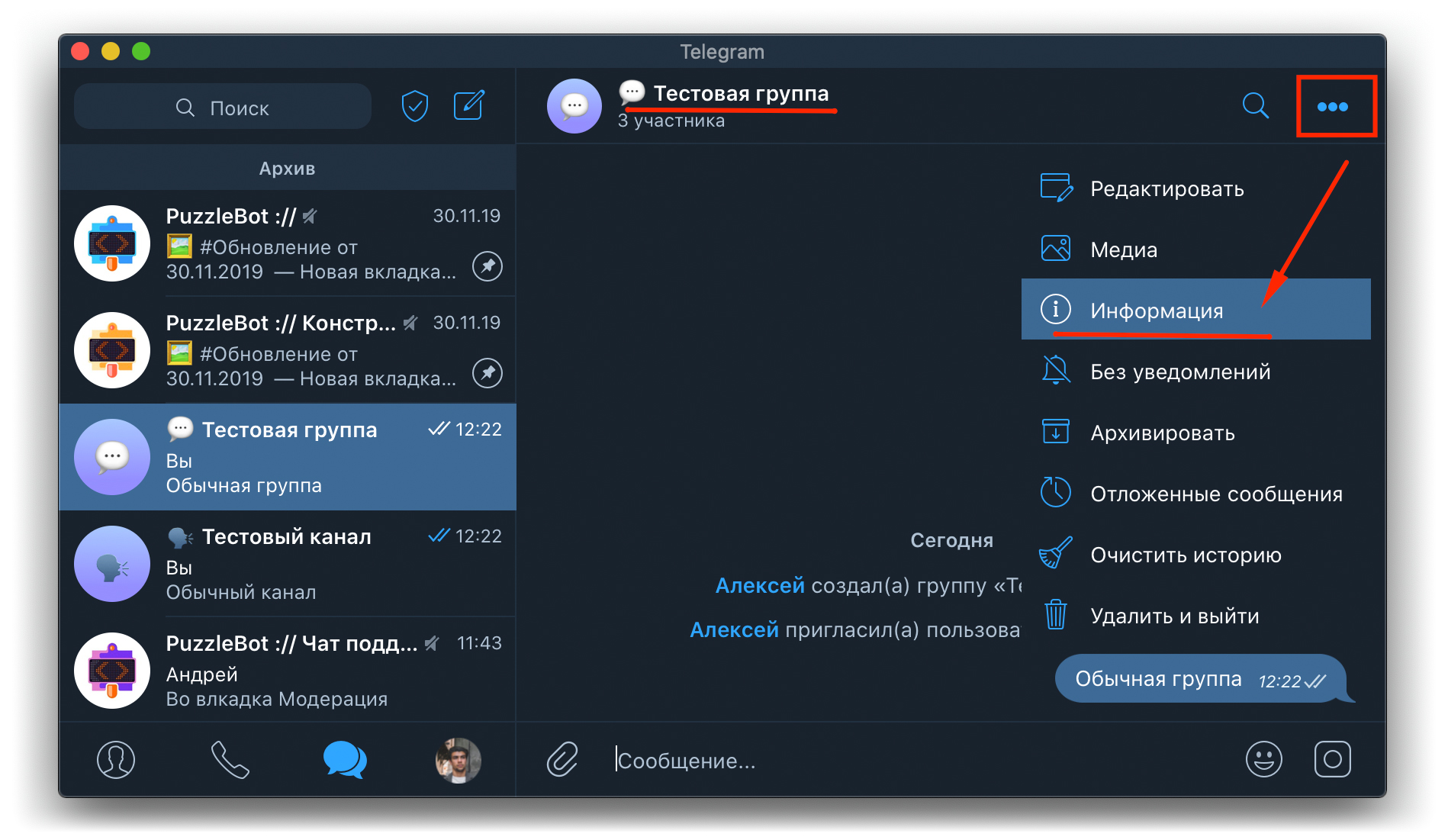
1. Open the member list. To do this, click the resource title, or hover over the three dots and select Info in the drop-down menu.
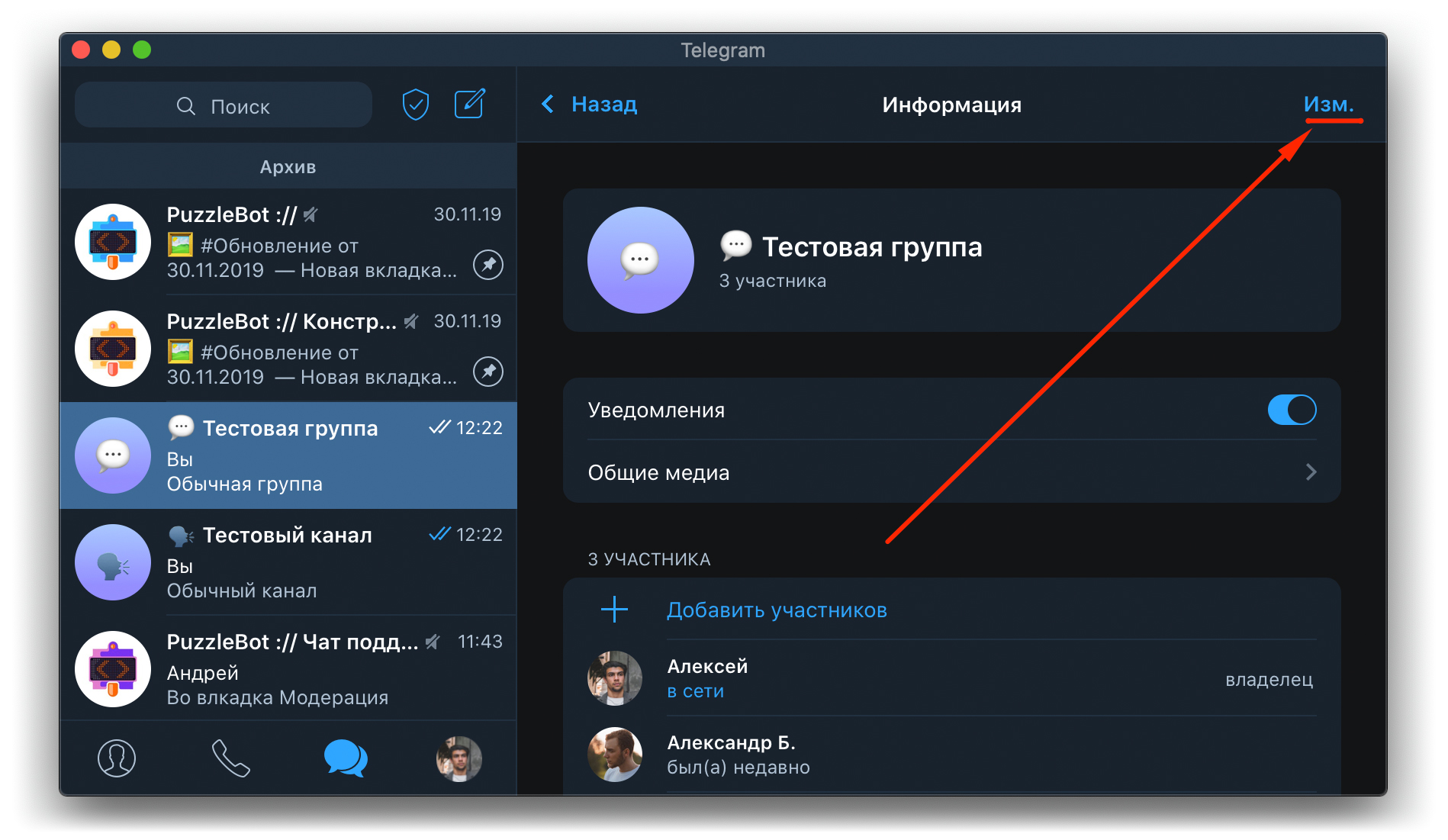
2. Click Edit.
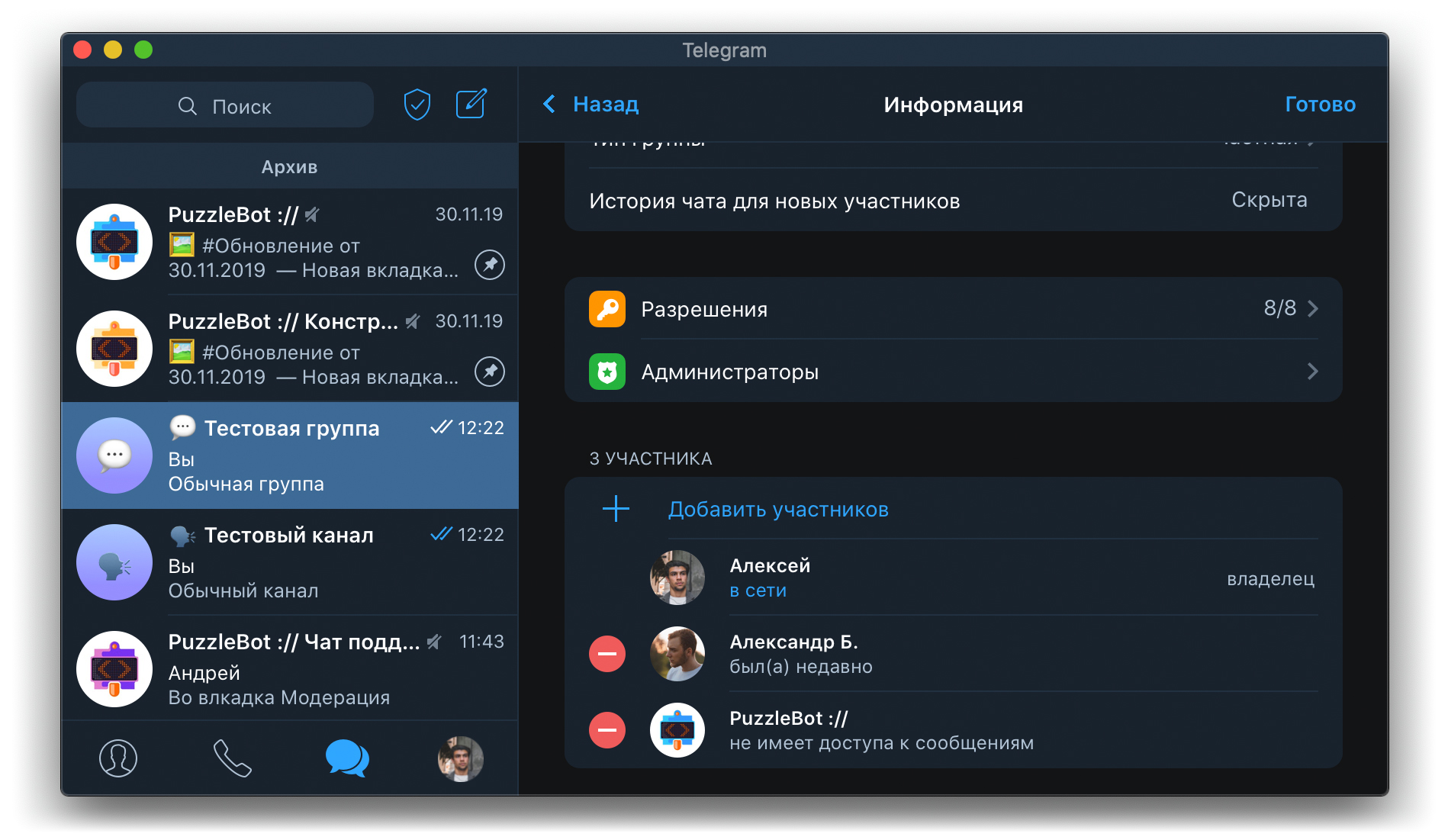
After you click Edit, new items appear:
Permissions — here you can set the rights of all subscribers of the resource (except administrators).
Administrators — a tab where you can make users administrators, enter a custom title and edit what administrators can do.
In addition, an icon appears next to each user that lets you remove or ban any subscriber.
To connect a resource to puzzlebot ://, add the bot you created and give it full admin rights. Here is how to do it:
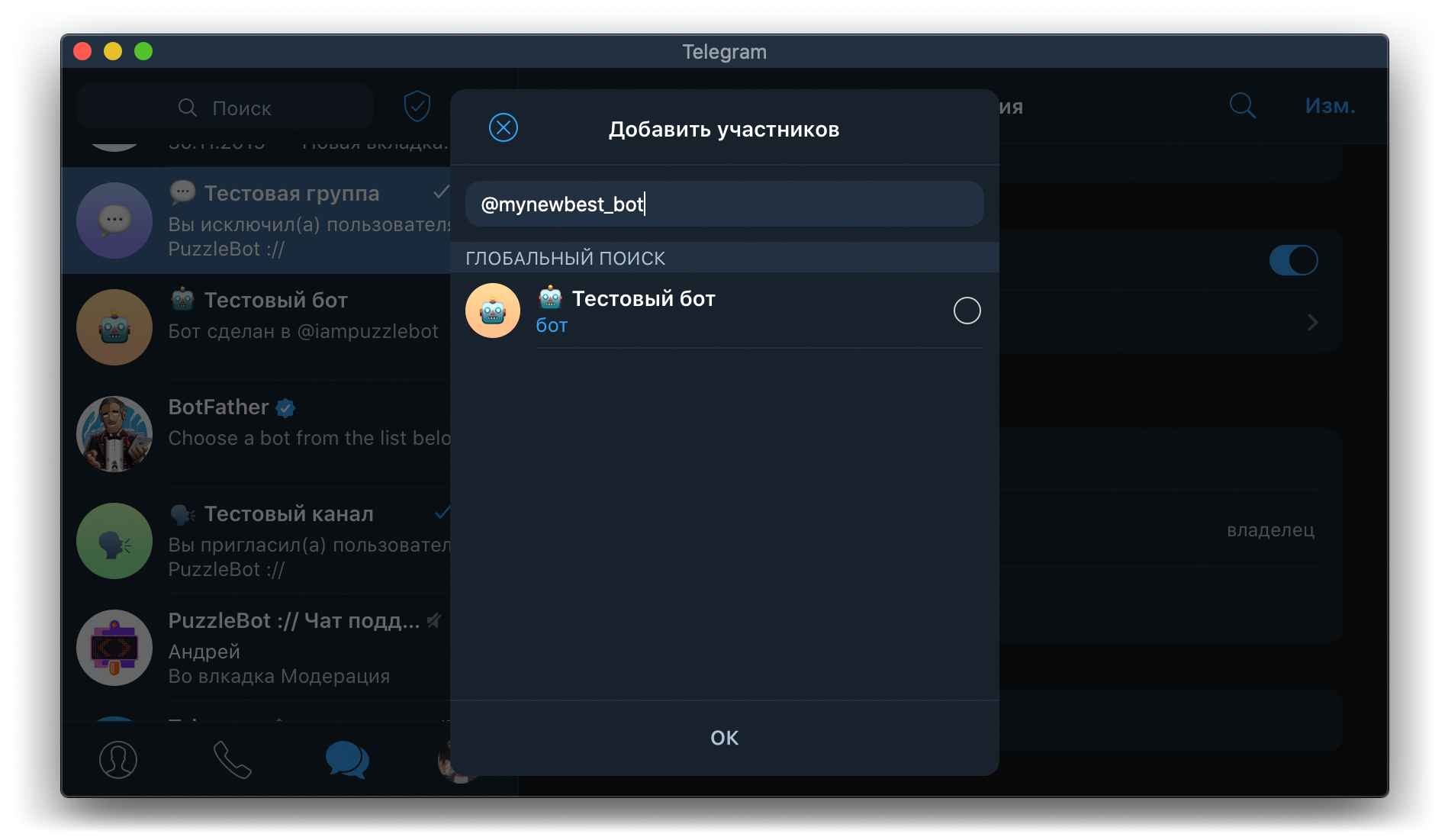
3. Add the bot with the Add members button: select it from the list or enter your bot's username in the search.
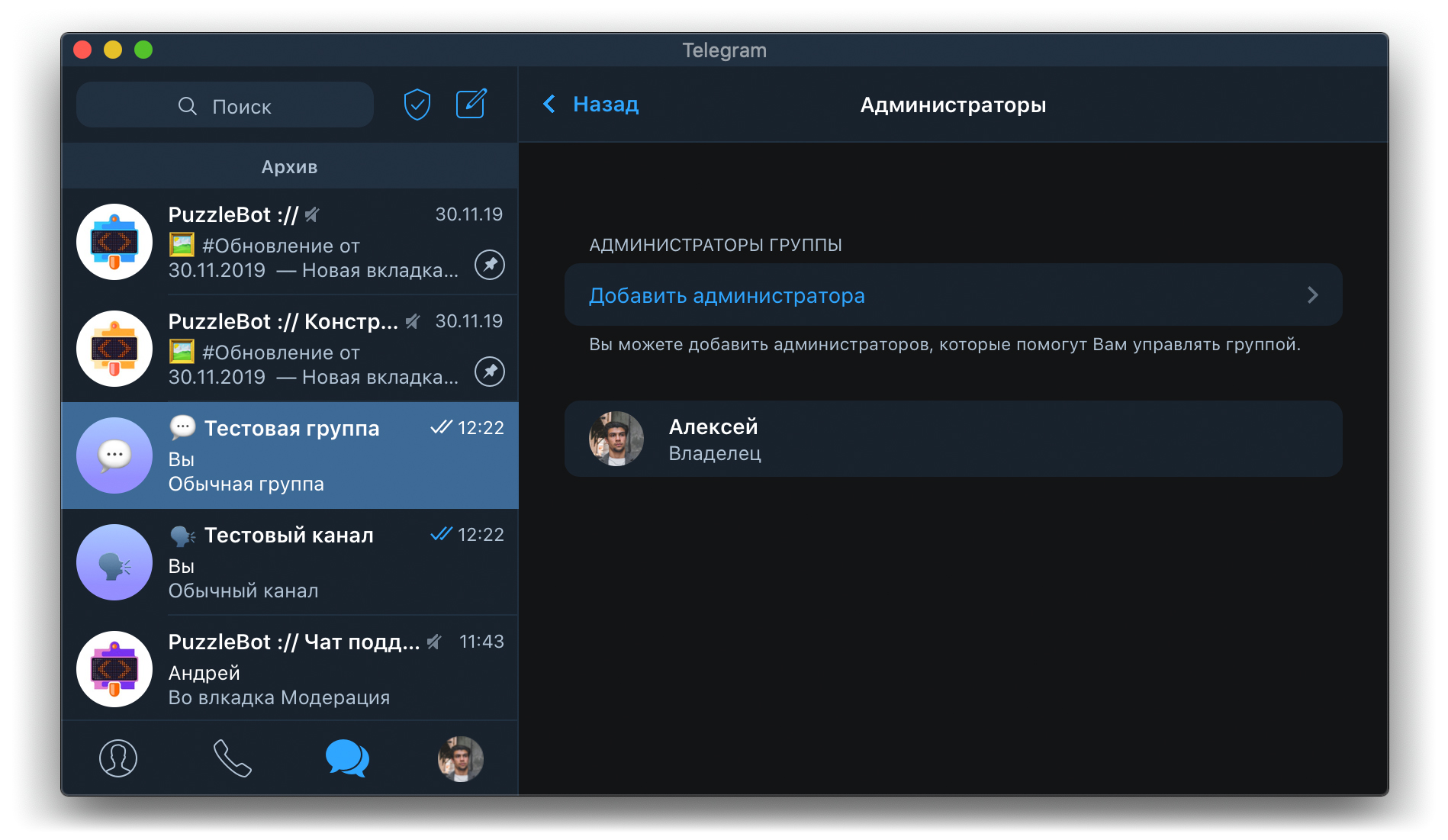
4. Go to the Administrators section and select Add administrator.
— Why does adding a resource to puzzlebot :// require the right to add administrators?
— To collect statistics on resources and to edit rights from the puzzlebot account, we add a userbot to your channel or chat. A userbot is an account that has all the capabilities of a regular user but is controlled by a program. Unfortunately, unlike a userbot, a regular bot cannot collect statistics or grant special permissions.
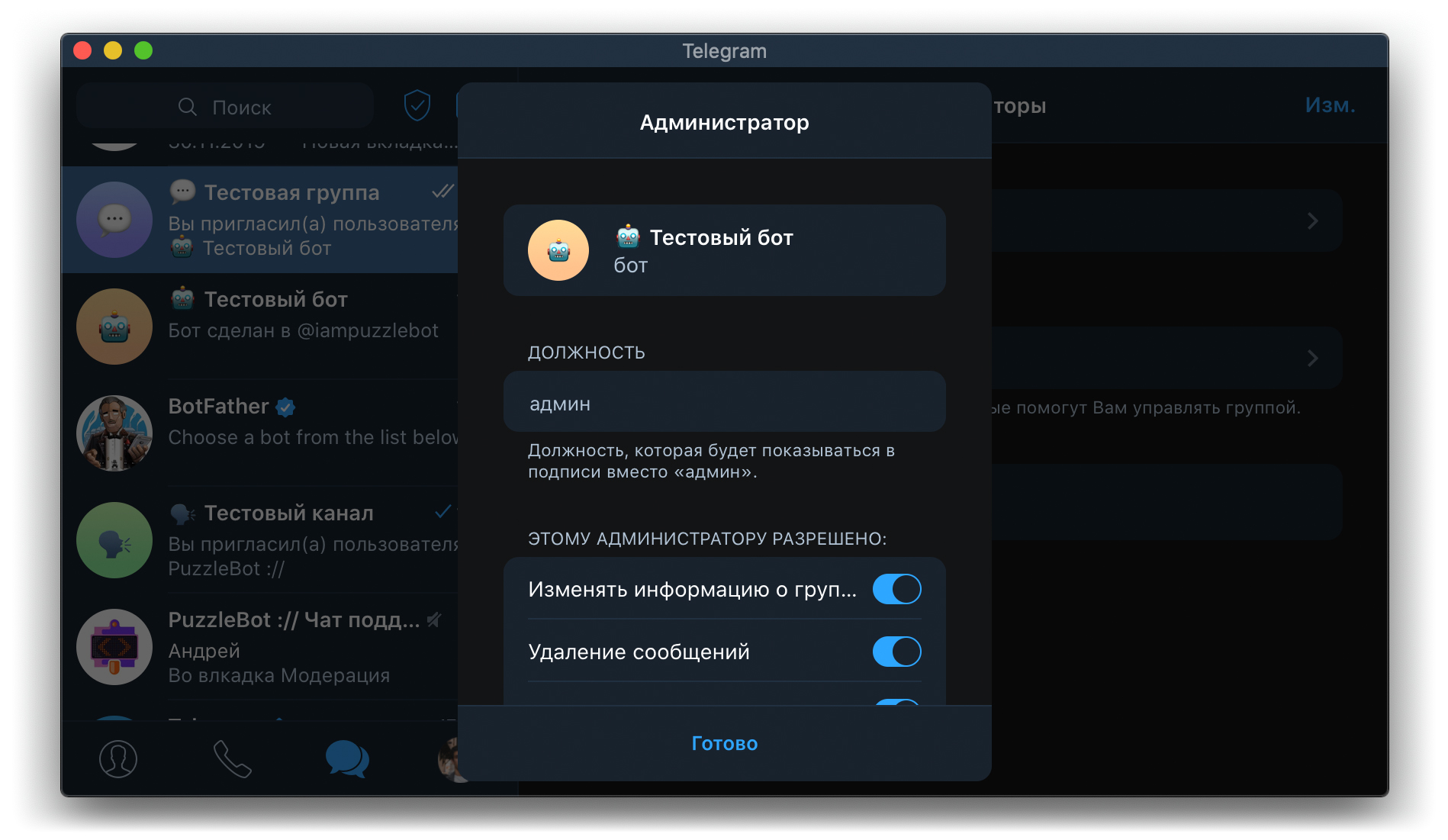
5. Find the bot and give it full administrator rights, that is, switch all the toggles on.
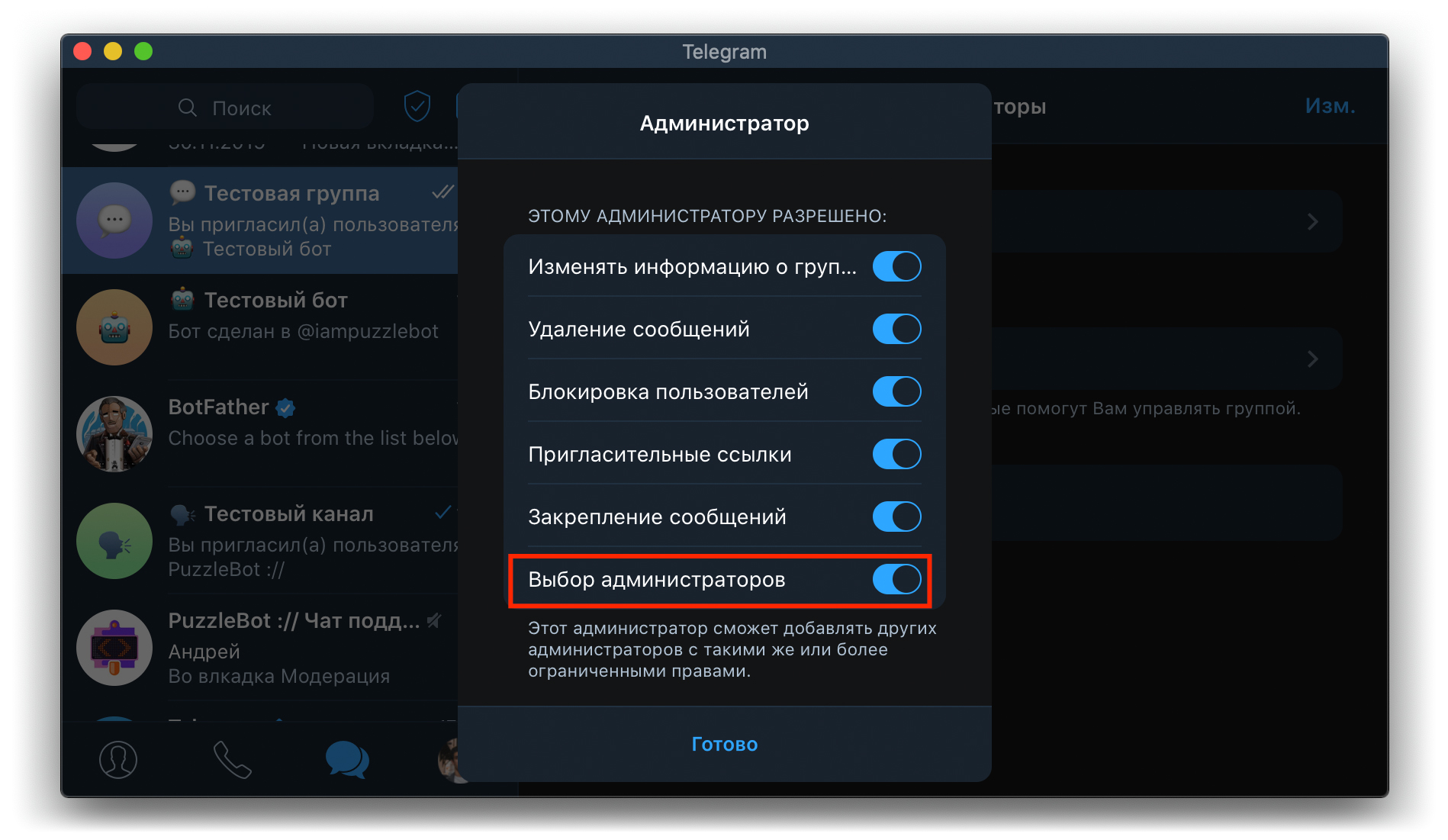
6. Then click Done and save the changes. The bot now has full administrator rights.
If your resource is not yet connected to your puzzlebot account:
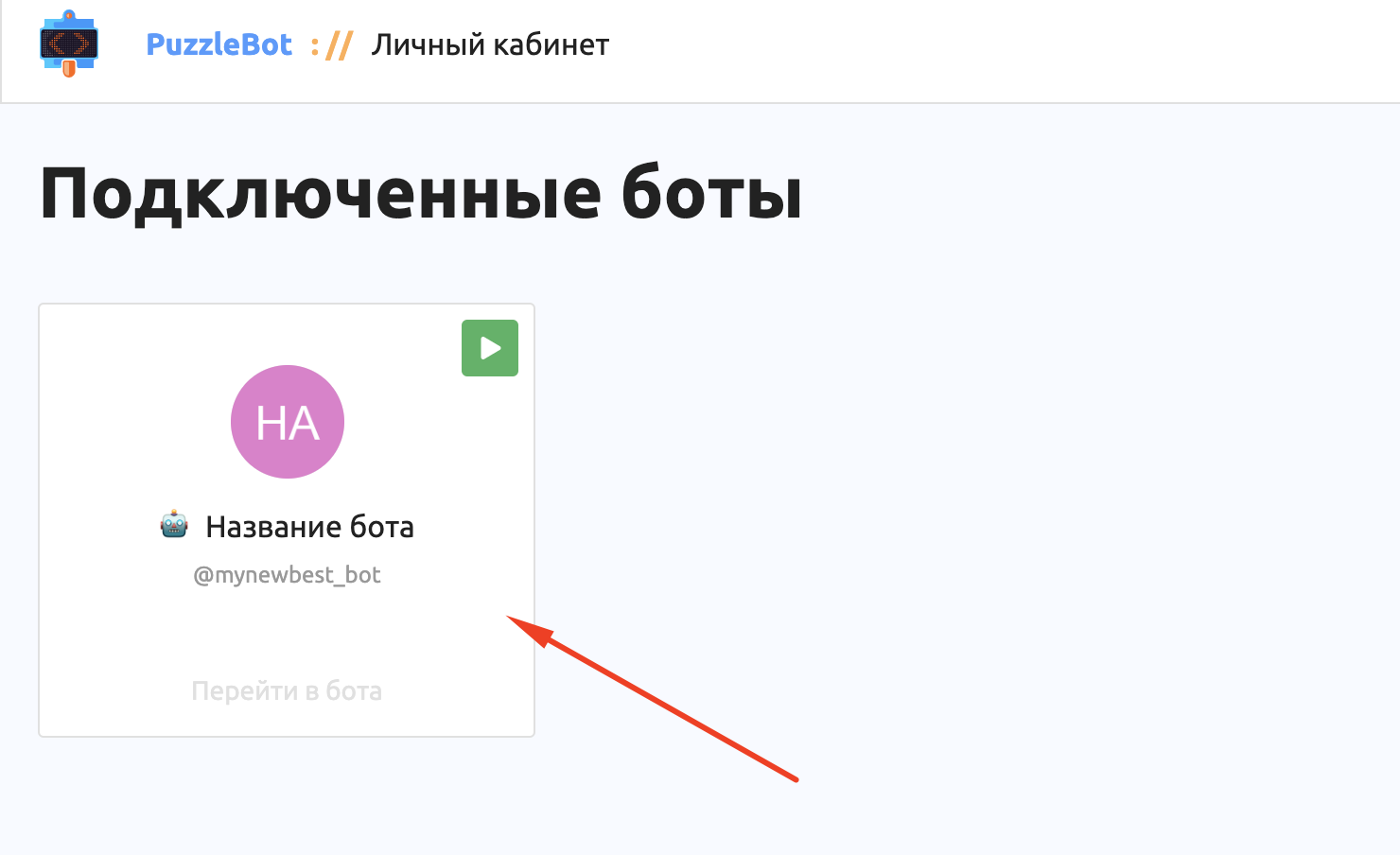
1. Open your puzzlebot account and select the bot you need.
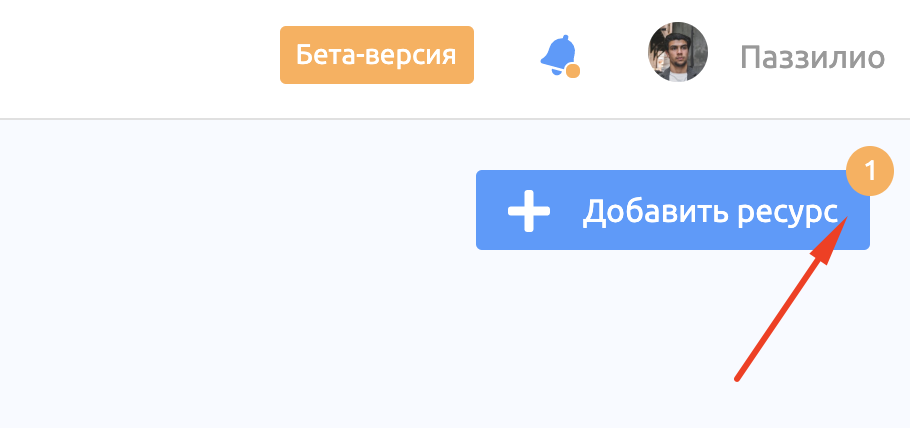
2. Click Add resource (the button will already show a notification about a request to add a resource).
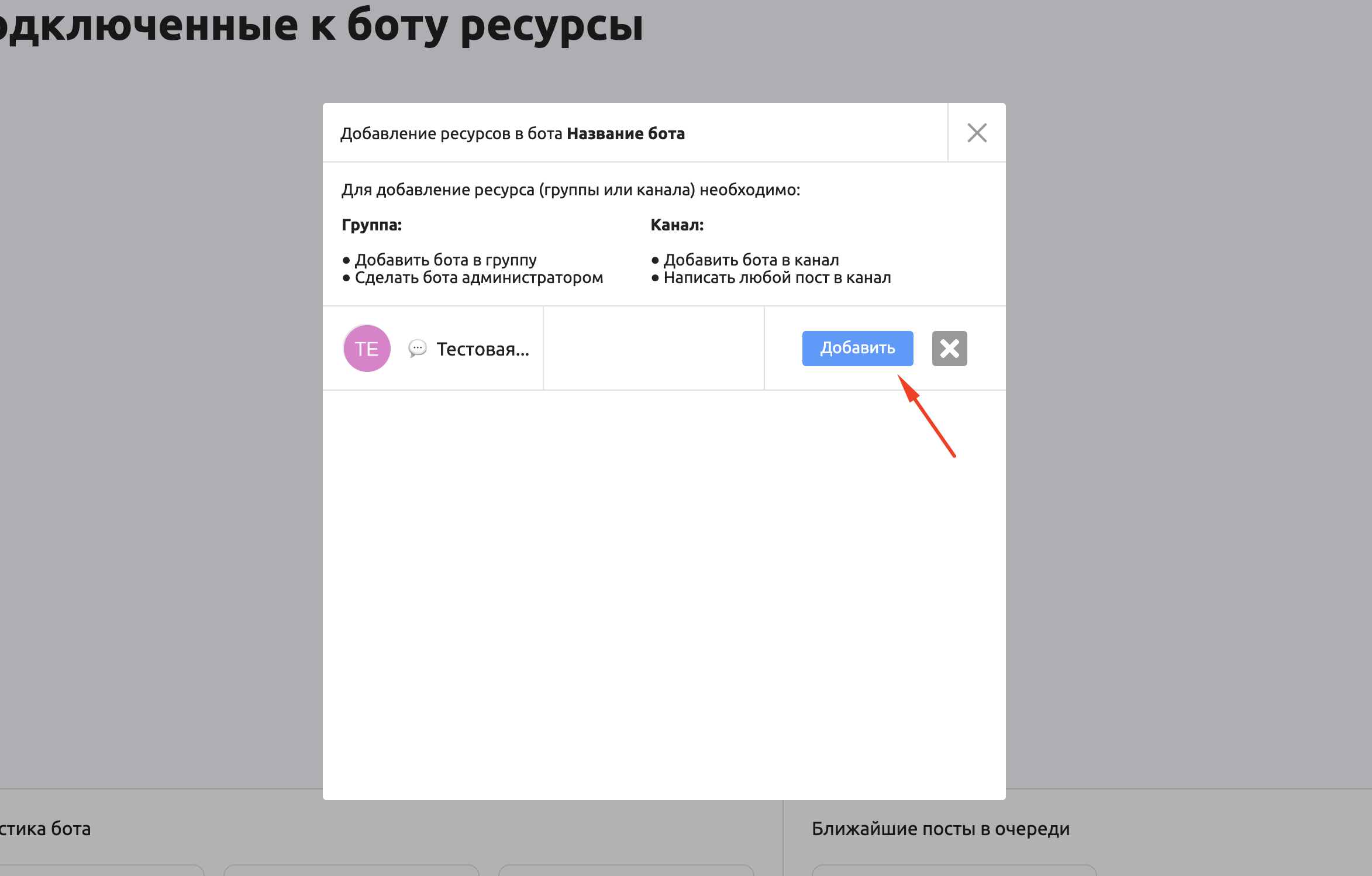
3. Select the resource you need and click Add.
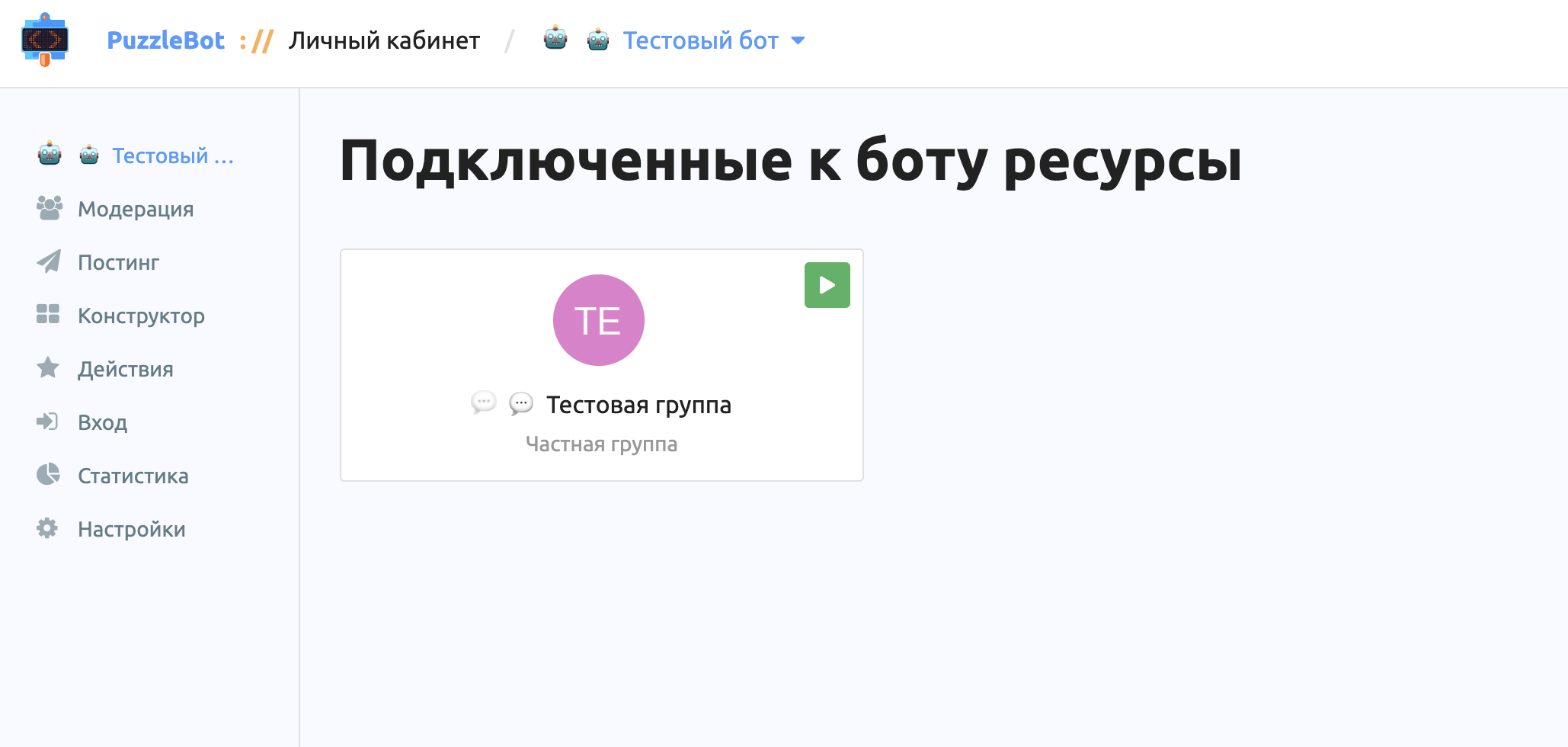
Congratulations! The resource has been added.