This article explains how to set up inline mode for products and product categories in the Store.
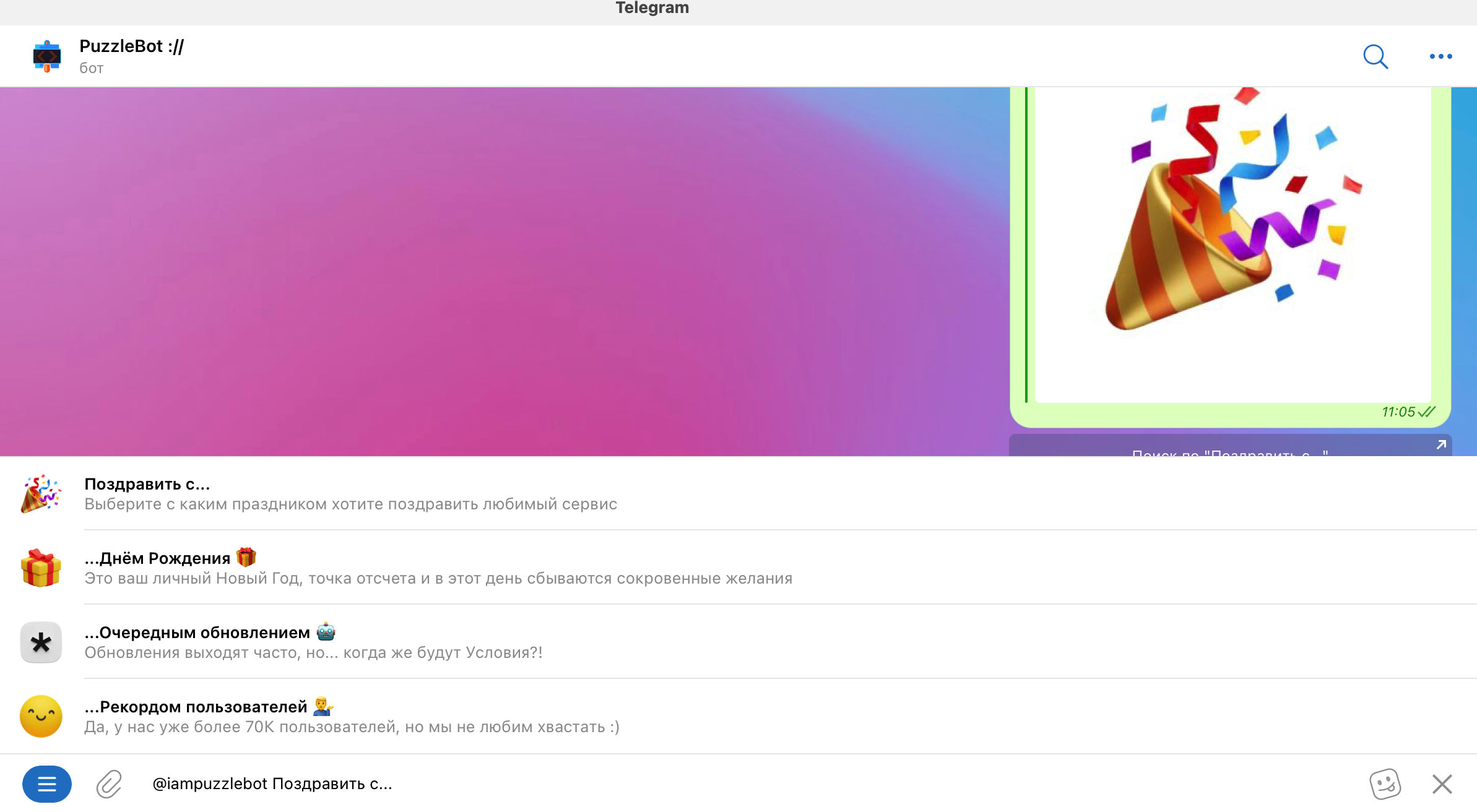
Important! Inline mode is also available for inline commands and command groups in the Constructor. Learn more: Inline mode for inline commands and command groups in the Constructor.
Inline mode is a Telegram feature that lets you call a bot from any chat by typing its username. For example: type @puzzlebot or @gif in any chat to show a search window above the text field.
Setting up inline mode takes two steps:
Turn it on for your bot in @BotFather.
Set it up in your puzzlebot account.
Let's look at each step separately.
Turning on inline mode in @BotFather
To activate inline mode in @BotFather:
Open @BotFather.
Send the "/mybots" command.
Select the bot you need.
Tap the "Bot Settings" button.
Tap the "Inline Mod" button.
Tap the "Turn on" button.
Inline mode is now on. If needed, you can change the placeholder with the "Edit inline placeholder" button (the default phrase shown after the username when nothing else is typed in the input field; "Search…" by default).
Setting up inline mode in the Store
Inline mode can be set up for product categories and for products themselves.
Important! If a product is called via inline mode, the product's additional settings do not work.
Product category
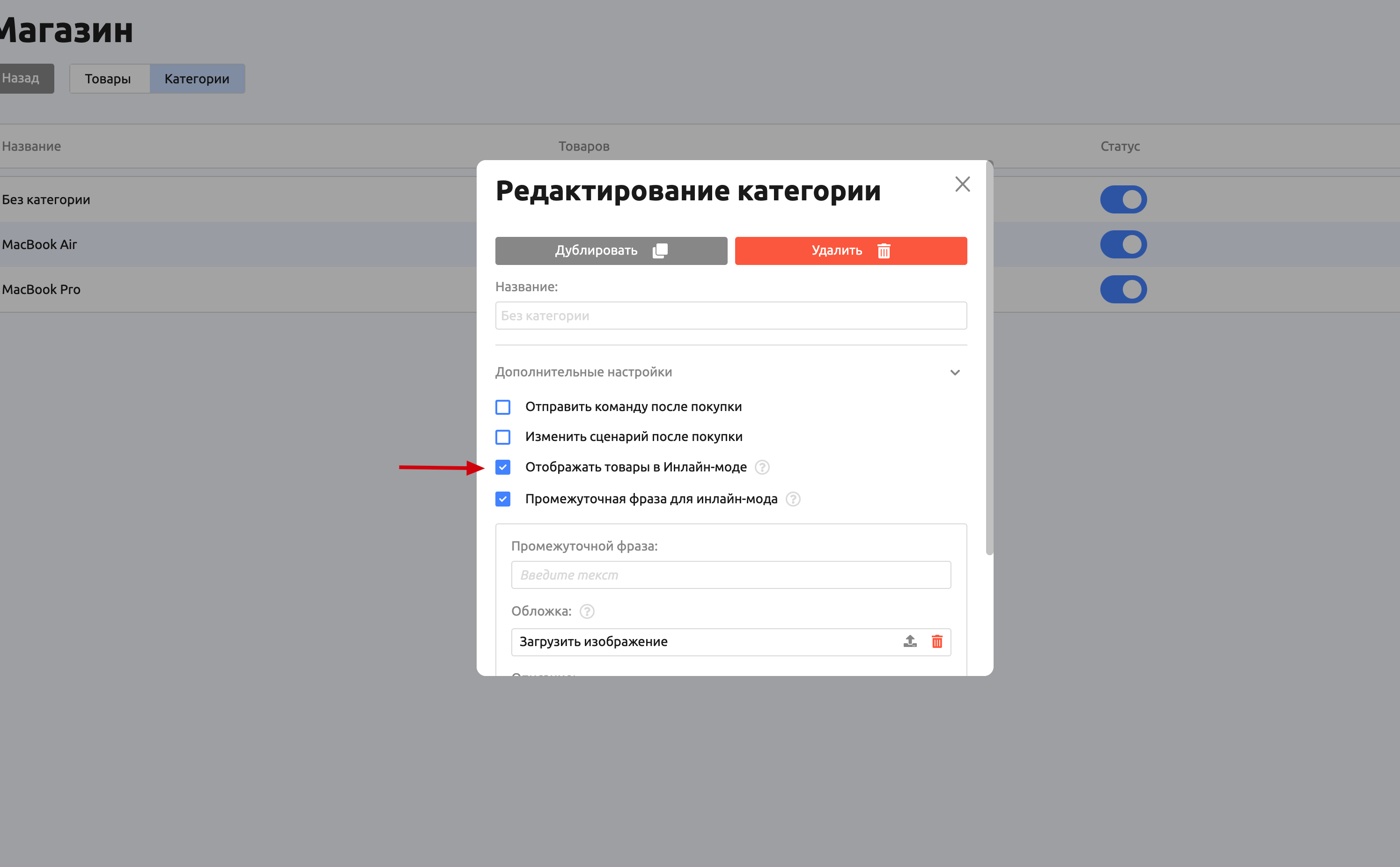
You can turn on inline mode for all products of a specific category in the category's additional settings.
Important! When this option is turned on, all products of the category automatically appear in the inline mode search results.
You can also set an "Intermediate phrase for inline mode".
Important! When you turn on displaying a product category in inline mode, it works as an "intermediate phrase". This means the products inside it are not shown unless the intermediate phrase itself is typed.
Example: A product is named "Watermelon". If the "Intermediate phrase for inline mode" option is not turned on for the category, the product can be found by typing "@username Watermelon" in the input field. If the "Intermediate phrase for inline mode" option is turned on in the product category settings, the product can be found only by typing "@username Intermediate phrase Watermelon".
When a user selects a command group in inline mode, they are sent a text block consisting of the Name (Intermediate phrase), Description, Cover (as a preview) and a "Search in "Intermediate phrase name" button, which inserts the intermediate phrase into the user's input field.
Let's go through the settings:
Intermediate phrase — required. It serves as the name when the item is displayed in inline mode and as the phrase that lets users view the products inside it.
Cover — optional. Lets you upload an image, video or animation up to 5 MB.
Description — optional.
Products
When inline mode is turned on for product categories, all products in those categories automatically appear in the search results. In the products' additional settings, you can exclude specific products.