Custodex is a service for accepting cryptocurrency payments: it supports several dozen popular assets (USDT, BTC, ETH and other coins and stablecoins), charges a fee of just 1%, and can convert to USDT.
Step 1. Registration
Follow the link https://pay.custodex.sv/register and sign up.
When signing up, provide a valid Telegram contact: it will be used to reach you to activate your Custodex account.
Step 2. Enabling two-factor authentication
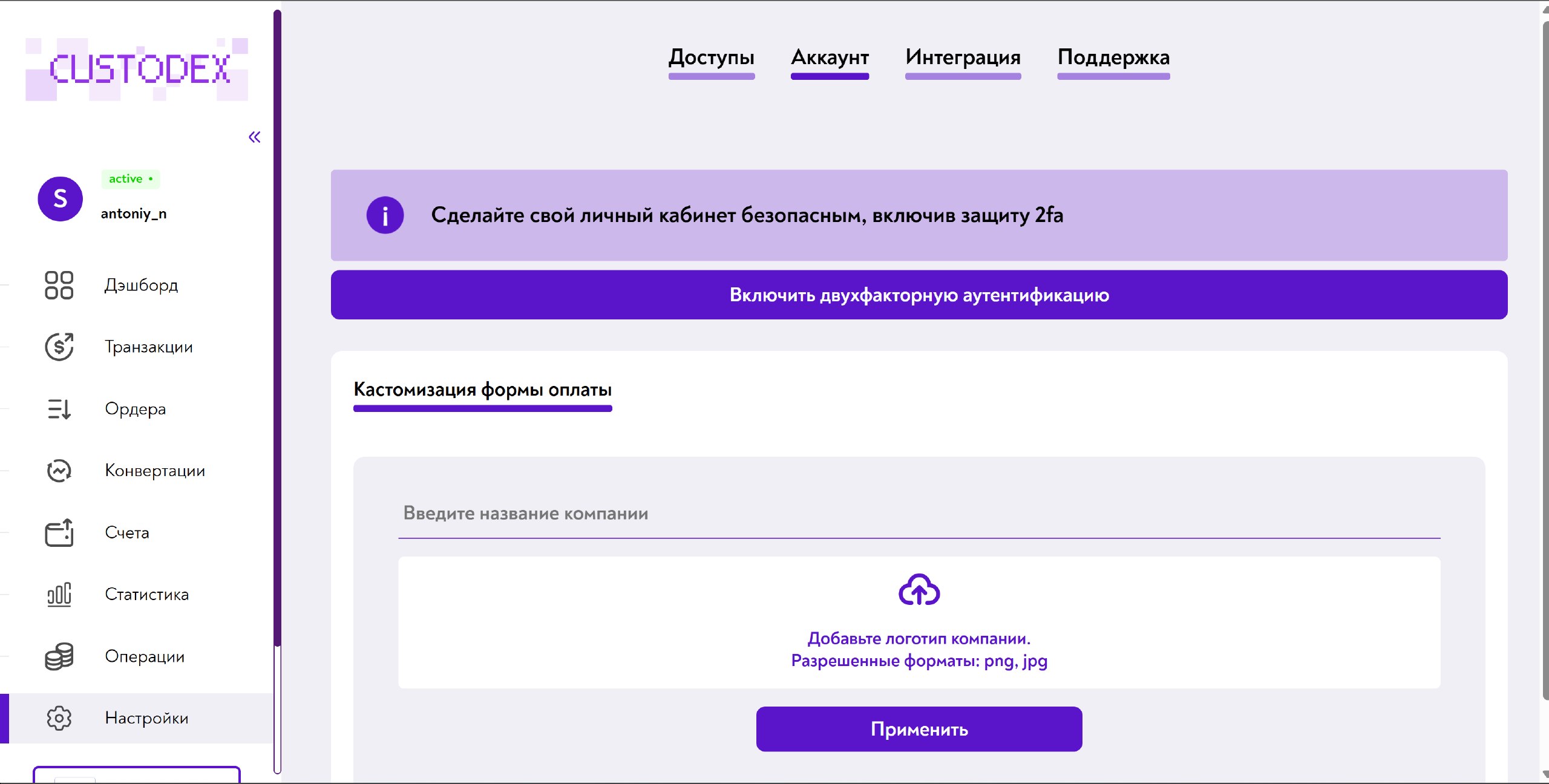
In your Custodex account, open Settings → Account and click Enable two-factor authentication. Follow the instructions; you will need an authenticator app (for example, Google Authenticator).
This step is mandatory: without 2FA enabled you will not be able to create an account in Step 4.
Step 3. Getting the integration keys
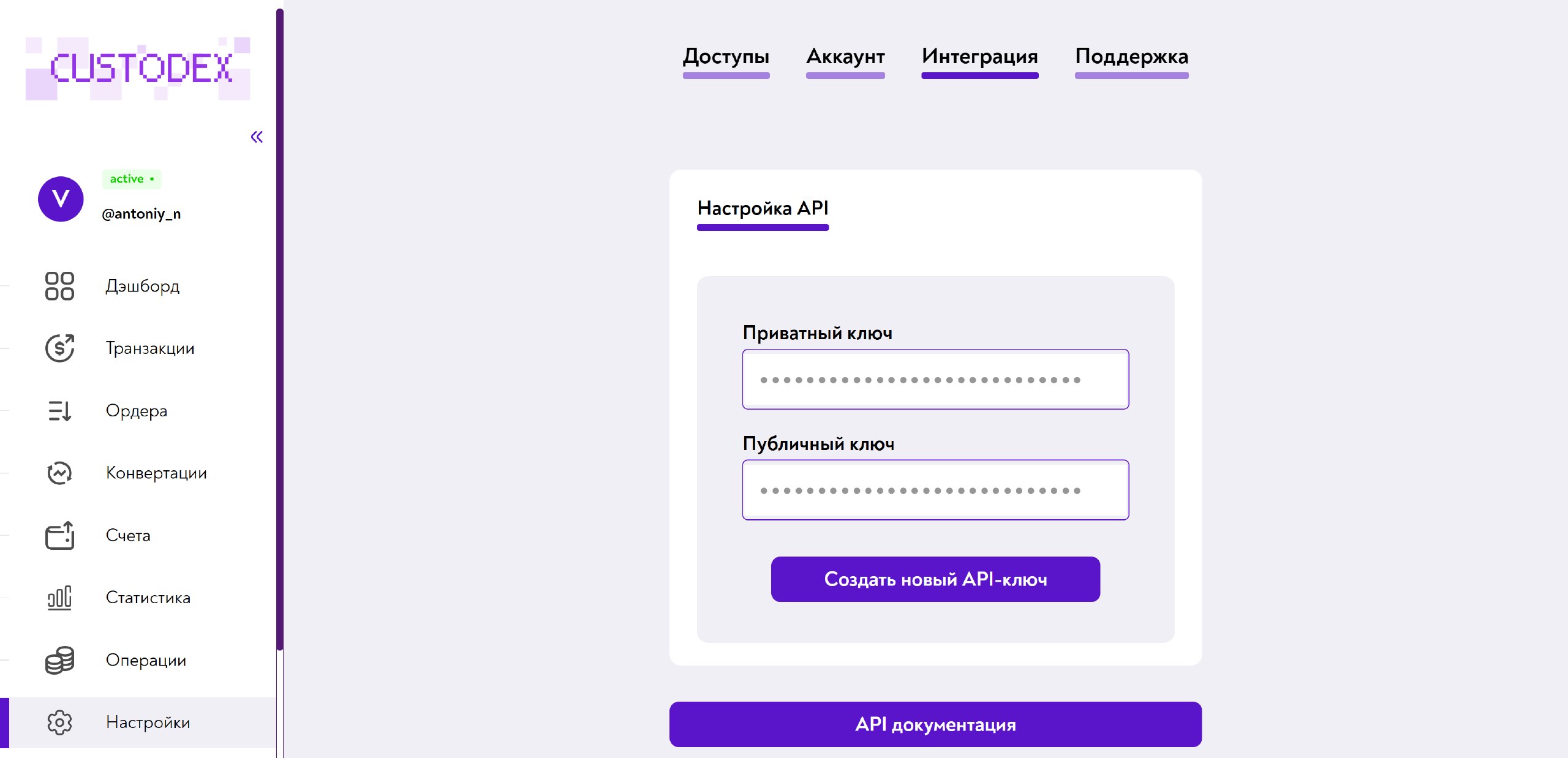
Go to Settings → Integration and copy the Private key and the Public key.
Important! The private key is like a password: never share or publish it.
Step 4. Creating a Merchant ID
In your Custodex account, open the Accounts section.
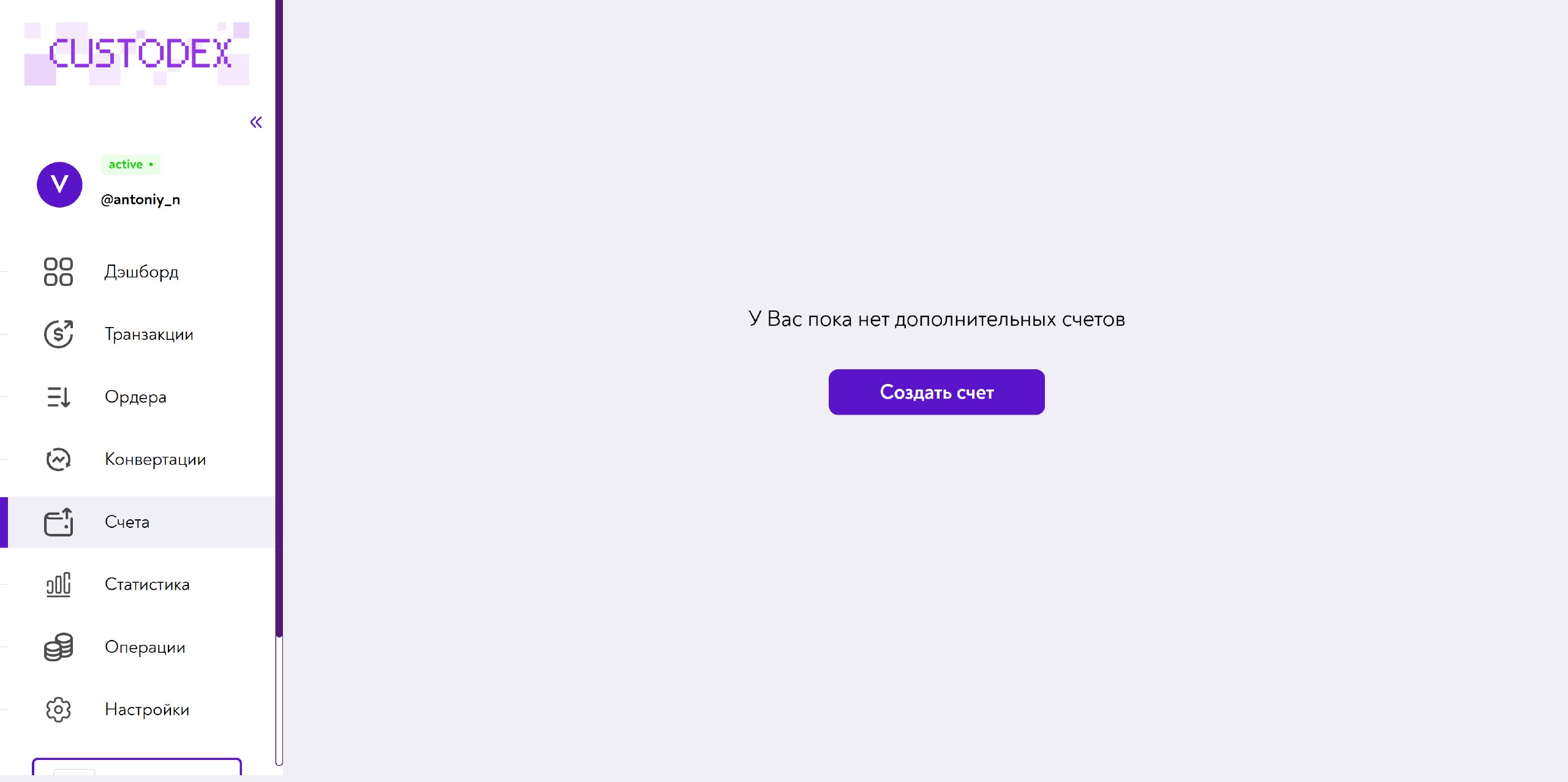
Click Create account. In the window that opens, enter an account name (anything you like, for your own convenience) and the 2FA code from the authenticator app.
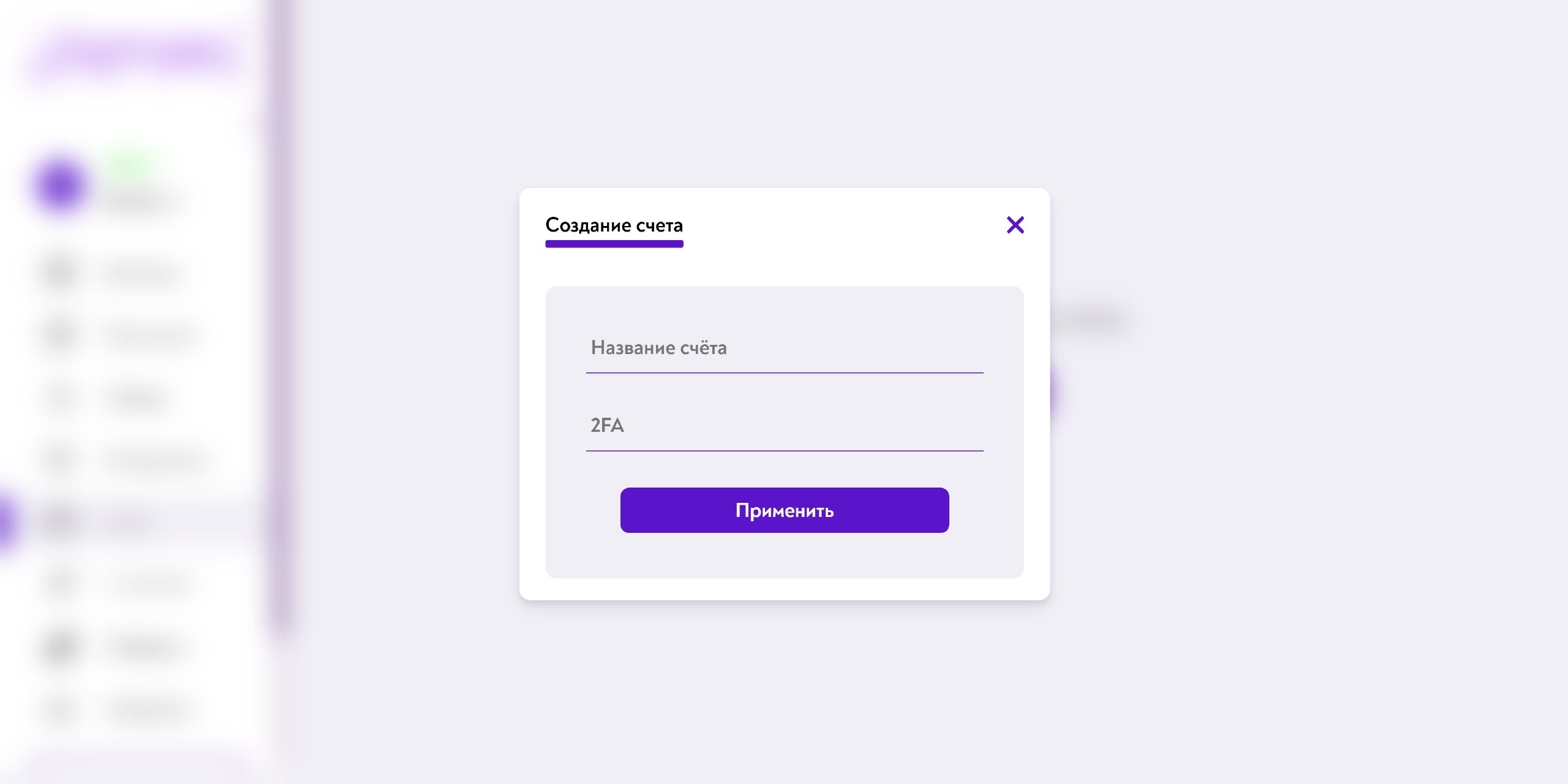
Click Apply. The account appears in the list along with its Merchant UUID.
Step 5. Setup in puzzlebot
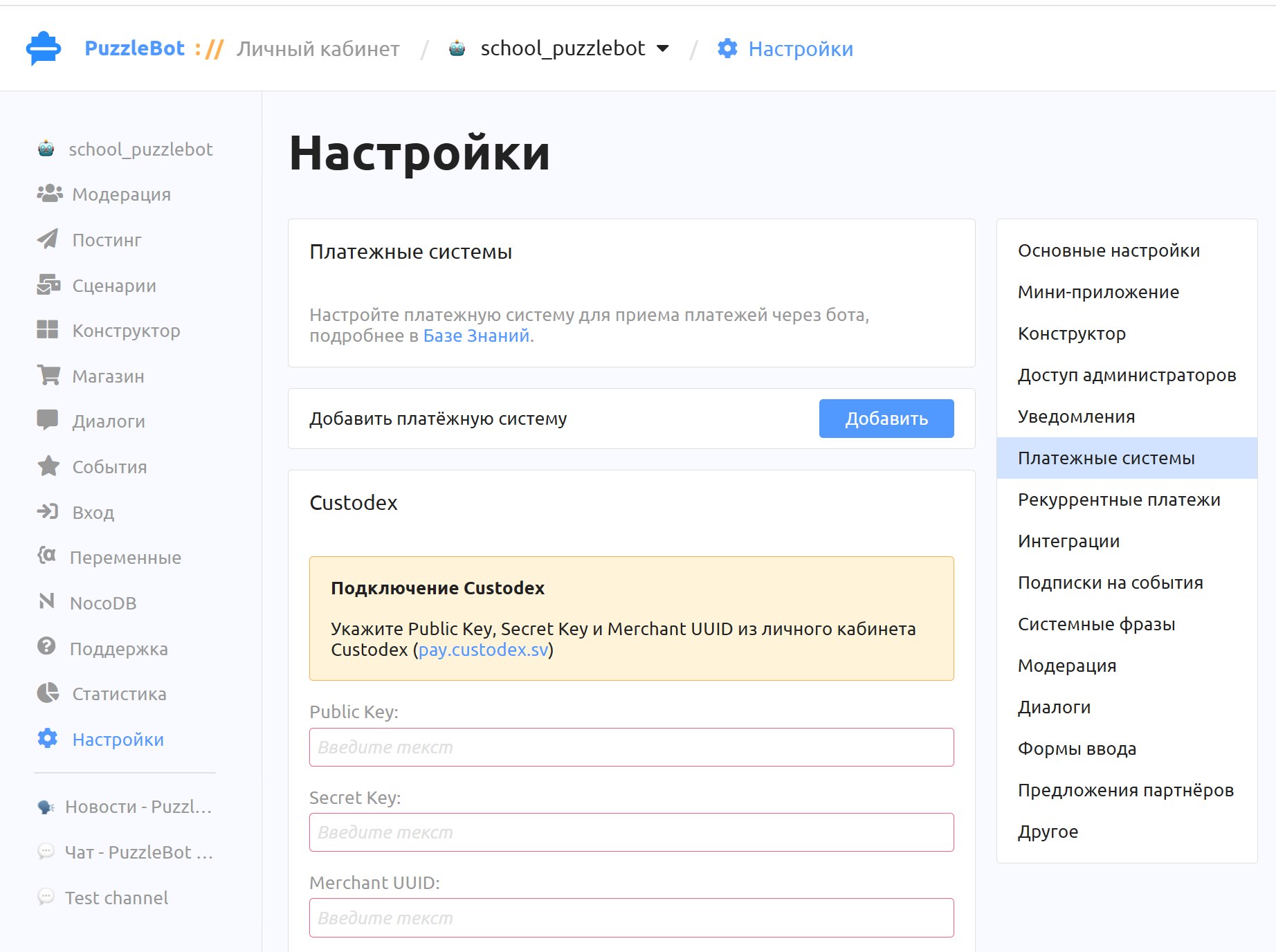
In the bottom menu, open Bot settings, go to the Payment systems section and click Add. Select Custodex in the list that opens.
Paste the values you got earlier — Public Key, Secret Key and Merchant UUID — into the fields that appear and click Save changes.
Step 6. Testing
Create a payment button in the bot for an amount of 2–5 dollars and make a test payment. Make sure the command you set as the action after a successful payment is triggered. If the command ran, the integration is set up correctly.