This article explains how to add a chat or channel subscription check to control access to the whole bot or to a single step.
00:17 — Creating a new command group
00:38 — Setting up the command group and adding a subscription check
01:35 — Testing the flow
Before you create a subscription check, add the bot to the channel or chat as an administrator and connect it to puzzlebot. Learn more: How to add a bot to a Telegram channel or group
The puzzlebot Constructor offers several ways to create a subscription check. Choose the one that fits your task. Let's go through all of them.
Subscription check at a specific step
With this method, the user's subscription is checked not on every action and transition, but only at a specific step of the funnel. For example:
Bot start → Subscription check → File delivery → Go to the main menu
In this case, the subscription check runs only before the file is delivered.
If the user is subscribed, the file is delivered.
If not, a different message that you specify is sent.
After receiving the file, the user goes to the main menu without another subscription check. At this stage, the user can unsubscribe from the channel and still go to the menu or to another command.
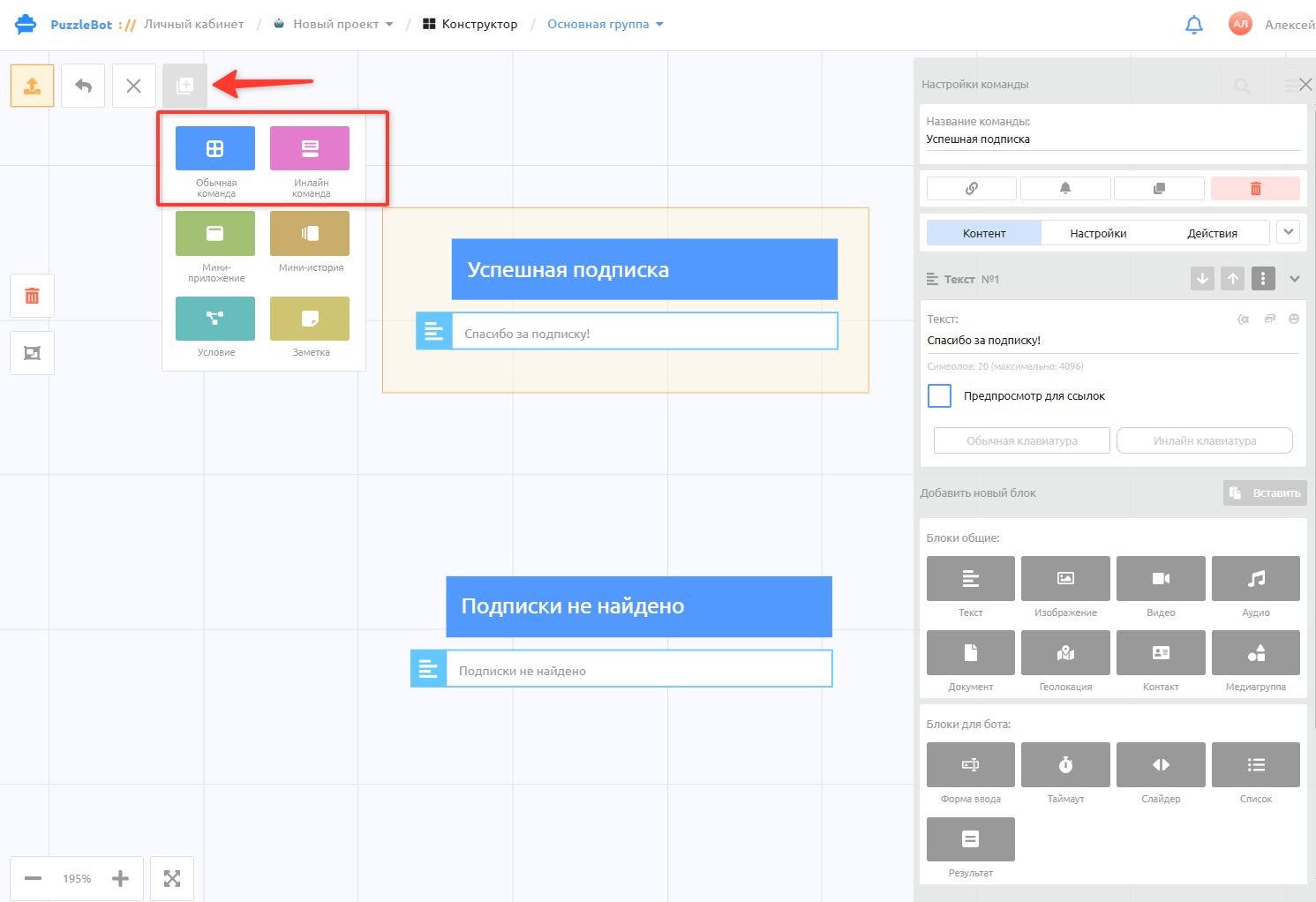
1. To create a subscription check, first create 2 commands:
• A command that is sent after a successful subscription check.
• A command that is sent if no subscription is found.
You can use regular or inline commands, or choose existing commands.
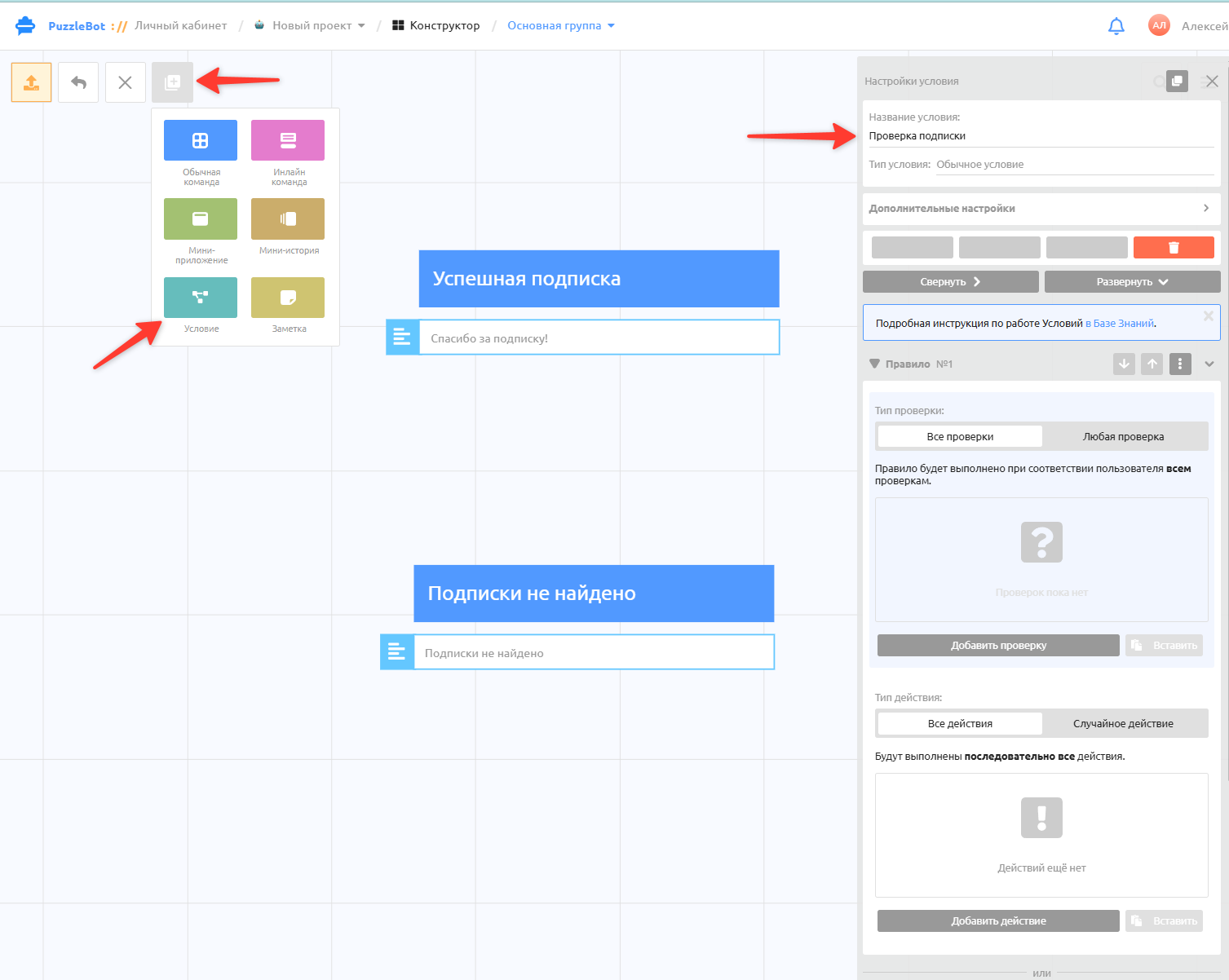
2. Create a Condition → Regular condition → enter a name, for example "Subscription check"
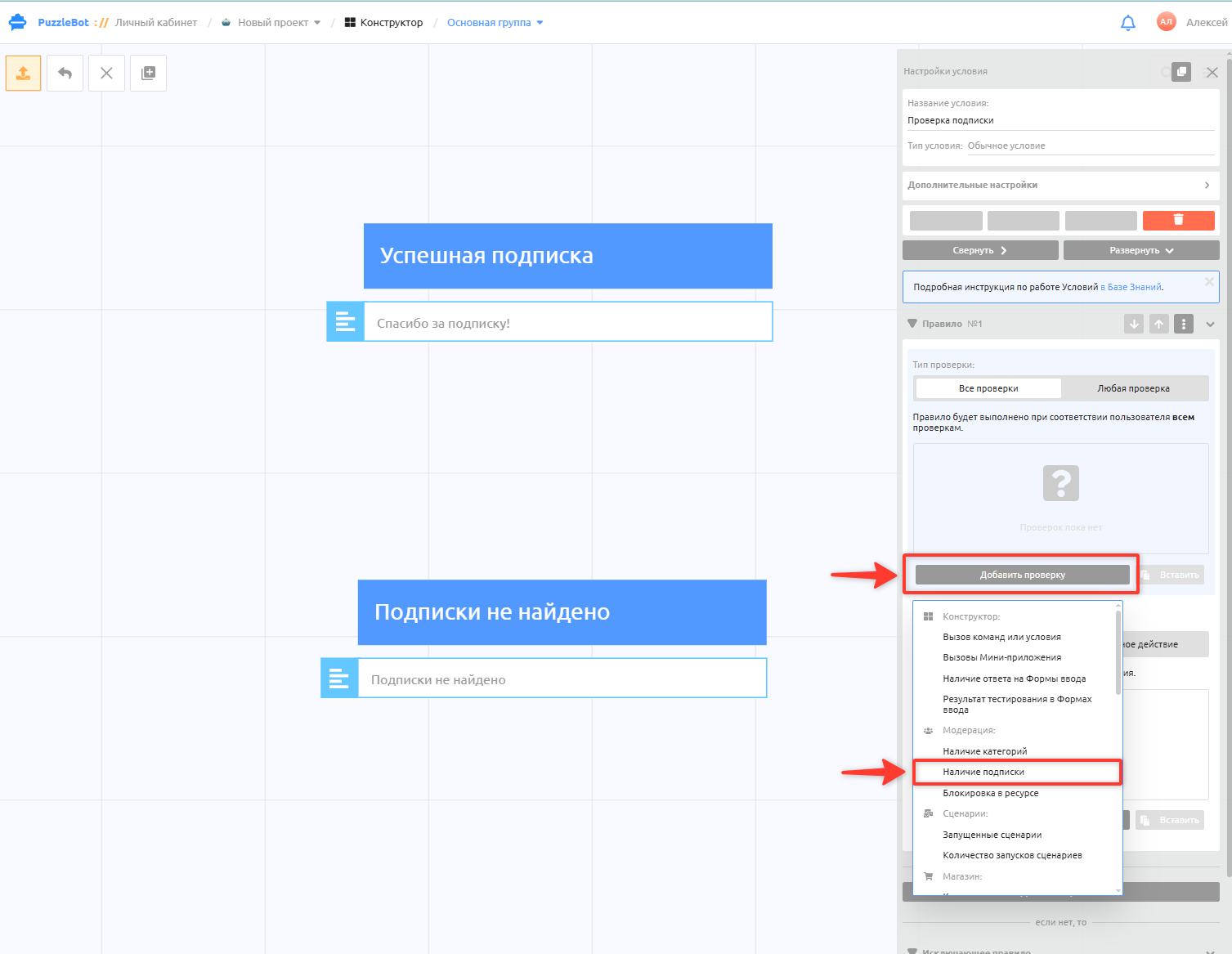
3. In the rule, click Add check → Has subscription → select your channel.
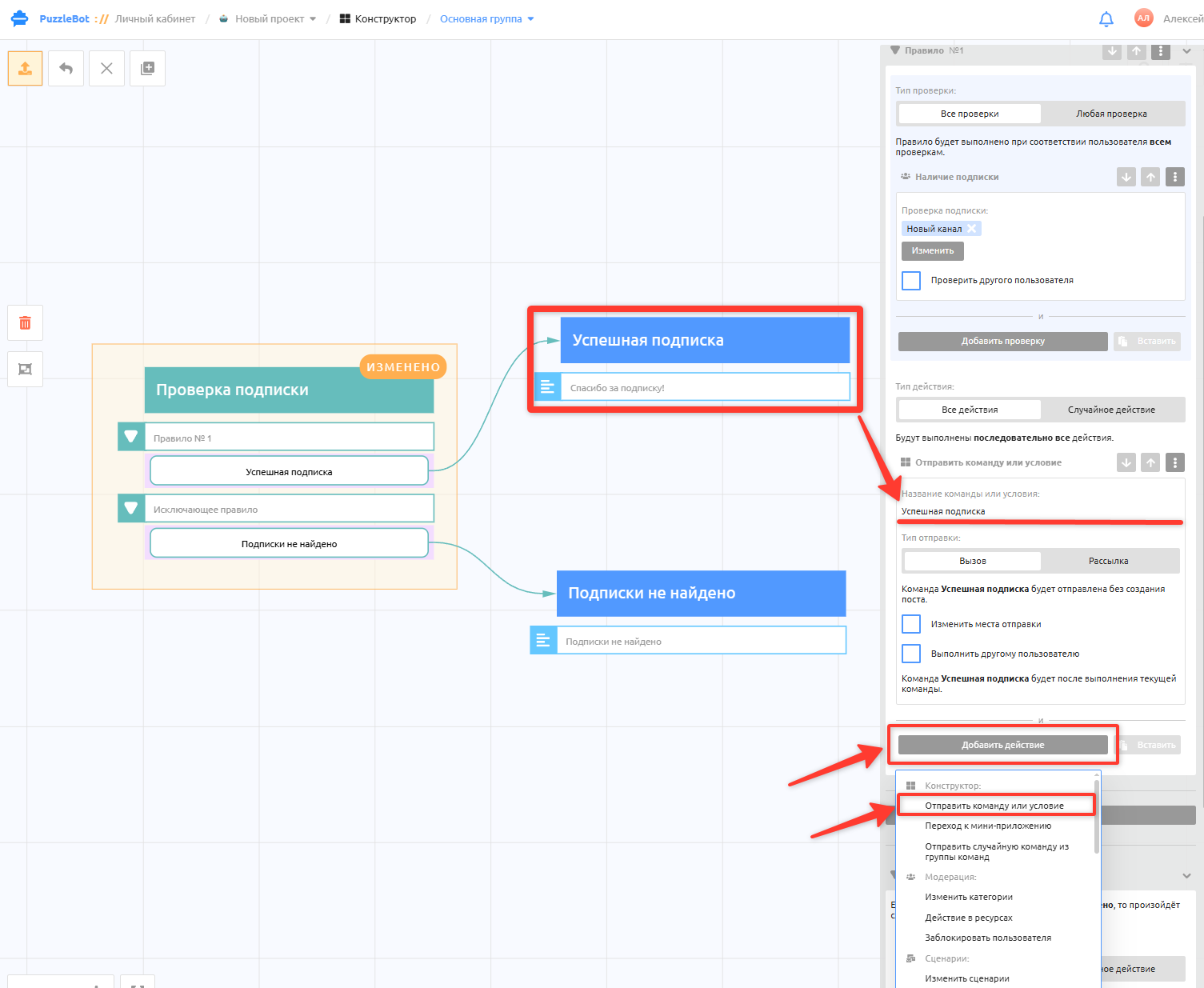
4. Add an action to specify the command to send when the subscription check succeeds.
Add action → Send command or condition → enter the command name
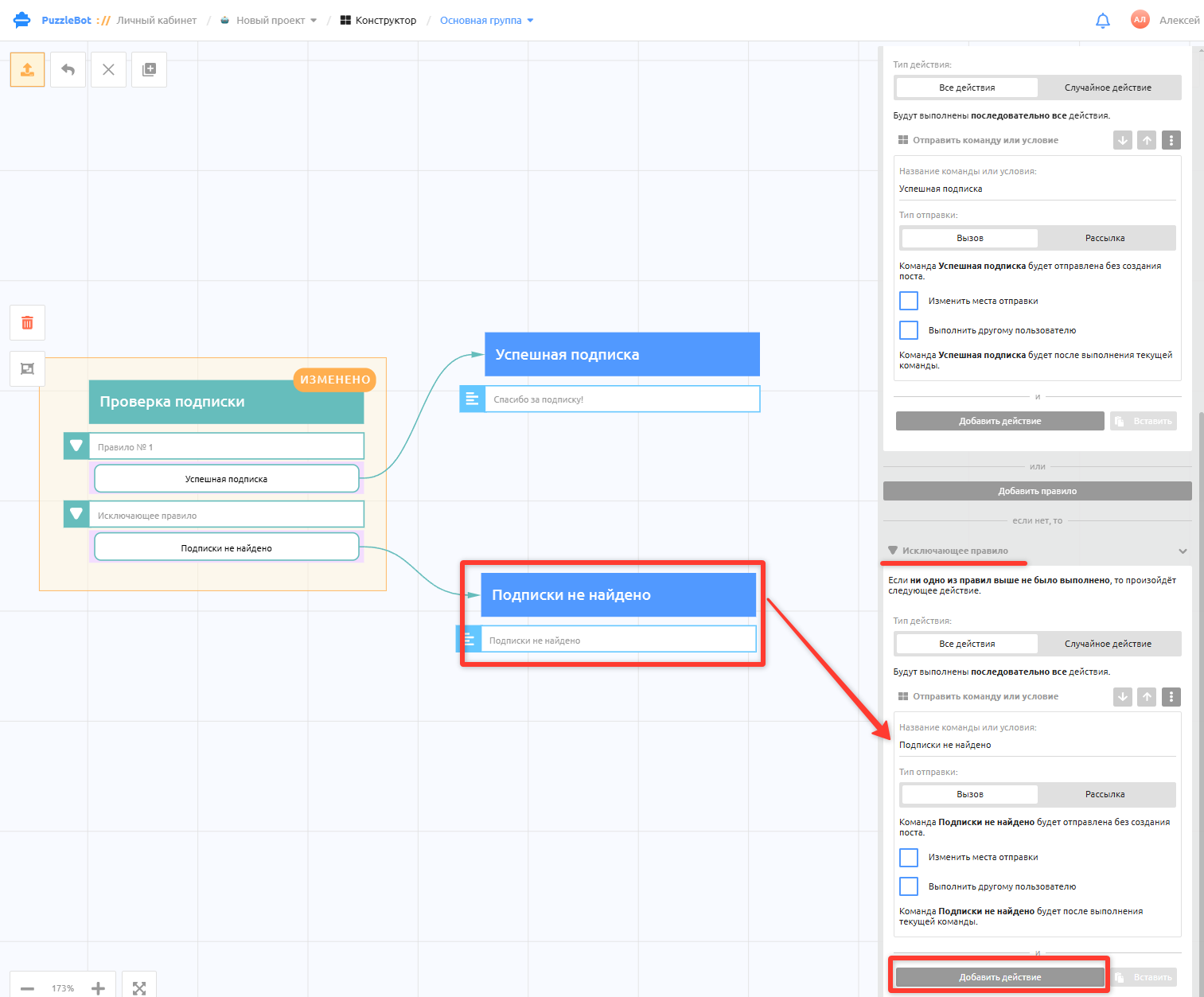
5. In the condition, scroll down to the Exclusion rule to add the command that is sent when there is no subscription.
Add action → Send command or condition → enter the name of the command for a missing subscription
Great, the subscription check is created! Next, add a button that triggers this check.
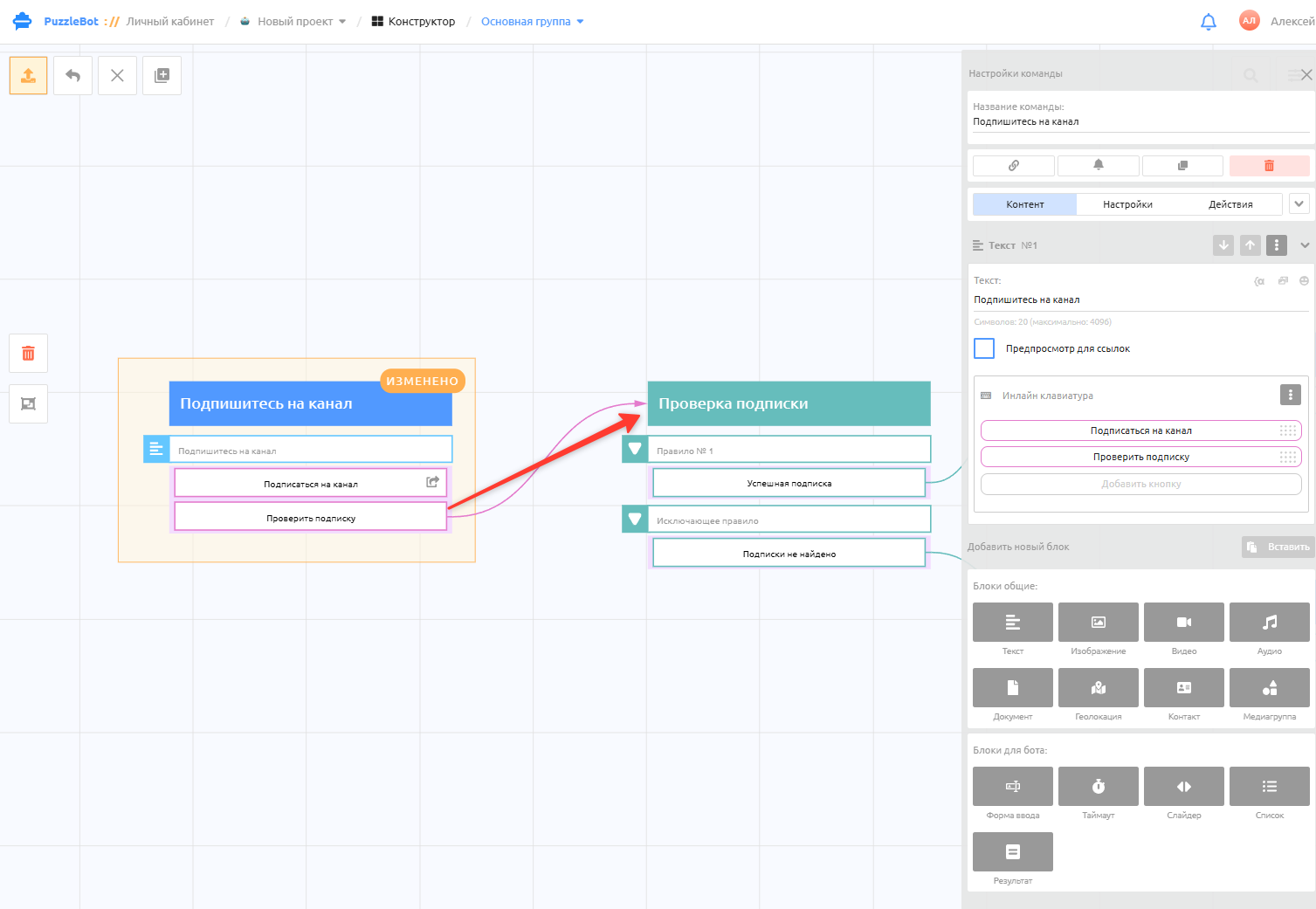
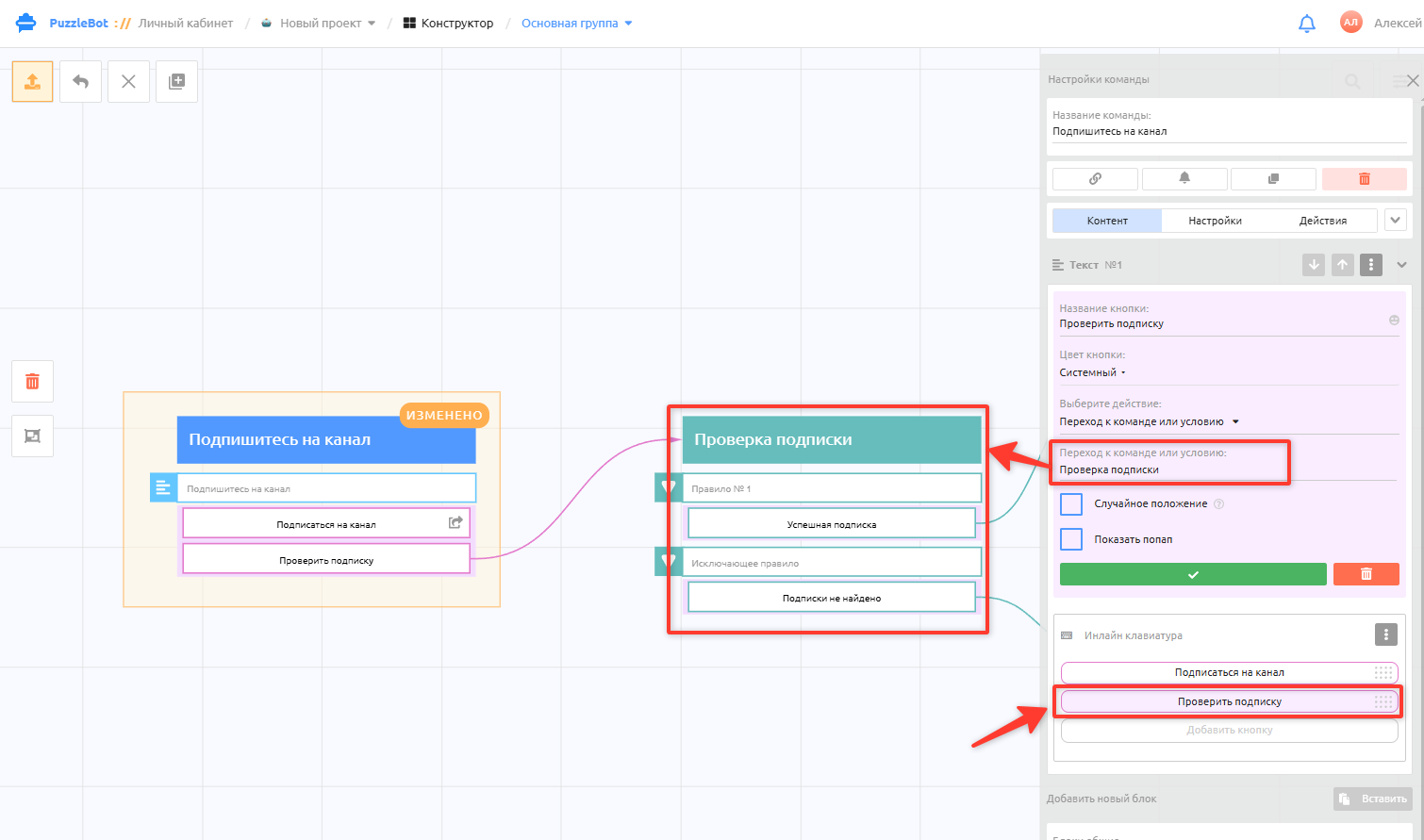
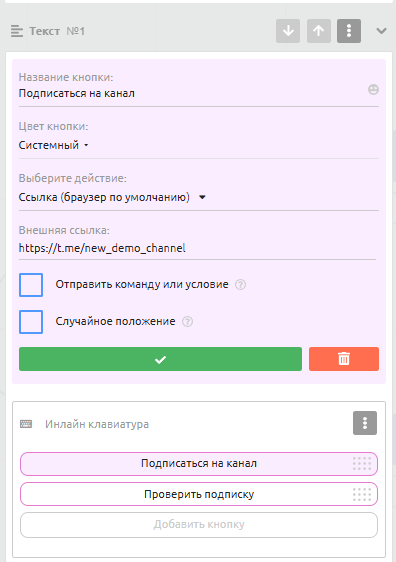
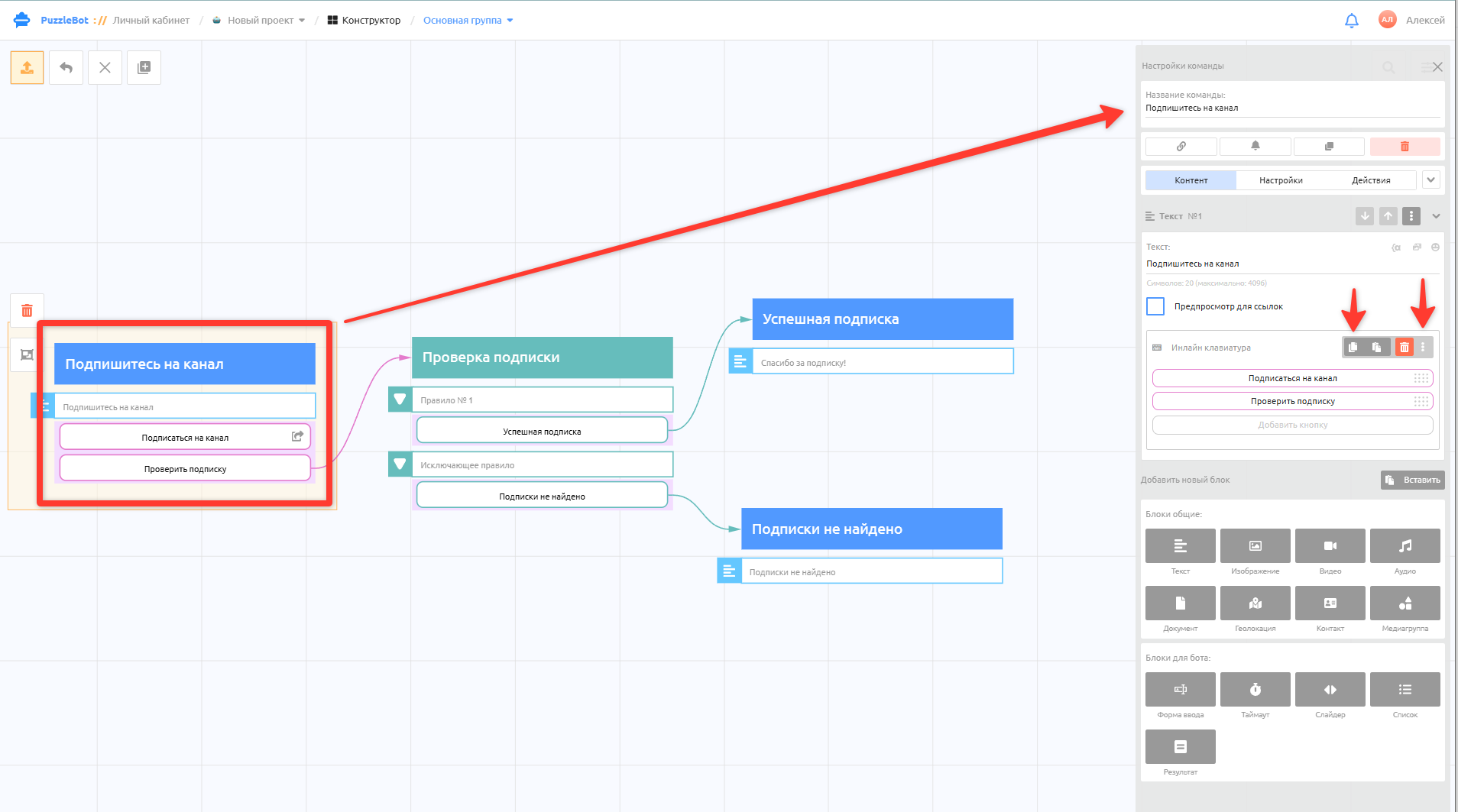
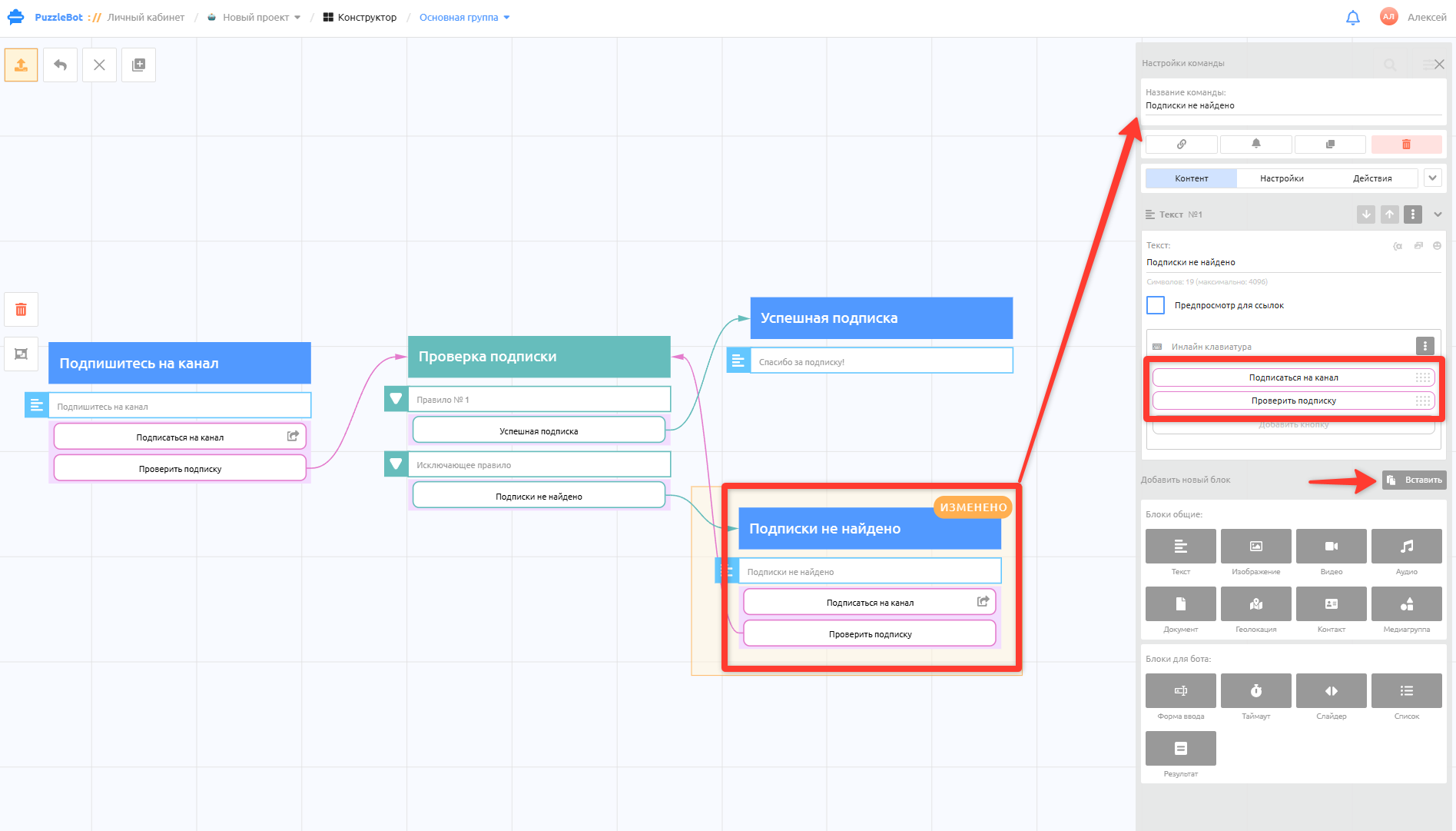
You can add the same subscription check before transitions to other commands too. But if you need a global subscription check for every section of the bot, use the next method, described below.
Global subscription check
With this method, the user's subscription is checked every time any command is called from a specific command group.
The subscription check runs before each command is executed.
If the user is subscribed, the command is executed and the bot's features are available.
If the user has unsubscribed, access to all commands is blocked.
To create a global subscription check, follow these steps:
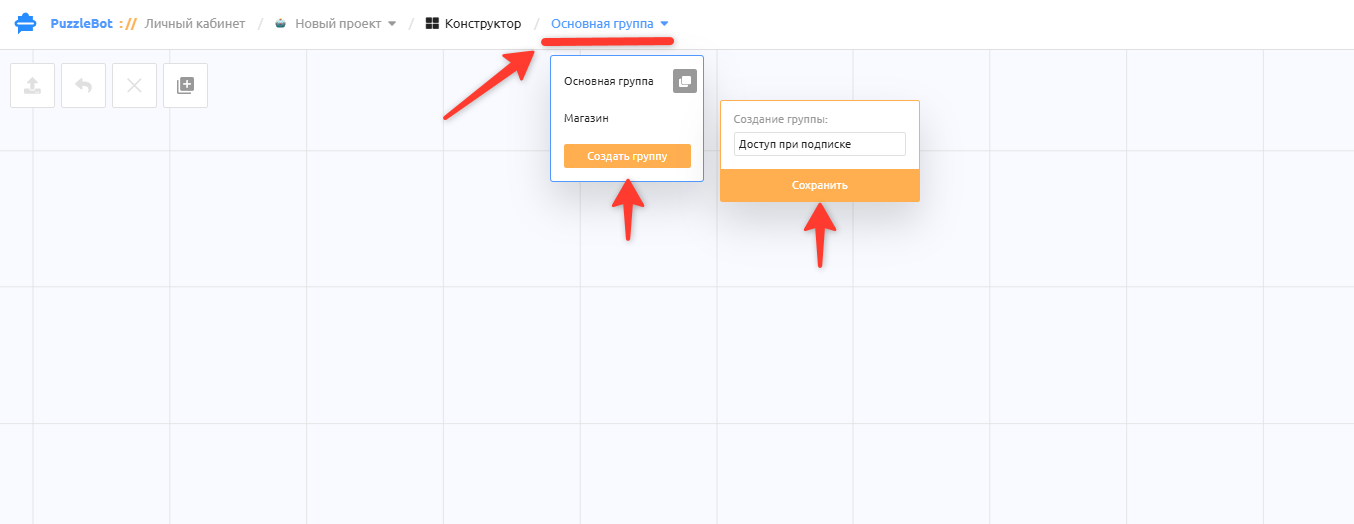
1. Create a separate command group for the commands that will be available only to channel subscribers.
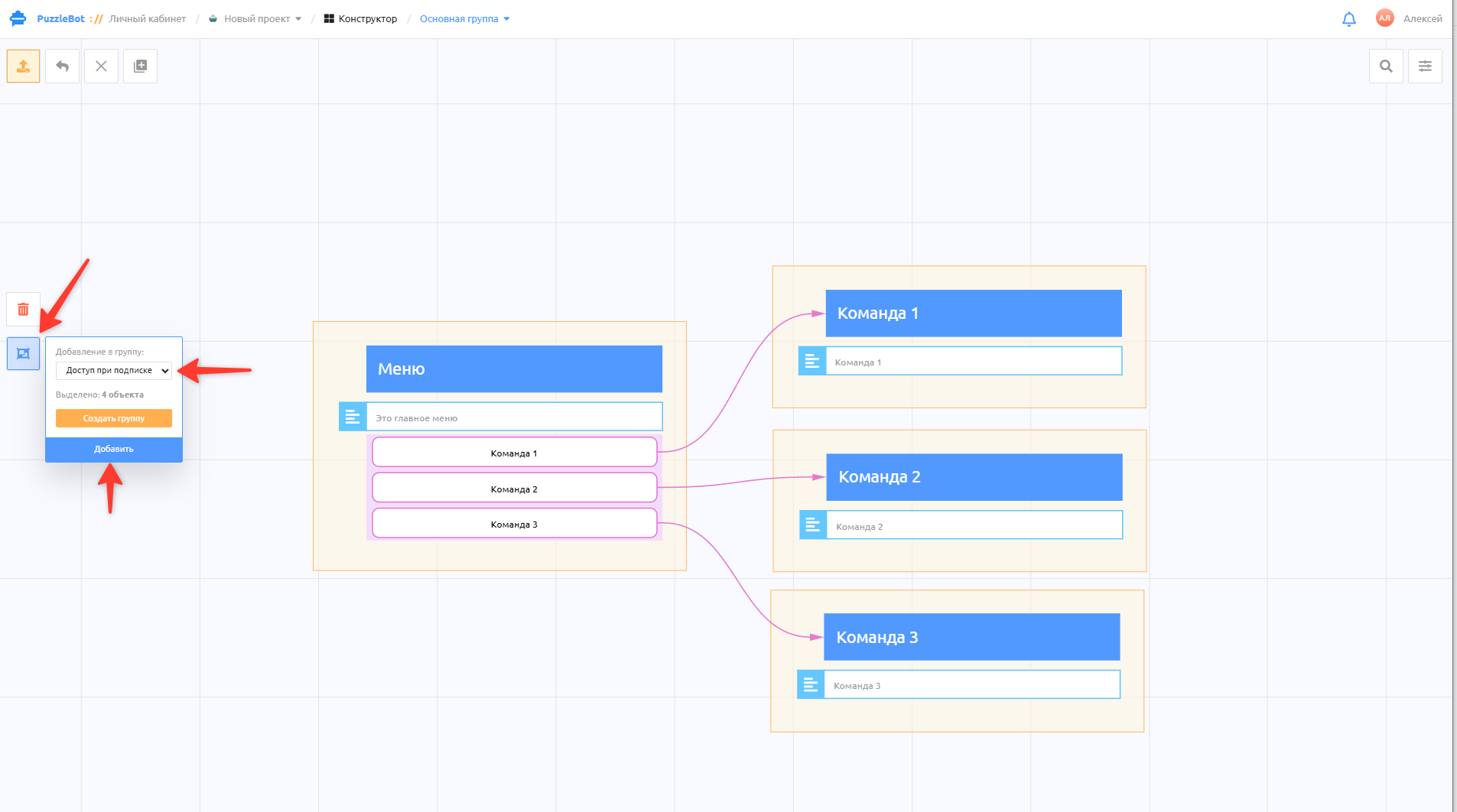
2. If you have already created commands and actions, select them and move them to the new command group that will have the subscription check.
If you haven't created any yet, skip this step.
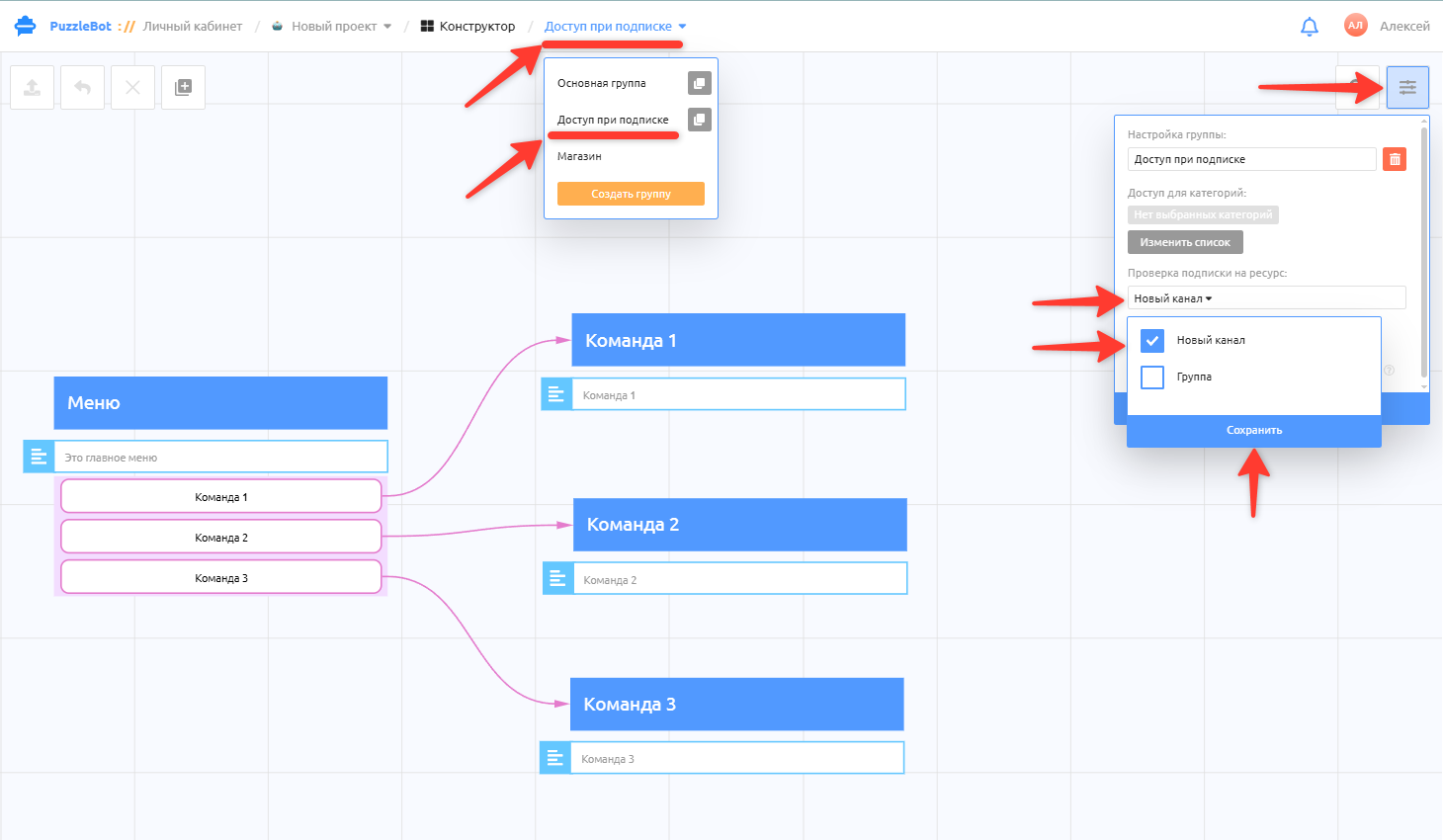
3. Open the command group you created, click Settings in the right corner, select Resource subscription check → select the channel and save the changes.
If your channel is not in the list, connect the channel to puzzlebot first. Here's how: How to add a bot to a Telegram channel or group
Great, the subscription check is added! Next, create a transition to the new command group and a reaction for users without a subscription.
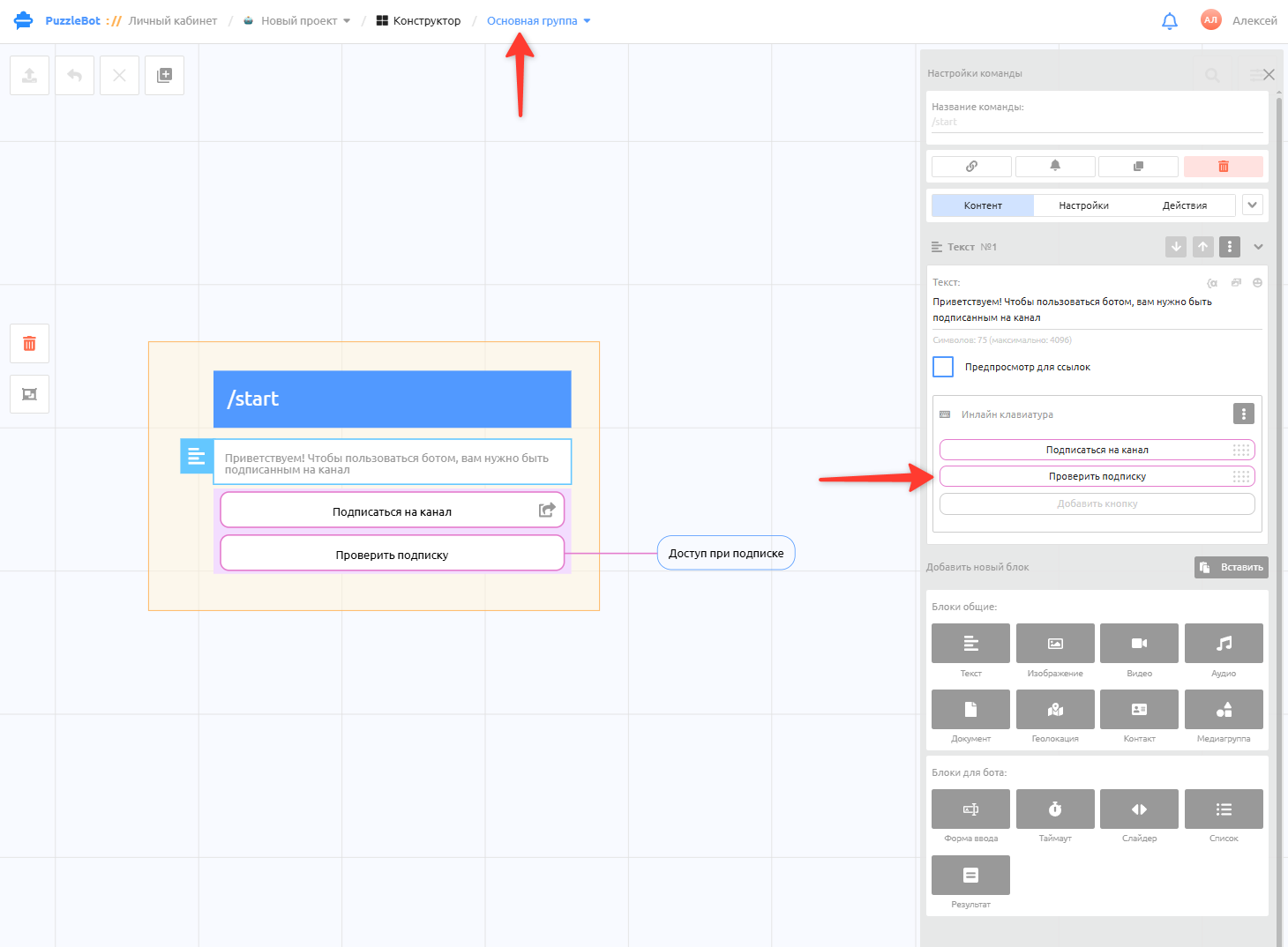
4. Go back to the "Main group" of commands. This is the group where no subscription check is required.
Leave only the /start command in this group.
The welcome message with information must be sent without a subscription check, so that any user can start using the bot.
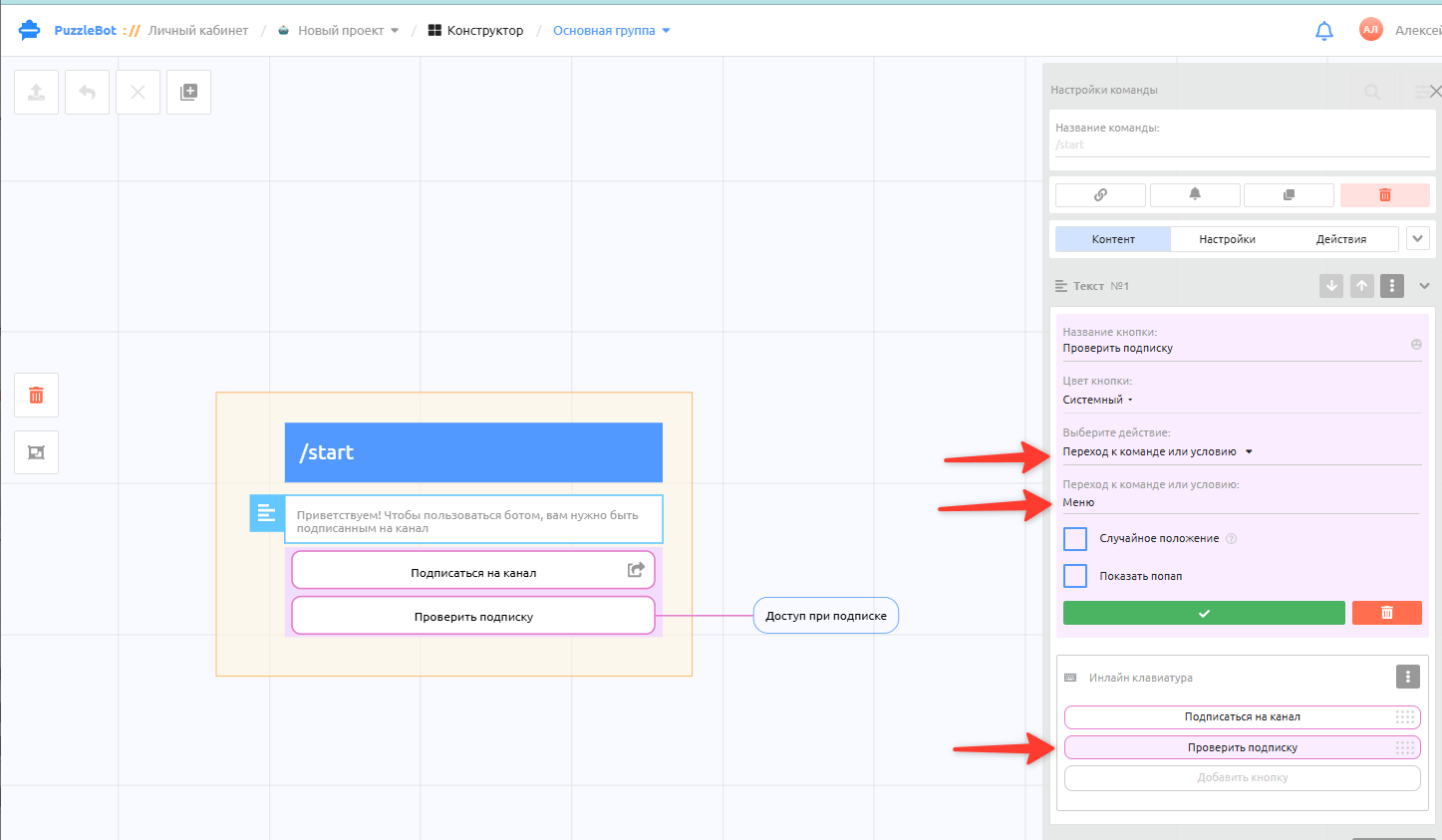
5. Add a button that takes the user to any command from the restricted group (available only to subscribers).
You can specify any command from the restricted group: the subscription check runs automatically when it is called.
Next, set up the reaction for users without a subscription
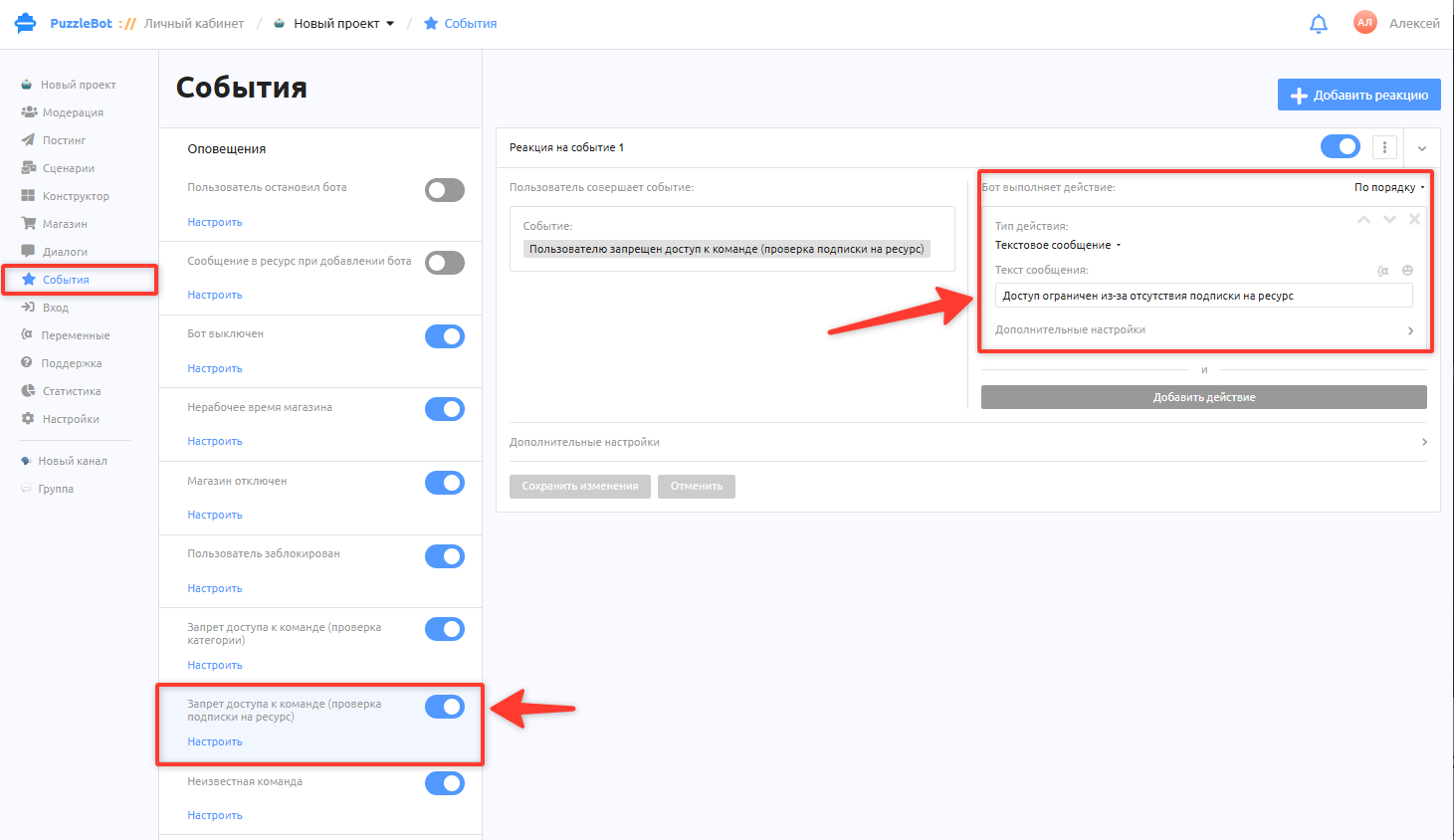
6. By default, the reaction for a missing subscription already exists in the Events — Command access denied (resource subscription check) section. You can change the reaction text.
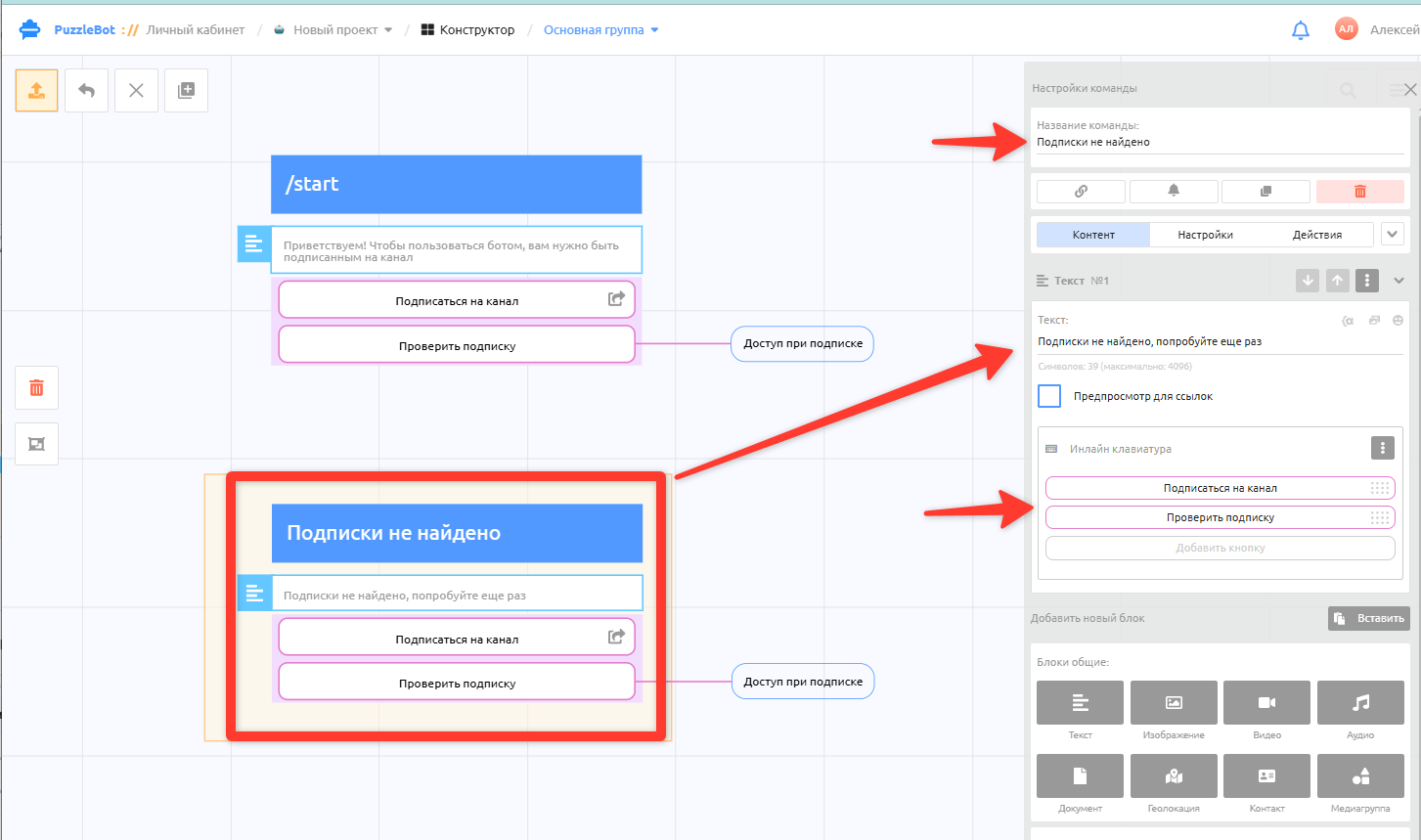
7. If you want a different reaction with buttons, first create a command with your own reaction in the Constructor, write the text and create the buttons you need. Publish and save the changes.
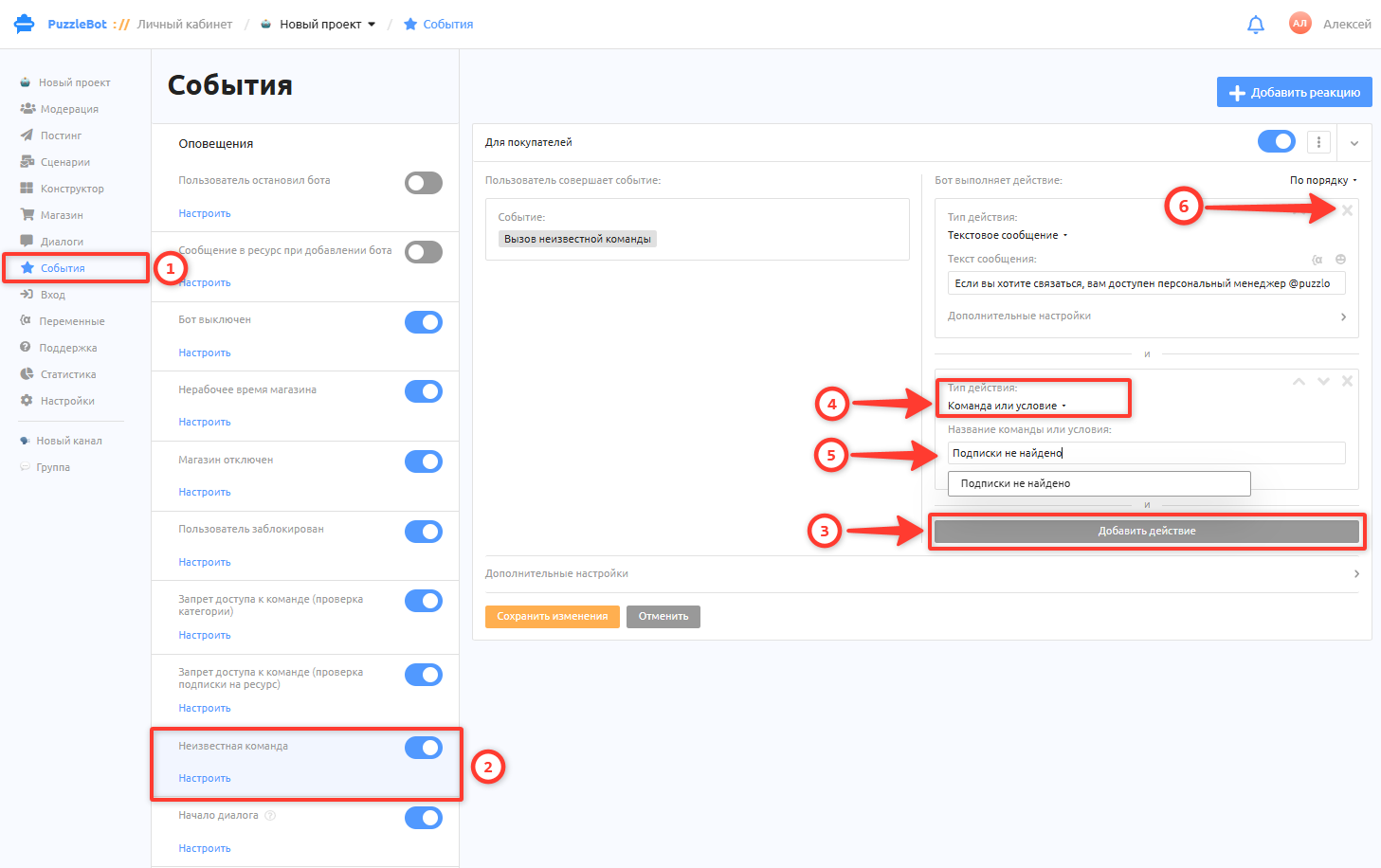
8. Go to the Events page again and refresh it.
In the reaction settings, click Add action → action type Command or condition → enter the name of the command with your reaction from the Constructor.
Delete the old reaction by clicking the cross.
Save the changes.
Great, you have created a global subscription check!
Subscription check via a button in a channel
With this method, you create a button under a channel post that gives out a bonus (lead magnet) if the user is subscribed to the channel.
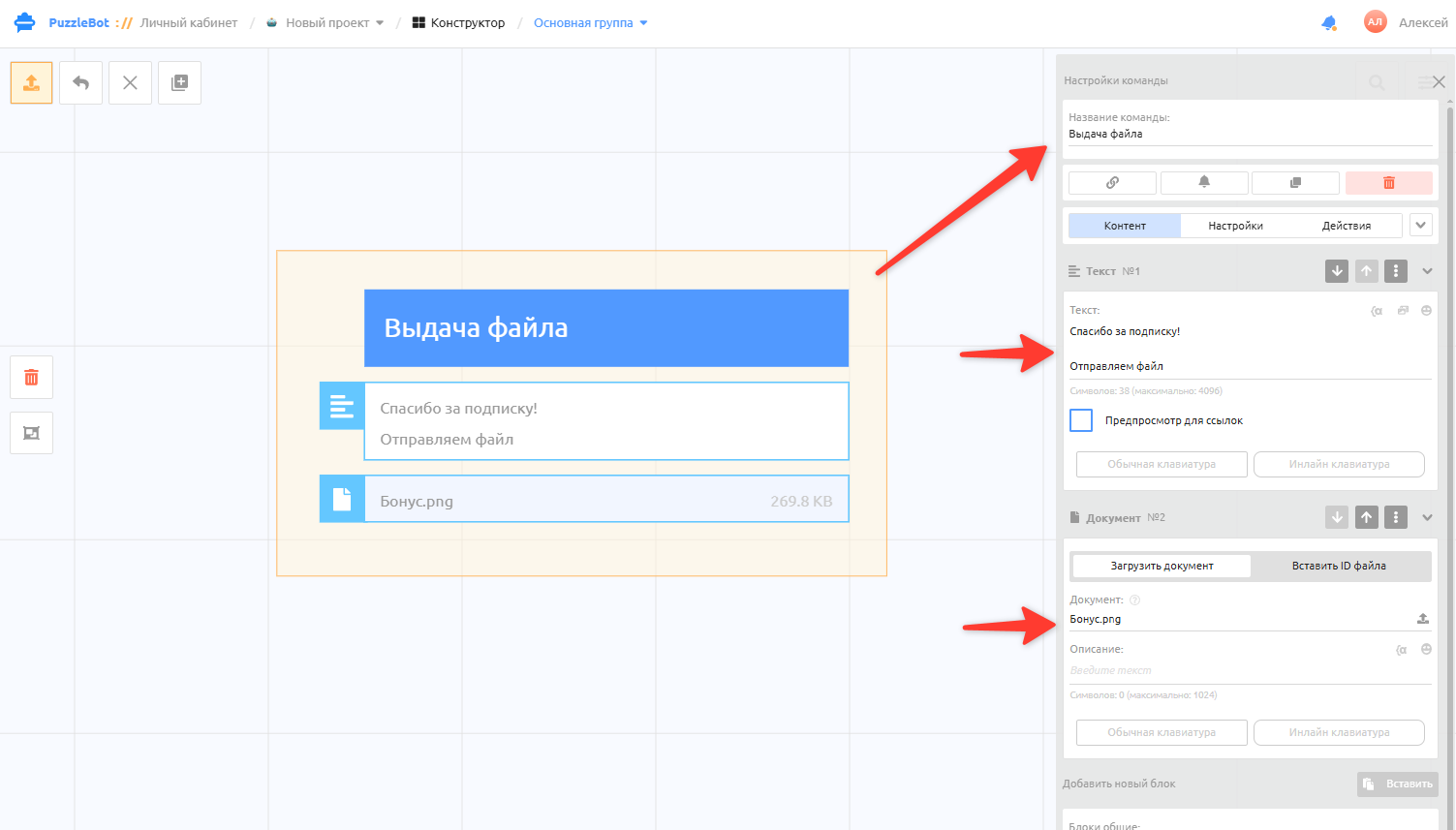
1. First, in the Constructor, create the command that will be sent to the user if the subscription is confirmed. It doesn't have to deliver a lead magnet or a file: for example, it can be a restricted section of the bot that you open in exchange for a subscription.
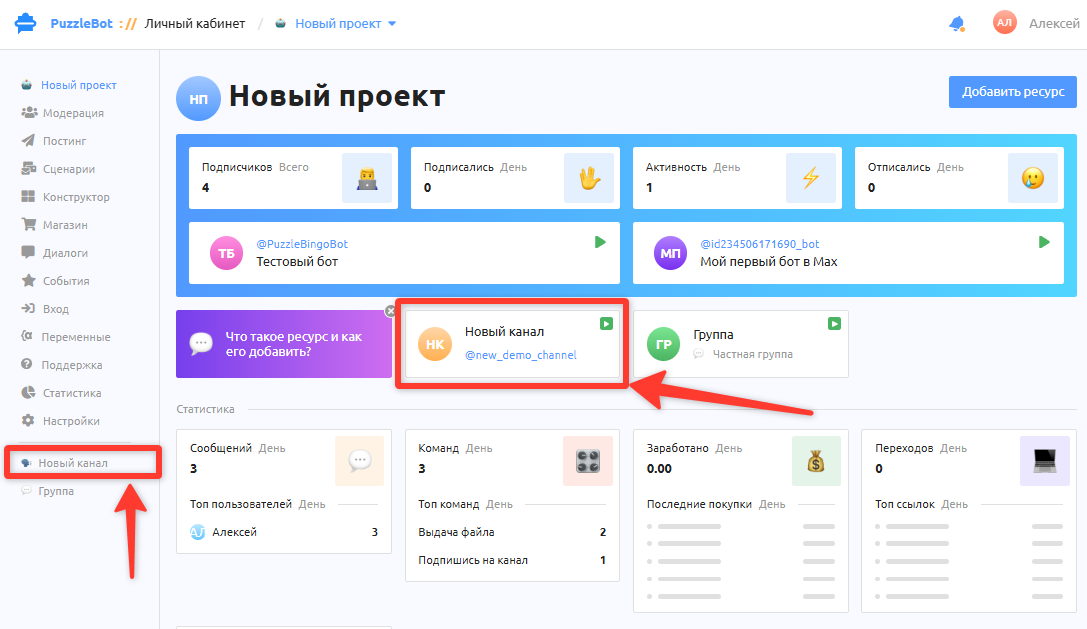
2. Open the connected channel to create a post.
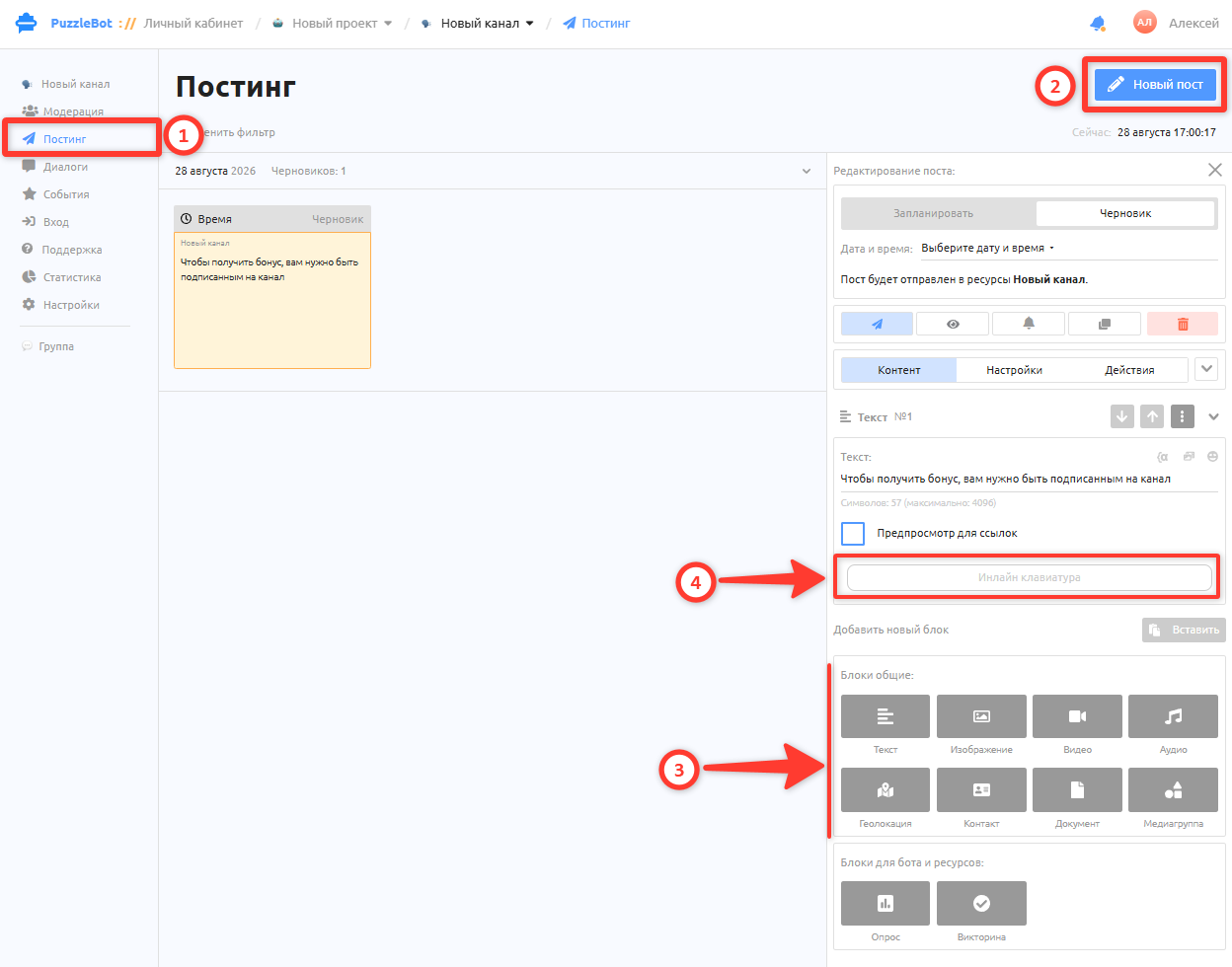
3. Go to the Posting section → New post → build the post from blocks → click Inline keyboard
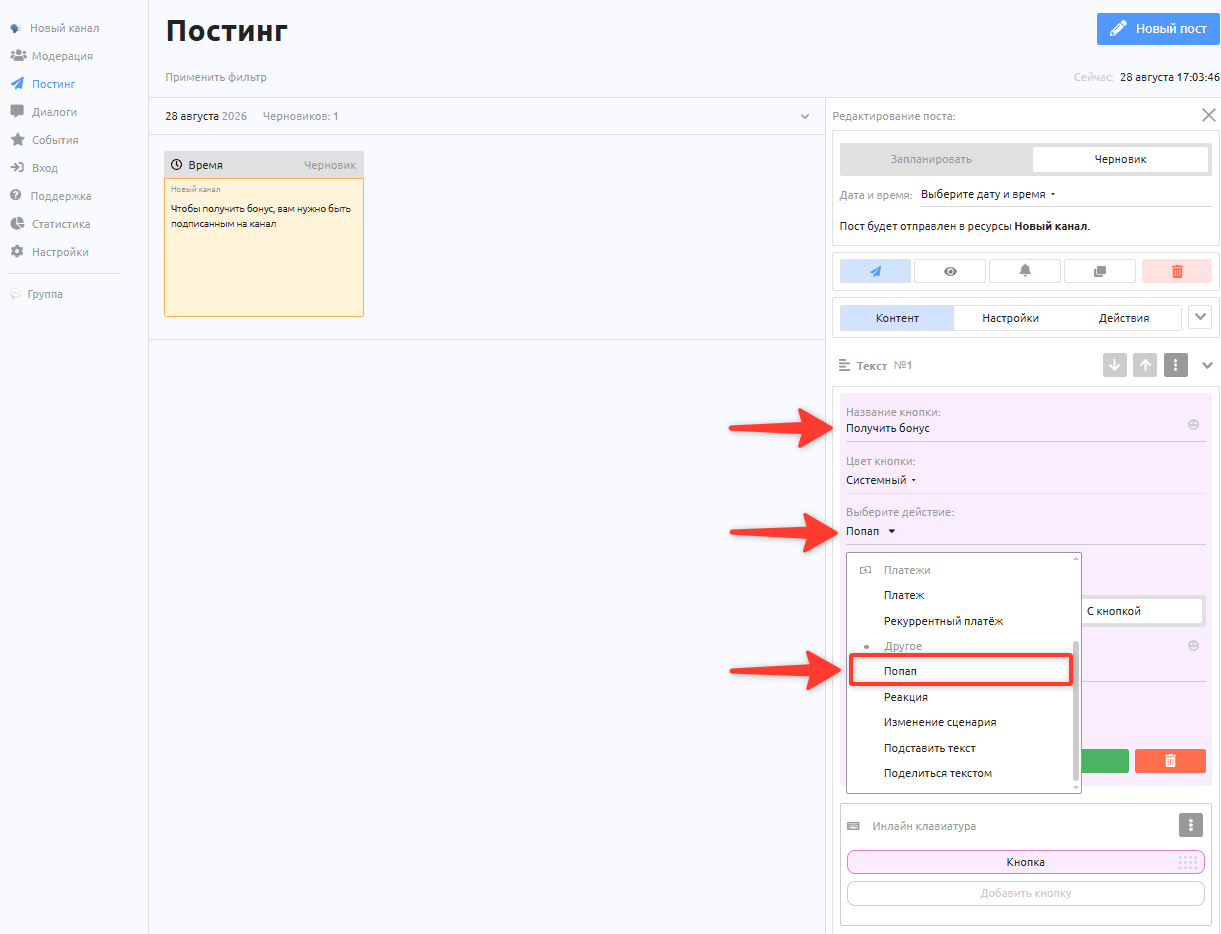
4. Enter the button name and select the Popup action
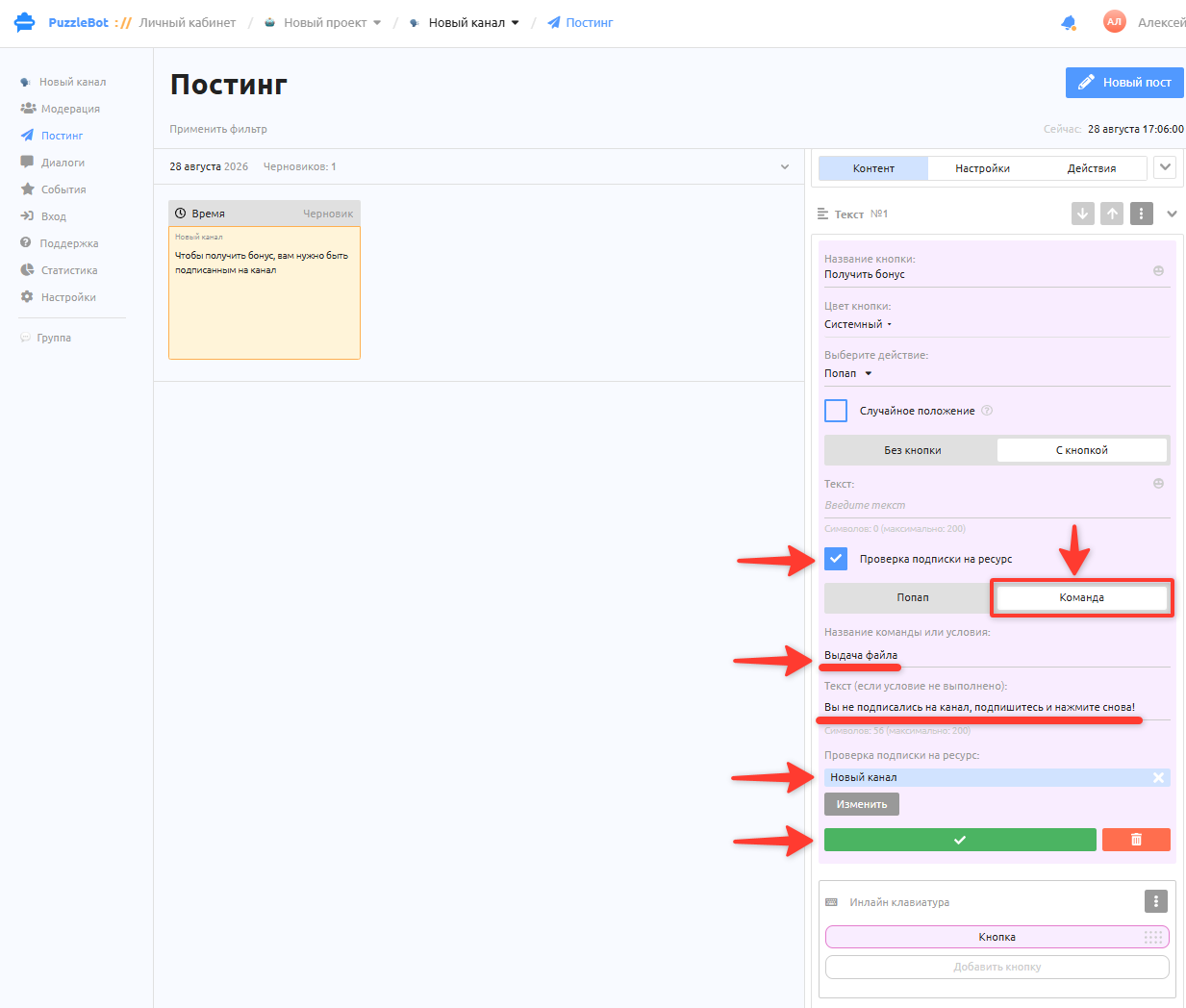
5. In the button settings, select the Resource subscription check checkbox → select Command → enter the name of the bonus command that you created earlier in the Constructor.
Enter the text shown when the user is not subscribed.
Resource subscription check → Edit → select your channel.
Save the changes.
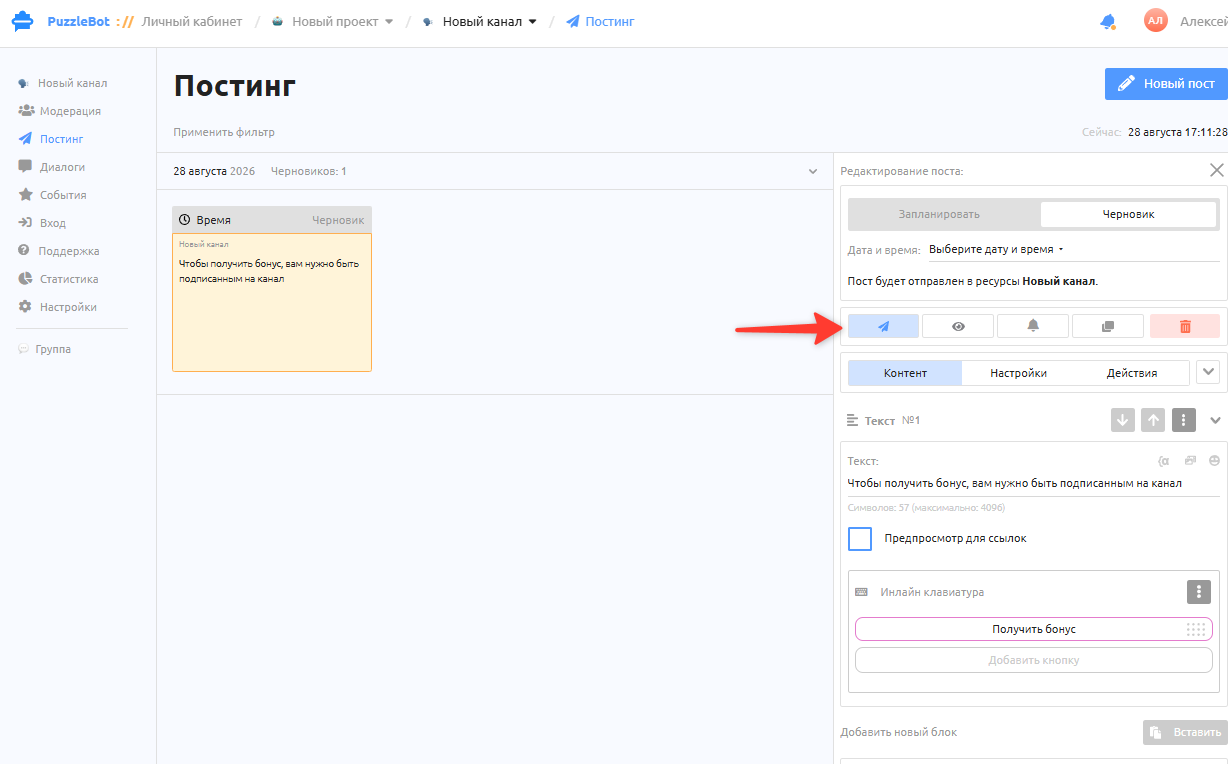
6. Publish the post to the channel by clicking the paper plane button.
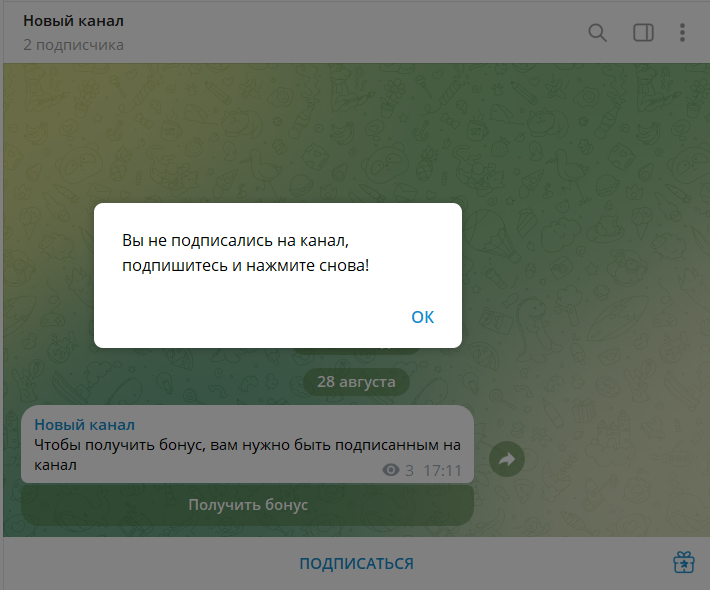
7. Great, the post is published. Check how the button works with and without a subscription.
You have created a subscription check in a channel!