This article covers what you can do in the Scenarios section.
If you already know how scenarios work but have run into a problem, see the article Scenario not working: common errors.
Examples of using scenarios:
Scenarios is a section where you set up posts to be sent in a specific sequence (a scenario). Unlike the Posting tab, in Scenarios each bot user (not available for resources) receives posts on their own personal schedule, calculated from the date the scenario started. A scenario can be started by calling a command, following a link or firing a trigger. You can set up repetition for each post and scenario.
Important! A scenario does not start on its own. To start it, set the scenario to start in the additional settings of a command (trigger or link). Then, once the user reaches the command (fires the trigger or follows the link), the scenario starts.
To get to know the tab more easily, we recommend watching the two-part video overview.
Part one:
00:06 — What the feature is for and how it differs from Posting
00:24 — Adding a scenario
00:34 — Scenario interface
00:54 — Scenario settings
01:25 — Creating a post
01:30 — Post settings interface
02:01 — Sending type
02:22 — Sending type: After
03:10 — Post repetition
03:32 — Additional settings
03:40 — The Change scenario feature
04:01 — The Action in resources feature
Part two:
00:23 — Adding a category on the Moderation tab
00:34 — Creating a scenario
01:00 — Adding the first post (subscription start)
01:14 — Adding the second post (reminder)
02:02 — Adding the third post (final)
02:13 — Assigning the "No category" category
02:43 — Scenario settings (for paying while the scenario is unfinished)
03:07 — Connecting payment systems
03:22 — Creating a command to start the scenario
03:22 — Creating a button with the Payment action
03:58 — Creating a command group with restricted access
04:05 — Creating a command
04:36 — Testing the scenario in the bot
Scenario
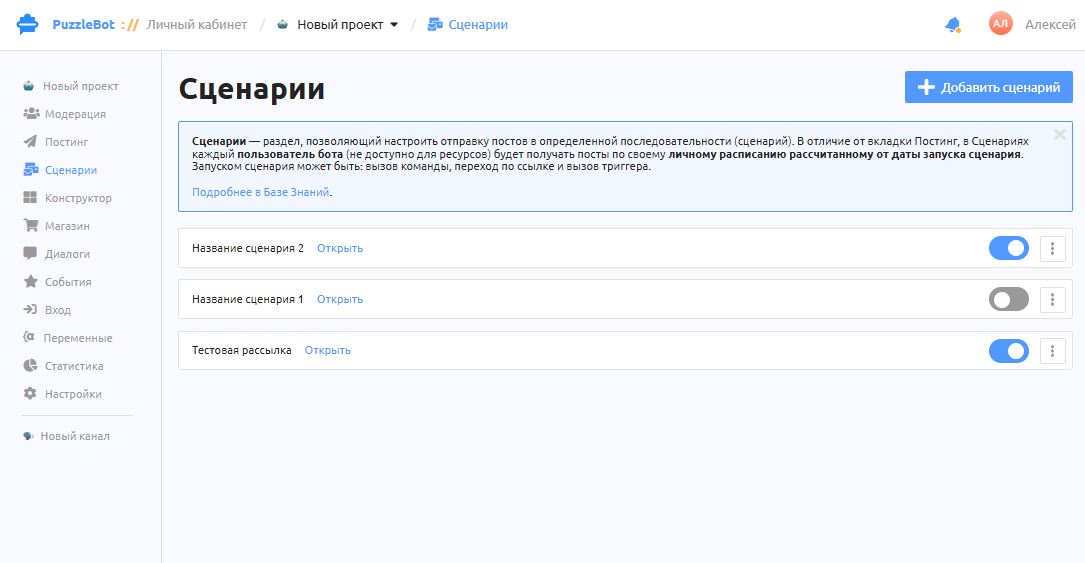
The main page lists the scenarios you have created. On this page you can:
Open a scenario: click Open.
Turn a scenario off or on.
Rename or delete a scenario by clicking the three dots next to it.
Important!
When you delete a scenario, it stops automatically for all users.
Turning a scenario off does not change a post's scheduled publication date. However, if the scenario is off at the moment of publication, the post will not be sent. After you turn the scenario back on, posts will be sent according to the originally planned schedule.
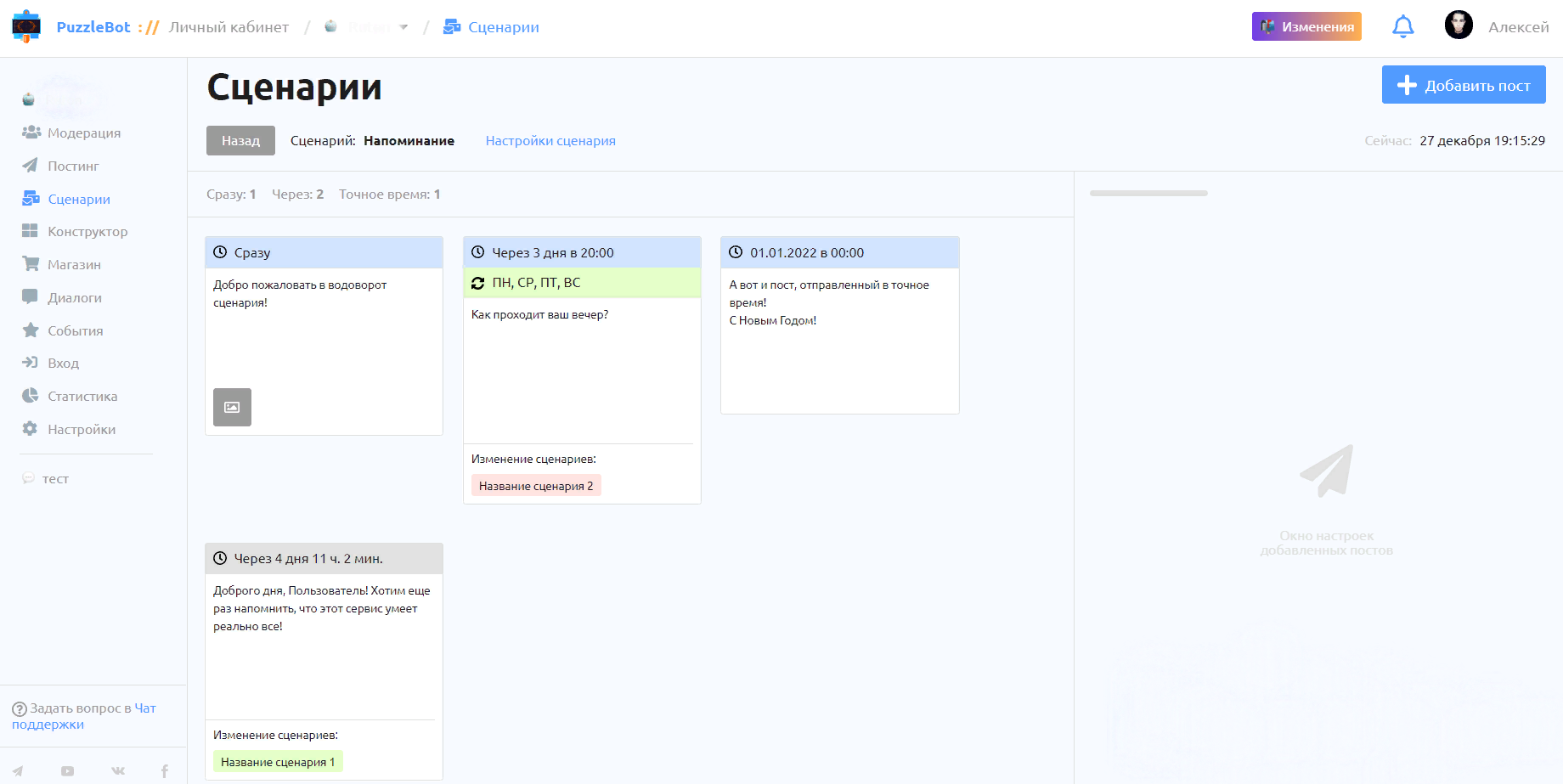
The main page of a scenario shows its posts, ordered by sending day (from the soonest to the latest).
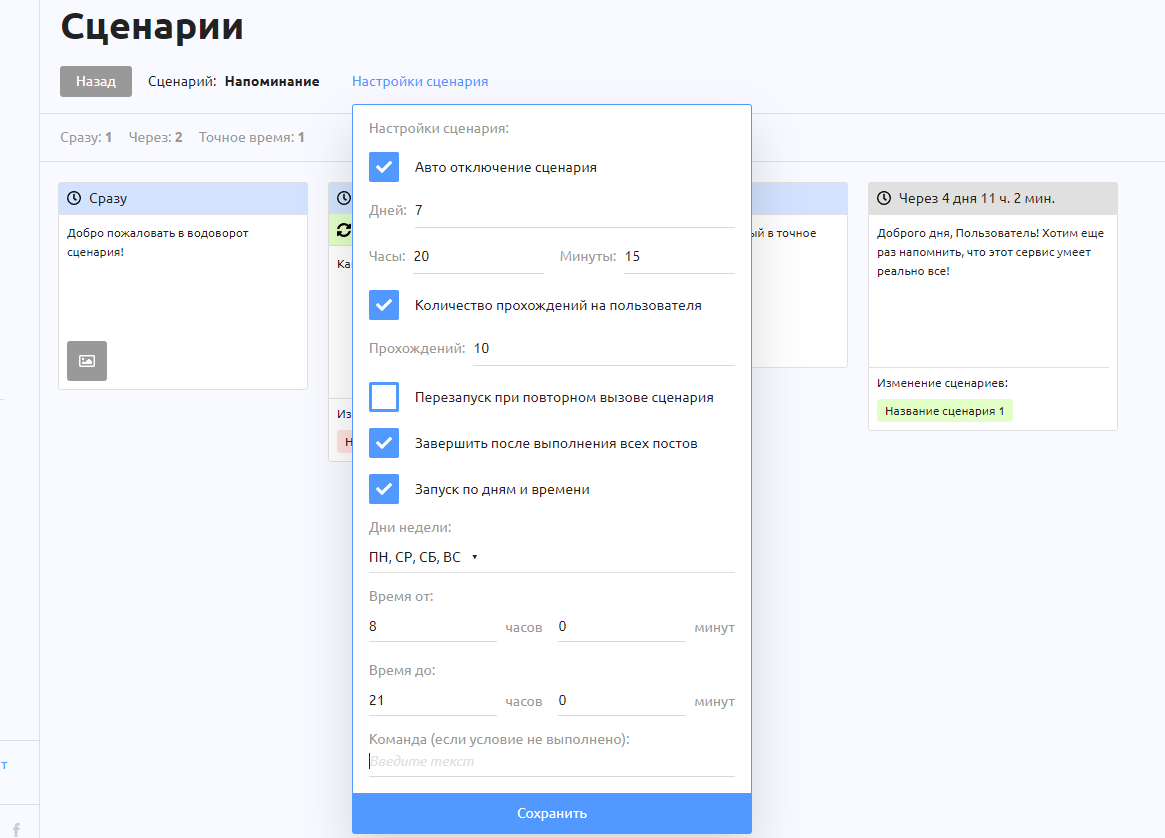
Scenario settings:
Scenario auto-disable (the period after which the scenario turns off).
Number of runs per user (how many times a user can start the scenario).
Restart when the scenario is called again (off by default, so calling the scenario again has no effect on it).
Finish after all posts are completed (on by default, so the scenario ends for the user after the last post is sent).
Start by days and time (the days of the week and the time of day when the scenario can be started. If someone tries to start the scenario outside this time window, the scenario does not start, and the user is taken to a command if one is specified).
Important! A scenario can be restarted only once 10 seconds have passed since it started. If less than 10 seconds have passed, the scenario will not be restarted.
Posts
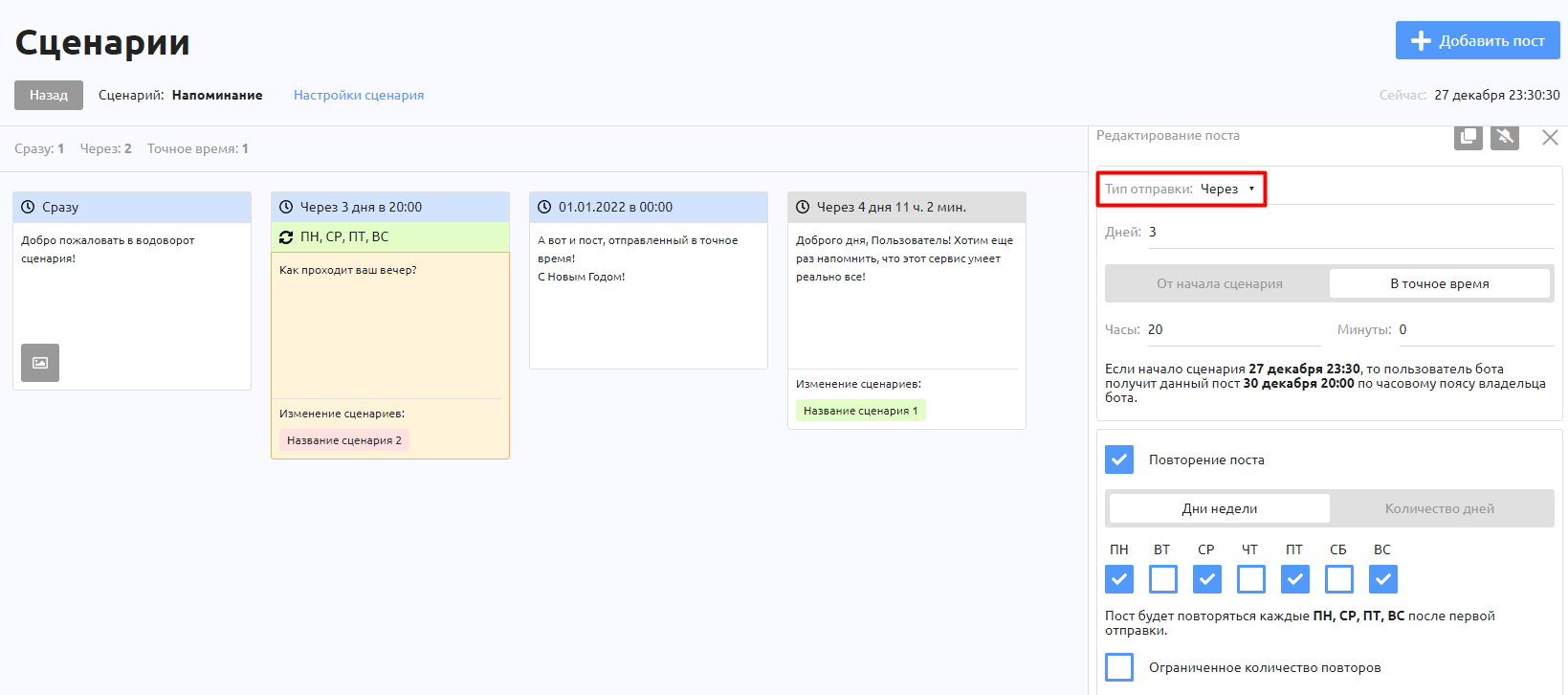
Sending types:
Immediately (the post is sent the moment the scenario starts).
Example: if the scenario starts on June 1 at 11:56, the bot user receives this post on June 1 at 11:56 in the bot owner's time zone.
After:
From the scenario start (a period in days, hours and minutes is counted from the moment the scenario is called).
Example: if the scenario starts on June 1 at 11:56 (and the administrator set sending after 11 days, 1 hour and 2 minutes), the bot user receives this post on June 12 at 12:58 in the bot owner's time zone.
At an exact time (the post is sent after the set number of days, at an exact time on the sending day).
Example: if the scenario starts on June 1 at 11:45 (and the administrator set sending after 11 days at 19:00), the bot user receives this post on June 12 at 19:00 in the bot owner's time zone.
Days of the week (the post is sent on the nearest matching day of the week).
Example: if the scenario starts on Wednesday, June 1 at 11:56 (and the administrator set sending on the nearest Saturday at 19:00), the bot user receives this post on Saturday at 19:00 in the bot owner's time zone.
Exact date and time (does not depend on when the scenario was started).
Day of the month:
Exact day (the post is sent on a specific day of the month).
Example: if the scenario starts on June 1 at 11:56 (and the administrator set sending on the 15th), the bot user receives this post on June 15 at 11:56 in the bot owner's time zone.
End of the month (the post is sent relative to the last day of the month).
Example: if the scenario starts on June 1 at 11:56, the bot user receives this post on June 30 at 11:56 in the bot owner's time zone.
Important! Posts are sent in the bot owner's time zone.
Repetition types:
Days of the week.
Example: if the first post was sent on June 1 at 11:56 (and the administrator set sending every Tuesday and Thursday), the bot user receives repeats of the post every Tuesday and Thursday at 11:56 in the bot owner's time zone.
Number of days
Example: if the first post was sent on June 1 at 11:56 (and the administrator set sending every 3 days at 19:00), the bot user receives repeats of the post at an interval of every 3 days (June 4, June 7, June 10…) at 19:00 in the bot owner's time zone.
Day of the month:
Exact day (the post is sent on a specific day of the month).
Example: if the scenario starts on June 1 at 11:56 (and the administrator set sending on the 15th of every month), the bot user receives repeats of the post on the 15th of every month (June 15, July 15, August 15…) at 11:56 in the bot owner's time zone.
End of the month (the post is sent relative to the last day of the month).
Example: if the scenario starts on June 1 at 11:56, the bot user receives repeats of the post on the last day of every month (June 30, July 31, August 31…) at 11:56 in the bot owner's time zone.
Important! If for any reason the first post is not sent to the user (the scenario was turned off or changed, the post was turned off or changed, the bot was stopped), no repeats will happen.
Important! By default, a post is created with the Draft status.
Starting and stopping scenarios
You can start and stop scenarios from the following sections: Triggers, Constructor, Moderation, Scenarios, Posting and Entry.
A scenario can also be started or stopped from itself or from another scenario.
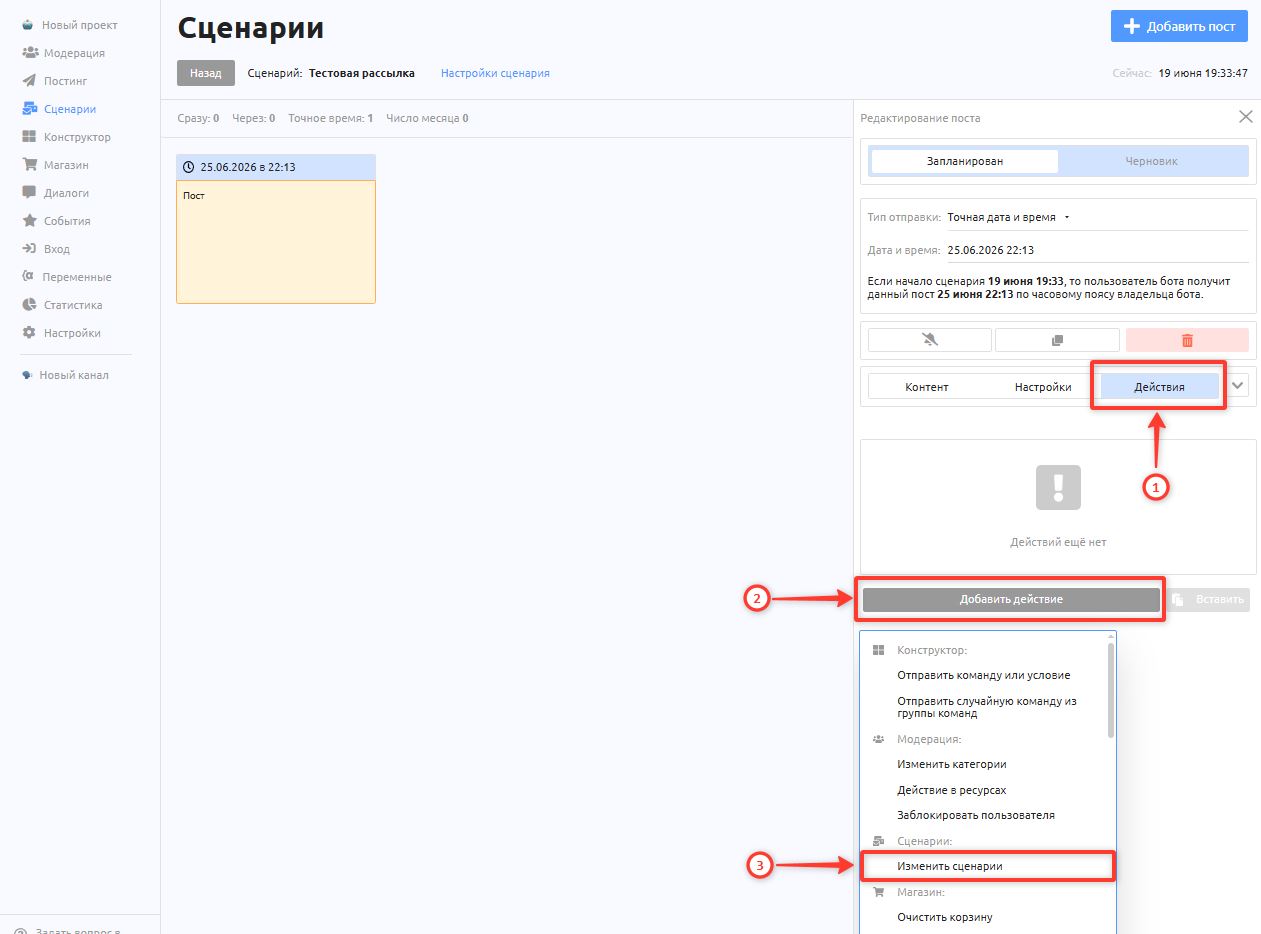
To start a scenario from a command, a scenario post or a posting post, go to the Actions → Add action → Change scenario tab.
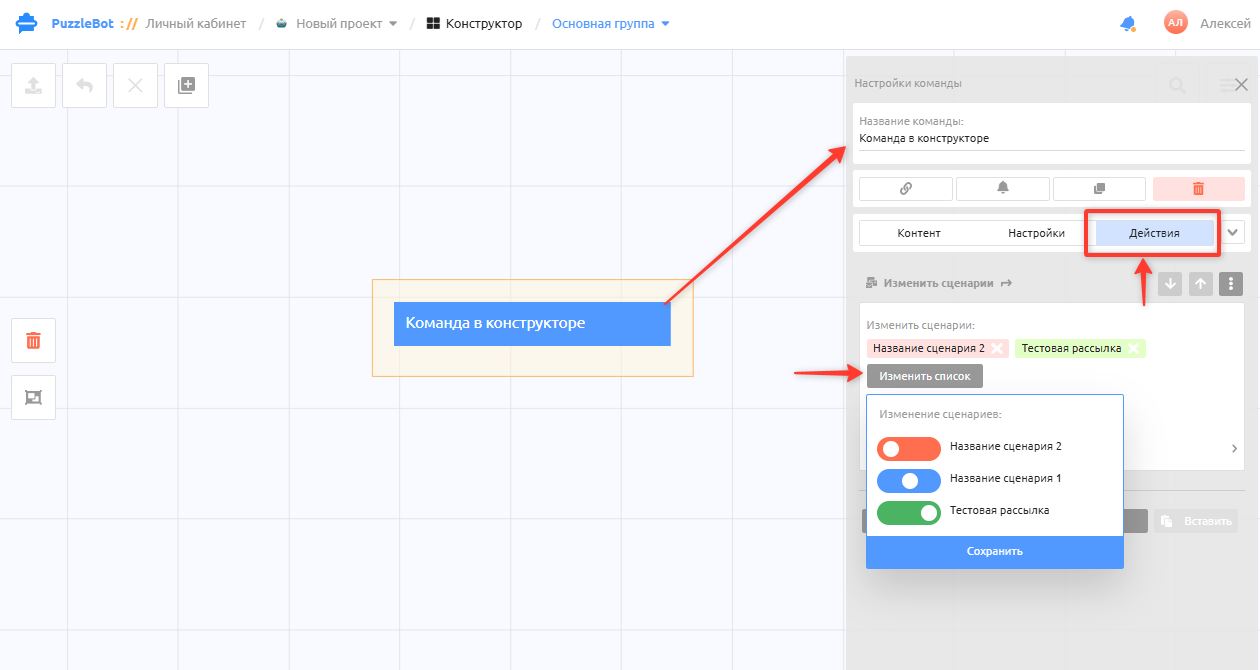
After adding the "Change scenario" action, you can turn the scenario on or off. The neutral toggle position does not change the scenario state, whether the scenario is on or off for the user.
The scenario actually starts or stops after the post is sent, or after the command that contains this action is sent in the bot.
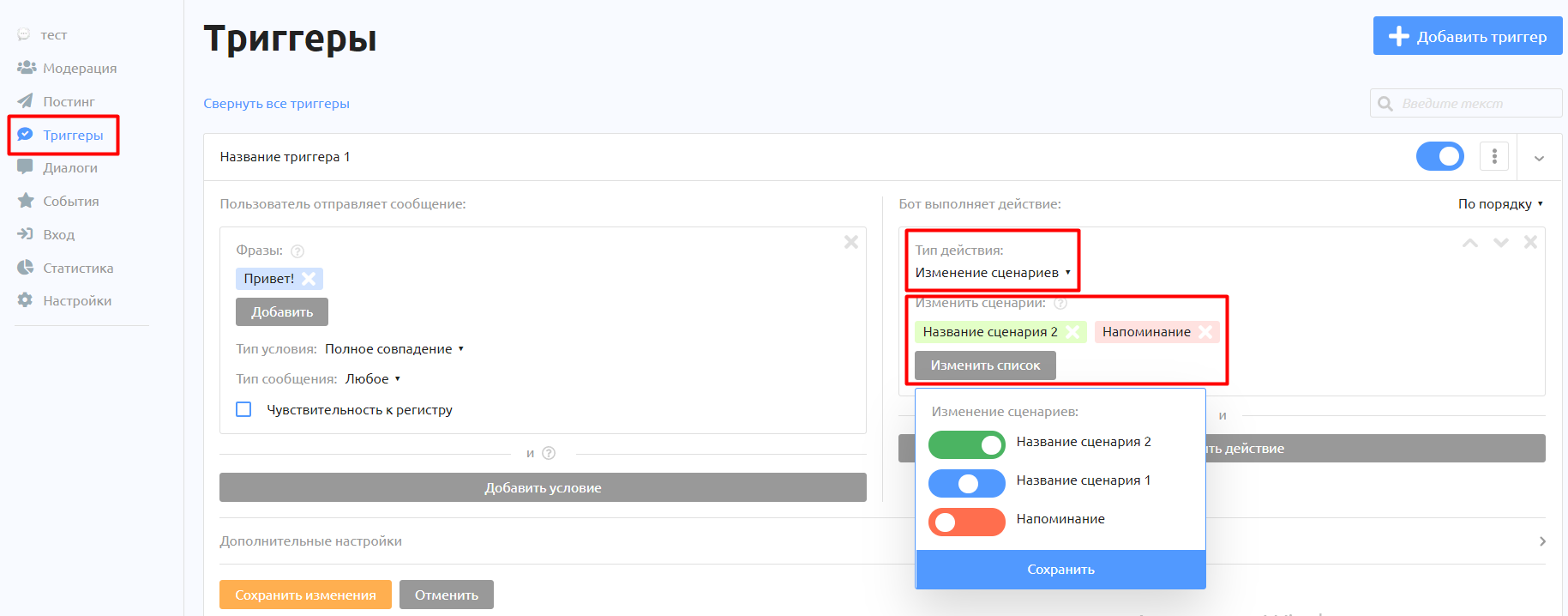
Starting or stopping a scenario from the Triggers section in a resource (group/channel)
Important! When a scenario is started from Triggers and the user has stopped the conversation with the bot at the moment the trigger fires, the scenario still starts for them, but the messages cannot be delivered.
Editing and adding posts
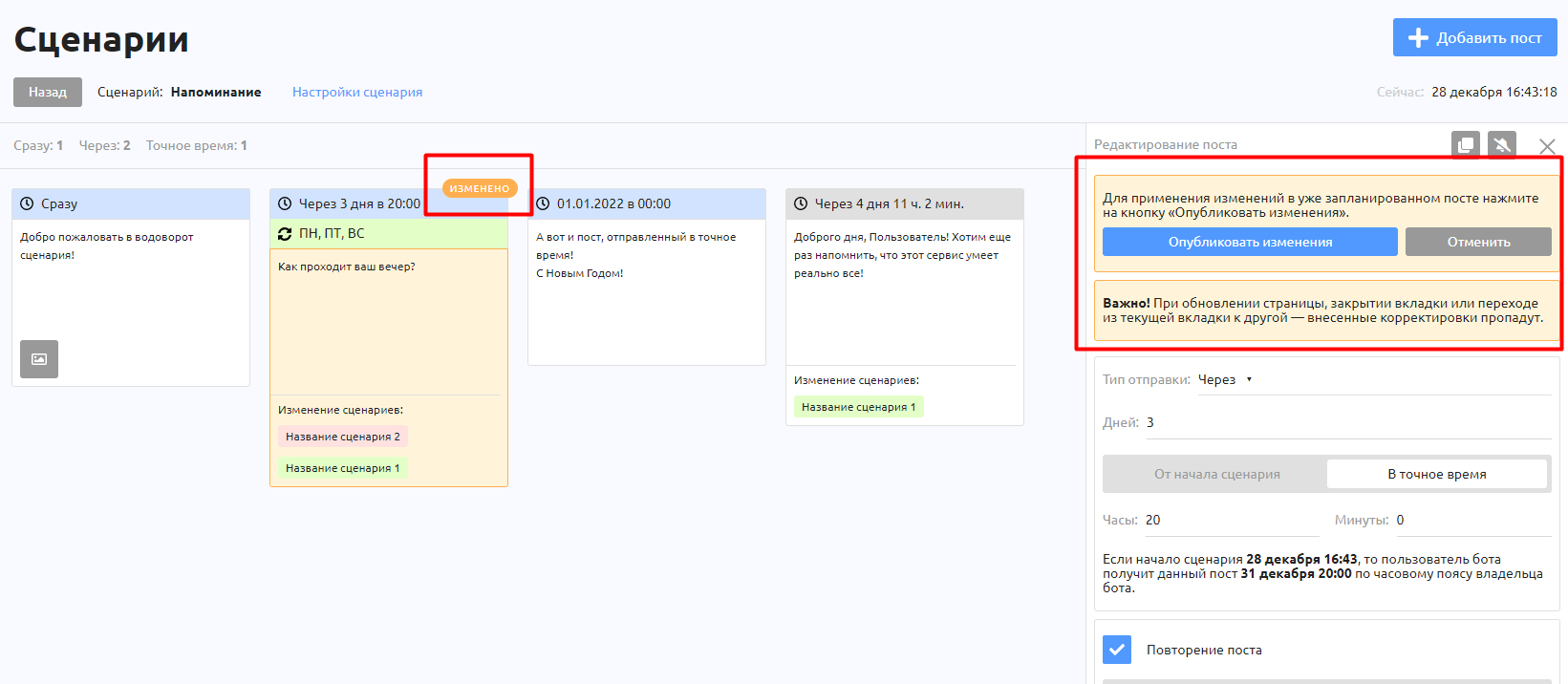
When you edit a scenario that is already running and a scheduled post, a warning appears at the very top of the post settings window saying that the changes must be published. A special badge is also added to the thumbnail of a post with unpublished changes.
When you publish changes or add a new post, you will be offered two options:
Send the changed post to users who already have the scenario running (for these users, the post is sent right away regardless of the selected sending type).
Don't send the post, just publish the changes (the changed post is sent on schedule to all users who have not received it yet).
Important! If you refresh the page, close the tab or switch from the current tab to another one, your edits will be lost.
If you already know how scenarios work but have run into a problem, see the article Scenario not working: common errors.