STEP 1: Prepare a CSV file
Prepare a CSV file with the Telegram User IDs of your subscribers.
What is a Telegram User ID?
A Telegram User ID is a permanent numeric identifier of a user in Telegram.
It never changes and is unique for each user.
The platform uses only the Telegram User ID to match users during import.
If there is no Telegram User ID, import is impossible.
Users are not matched by name, phone number or username, and duplicates are not prevented.
Where to get your subscribers' Telegram User IDs
Option A: Export from the old service
Open the admin panel of your old bot builder.
Find the "Export" or "Subscribers" section.
Choose "Download as CSV" or "Export".
Make sure the file has a column with the Telegram ID (not the @username).
Option B: If there is no export
Contact the old service's support.
Ask for an export of the bot's users as a table with Telegram User IDs and, if needed, additional data (categories, variables).
If you need to move categories and variables, request them from the service's support as well.
Formatting the file
Save the file in CSV format:
Use one of these apps: Excel, Google Sheets, Numbers.
Save as: "File.csv".
CSV rules:
First row = column names.
One user = one row.
Only numbers in the telegram_user_id column (no letters, quotes or spaces).
If you are moving user categories, list them separated by commas: "VIP, Active" (optional).
If you are moving variables, put the variable names in the headers of the corresponding columns (optional).
Empty field = leave it blank.
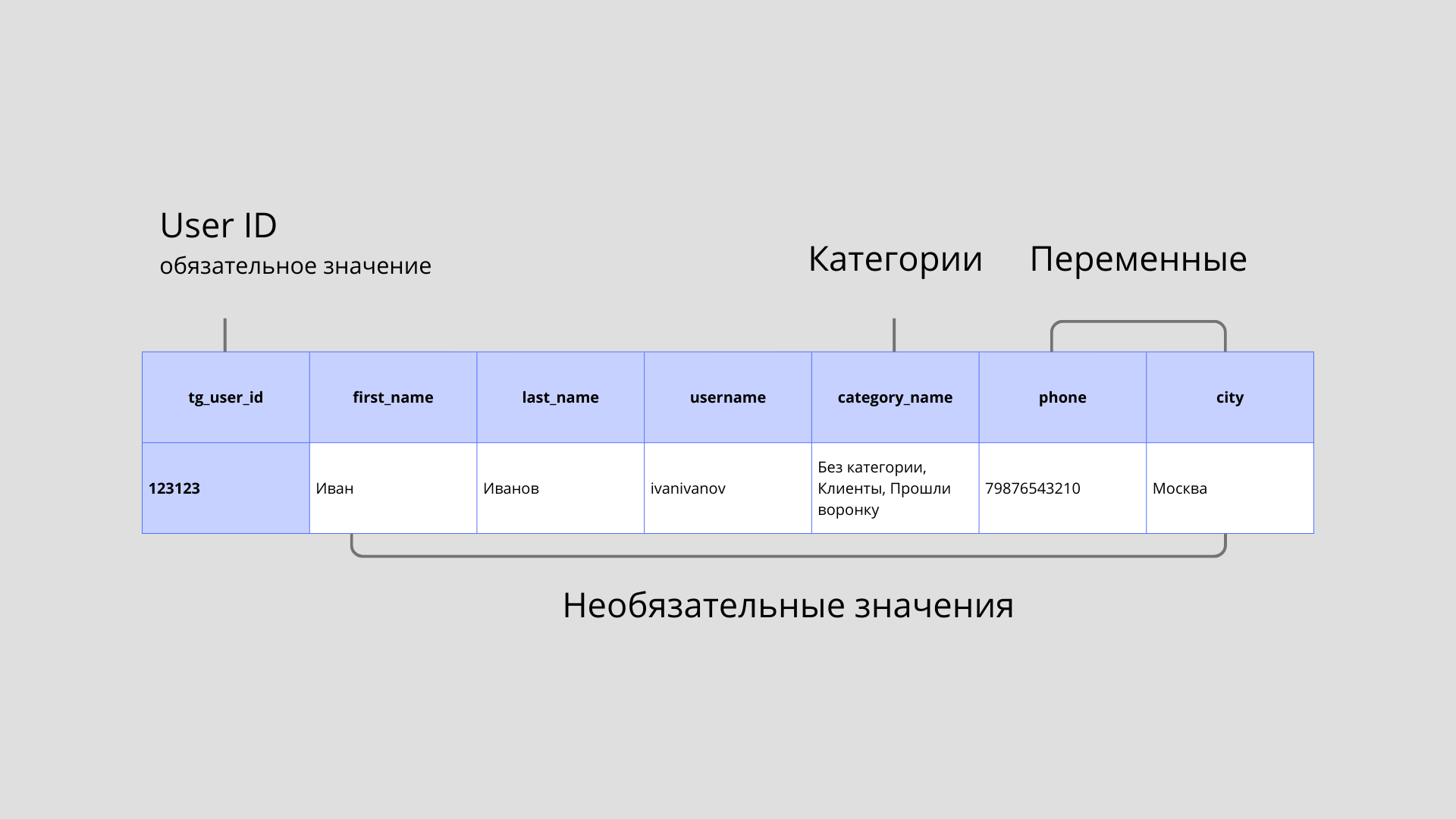
You can add the first_name, last_name and username columns, but they are optional.
Import works fine without these columns — in that case the bot pulls up-to-date data from Telegram as users start interacting with it.
That is:
without these fields, only IDs are imported;
with them, they are saved as the initial values.
STEP 2: Check your plan
Before importing, make sure you have enough room:
Your plan: Free
Bot users: 150
What to do: If > 150 — upgrade to the Creative plan
Creative
1000
If > 1,000 — choose the Advanced plan
Advanced
10000
If > 10,000 — choose the Professional plan
Professional
20000
If > 20,000 — contact support
If the number of users in the file exceeds your plan's limit, the import will not happen.
Additional options:
Along with subscribers, you can import additional data right away: first name, last name, username, city, tags and so on.
This helps you segment your audience from the start, but it is not required for import.
Variables (name, city and so on)
You can import up to 10 custom variables.
If the variables are already created in the bot, the data from the CSV columns is written to those fields right away. If not, we import only the Telegram IDs, and the rest can be collected later as the bot works.Categories
If you want to sort users into categories right away, add a separate categories column and list the categories separated by commas.
If no category is set or the column is missing, that's fine — the import still runs.
STEP 3: Send the file to support
Open the puzzlebot support chat in Telegram: @helpmepuzzlebot
In your message, include:
- The number of contacts in the file
- What additional data you are importing (names, categories and so on)
- The attached CSV file
Example:
Hi! I'd like to import 5000 subscribers from [name of the old service].
The file contains: ID, name, city (variable), category.
File attached: subscribers.csv
STEP 4: Wait and check
Import takes up to 2 business days (Mon–Fri, except holidays).
When it's done, you'll get a message from support: "Import complete! 5000 contacts added"
❓ FAQ
Q: Can I change the file after sending it?
A: No. If you notice a mistake, tell support and they will upload the corrected file again.
Q: What if a user already exists in puzzlebot?
A: They won't be added twice. The system checks by Telegram ID and updates their data.
Q: I need to import 50,000 contacts. Is that possible?
A: Yes, contact our support in Telegram: @helpmepuzzlebot