This article explains how to restrict access to commands.
For a more detailed walkthrough, we recommend watching the video overview:
In the Constructor, you can give one or more categories access to a specific command group. Learn more about categories: What categories are and how to create them and add users to them.
To do this:
Open your bot and select the Constructor tab.
Open the Settings menu (top right corner).
Click the line under the "Access for categories" heading and select the categories you want to give access to.
After creating a command group, you can move previously created commands into it. Learn how: Moving commands.
Let's look at each step in more detail:
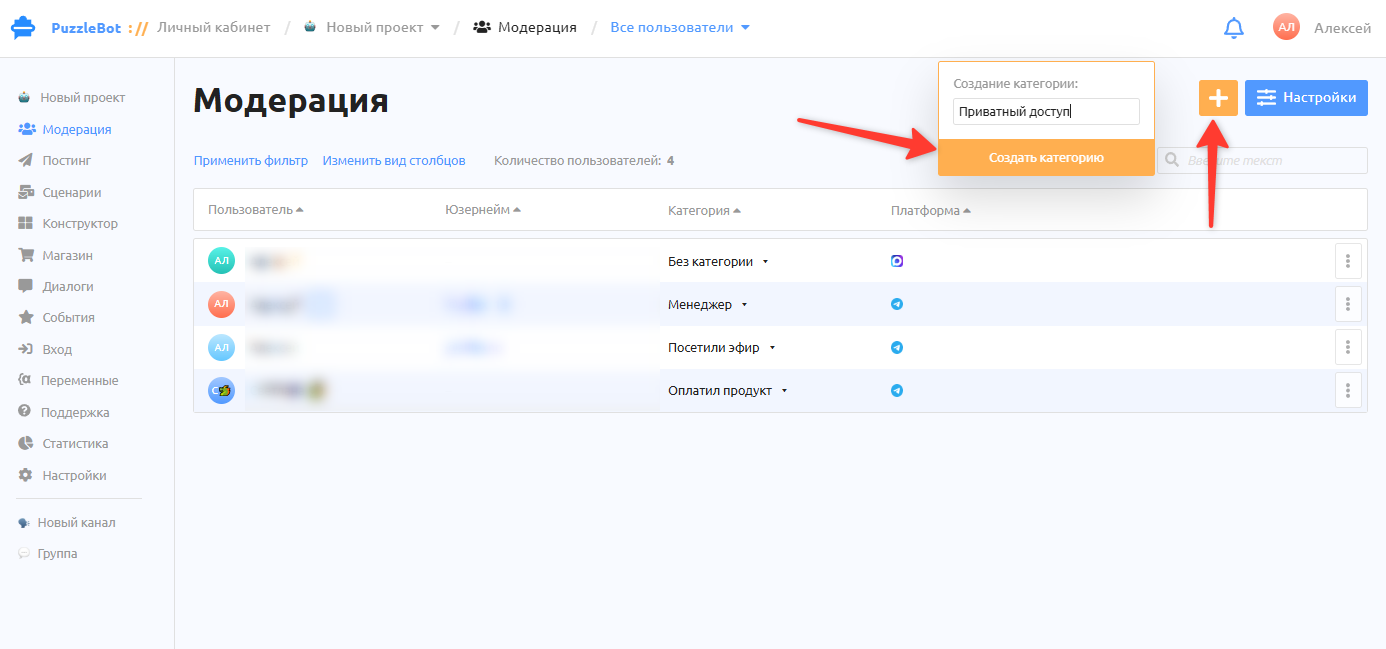
First, create the category that will get access. Go to Moderation → "+" → Enter the category name → Create category.
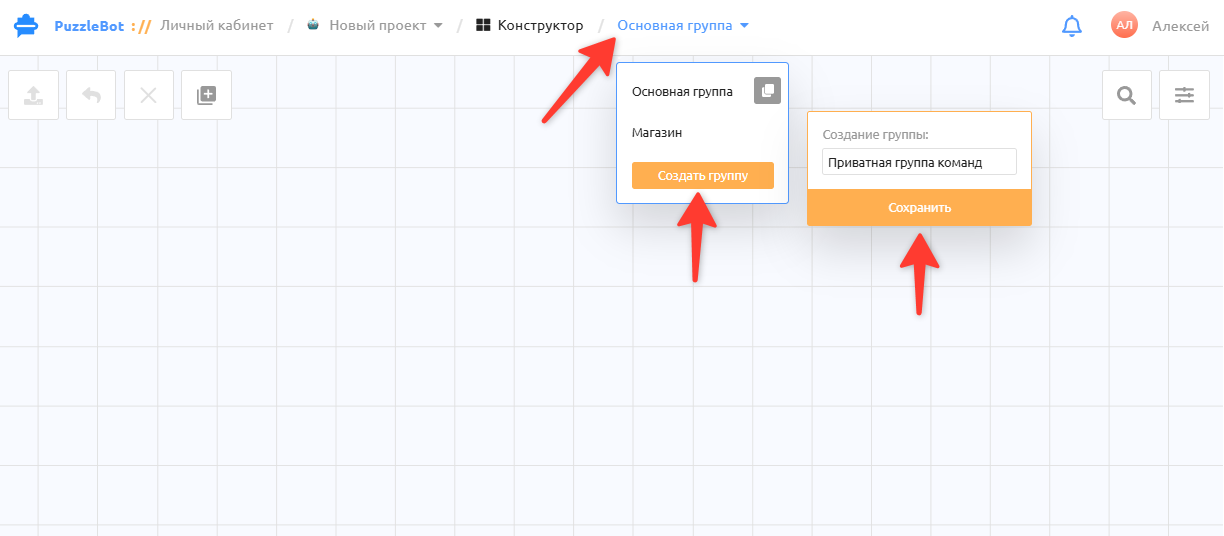
Go to the Constructor tab and create a new command group that you will make private.
Click the group name → Create group → Enter a name → Save.
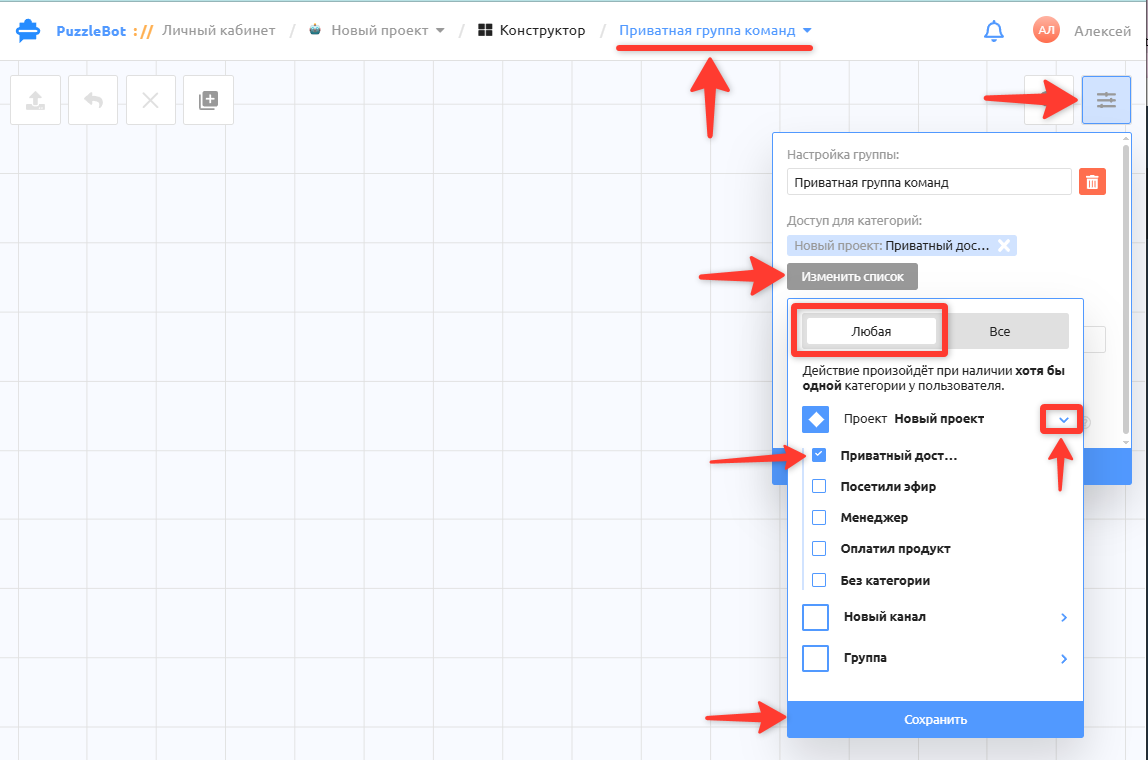
Open the command group you created → Settings → Access for categories → Any (or All, if the user must have two or more categories at the same time) → expand the bot categories → select a category → Save.
Great, access to the command group is now restricted. Next, let's set up how the bot reacts when a user doesn't have the required category, and how to assign a category to a user.
How to assign a category to a user
You can assign a category to a user manually or automatically when they perform certain actions in the bot, such as entering a password or purchasing a product or access.
Granting access manually
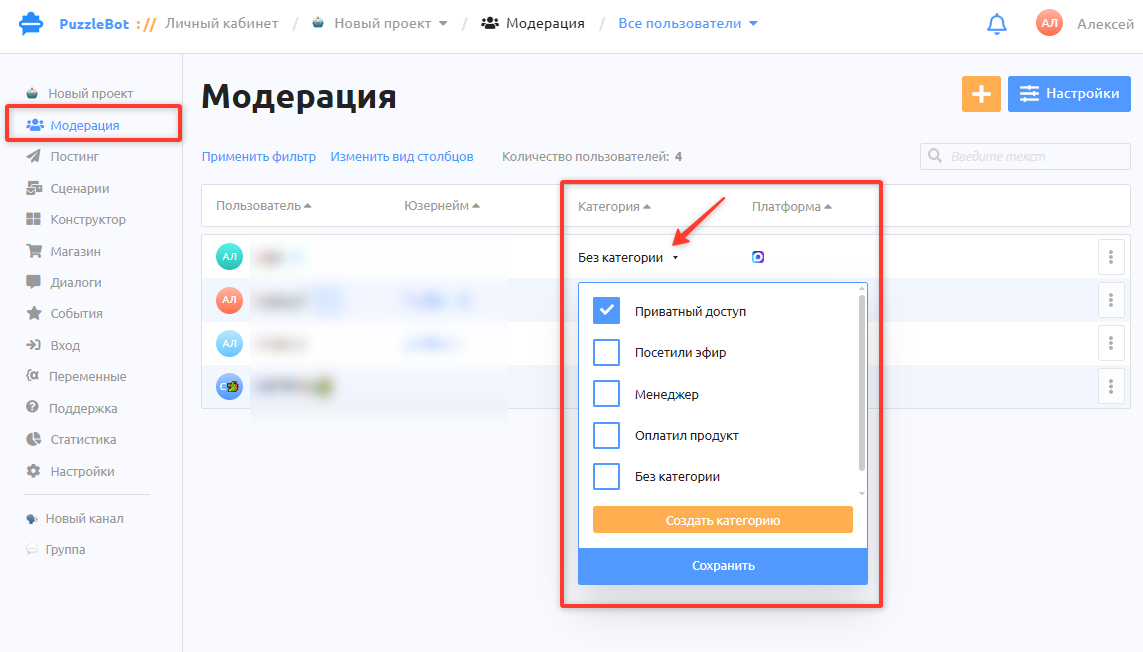
If you have a limited, precisely known number of users you want to give access to, you can assign categories manually in the Moderation section. Select a user, click the category field and add the category you need.
Assigning a category automatically
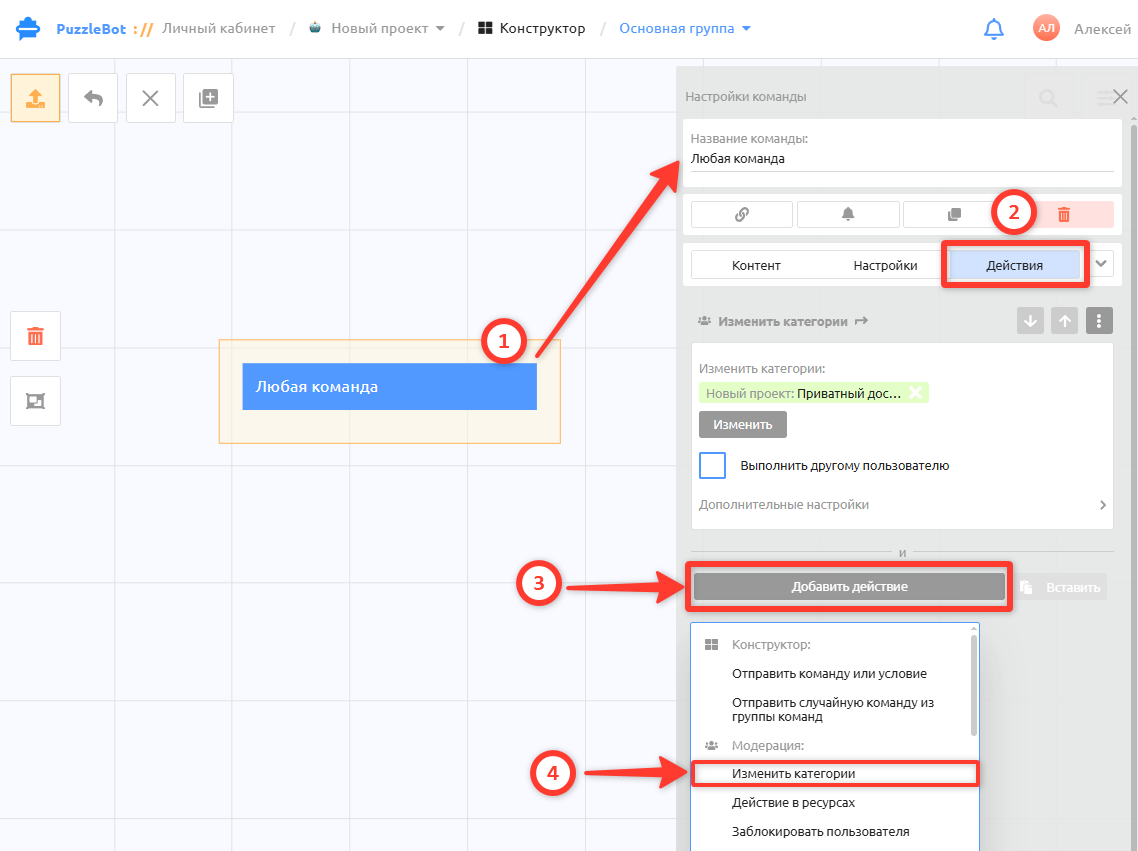
In any Constructor command that is not in the private command group, open the Actions tab → Add action → Change categories → Select the categories and save.
As soon as a user calls or reaches this command, the specified category is assigned to them.
Next, decide in which cases this command is sent to the user.
For example, if the command should be sent only after payment, specify this command as the after-payment command in the payment button. Learn more: Payment button
Or the command should be sent only after the correct password is entered.
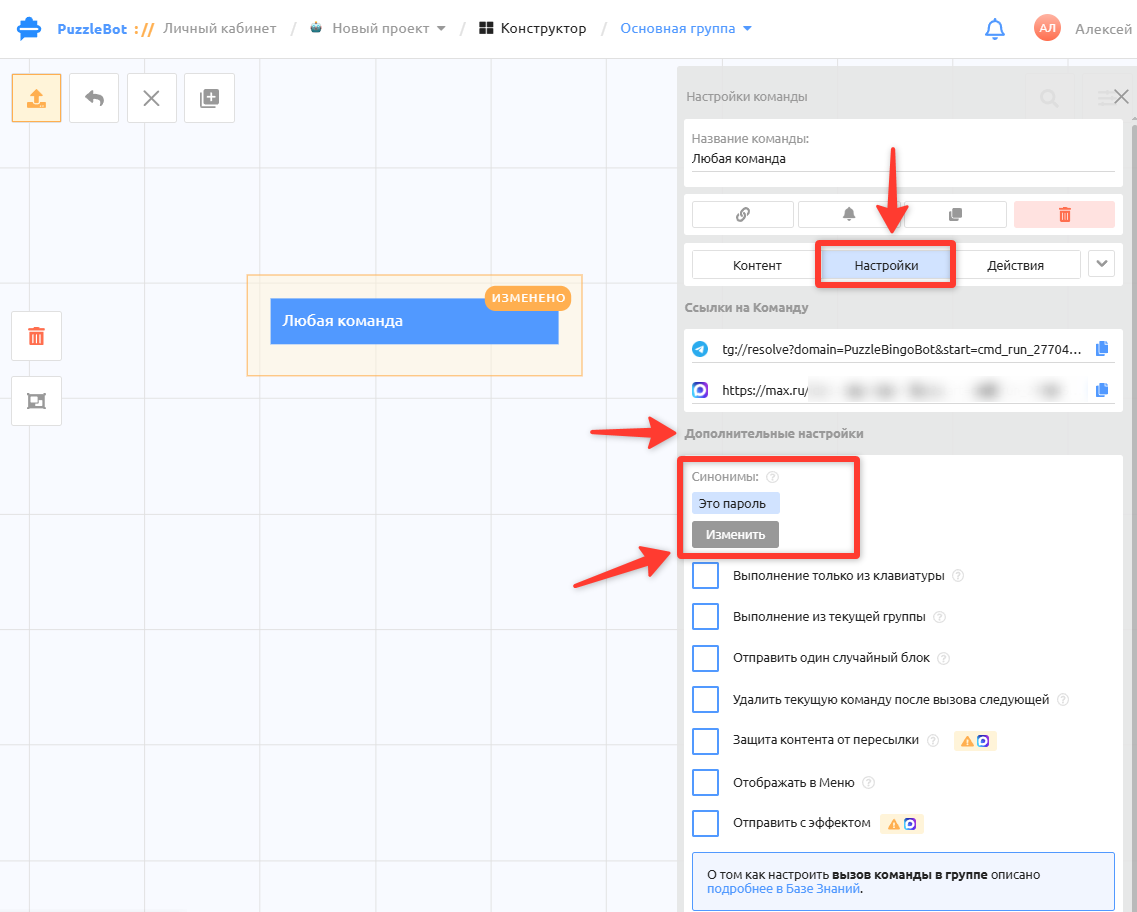
The fastest way to set a password for calling a command:
Open the command → Settings → Synonyms → Edit → Enter phrases or any text that will serve as the password.
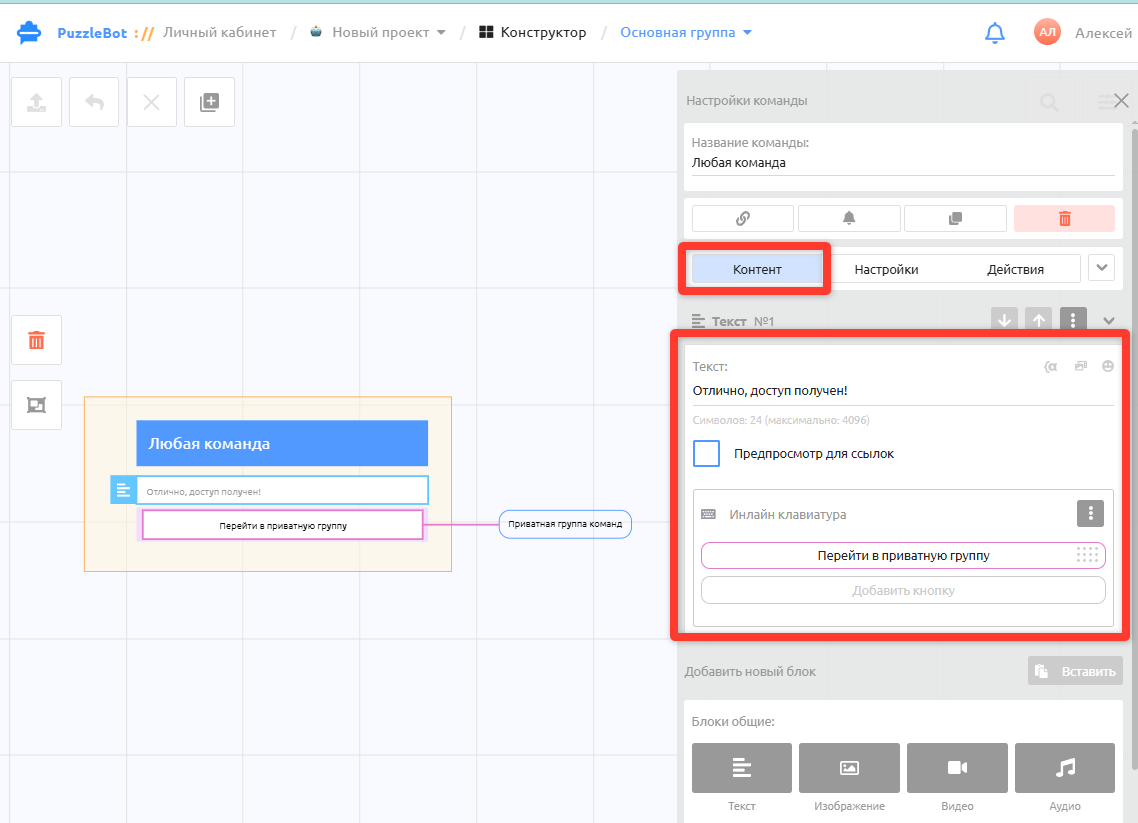
On the Content tab, you can create the text that is sent to the user when they enter the correct password. Also attach a button that leads to any command from the private command group, for example the main menu command.
Message shown when the required access category is missing
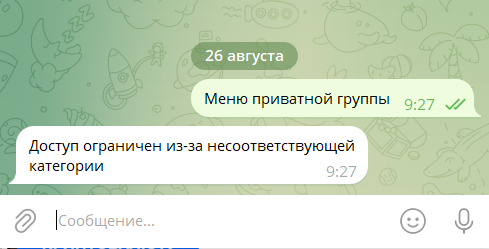
If the user doesn't have the specified category, they receive a default message.
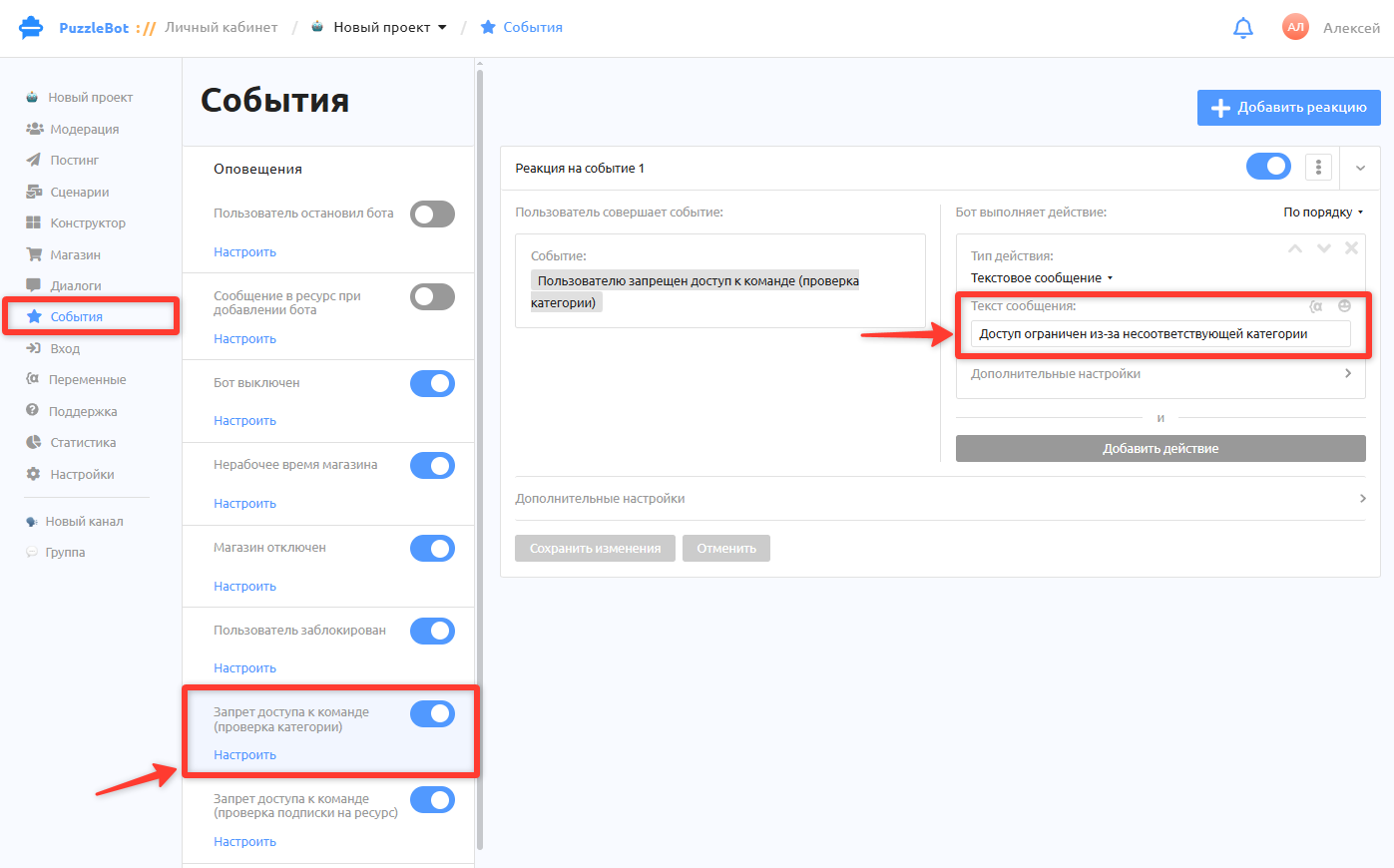
To change the default message, open your project and go to Events → Command access denied (category check) → Configure → edit the message text → Save changes.
Make sure the event is enabled (blue toggle).