This article covers the Triggers tab for groups.
To work with triggers, you need to connect a group to the service. Learn how to do this in this article.
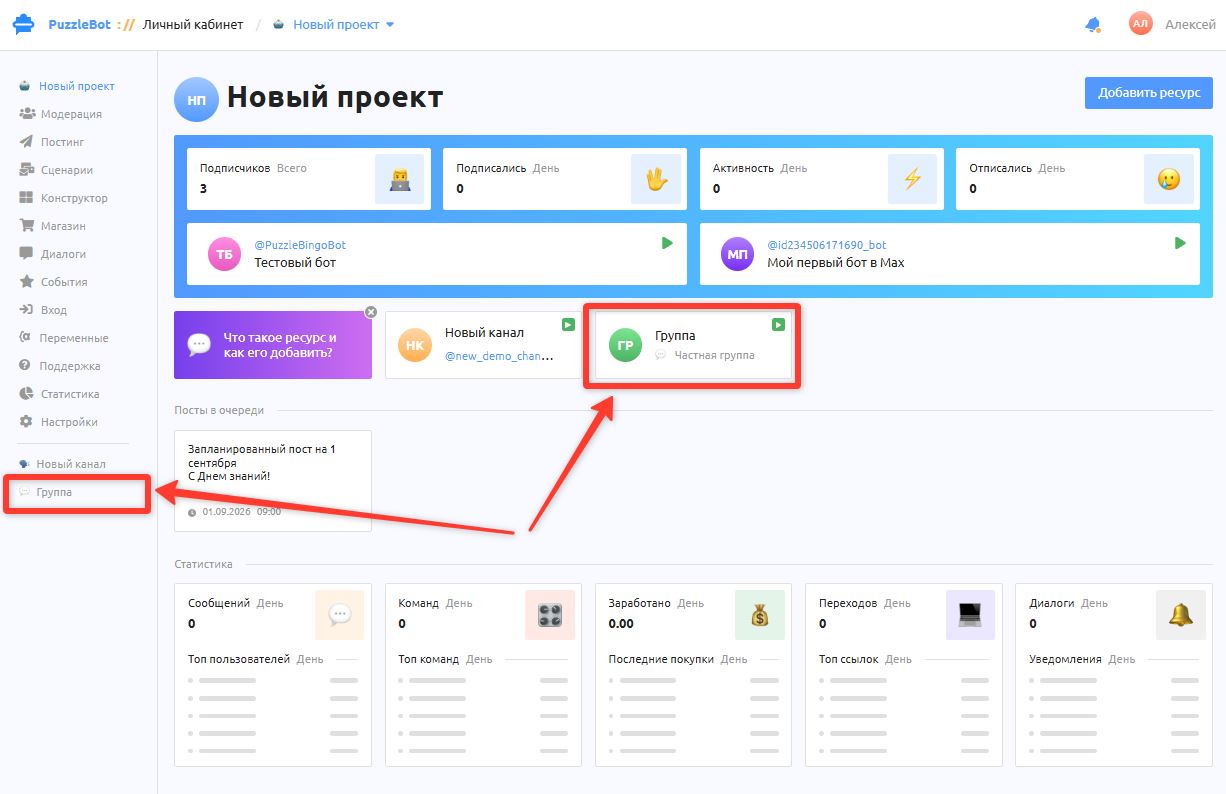
Important! The "Triggers" tab is only available for groups and business accounts.
To find the tab, go to the project's main page and select a group.
If you have not connected a group yet, connect one by following this guide: How to add a bot to a resource
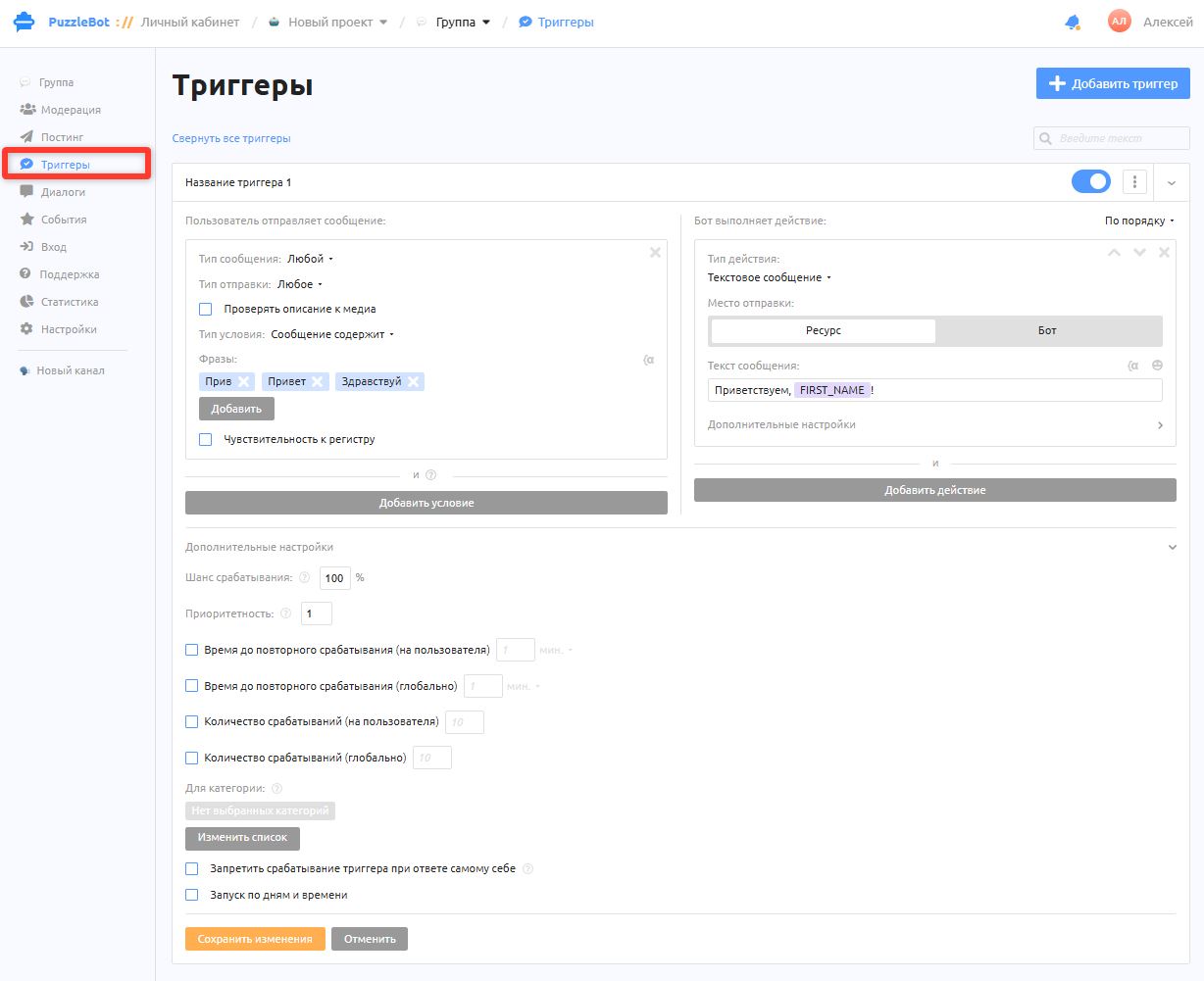
Triggers is a tab for groups and business accounts where you can set words, phrases and other conditions. When a message matches them, the bot performs a specific action: sends a message or a command, blocks the user, mutes them, removes them from the chat and more.
To create a trigger:
Set a word, a condition phrase or another condition that makes the trigger fire.
Set the action that is performed when the condition is met.
Usage examples:
- Set the phrase "Hello" as the condition and sending the message "Hello to you too!" as the action, if you need a reply to a specific word.
- Set 2 conditions with the phrases "Help" and "Payment" if you need to send a message that helps with payment. It will not fire on: "I need help setting up the bot" (the word "payment" is missing).
Let's take a closer look at conditions and actions.
Conditions
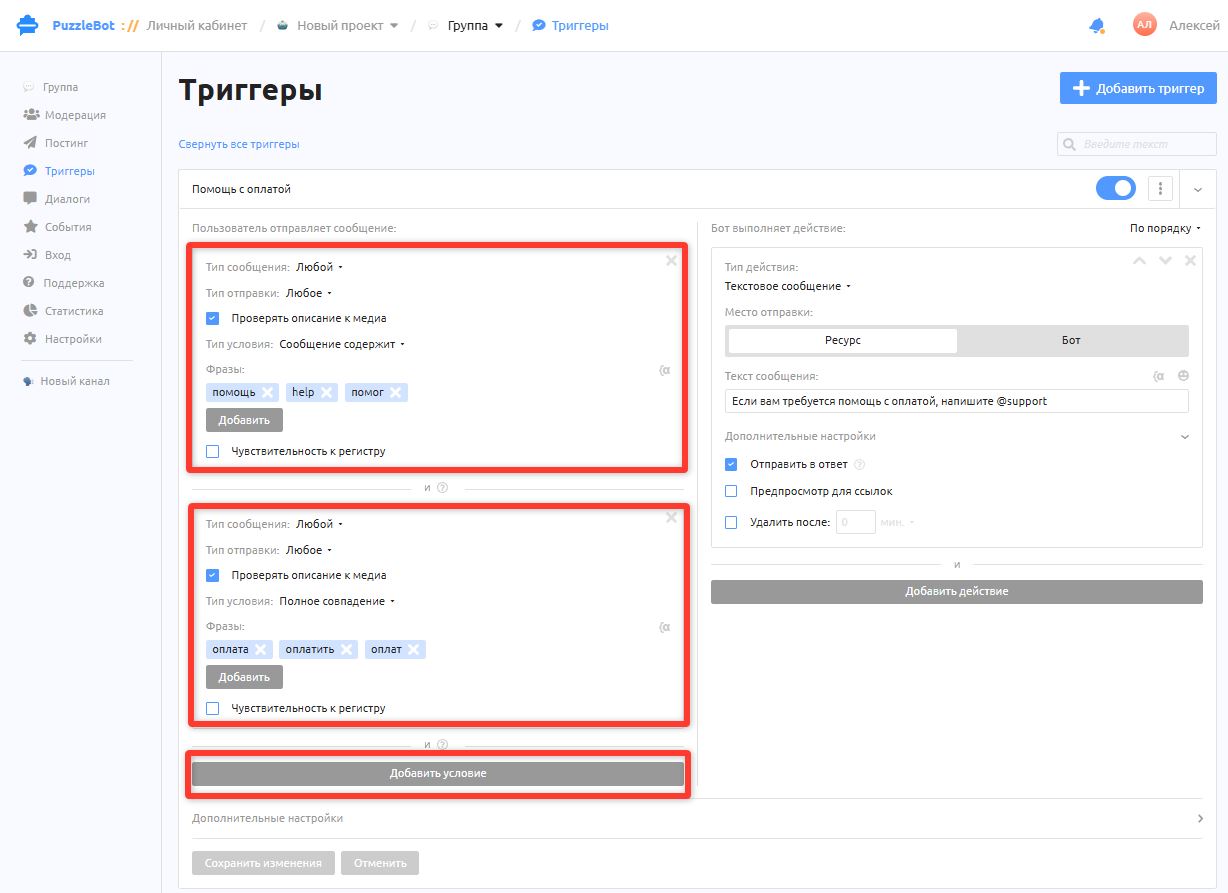
Conditions in the trigger settings define which words, phrases or message types make the trigger fire and perform the action.
In each trigger you can set many condition groups, separated by a bar with the word "AND". This means the trigger fires only if the message meets all the conditions.
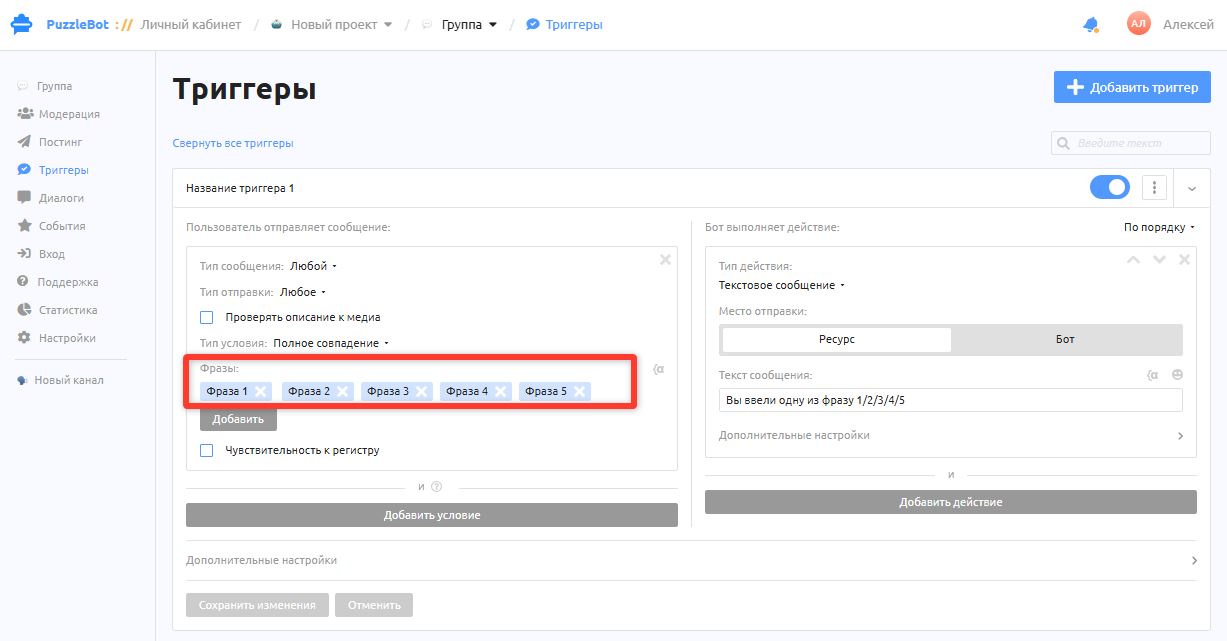
Inside a condition you can add many phrases. The trigger fires if the message contains at least one of the listed phrases.
Condition types
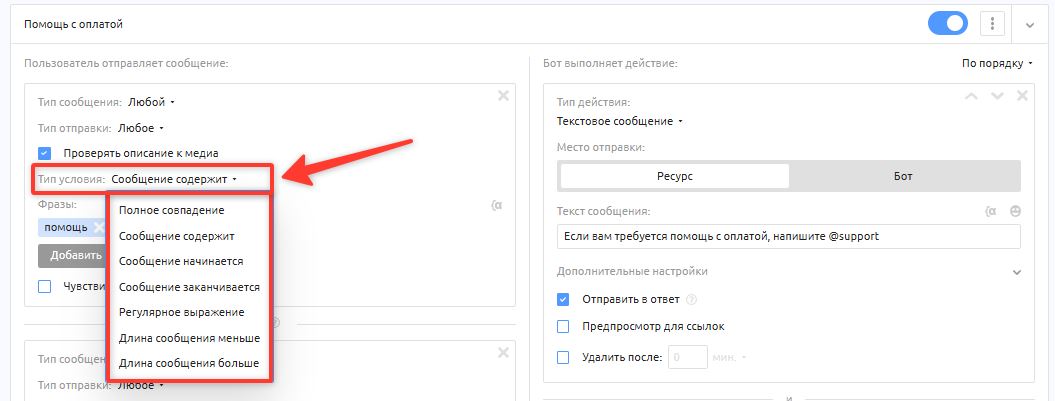
Full match — with this type the trigger fires only if the message sent by the user fully matches the condition phrase specified in the trigger.
Example: with the phrase "Hello", the trigger fires if the user sends "Hello", but does not fire if the user sends "Oh, hello friend!", "Well hello", "Hellooo" and so on. In this case the entire message is checked.
Message contains — with this type the trigger fires if the message and/or a phrase in it partially matches the condition phrase.
Example: with the phrase "Hel", the trigger fires if the user sends "Hello", "Hellooo", "Oh, hello friend!", "Well hello", but does not fire if the user sends "Good day" or "Glad to see you". In this case each phrase is checked separately for the condition phrase.
Message starts with — with this type the trigger fires if the message starts with the specified condition phrase.
Example: with the phrase "Hello", the trigger fires if the user sends "Hello" or "Hello, glad to see you", but does not fire if the user sends "Oh, hello friend!" or "Well hello". In this case the word or phrase at the start of the message is checked for the condition phrase.
Message ends with — with this type the trigger fires if the message ends with the specified condition phrase.
Example: with the phrase "Hello", the trigger fires if the user sends "Hello" or "Well hello", but does not fire if the user sends "Hello, glad to see you". In this case the word or phrase at the end of the message is checked for the condition phrase.
Regular expression — a special condition type that lets you check user messages against a pattern. Learn more about regular expressions.
Example: with the regular expression "^((8|\+7)[\- ]?)?(\(?\d{3}\)?[\- ]?)?[\d\- ]{7,10}$", the trigger fires if the user sends a phone number.
Message length less than — with this type the trigger fires if the message contains fewer characters than the specified number.
Message length greater than — with this type the trigger fires if the message contains more characters than the specified number.
Message types
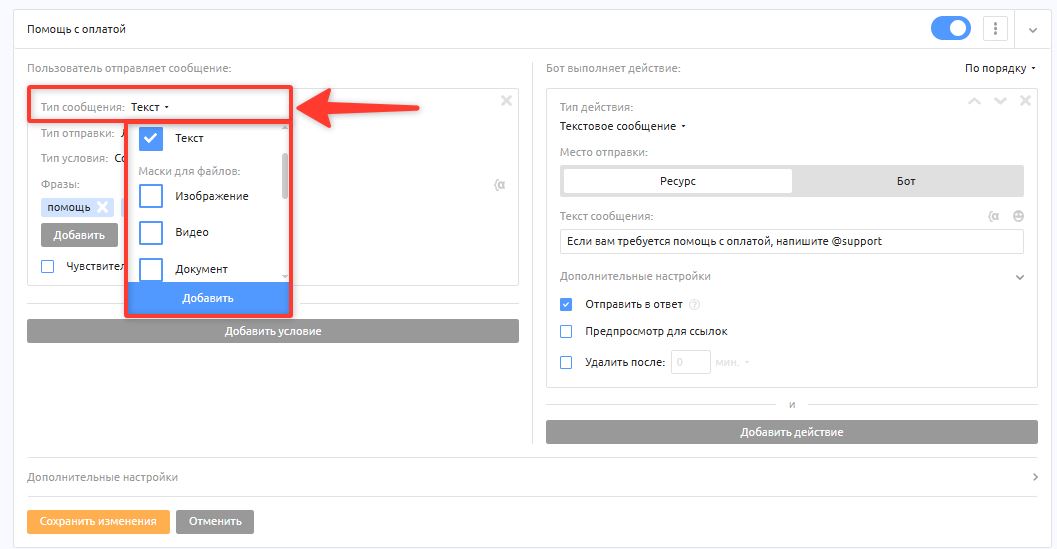
All — any message type.
Text — the condition is checked only for text messages without media.
Image — the condition is checked only for sent images and their captions.
Video — the condition is checked only for sent videos and their captions.
Document — the condition is checked only for sent documents and their captions.
Office document — the condition is checked only for sent documents and their captions.
Audio — the condition is checked only for sent audio messages and their captions.
Voice message — the condition is met only for voice messages.
Video message — the condition is met only for video messages (round videos).
Location — the condition is met only when a location is sent.
Contact — the condition is met only when a contact is sent.
Sending types
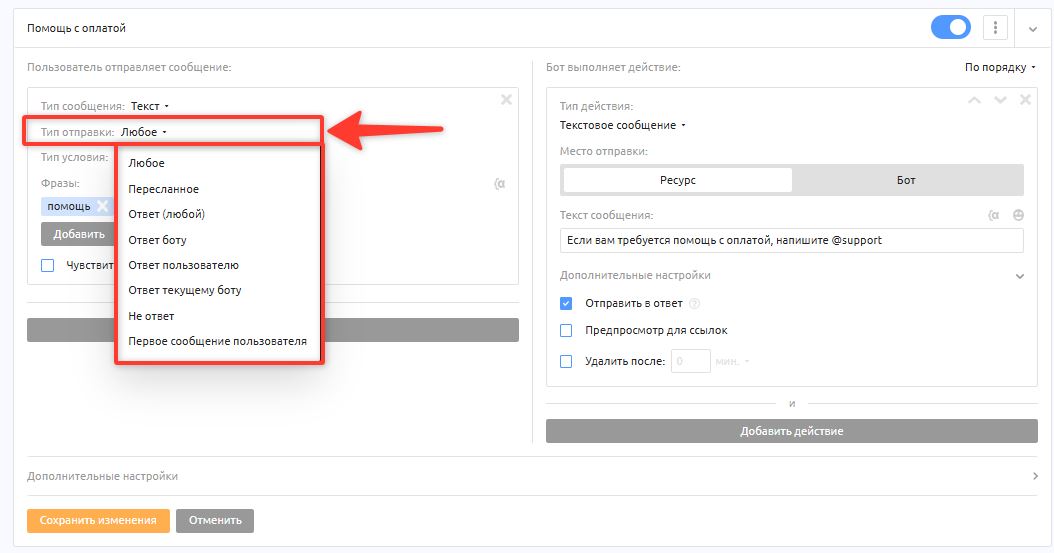
Any — the condition is checked on any message.
Forwarded — the condition is checked only on messages forwarded from other groups, channels or private chats.
Reply (any) — the condition is checked only on reply messages (a reply or a quote).
Reply to a bot — the condition is checked only on replies to bots.
Reply to a user — the condition is checked only on replies to group subscribers.
Reply to the current bot — the condition is checked only on replies to the current bot.
Not a reply — the condition is checked on messages that are not replies (a reply or a quote).
User's first message — the condition is checked on messages from group subscribers who have not written anything before.
Operators
To refine the condition that fires the trigger, you can add special operators. An operator is a special character placed at the start of a phrase.
Operator types:
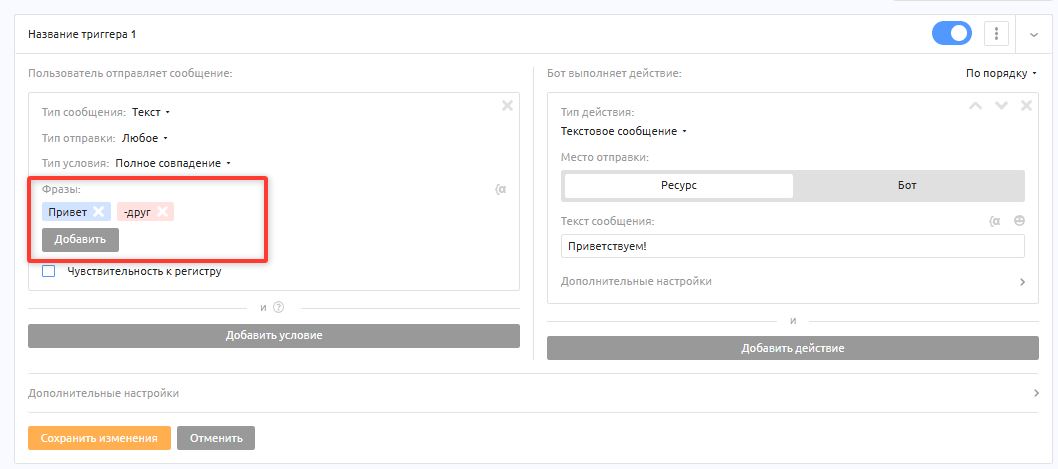
Minus phrase — the special character "-". Adds a condition under which the trigger does not fire if the message contains the specified phrase.
Example: with the phrase "Hello" and the minus phrase "Friend" (in a trigger with the Message contains condition type), the trigger fires if the user sends "Hello" or "Hello everyone", but does not fire if the user sends "Hello Friend".
Important! If you add only minus phrases (with no other conditions), the trigger fires on all messages that do not contain the specified minus phrase.
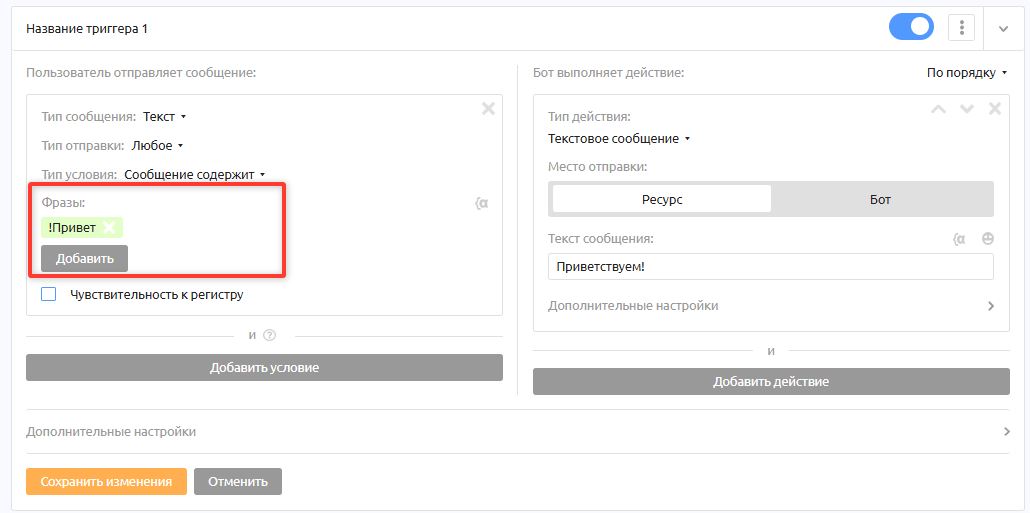
Exact phrase — the special character "!". Lets you insert a phrase inside a Message contains condition that works like the Full match condition.
Example: with the exact phrase "Hello" (in a trigger with the Message contains condition type), the trigger fires if the user sends "Hello", but does not fire if the user sends "Hellooo".
Important! To make an operator be ignored, enter the special character twice: "--" or "!!" (to add the phrase "-Hello", enter "--Hello"). To use an operator in a condition phrase that starts with the operator's own character, enter the special character three times: "---" or "!!!" (to add the minus phrase "-Hello", enter "---Hello").
Actions
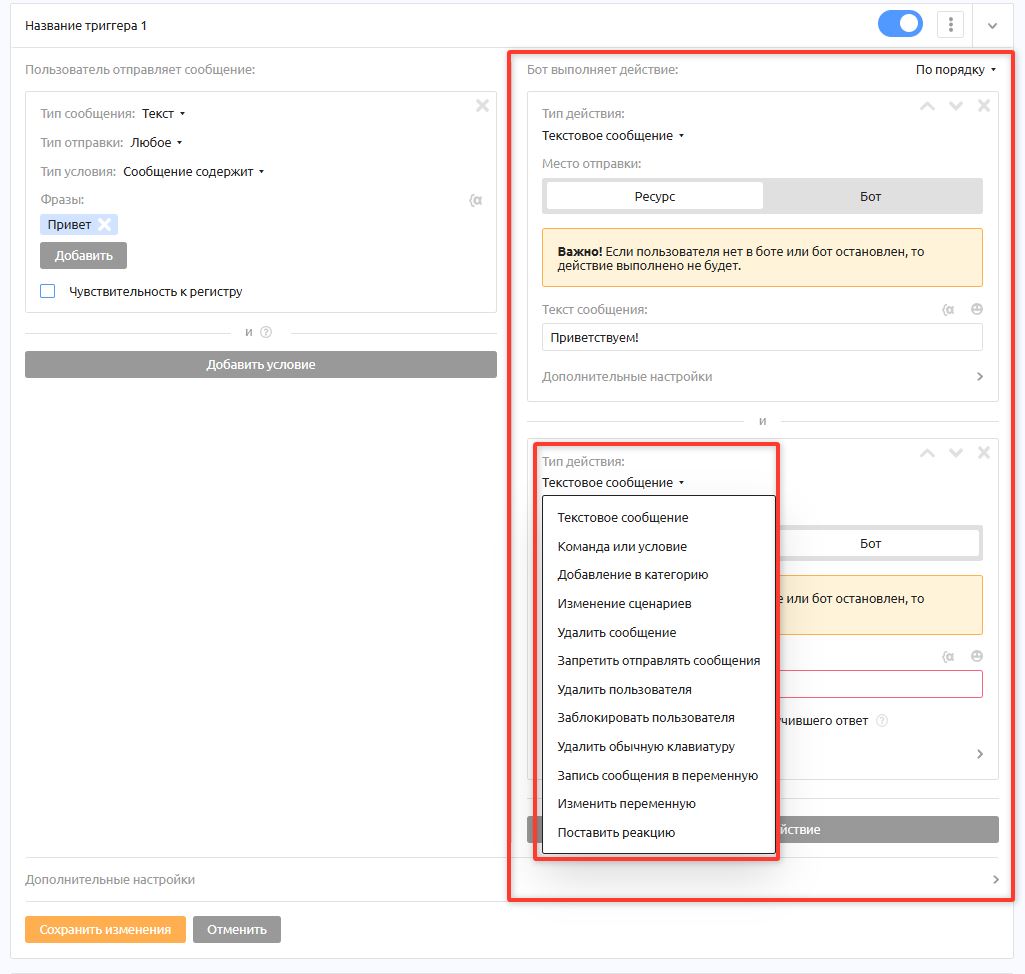
Trigger actions are a setting that lets you specify the actions performed when the trigger fires, and their order.
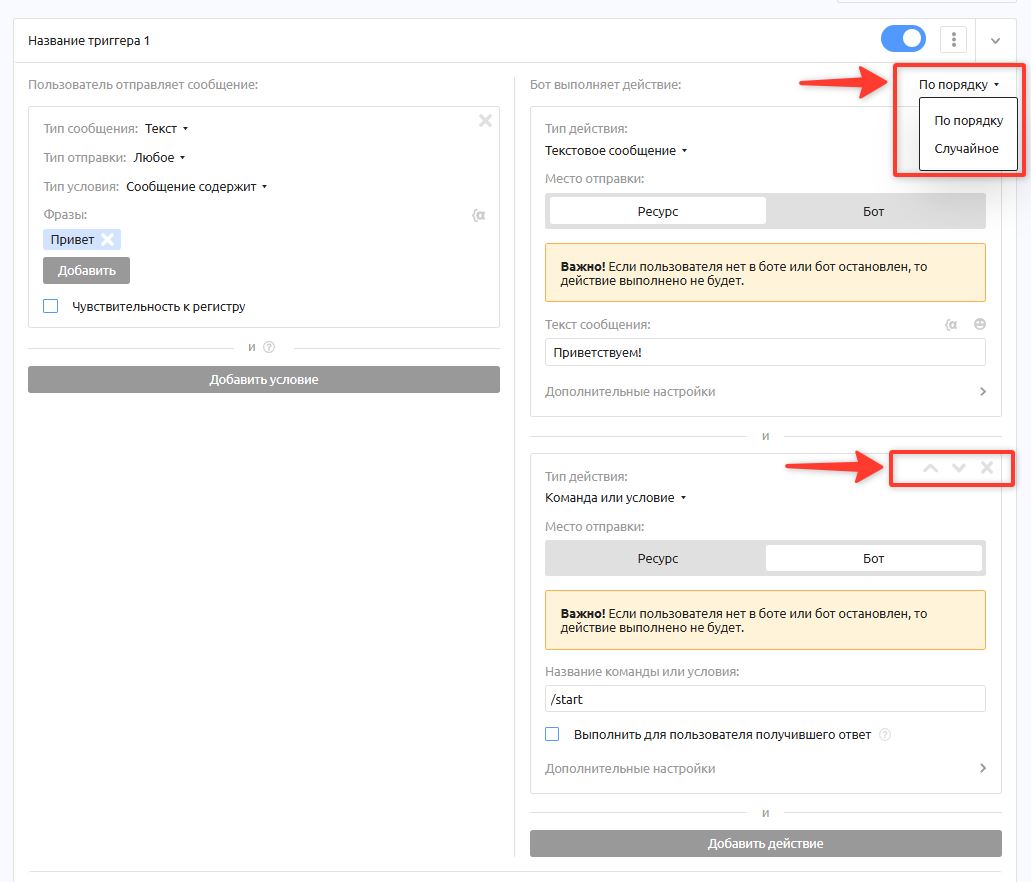
You can set the order in which actions are sent using the arrows, or choose a random order.
Action types
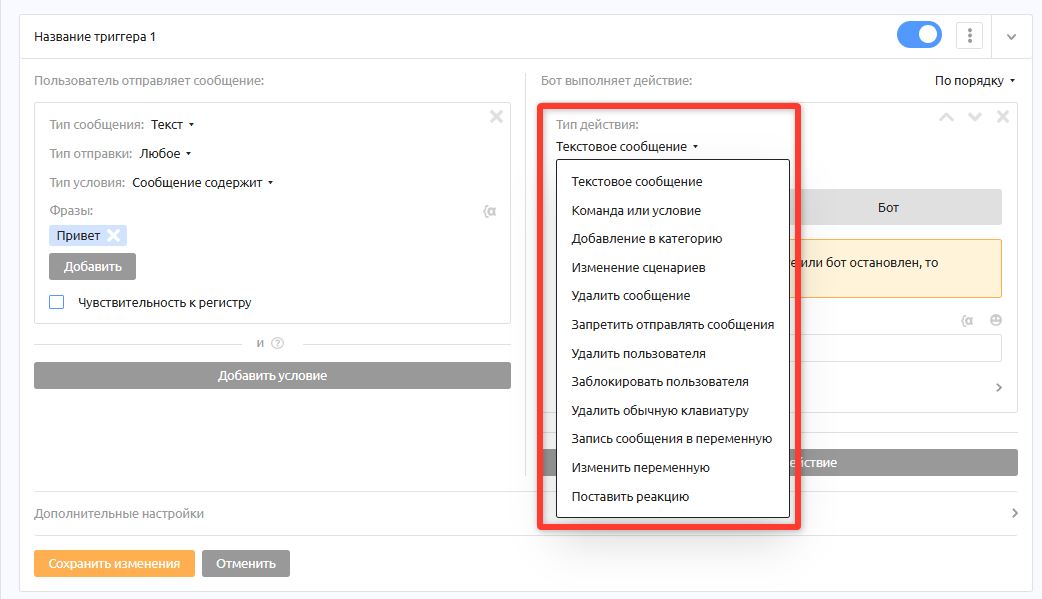
Text message — sends a text-only message.
Command or condition — lets you specify a command from the Constructor section. The command's content will be sent.
Important! If the command contains a regular keyboard, an input form, timeouts or actions, they will not be executed or sent.Add to category — changes the user's categories.
Delete message — deletes the user's message that fired the trigger. Used to remove spam or banned words.
Forbid sending messages — restricts the user's ability to send messages for a period of time or forever.
Remove user — removes the user who wrote the triggering message.
Block user — blocks the user temporarily or permanently.
Remove regular keyboard — removes the keyboard in the group if one was pinned earlier.
Save message to a variable — saves the message that fired the trigger to the specified user variable.
Change variable — changes the variable's value to any text.
Additional trigger settings
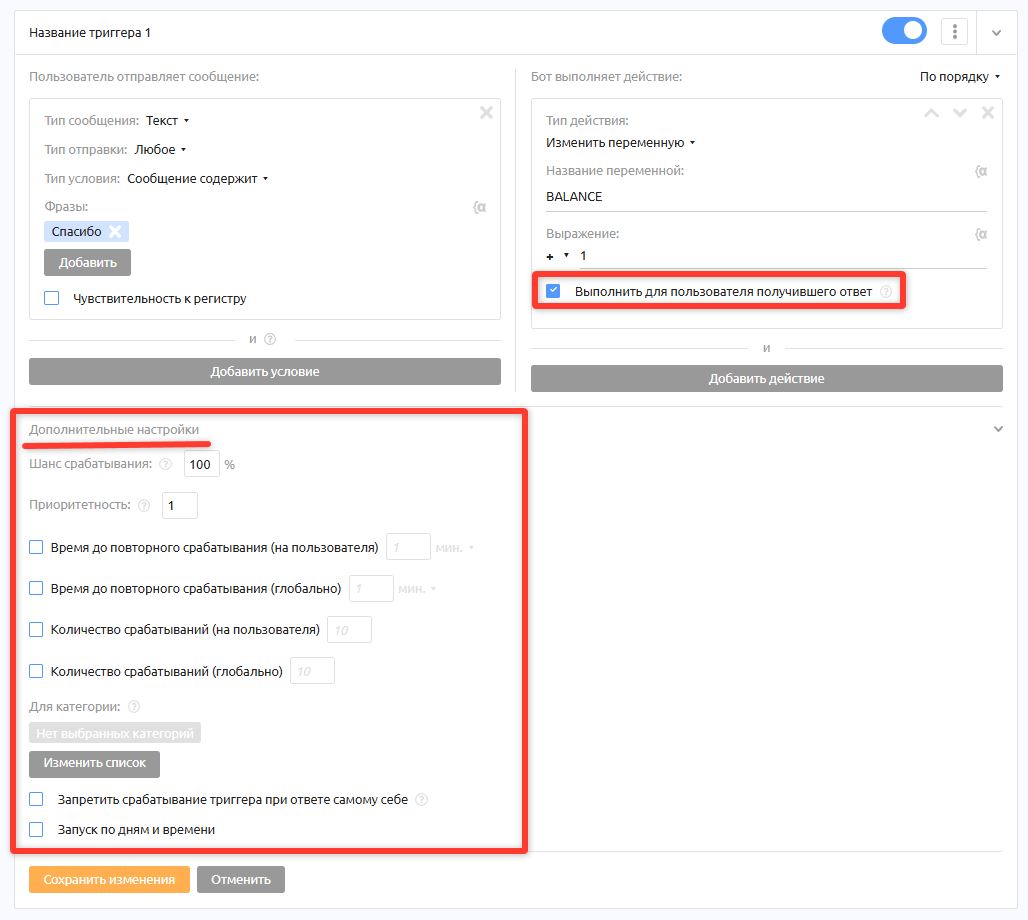
Perform for the user who received the reply — an option available for some actions. It performs the action not on the person who wrote the message, but on the person whose message was replied to. For example, you can block a user by replying to their message with the word "ban", or build a points system, such as giving a user "Karma" when someone replies "thank you" to their message.
Trigger chance — the probability that the trigger fires, set as a percentage.
Priority — if several triggers that match the conditions have the same priority, all of them are performed. If the priorities differ, the trigger with the highest priority is performed. The value ranges from 1 to 100.
For category — the trigger fires only for users from the selected categories. This setting is ideal if certain triggers should work only for administrators, for example blocking or muting users.
Wait for the user to tap the button — when this option is on, only the user the trigger fired for can tap the inline buttons in the trigger. This option does not work for buttons with the "Link" action.
Time until next firing (per user) — if you set 1 day, the same user can fire the trigger no more than once a day.
Time until next firing (global) — if you set 1 day, the trigger can be fired no more than once a day across all users.
Number of firings (per user) — the maximum number of times the trigger fires for one user.
Number of firings (global) — the total number of times the trigger fires. When the limit is reached, the trigger stops working.
Do not fire the trigger when a user replies to themselves — prevents actions from being performed when the "Perform for the user who received the reply" setting is used with the "Reply to a user" sending type.
Run by day and time — lets you specify the days of the week and the time of day when the trigger is active.