puzzlebot offers several ways to move between different entities. They fall into automatic transitions and button transitions, which happen only after the user taps a button.
Button transitions
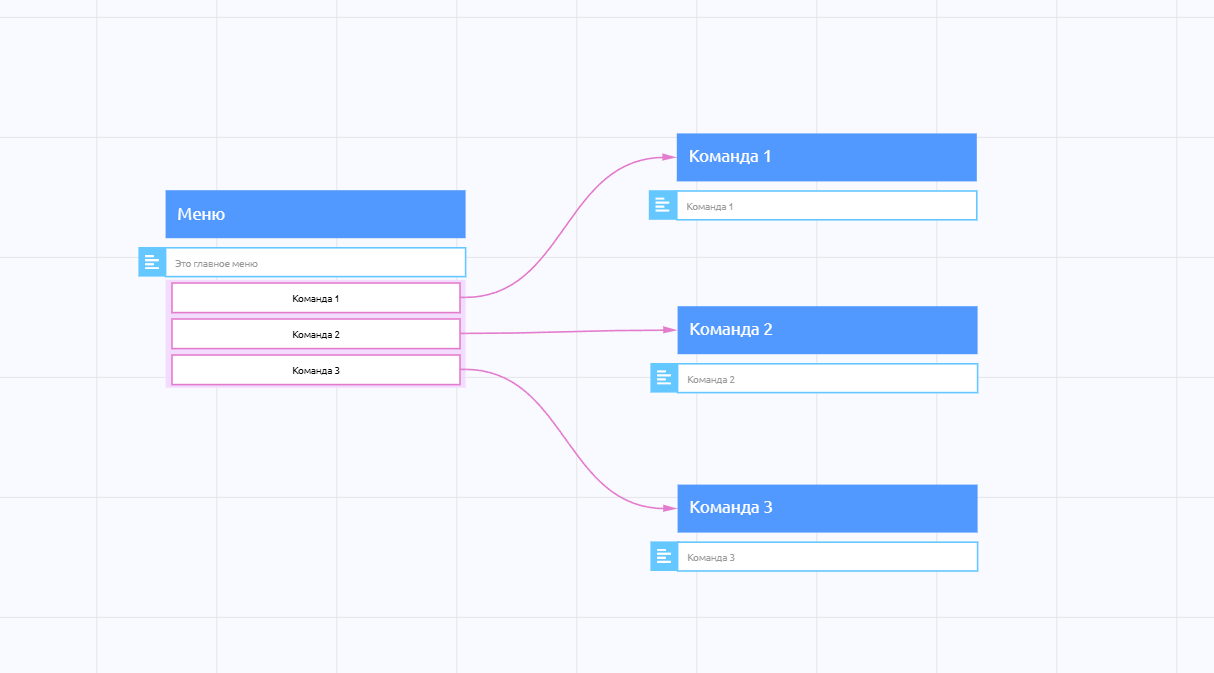
This type of transition happens only after a button is tapped.
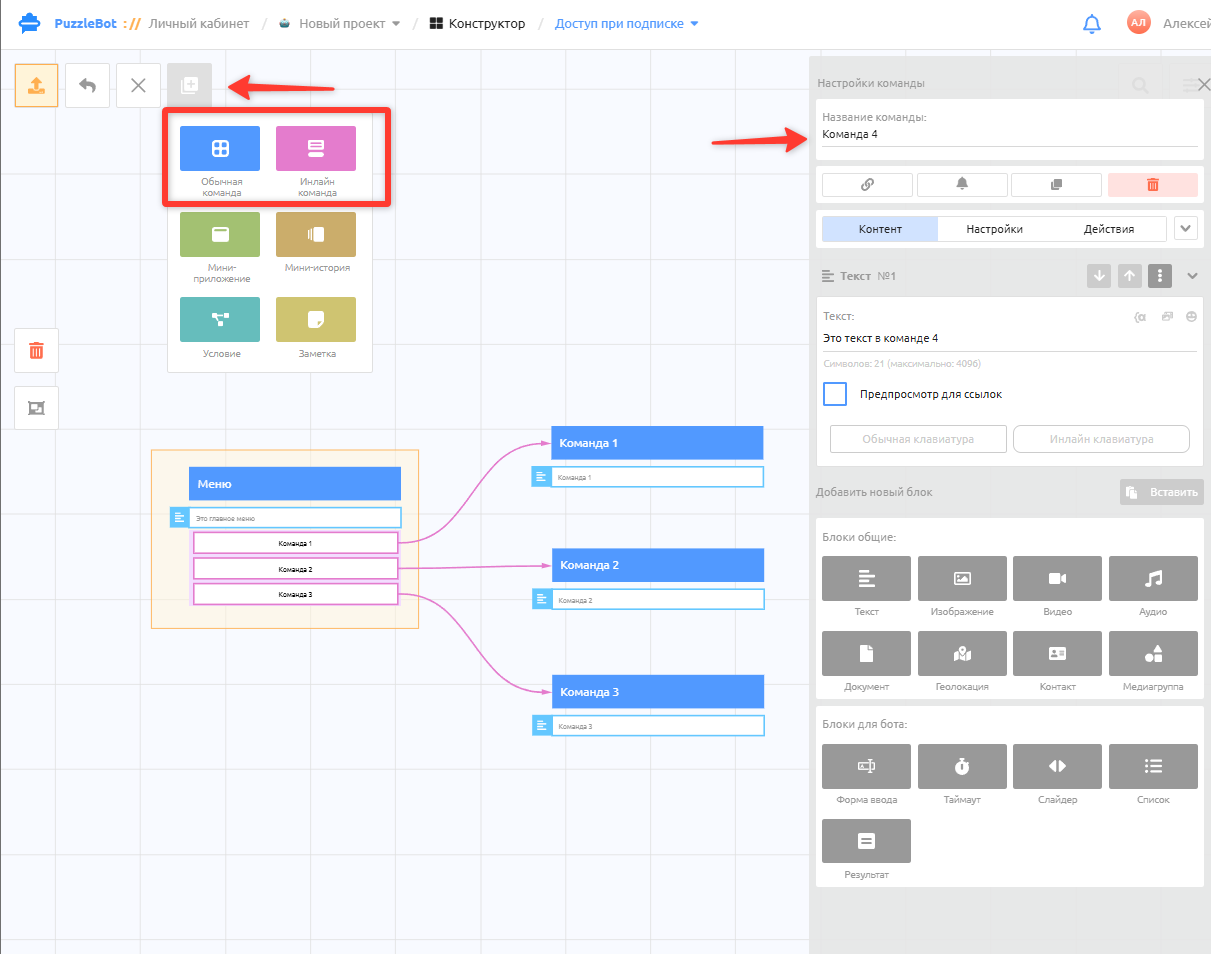
To create a button transition, first create the command the button should lead to.
You can fill in the command later; even an empty command is enough for the transition.
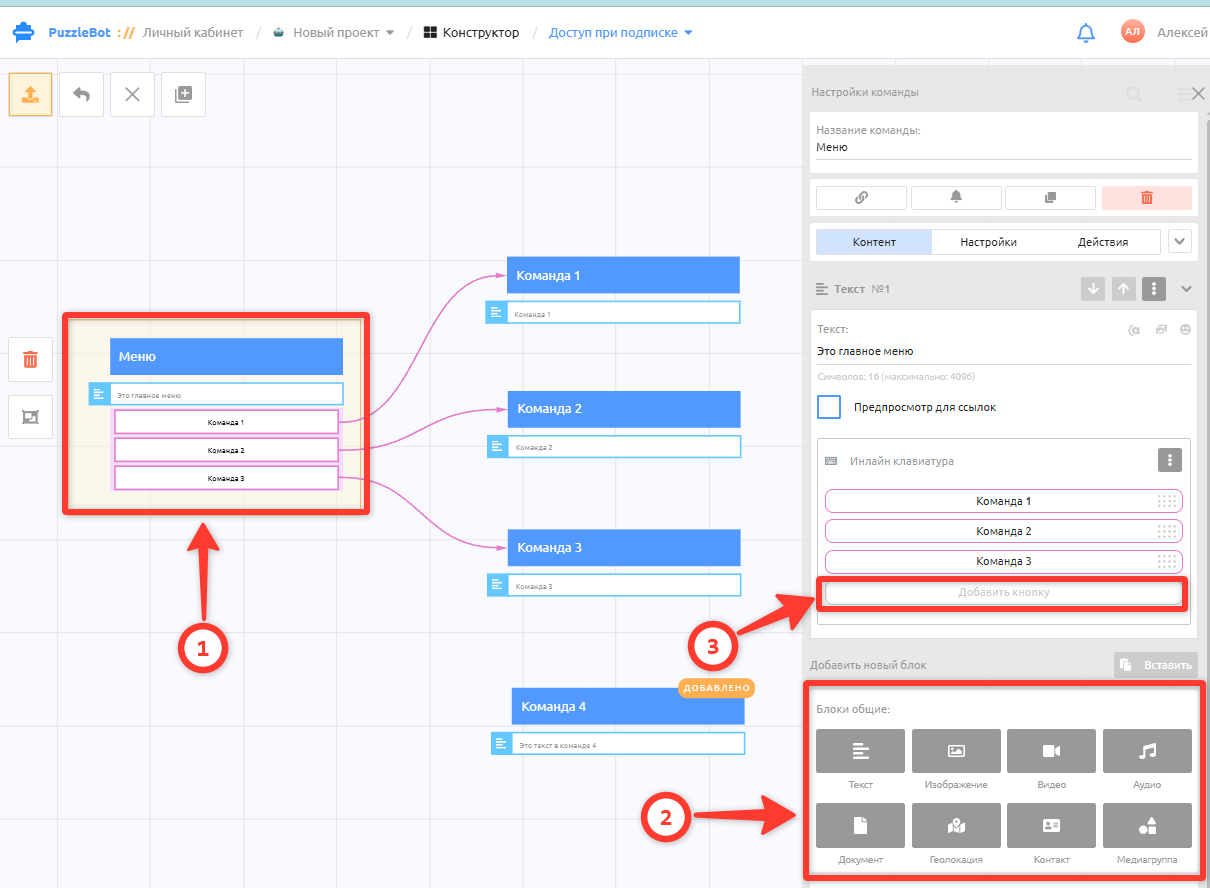
Next, open the command the button transition should start from → add a new block if there isn't one yet, for example a Text block → add a keyboard under the block, either a regular keyboard or an inline keyboard, then add a new button.
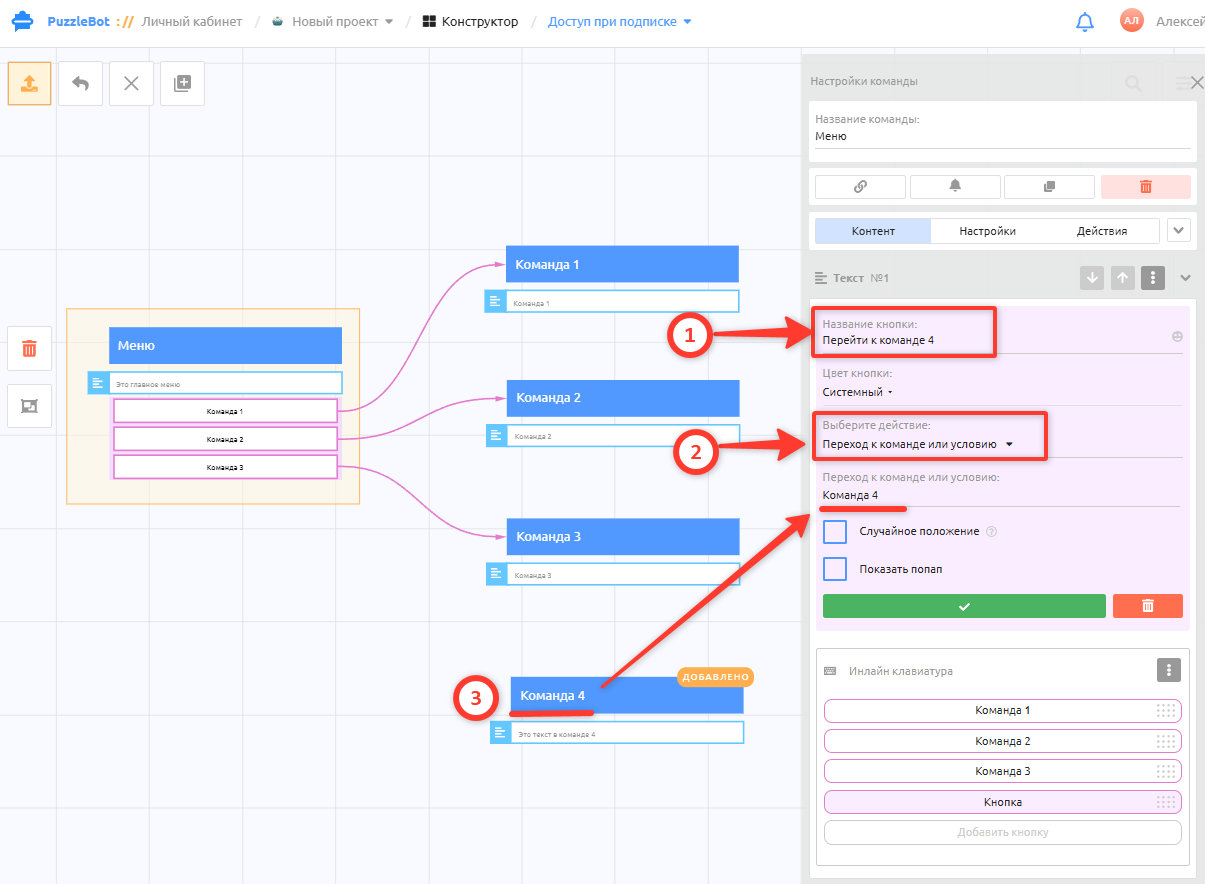
In the button settings, enter the button name → select the Go to command or condition action → enter the name of the command to go to.
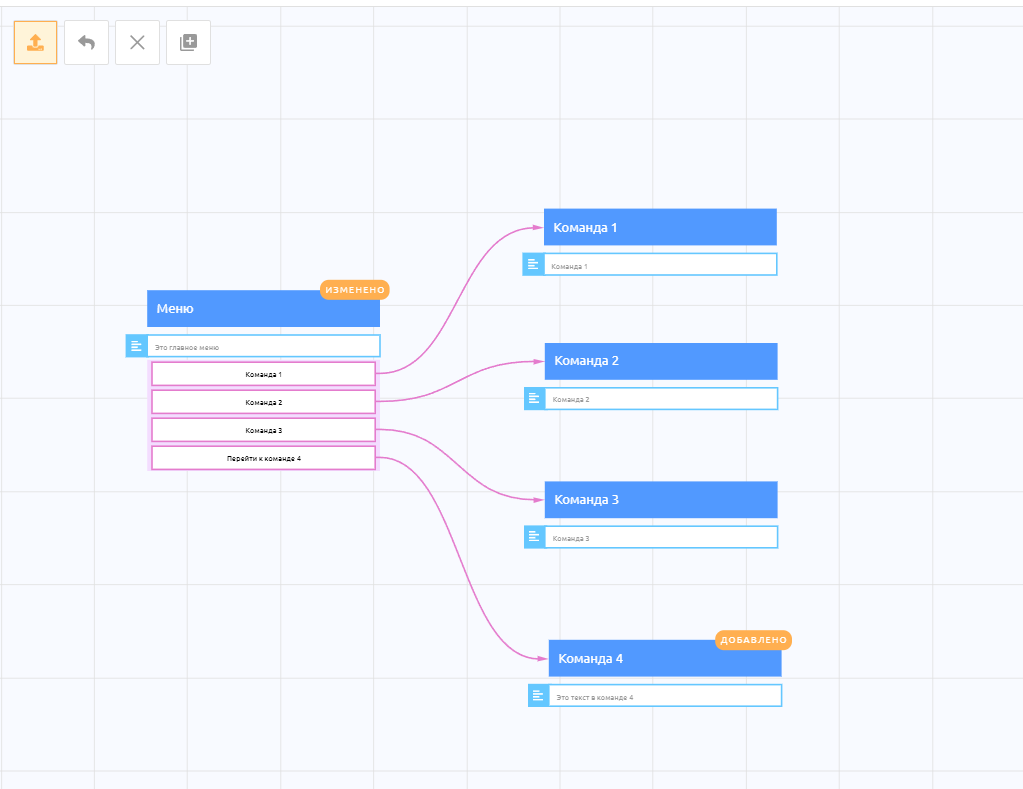
After you save the button, the transition appears automatically as an arrow.
Done! You have created a transition from one command to another on a button tap.
Automatic transitions
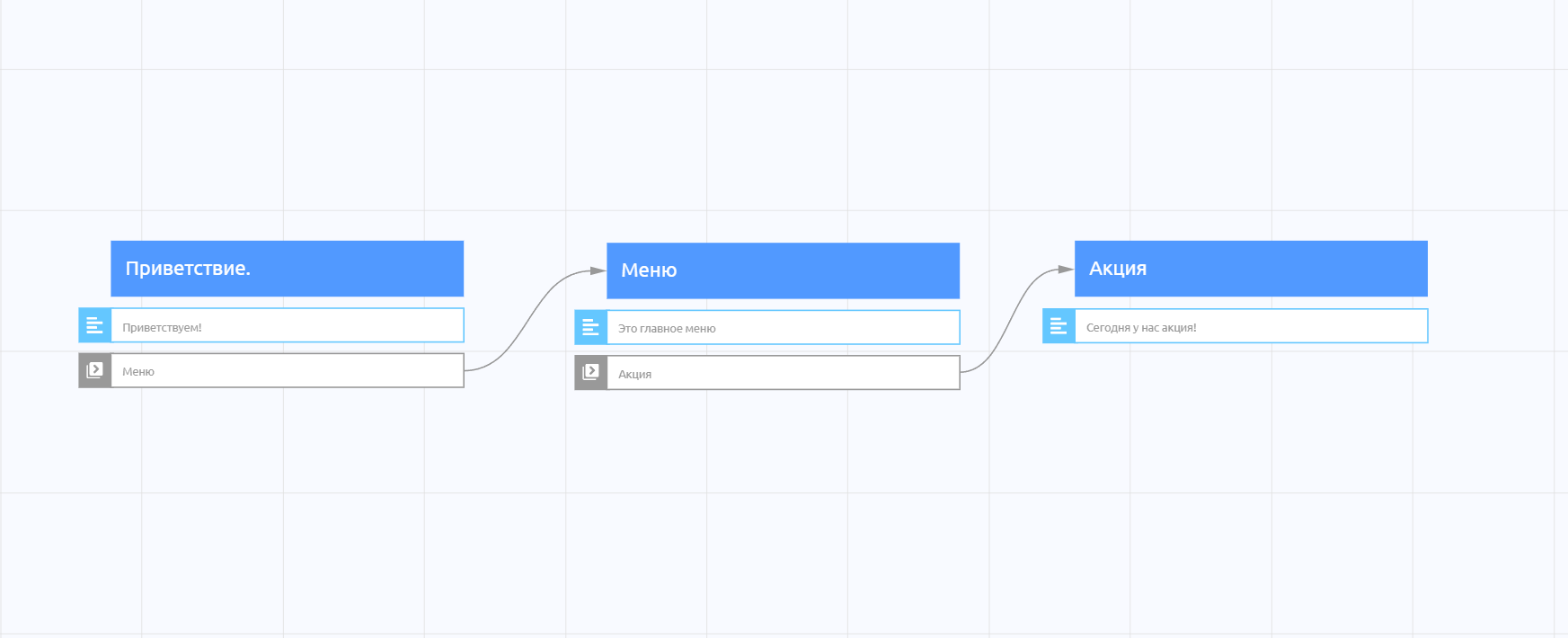
An automatic transition between commands happens without any user involvement. It happens either immediately or after a delay.
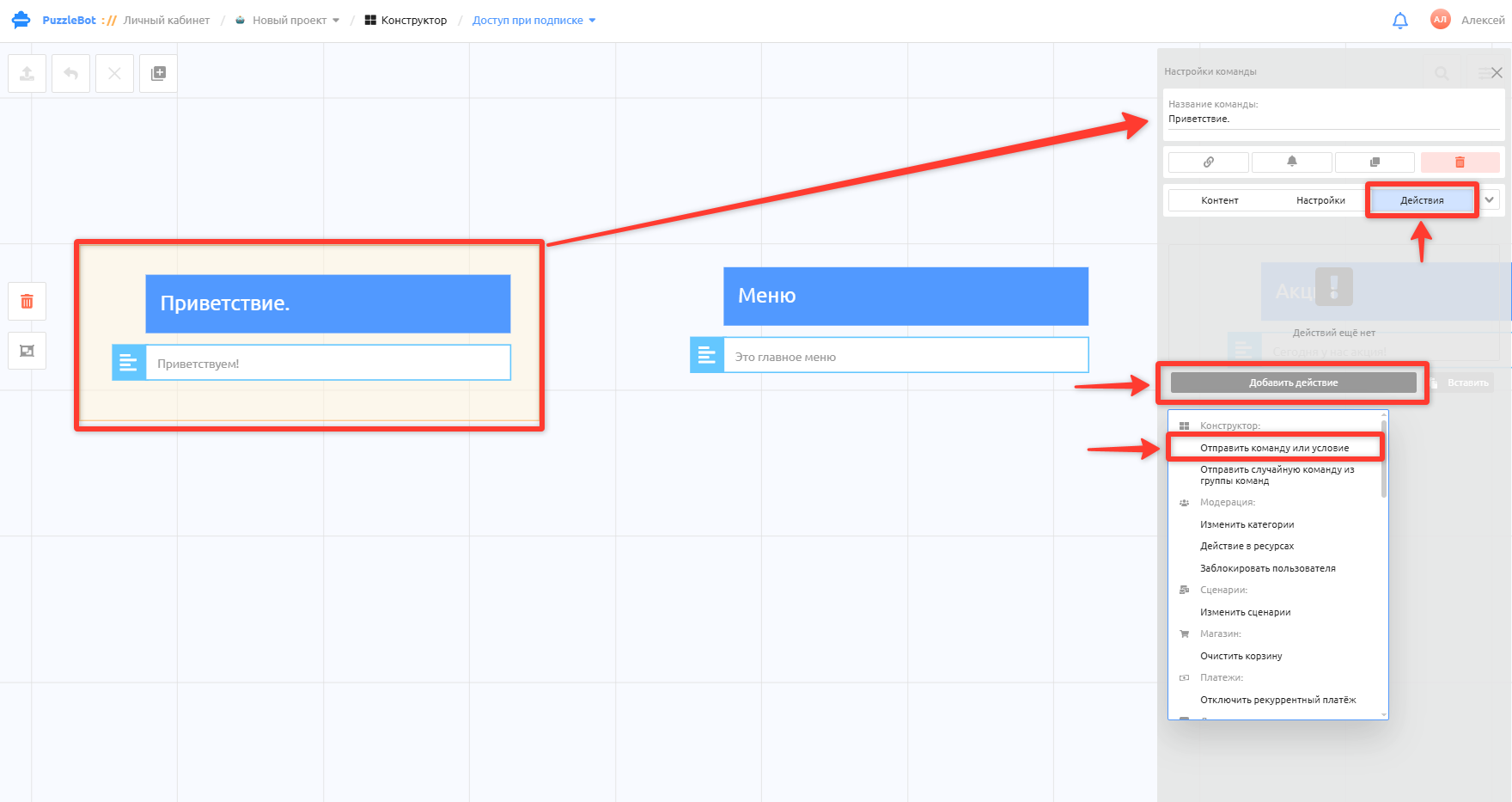
To create a transition, open the command it should start from and switch to the Actions → Add action → Send command or condition tab.
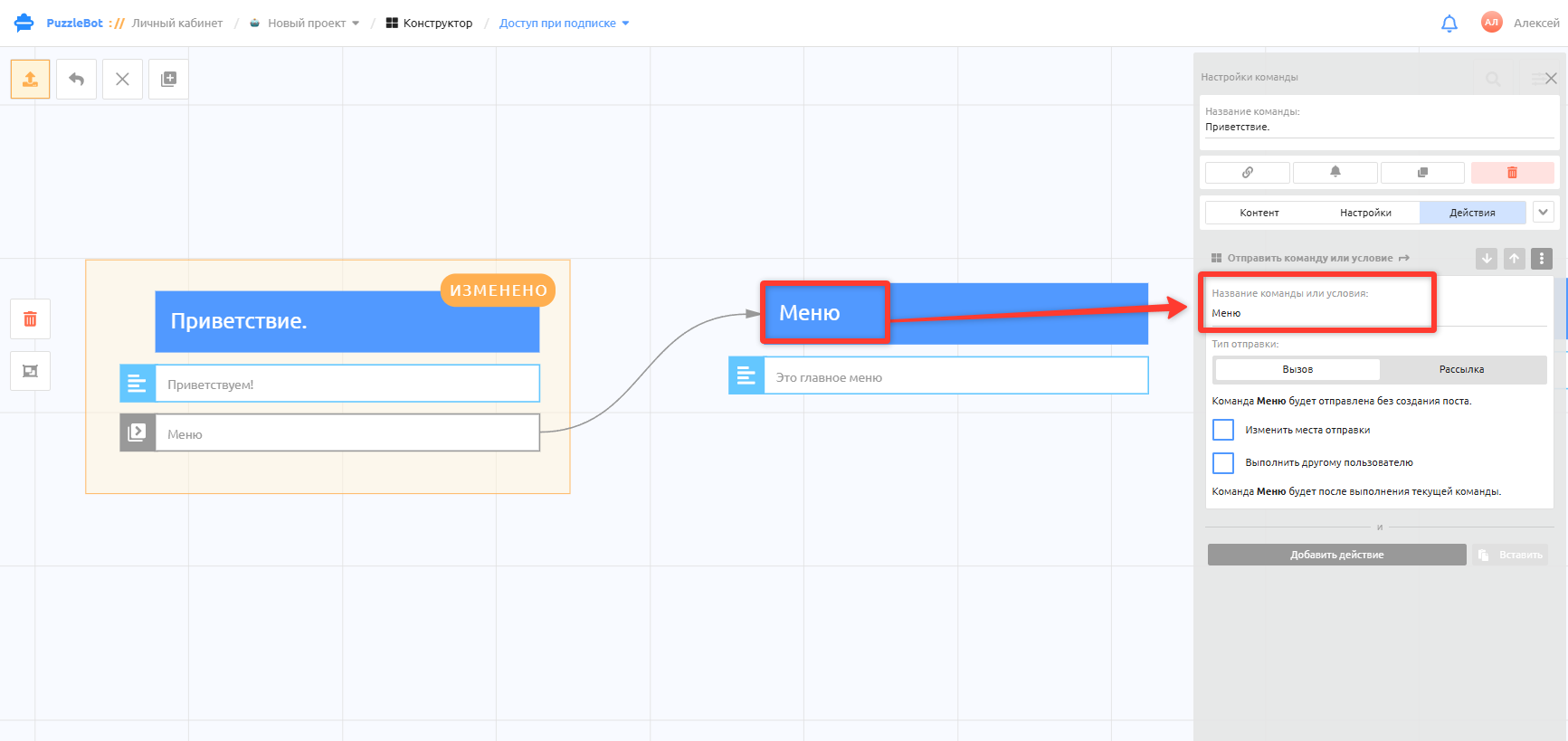
Enter the name of the command to go to, then click an empty area, and the transition appears automatically as an arrow.
Done! The automatic transition has been added.
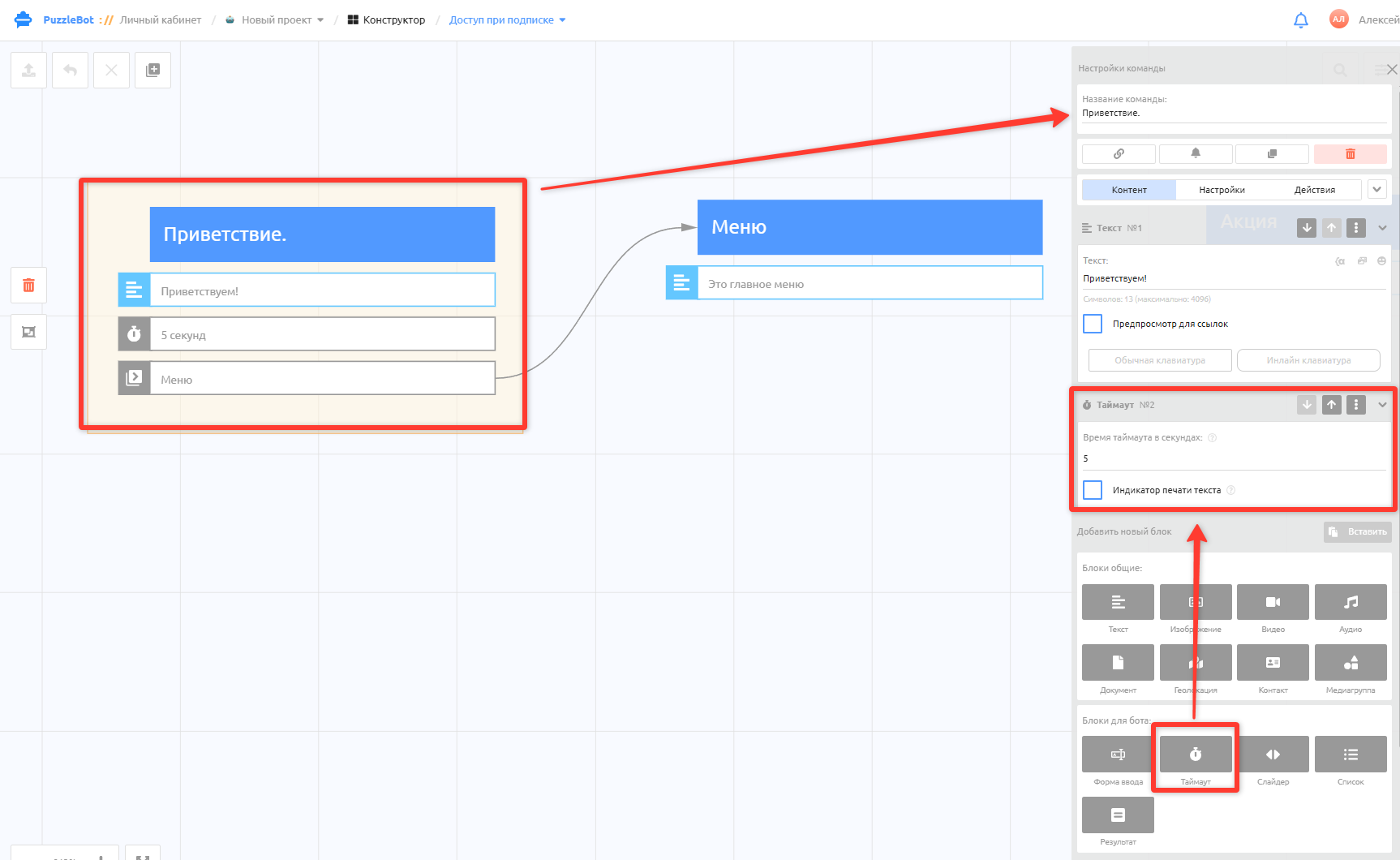
To add a delay between transitions, create a Timeout block in the command where the transition is set up; the transition action runs when the timeout expires.
Enter the delay in seconds.
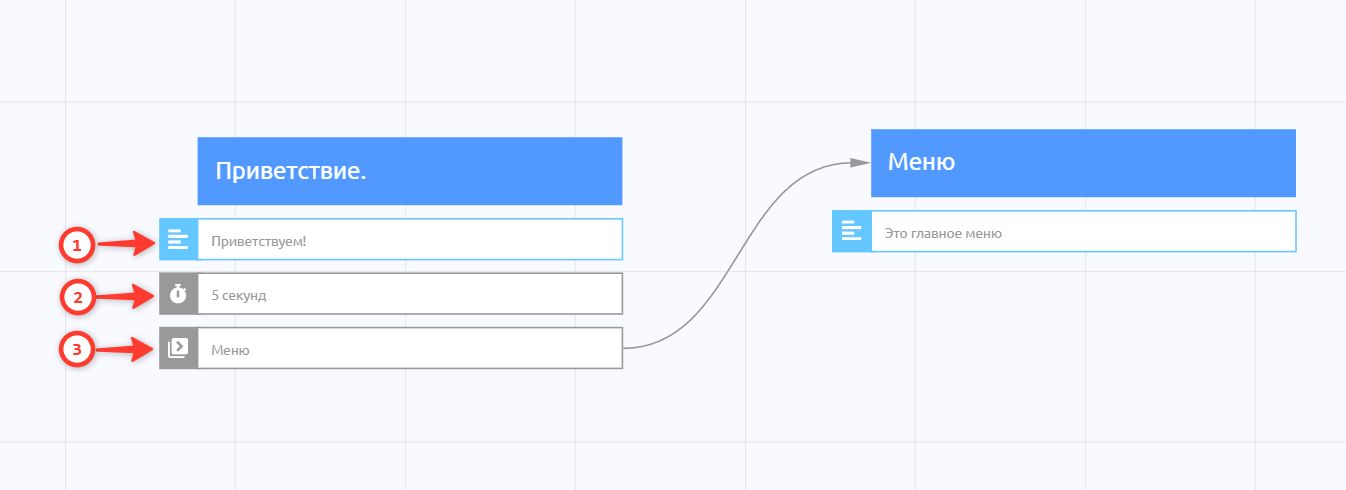
The order in which actions run is shown on the action thumbnails in the command.
Transitions within a command
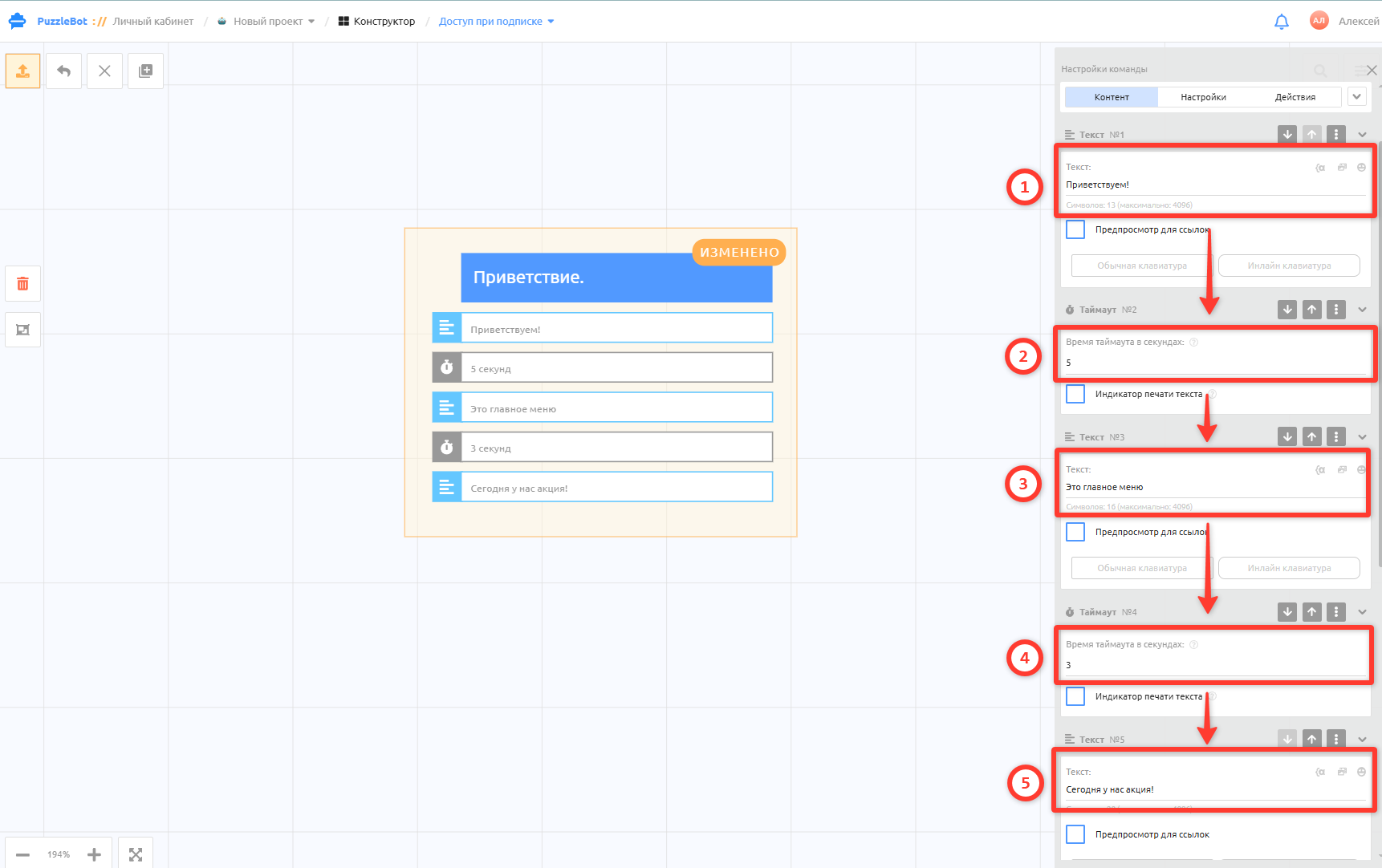
If blocks are created within one command, transitions between them happen automatically, in order from top to bottom.
To create a delay between blocks, add a Timeout block between them.
If a command contains "Input form" blocks, transitions between them happen automatically as the user answers the forms.
For longer delays between transitions and more flexible broadcast settings, use Scenarios. Learn more: Scenarios section overview