This article explains how the List block works.
List is a block type that creates a variable which inserts one item from a list. For example, you can set up a list of 10 promo codes, and when a command containing the variable is called, the bot automatically sends one item (a promo code) from the list.
Important! The List block must be placed BEFORE the block with the variable.
Important! The block itself does not send anything. It only creates a variable that you need to add to the command. When the command is called, an item from the list appears in place of the variable.
Important! When the list runs out, an error is sent instead of the variable.
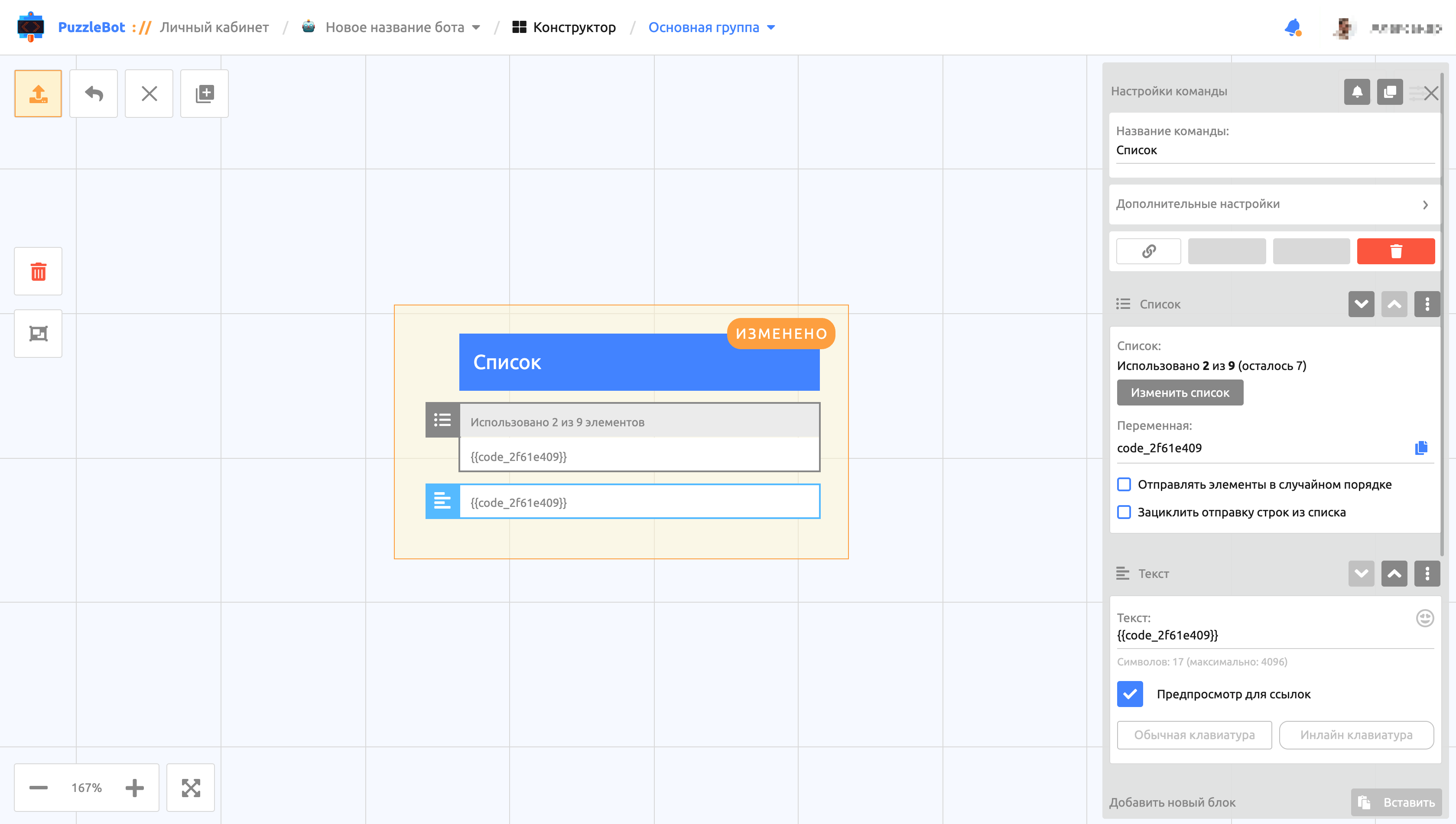
To create a List block, go to the Constructor tab, add or select any command, and add a List block.
Let's go through the List block settings:
Item list — a text list of items that are automatically inserted into the variable. See below for details.
Variable — a phrase that is automatically replaced with an item from the list. Place it in the command.
Show items in random order
Loop sending of lines from the list — this option allows list items to be sent again.
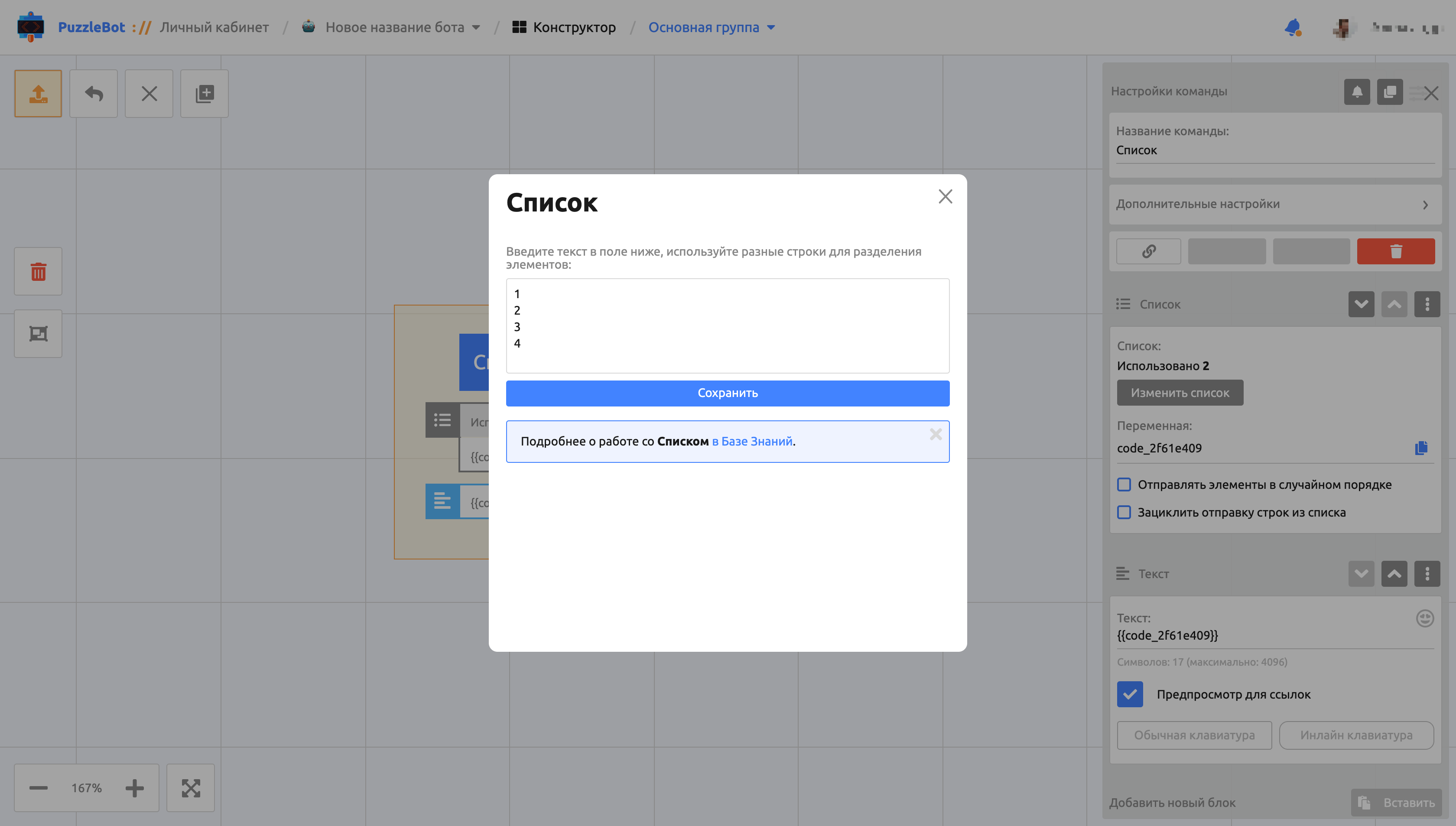
In the first window, you can paste a list of items. Items are split line by line (a new paragraph is a new item).
Important! When pasting a list of items, keep in mind the limit of your plan. Learn more: Plans.
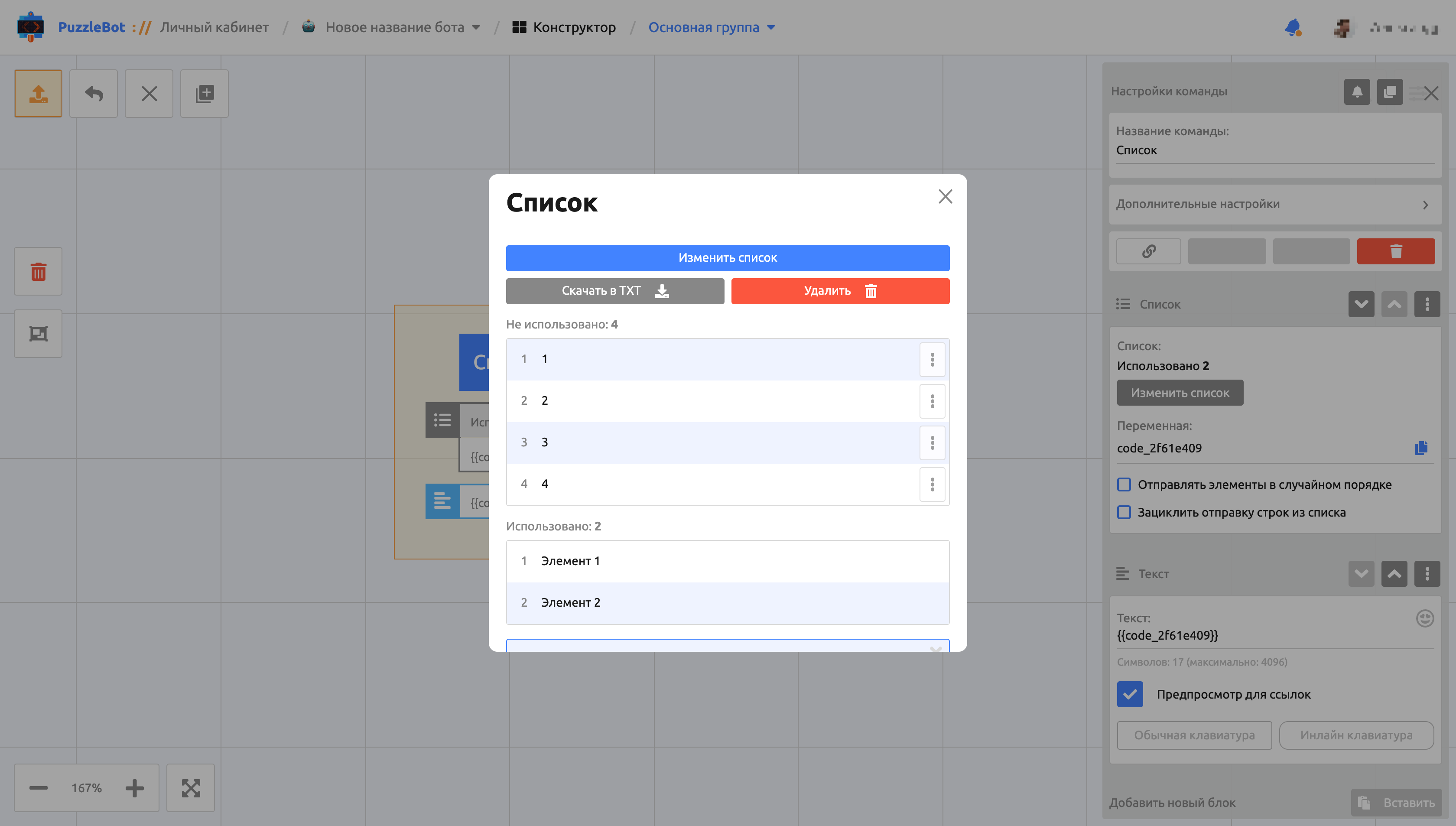
After you save, the list is automatically split into items. The items are divided into two tables:
Unused — items that have not been sent yet.
Used — items that have already been sent.
Let's go through the buttons:
Edit list — takes you to the window for editing unused items, where you can also add new ones.
Download as TXT — downloads the list in text format.
Delete — deletes the whole list.
Delete next to an item — deletes a single item.